
Show your products on Google, Meta, Skroutz and BestPrice
The Product feeds app gives you one private link per channel. Paste it once and Google, Meta, Skroutz or BestPrice keep your products up to date.
In the admin: AppsProduct feeds
On this page
A product feed is a file that lists every product in your shop with its title, price, stock, picture, link and barcode. Google Shopping, Facebook and Instagram shops, Skroutz and BestPrice read that file several times a day and show your products to people searching there. The Product feeds app builds these files for you and gives you one private link per channel, so you paste each link once and your products stay up to date by themselves.
Install the app
Product feeds is a free app.
- Go to Apps > All apps and open Product feeds.
- Click Install.
- Open Apps > Product feeds.
The screen first shows Your feeds are being built. The first build takes a few minutes, and your links show when it is done.
Your feed links
Under Feed links each row has a Channel, a Language and a Link, with a button to Copy the link.
- Google + Meta: one link for each language your shop sells in. Google and Meta read the same file.
- Skroutz and BestPrice: one link each. They show only when your shop's main currency is the euro, because both sites take prices in euros only. Prices in these files include VAT.
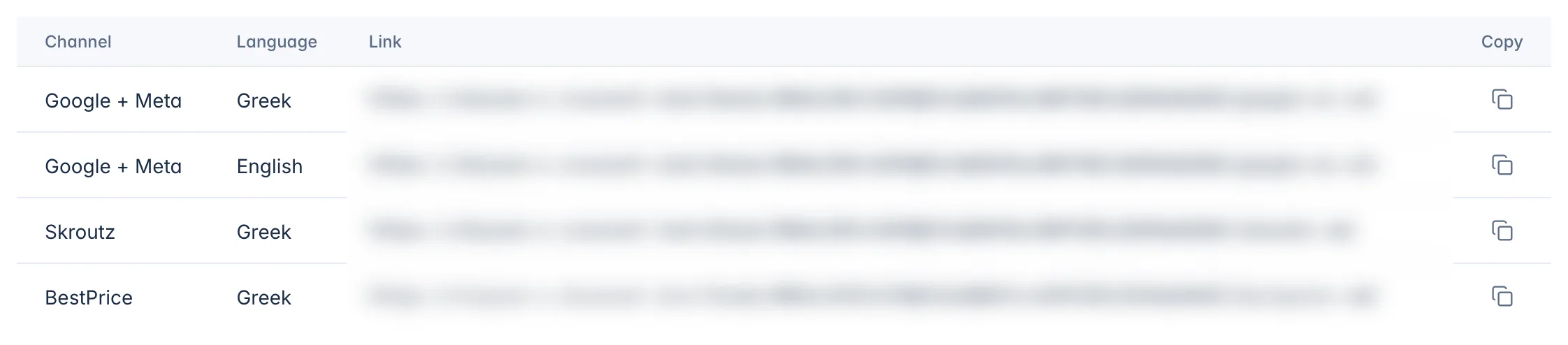
The summary at the top reads Last built with the date and how many products are in your feeds. We rebuild the files every 6 hours. Refresh now builds them sooner, for example after you change many prices. You can refresh once every 10 minutes.
Connect Google Merchant Center
Use the Google + Meta link in the language you sell in on Google.
- In Google Merchant Center, add a product source from a file.
- Paste the link where it asks for the file's address.
- Let Google fetch it on a schedule. Daily is enough.
Your products can then show in Google's free listings and in Shopping ads.
Connect Facebook and Instagram
Use the same Google + Meta link.
- In Meta Commerce Manager, open your catalogue and add a data source.
- Choose a scheduled feed and paste the link.
Your products then fill your Facebook and Instagram shop and can be used in product ads. To count the sales those ads bring, add the Meta Pixel app too.
Connect Skroutz or BestPrice
- Sign in to your Skroutz or BestPrice merchant account.
- Paste the Skroutz or BestPrice link where it asks for your XML feed.
Both sites list each colour of a piece of clothing once, with its sizes, and leave out sold-out variants.
Fix the problems a channel may reject
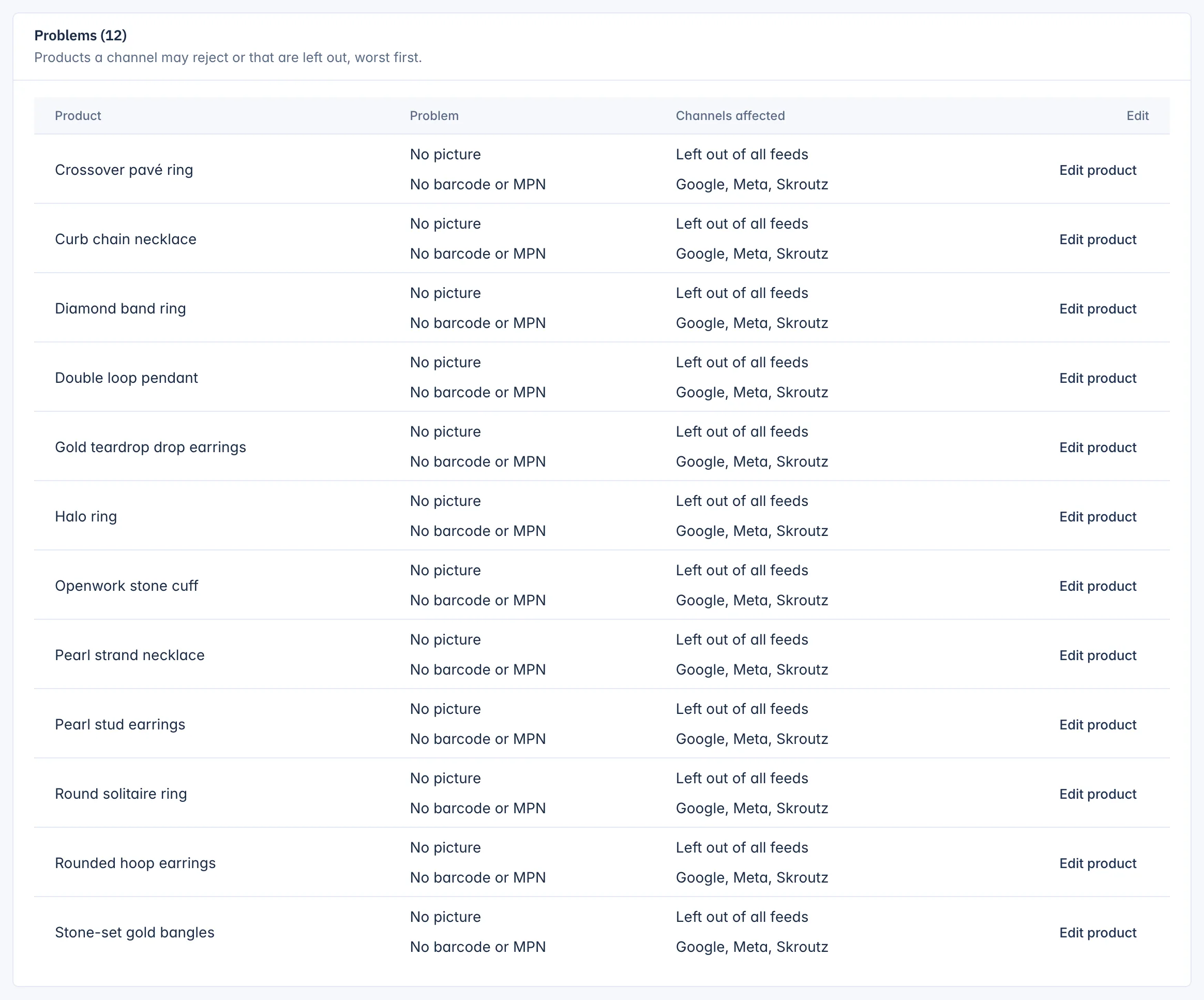
Problems lists the products a channel may reject or that are left out, worst first. Each row shows the Problem, the Channels affected and an Edit product button.
| Problem | What happens |
|---|---|
| No picture | Left out of all feeds |
| No price | Left out of all feeds |
| No barcode or MPN | Google, Meta and Skroutz may reject it |
| Barcode is not a valid number | Sent without the barcode |
| No brand | Every channel may reject it |
| No description | Sent with the title as description |
Add the missing picture, price, barcode or brand on the product's page. The next build picks up the change. See Set a product's price, SKU and barcode for barcodes and MPNs.
Leave a product out
To keep one product out of every feed, open the product and tick Leave out of product feeds. It stays on sale in your shop.
In a marketplace
In a marketplace the screen has two tabs: All products has every seller's products, and My products has only your own. Each seller also gets Product feeds in the seller panel, with links for their own products only. A tick in the shop's admin leaves a product out of the shop's feeds; a seller's own feeds are not changed.
Uninstall
When you uninstall the app, your links stop working. The feeds are kept for 30 days: install the app again in that time and the same links work again. After 30 days they are deleted.
Related
Updated 28 November 2026