
Sign up and sign in
Start a new IXXO Cart shop, choose your password, accept the terms, sign in, reset a forgotten password and turn on two-step sign-in.
On this page
This article walks you through starting a shop on IXXO Cart and signing in to its admin afterwards. It also covers a forgotten password and two-step sign-in, which protects your admin with a code from your phone.
Start a new shop
- Open the sign-up page from Start for €1 on ixxocart.com.
- Type your Shop name. The line under it shows the web address your shop gets, such as
my-shop.<platform domain>, and whether it is free. If it says This address is taken, try another name., change the name a little. - Type Your name and your E-mail. Use an address you will keep: temporary e-mail services are refused, and so are addresses with a
+part (use your main address without it). - Under What are you starting? pick a single store (you sell your own products) or a marketplace (sellers list and sell on your site). Each card says what it is and what it costs.
- Press Start free. By starting you agree to the platform terms.
The page then says Check your e-mail. We send a link to the address you typed; it works for 24 hours. If it does not arrive, look in your spam folder or press Send it again.
- Click the link in the e-mail. A page says your shop is being set up and refreshes by itself; this takes a few seconds. If it takes longer, we e-mail you as soon as the shop is ready.
- You land on a page to finish your account. Check Your name, type a New password twice and press Choose your password.
Your shop is now created, with its own address and its admin. It is not open to visitors yet: they see a coming soon page until you go live. See Put your shop live.
Your password
A password needs at least 12 characters. A password that has appeared in a known data breach is refused with This password has appeared in a data breach. Please choose another one. Pick a long phrase you do not use anywhere else.
Accept the terms
The first time the Owner signs in, a page called Before you continue shows links to the Terms of Service, the Privacy Policy and the Data Processing Agreement. Read them, tick I accept the Terms of Service, the Privacy Policy and the Data Processing Agreement. and press Accept and continue. The terms apply to your whole shop.
Decline and sign out signs you out without recording anything; you are asked again at your next sign-in. Until the Owner accepts, other staff who sign in see The shop owner has to accept the terms first.
Sign in
- Open the sign-in page of your admin (the address is in the e-mail you got when your shop was ready; bookmark it).
- Type your E-mail address and Password.
- Press Sign in.
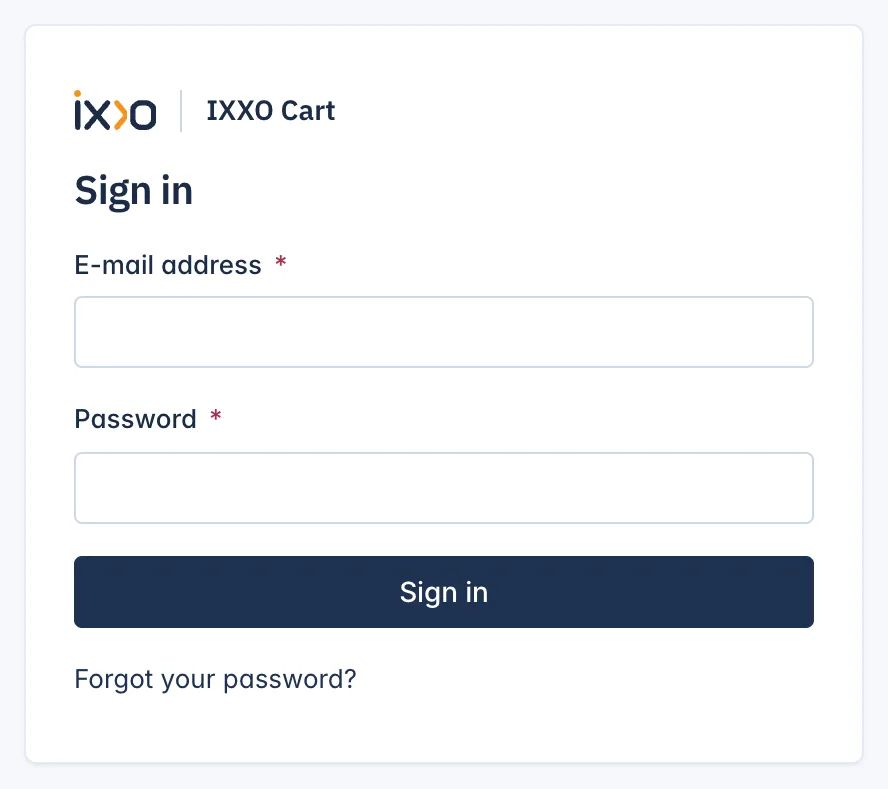
If you type a wrong password 5 times, sign-in is paused: Too many attempts. Please wait 15 minutes and try again.
Some screens that change payments, keys, e-mail settings or your team ask for your password again (Confirm your password) when you have not typed it for a while. This keeps those screens safe if you leave a computer signed in.
Forgot your password
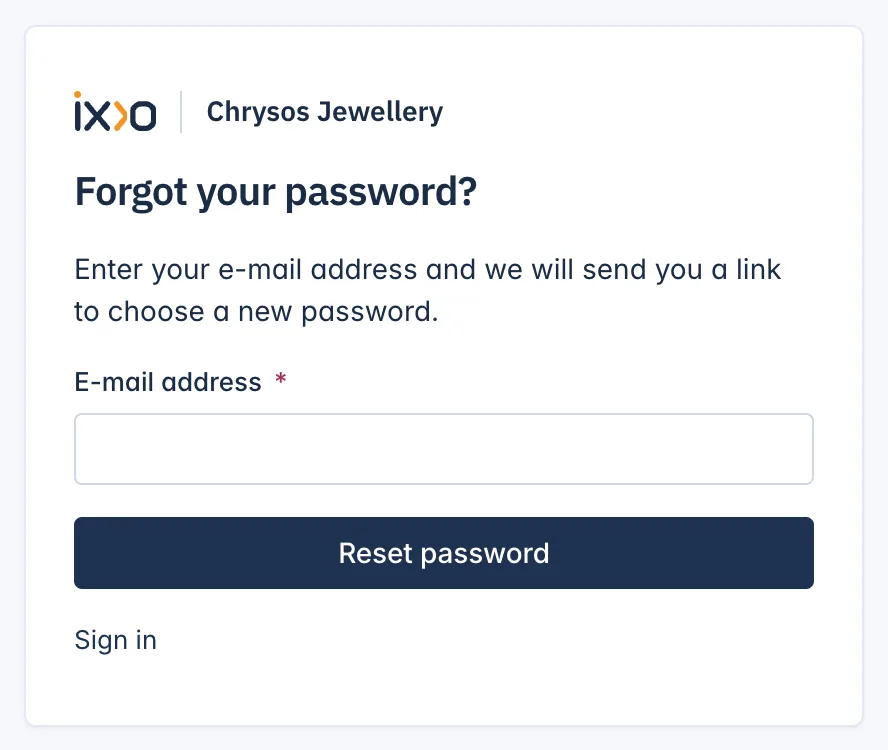
- On the sign-in page, click Forgot your password?
- Type your E-mail address and press Reset password.
- Open the e-mail and click the link. It works for 60 minutes.
- Type your New password twice and press Choose your password.
For your safety the page always says If an account exists for this address, an e-mail with instructions is on its way., whether the address is known or not.
Turn on two-step sign-in
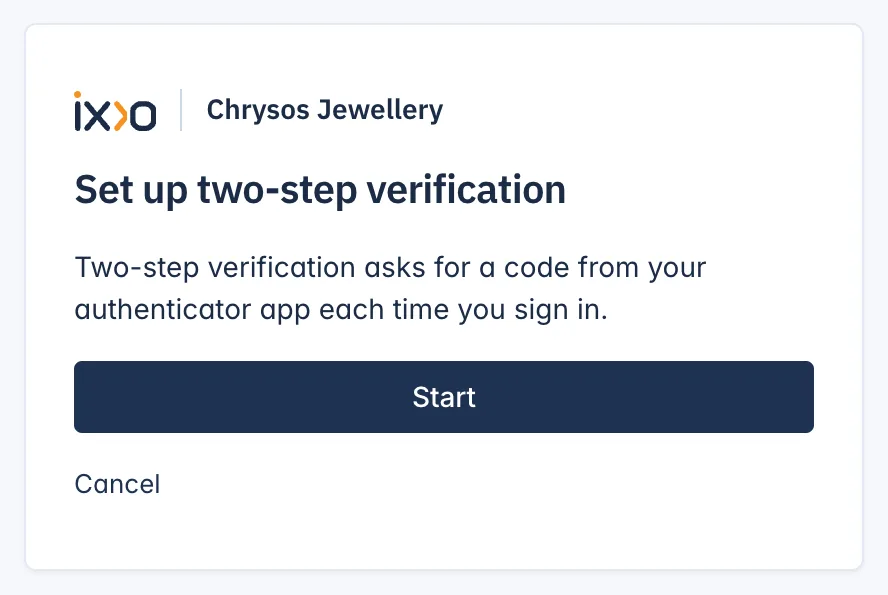
Two-step sign-in asks for a 6-digit code from an authenticator app (such as Google Authenticator, Authy or 1Password) each time you sign in, so a stolen password alone cannot open your admin. We recommend it for everyone, and especially for the Owner.
- Open the menu under your name and choose Set up two-step sign-in.
- Press Start.
- Scan the code with your authenticator app. If you cannot scan, type the key shown under Cannot scan? Enter this key by hand:.
- Type the 6-digit code the app shows in Verification code and press Continue.
- Your recovery codes appear. Keep these codes somewhere safe. Each one signs you in once if you lose your phone, and they are shown only now.
From then on, after your password you see Two-step verification: type the code from the app in Verification code and press Continue. Lost your phone? Type one of your recovery codes in the same field instead.
Once it is on, the account menu shows Two-step sign-in is on.
Invited by a shop
If a shop owner invited you as staff, the invitation e-mail has a link that works for 7 days. Open it, type your name, choose a password and press Choose your password. If the link has expired, ask the shop for a new invitation.
Related
Updated 13 November 2026