
Add sizes, colours and other attributes
Give a product choices such as size, colour or metal, or ask the customer for a text like an engraving, with or without a price change.
In the admin: CatalogProductsPricing and attributes
On this page
Attributes are the choices a customer makes on the product page: a size, a colour, a metal, or a text they type, such as an engraving. You add them on the Pricing and attributes tab, in the Attributes card. Each change in this card saves at once, without the Save button at the top.
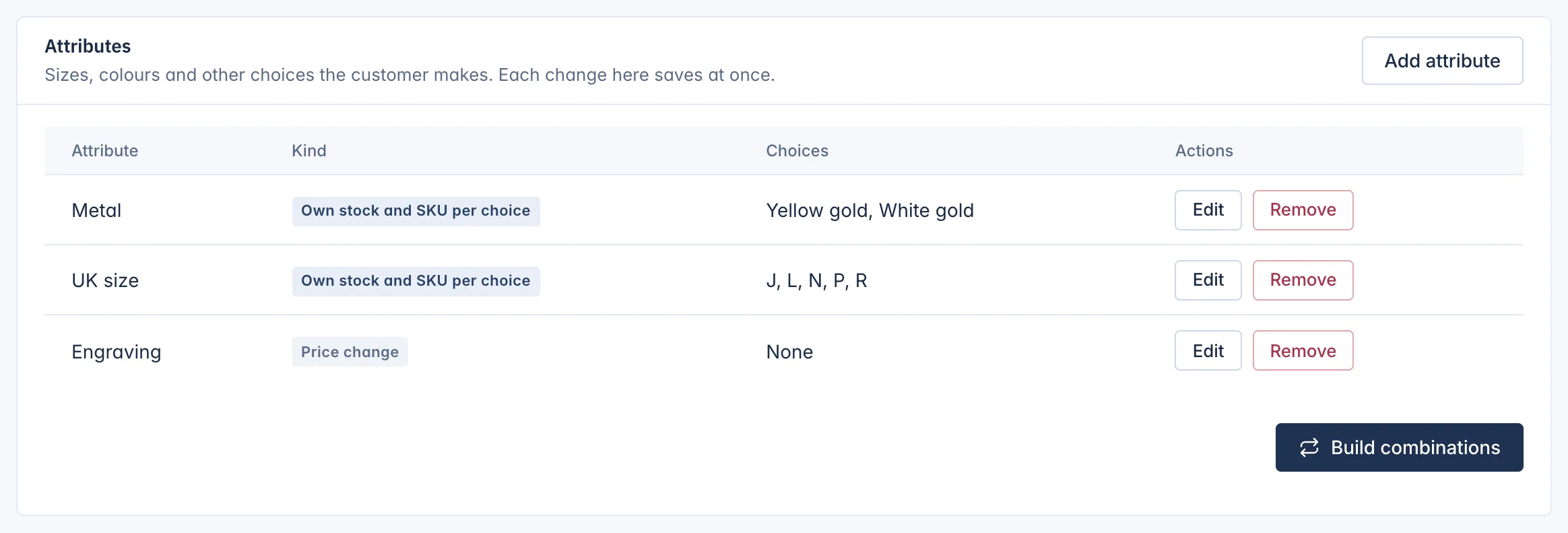
Two kinds of attribute
Before you add an attribute, decide which kind it is. The Kind column of the card shows it.
| Kind | Use it for | What it does |
|---|---|---|
| Own stock and SKU per choice | Things your stock counts apart: sizes, colours, metals. | Each mix of choices becomes a combination with its own SKU, price, stock, weight and photo. |
| Price change (or no change) | Services and personalisation: engraving, gift wrap, a note. | The customer's answer is added to the order line. It can add an amount or a percentage to the price. |
The editor's hint puts it like this: "What the warehouse or ERP counts gets its own SKU; services and personalisation use a price change."
An attribute with its own stock never takes a price change: each combination has its own price instead.
Add an attribute
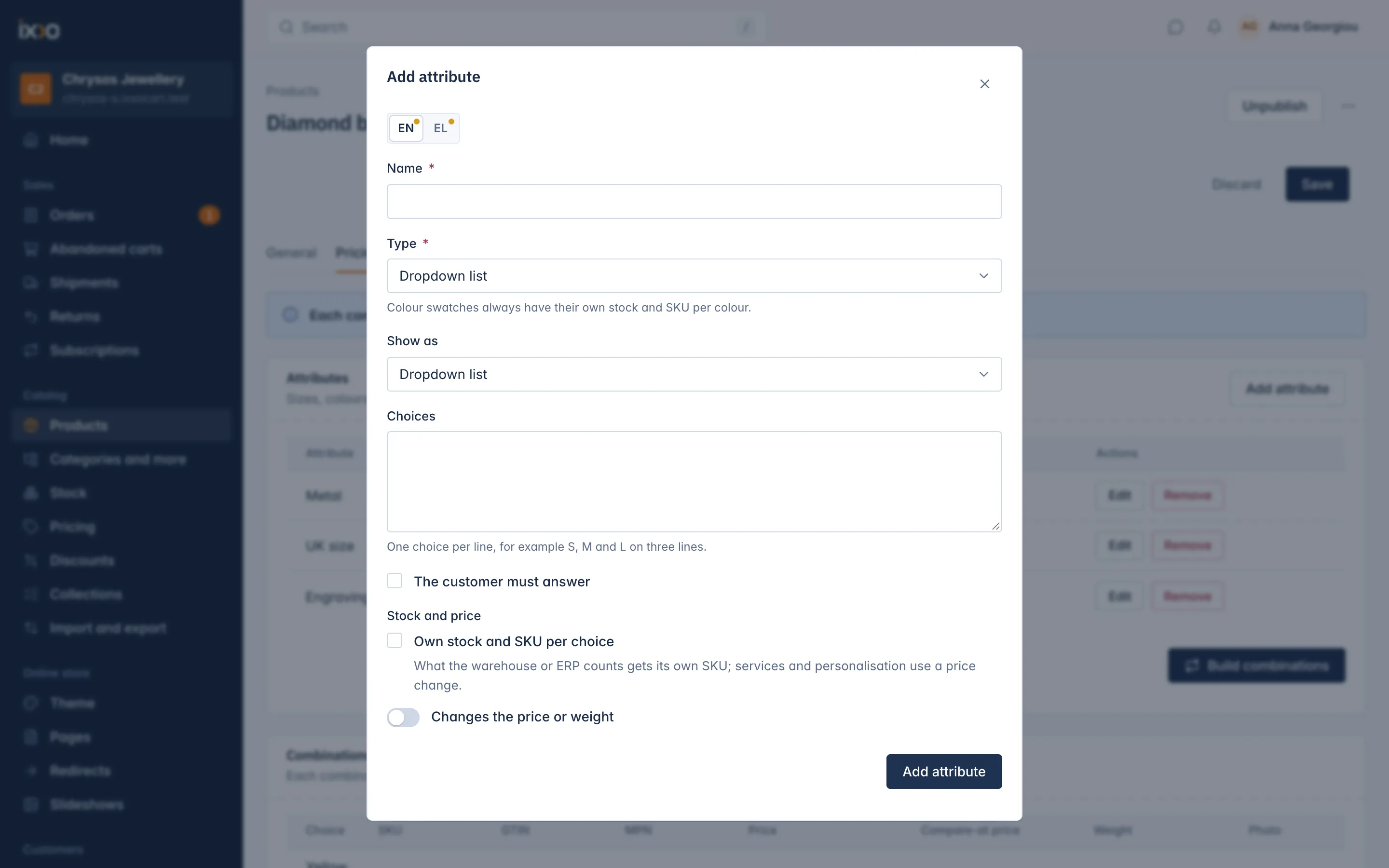
- Open the product on Pricing and attributes and click Add attribute.
- Type the Name the customer sees, for example "Size". With several languages, fill in each language with the switch at the top.
- Choose the Type (see the table below).
- For a Dropdown list, choose Show as: Dropdown list or Radio buttons.
- For a list, colour swatches or tick boxes, type the Choices, one per line, for example S, M and L on three lines.
- Tick The customer must answer if the product cannot be added to the cart without it.
- Under Stock and price, tick Own stock and SKU per choice, or turn on Changes the price or weight (see below).
- Click Add attribute.
When the attribute has its own stock, the card then says "Build combinations to show these choices in your shop." Click Build combinations. Until you do, the new choices are not shown in the shop. See Build combinations of choices.
Attribute types
| Type | What the customer does | Own stock possible |
|---|---|---|
| Dropdown list | Picks one choice from a list or from radio buttons. | Yes |
| Colour swatches | Picks a colour from round swatches. | Always: "Colour swatches always have their own stock and SKU per colour." |
| Short text | Types a short text, such as initials. | No |
| Long text | Types a longer message. | No |
| Number | Types a number. | No |
| Date | Picks a date. | No |
| File upload | Uploads a file, such as a picture to print. | No |
| Tick boxes | Ticks any of the choices. | No |
Price and weight change
For an attribute without its own stock, turn on Changes the price or weight:
- Price change: for example 15.00, or -2.50 for less. Leave it empty for none.
- The change is: An amount or A percentage of the price.
- Weight change: grams added to the product's weight, for heavier packaging for example.
The change applies when the customer gives an answer, so an optional engraving costs extra only when someone types one.
Edit an attribute and its choices
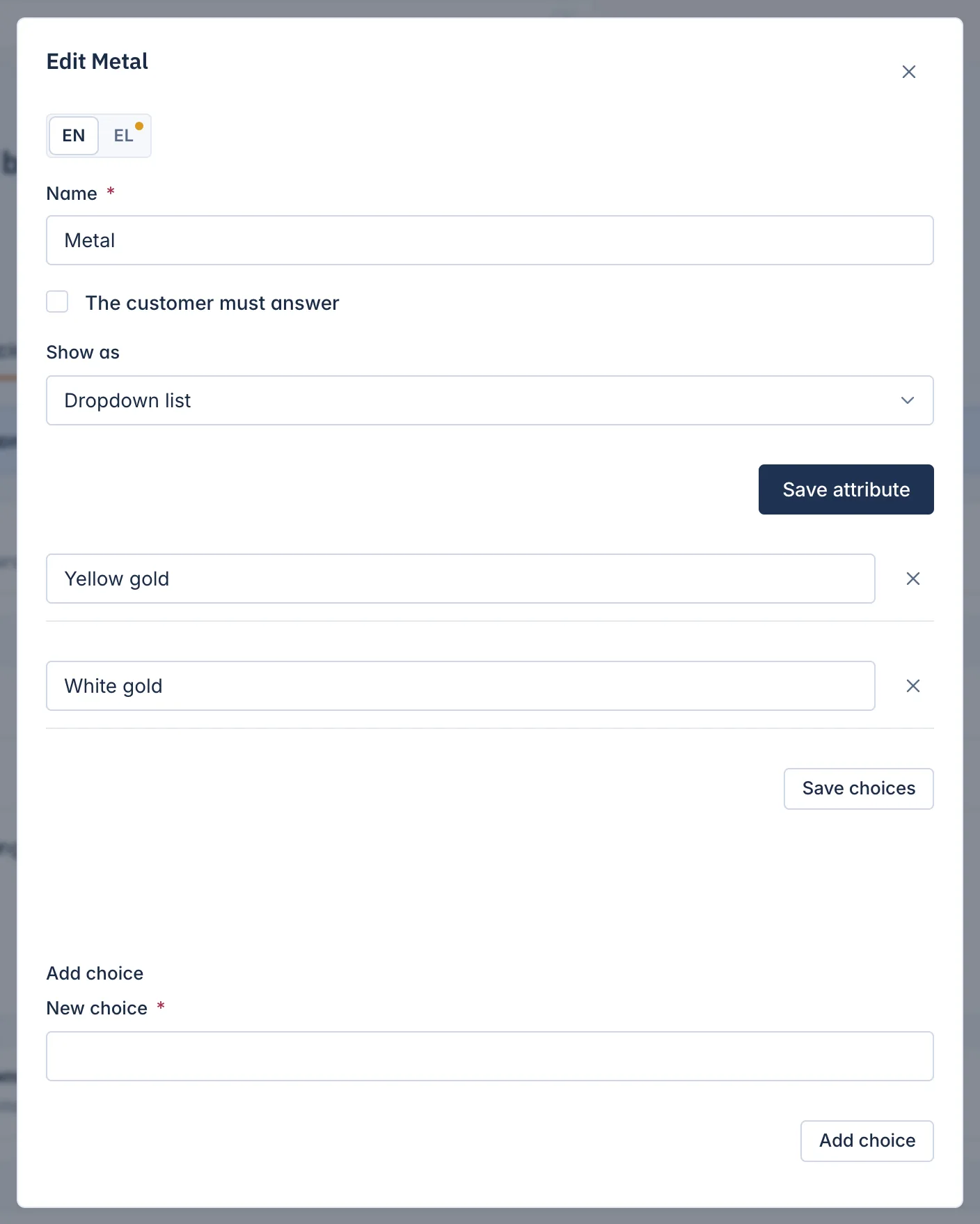
Click Edit on the attribute's row. The dialog lets you change:
- the Name in each language, The customer must answer and, for a dropdown list, Show as. Click Save attribute.
- the price and weight change, for an attribute without its own stock.
- the name of each choice in each language, and for colour swatches the Colour (written #rrggbb, for example #1a2b3c). Click Save choices.
- remove a choice with the x next to it.
- Add choice: type the New choice and click Add choice.
The Type and Own stock and SKU per choice cannot be changed after the attribute is made. To change them, remove the attribute and add it again.
Remove an attribute
Click Remove on its row and confirm. Its choices go too. For an attribute with its own stock, build the combinations again afterwards: the combinations it made are taken off sale.
Limits
- An attribute can have at most 100 choices.
- Your plan sets how many attributes with their own stock a product can have, and how many combinations a product can have. The editor says so when you reach a limit.
Global attributes
When many products share the same attribute, for example a ring size list, make it once as a global attribute and add it to each product. Global attributes show a Global attribute badge in the card. See Share attributes across products.
Related
Updated 13 November 2026