
Connect Stripe or PayPal
Take card and PayPal payments by connecting your own Stripe or PayPal account, and switch on bank transfer or pay on pickup.
In the admin: SettingsPayments
On this page
Before customers can buy, your shop needs at least one way to take their money. You can connect your own Stripe account for card payments or your own PayPal business account, and you can switch on Bank transfer and Pay on pickup. Payments go straight into your own account: IXXO Cart takes 0% of your sales. This is the quick version; the full payments guide is in Money and tax.
Open Settings > Payments. The page says "How your customers pay and how the money moves." For your safety it may ask for your password again first.
Connect Stripe
You need a Stripe account and its API keys, which you find in your Stripe dashboard under the developers' API keys.
- Under Online payments, press Connect a payment provider.
- Choose Provider: Stripe.
- Choose Mode: Test (Sandbox) to try the checkout with Stripe's test cards, or Live for real payments.
- Paste the Secret key and the Publishable key. Both must come from the same Stripe account and the same mode: test keys start with
sk_test_andpk_test_, live keys withsk_live_andpk_live_. - Press Connect.
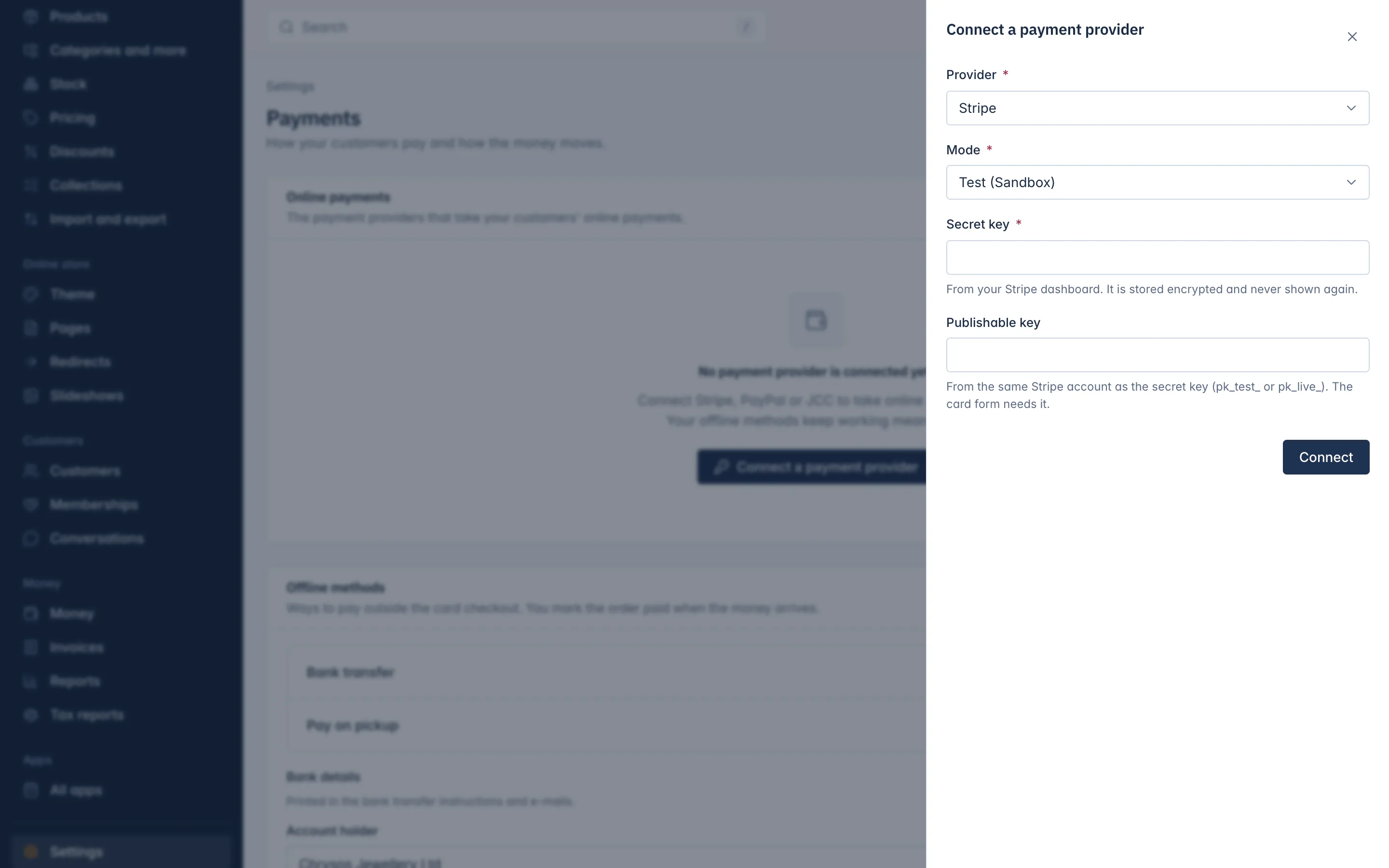
The keys are checked with Stripe before anything is saved. A key Stripe does not accept is refused with The payment provider did not accept this key. The secret key is stored encrypted and never shown again.
Payouts from Stripe to your bank follow the schedule set in your Stripe dashboard.
Connect PayPal
You need a PayPal business account and an app at developer.paypal.com, which gives you a Client ID and a Secret. Sandbox and Live apps have keys of their own.
- Press Connect a payment provider.
- Choose Provider: PayPal, and the Mode.
- Paste the Client ID and the Secret of your app. Where do I find these? opens PayPal's guide.
- Press Connect.
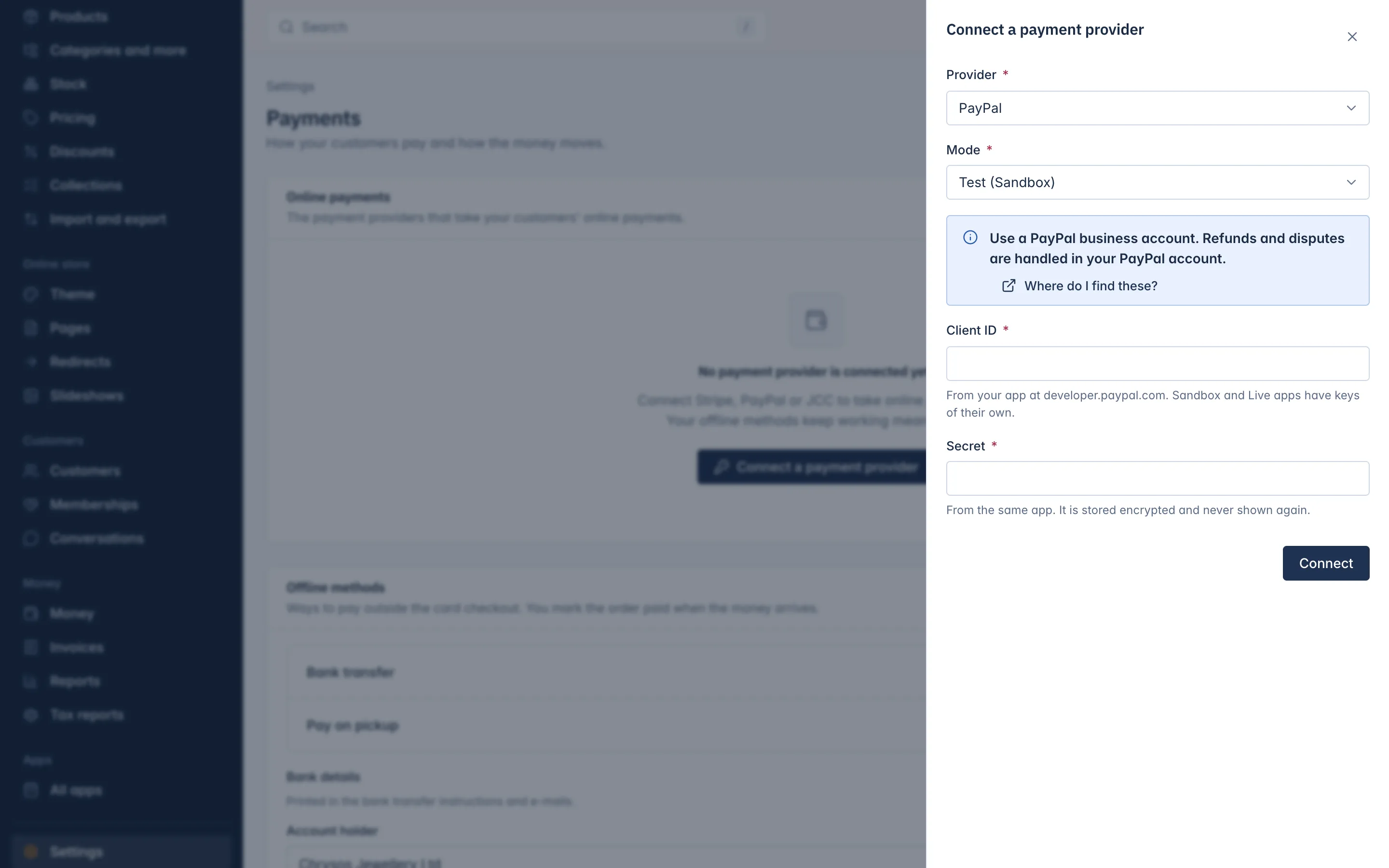
Refunds and disputes for PayPal payments are handled in your PayPal account.
Use the connection
A new connection does not take payments straight away. The message says Connected. Choose Use this connection to take payments with it. and the connection shows as Connected, not in use.
- In the Online payments list, find the connection.
- Press Use this connection. Its state changes to In use.
This lets you connect and check a connection before customers see it. Other actions on a connection:
- Update keys saves new keys for the same provider and mode, for example after you roll your keys at Stripe. Payments go on as before.
- Disconnect stops payments through it. It is refused while customers are still paying through that connection.
Switch on bank transfer or pay on pickup
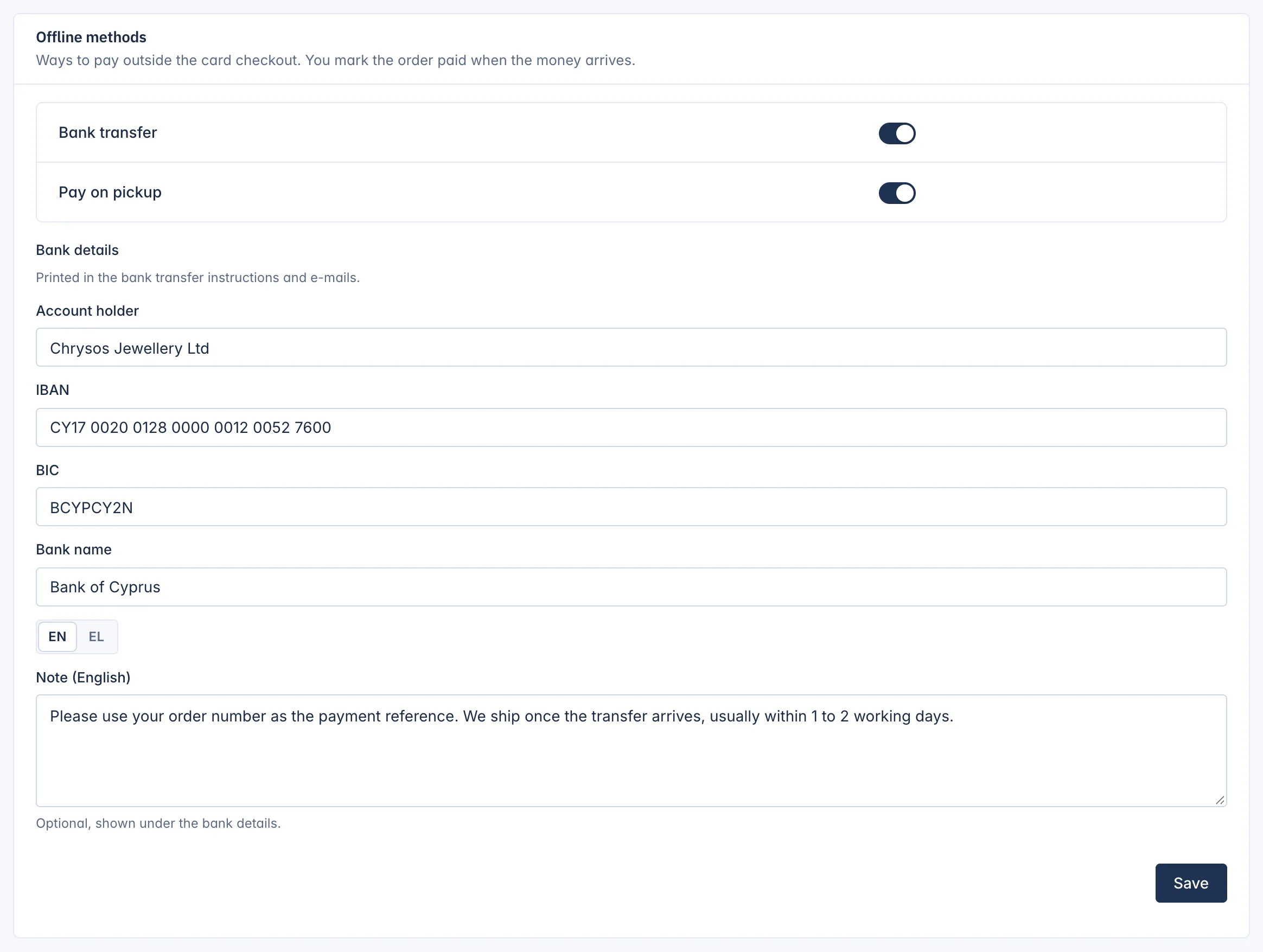
Under Offline methods ("Ways to pay outside the card checkout. You mark the order paid when the money arrives."):
- Switch on Bank transfer, Pay on pickup or both.
- For bank transfer, fill in the Bank details: Account holder and IBAN are needed; BIC and Bank name help customers abroad. They are printed in the bank transfer instructions and e-mails.
- Optional: a Note shown under the bank details, in each language, for example "Please use your order number as the payment reference."
- Press Save.
How they work at checkout:
- Bank transfer: the order waits three days for the money. When it arrives in your bank, open the order and press Mark as paid. An order not paid in time is cancelled and the customer is told.
- Pay on pickup: offered only when everything in the order is collected in person, so you also need a pickup method in your shipping. The customer pays when collecting, and you mark the order paid.
If bank transfer is on without bank details, the page warns: Bank transfer is on, but customers are not told where to pay. Add your bank details.
Selling mode
At the bottom of the page, Selling mode says how the money moves. A single store normally keeps You sell everything yourself. Choose Listing only: customers contact you to buy only if you want a catalogue without a checkout. Preview the change shows what changes before anything is saved. Details are in Money and tax.
What customers see
At checkout the customer chooses under How would you like to pay? from the methods that fit their order. If none fits, they see There is no way to pay for this right now. Please contact the shop., so make sure at least one method is in use before you go live.
The Set up your shop card on Home ticks Payments off once a payment provider is in use or an offline method is on.
Related
Updated 13 November 2026