
Import products from a CSV or Excel file
Add or update many products from a spreadsheet in four steps: upload the file, match its columns, check it, and run the import.
In the admin: CatalogImport and export
On this page
Importing is the fastest way to add a whole catalogue, or to change many products at once from a spreadsheet. You upload a CSV or Excel file, tell the shop what each column holds, see exactly what will happen, and only then import. Nothing in your shop changes before the last step.
What you can import
Open Catalog > Import and export. The Import tab asks What do you want to import?:
- Products: new products and changes to your products, with texts, pictures and variants.
- Prices and stock: only prices and stock of products you already have, found by SKU or barcode. See Update prices and stock from a file.
- Categories: your category tree, with names, descriptions and pictures.
The import has four steps, shown at the top: 1. File, 2. Match columns, 3. Check, 4. Import.
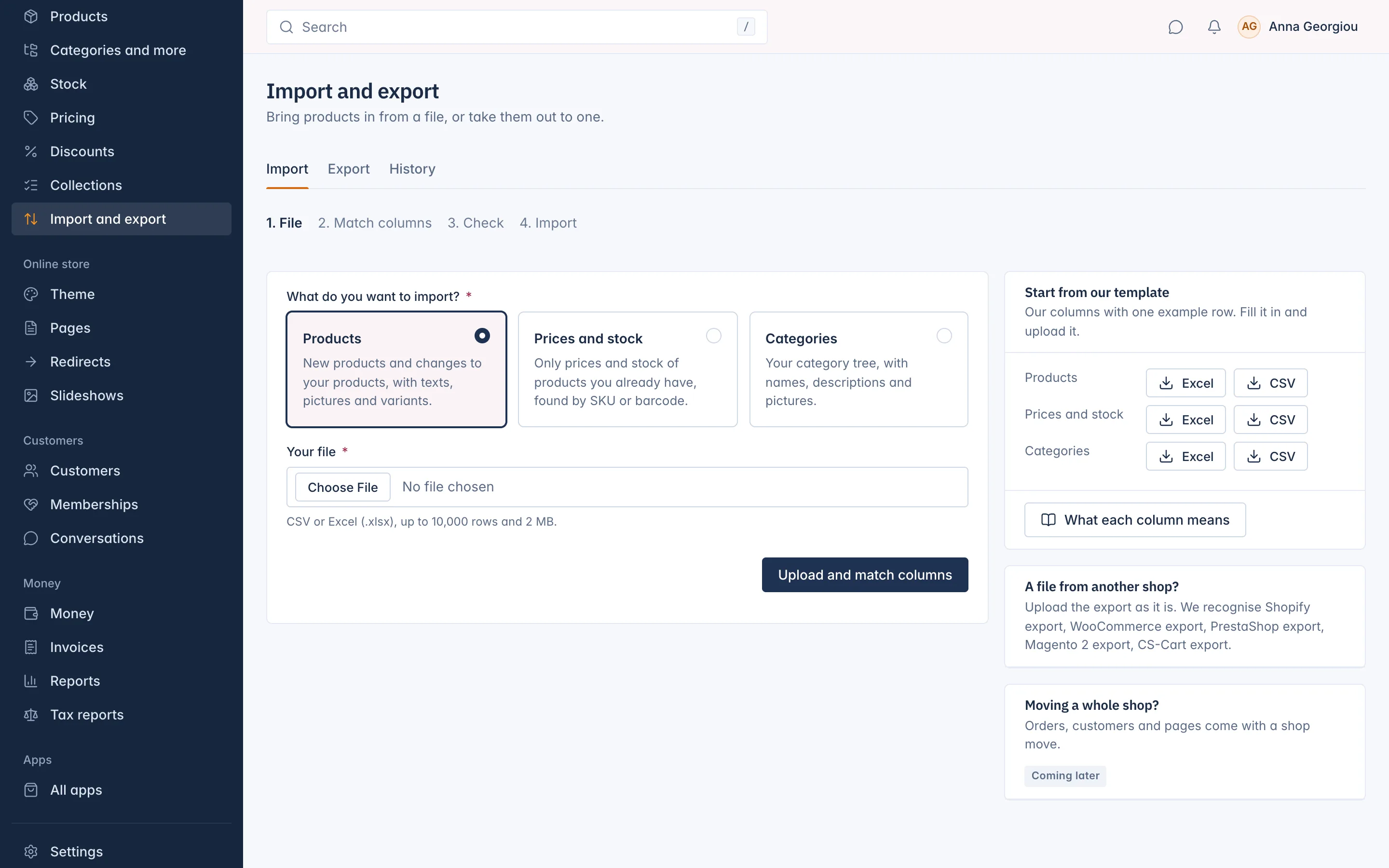
Step 1: the file
- Choose what you import.
- Under Your file, choose the file.
- Click Upload and match columns.
The file can be:
- CSV or Excel (.xlsx). An old Excel file (.xls) or a file protected with a password is refused: save it as .xlsx or CSV first. From an Excel file only the first sheet is read, and formulas give their calculated value.
- Up to 10,000 rows and 200 columns. The screen shows the largest file size it takes, at most 20 MB. Split a bigger file into several.
- The first row that holds something is the header row with the column names. Empty rows are skipped.
Not sure how to lay out your file? Under Start from our template, download our columns with one example row, as Excel or CSV, for each kind of import. What each column means explains every column: see Import file columns explained.
A file exported from Shopify, WooCommerce or another platform can be uploaded as it is: see Import products from Shopify, WooCommerce and others.
Step 2: match columns
The shop reads your header and guesses what each column holds. The top of the page says what it recognised (for example "Our template" or "Shopify export") and how many columns matched.
Each column of your file is one line: its name, its first value, and a box Import "column" as where you choose the field. Lines that need a look carry a badge: Not matched, AI suggestion or Changed by you. Choose Skip for columns you do not want.
Every row must name its product. For a products file, choose the column that is the SKU, the Title or the Old shop ID (or the column you find products by). The check cannot start without it.
File settings
The File settings card is folded; open it if values look wrong:
- Characters: change it when letters look wrong in the first values (CSV only). You can choose UTF-8, Windows-1253, ISO-8859-7 or Windows-1252.
- Decimal mark: Point (12.50) or Comma (12,50).
- Texts are in: the language of the titles and descriptions.
- Category levels separated by:
>by default, as inClothing > Shirts. - Several values in one cell separated by:
|by default, as in two picture links. - Rows that share this column are one product: for files with one row per variant, choose the column (such as a parent ID) that rows of one product share.
- Weight unit: shown when a weight column is matched.
Products already in your shop
- Find them by: SKU, Barcode, Old shop ID or URL handle. A row that matches an existing product updates it; any other row makes a new product.
- If one is already there: Update it, or Leave it as it is, only add new ones.
- Update only these: shown with Update it. Tick what may change on existing products: Prices, Stock, Titles and descriptions, Pictures, Categories and tags, SEO fields, Options and variants, Status, Custom fields. An empty cell never clears a value.
Save the matches
Tick Save these matches for the next file like this and give them a Name (such as "Supplier price list"). The next file with the same column names, in any order, is matched the same way. The shop keeps up to 50 saved matches; the least used go first.
Let AI suggest matches
When columns are not matched, the shop's Owner sees Suggest matches with AI. AI looks at the names and first values of those columns and suggests where they go. It uses 1 credit. Check every suggestion before you go on. See Apps and AI for AI credits.
Click Check the file.
Step 3: check
The shop goes through every row, without changing anything. You can leave the page while it runs. Then it shows what the import will do: tiles such as New products, Products to update, Variants, New categories, Pictures to download, Prices that change and Stock levels that change.
Below the tiles:
- New categories: the categories the import will create.
- Values we could not read: for example a price that is not a number with the decimal mark you chose.
- Rows with a problem: each with its line, column, value and the problem. Click Download these rows for a file of those rows with a Problem column, fix them and import them later.
- Rows that go in with a change: rows that will be imported, but not exactly as written.
- Over your plan's limit: rows that would add more products than your plan allows are skipped.
If you go back and change the matches, the file is checked again.
Step 4: import
Click Import with the number of rows. The import runs in the background, and you can leave the page. When it is done, you see how many products were created, updated, left as they are and skipped.
- Pictures from your file download in the background, usually in a few minutes. The page shows how many are in. Picture links must be full
https://addresses. If your storage is full, the rest stop: free up space, then import the same file again; pictures already in are skipped. - Download skipped rows gives a file of the rows that did not go in, with the reason.
- If an import stops part way, some rows may be in. Check your products, then import the file again: rows already in are found and updated.
Click View the products, or Import another file.
New products from a file are drafts unless the file's Status column says active. A file never turns a live product back into a draft.
The History tab
The History tab lists your imports and exports of the last 30 days: when, what, the file, who, the result and the status (Running, Finished, Finished with skipped rows or Failed). Download the original file, the rows not imported, or an export file from here. Files are kept for 30 days.
Related
Updated 13 November 2026