
Build combinations of choices
Turn sizes, colours and other choices into combinations, each with its own SKU, price, weight, photo and stock, and choose which one shows first.
In the admin: CatalogProductsPricing and attributes
On this page
A combination is one mix of choices a customer can buy, such as a ring in White gold, size N. Each combination has its own SKU, barcode, price, weight, photo and stock, so your stock count and your orders always say exactly which one was sold. This article explains how combinations are made from attributes and how to fill in the Combinations table.
How combinations are made
Only attributes marked Own stock and SKU per choice make combinations. The shop makes one combination for every mix of their choices. A ring with Metal (Yellow gold, White gold) and UK size (J, L, N, P, R) has 2 x 5 = 10 combinations.
Attributes with a price change, such as an engraving, do not make combinations. The customer answers them on top of the combination they chose.
Build the combinations
- Add the attributes with their own stock. See Add sizes, colours and other attributes.
- Click Build combinations under the Attributes card.
The message says how many were made and how many were taken off sale, for example "10 made, 0 taken off sale". Click Build combinations again whenever you add or remove an attribute or a choice. Until you do, a new choice is not shown in the shop.
When you build:
- each new combination starts with the product's price, so check the prices afterwards,
- a combination whose choice was removed is taken off sale, not deleted, so its orders and stock history stay,
- a combination that comes back, because you added its choice again, gets its old row back with its SKU and price,
- new combinations get no SKU, unless your shop requires SKUs (Every variant needs a SKU under Settings > Products). Then each gets the product's SKU with a number, such as RING-1, RING-2.
Your plan sets how many combinations a product can have. If a build would make more, nothing is built and the editor says how many it would make: "Remove some choices, then build again."
Fill in the Combinations table
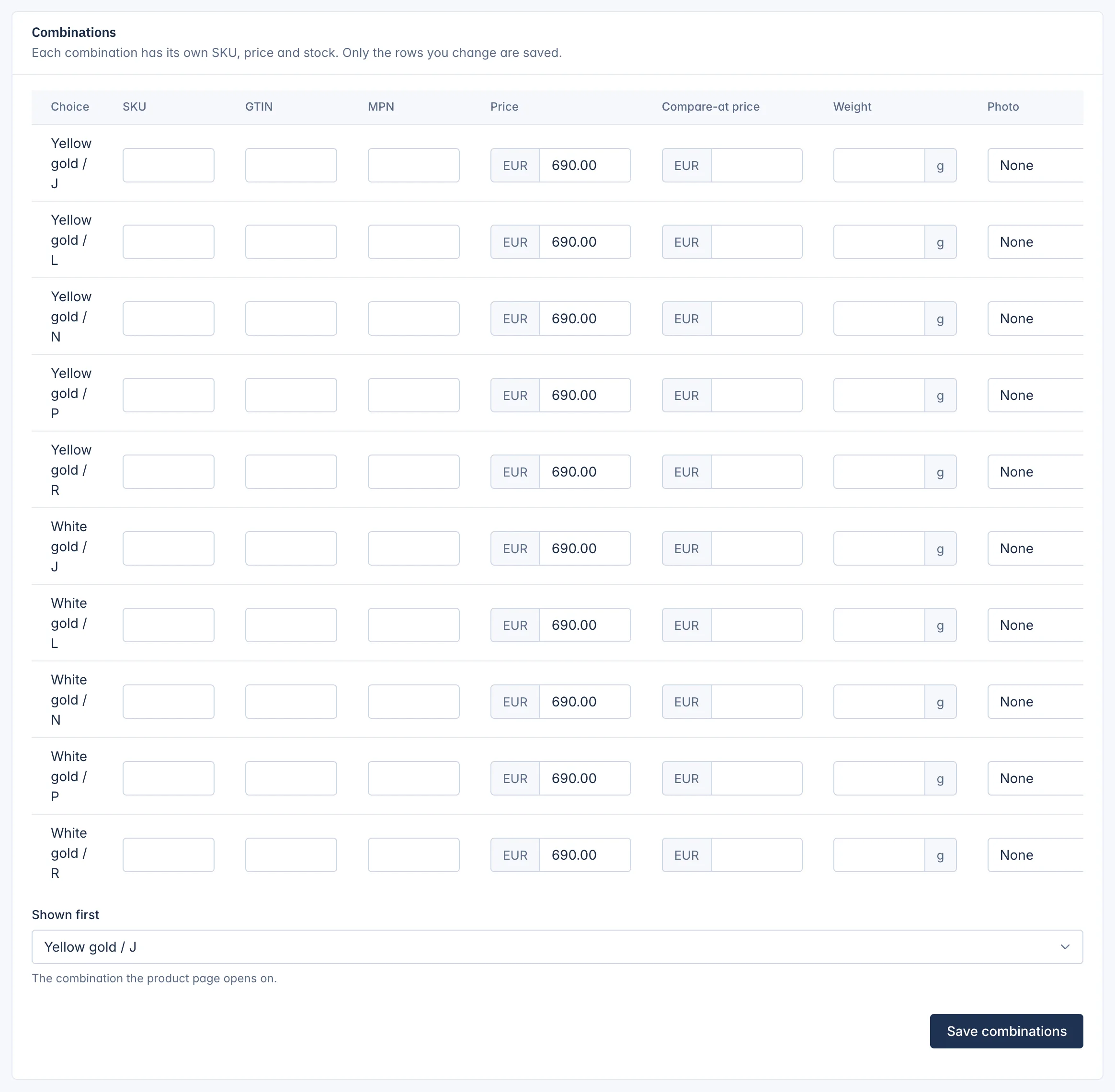
Each row is one combination. The columns are:
| Column | What to fill in |
|---|---|
| Choice | The mix of choices, for example Yellow gold / J. |
| SKU, GTIN, MPN | The codes of this combination. A SKU must be unique in the shop. |
| Price | Required on every combination that is on sale: "Every combination needs a price." |
| Compare-at price | The earlier price, when this combination is on sale at a lower price. It must be above the price. |
| Weight | In grams. Leave it empty to use the product's weight from the Stock and shipping tab. |
| Photo | One of the product's photos, shown when the customer picks this combination. |
| On sale | Untick it to stop selling one combination, such as a size you no longer make. |
Below the table, Shown first sets "The combination the product page opens on." It must be a combination that is on sale.
Click Save combinations. Only the rows you changed are saved, so you can change a few prices without touching the rest.
Stock of each combination
Each combination has its own stock. Set it on the Stock and shipping tab, where the Stock per location table has one row per combination and location, or on the Catalog > Stock screen. Track stock, Sell when out of stock and Low stock at are kept per combination too, so they do not show on the product's Stock and shipping tab once it has combinations. See Product stock, weight and size.
Shop-wide settings for combinations
Two settings under Settings > Products apply to every product with combinations:
- Which variant a product page opens on when none is set: The one marked default, The first one in stock or The lowest price. The first one in stock keeps customers from landing on a sold-out size.
- Listings show one card per product or per variant: One card per product keeps lists short; One card per variant suits colours customers browse one by one, such as clothing.
Related
Updated 13 November 2026