
Create a discount code
Make a promo code for a percentage or amount off products or the whole order, or for free shipping, and limit it by customer, spend, uses and dates.
In the admin: CatalogDiscounts
On this page
A discount code (also called a coupon or promo code) is a word customers type in the cart or at checkout to get money off or free delivery. Use one for a newsletter offer, a welcome gift for first orders, or a code for your trade customers. This article shows how to create, change, pause and delete codes. How a code behaves at checkout is in How discount codes work at checkout.
The Discounts screen
Open Catalog > Discounts. The list shows each code with its Discount (for example "10% off the order"), how often it was Used, its Status, and when it Starts and Ends. Search by code, or filter by status.
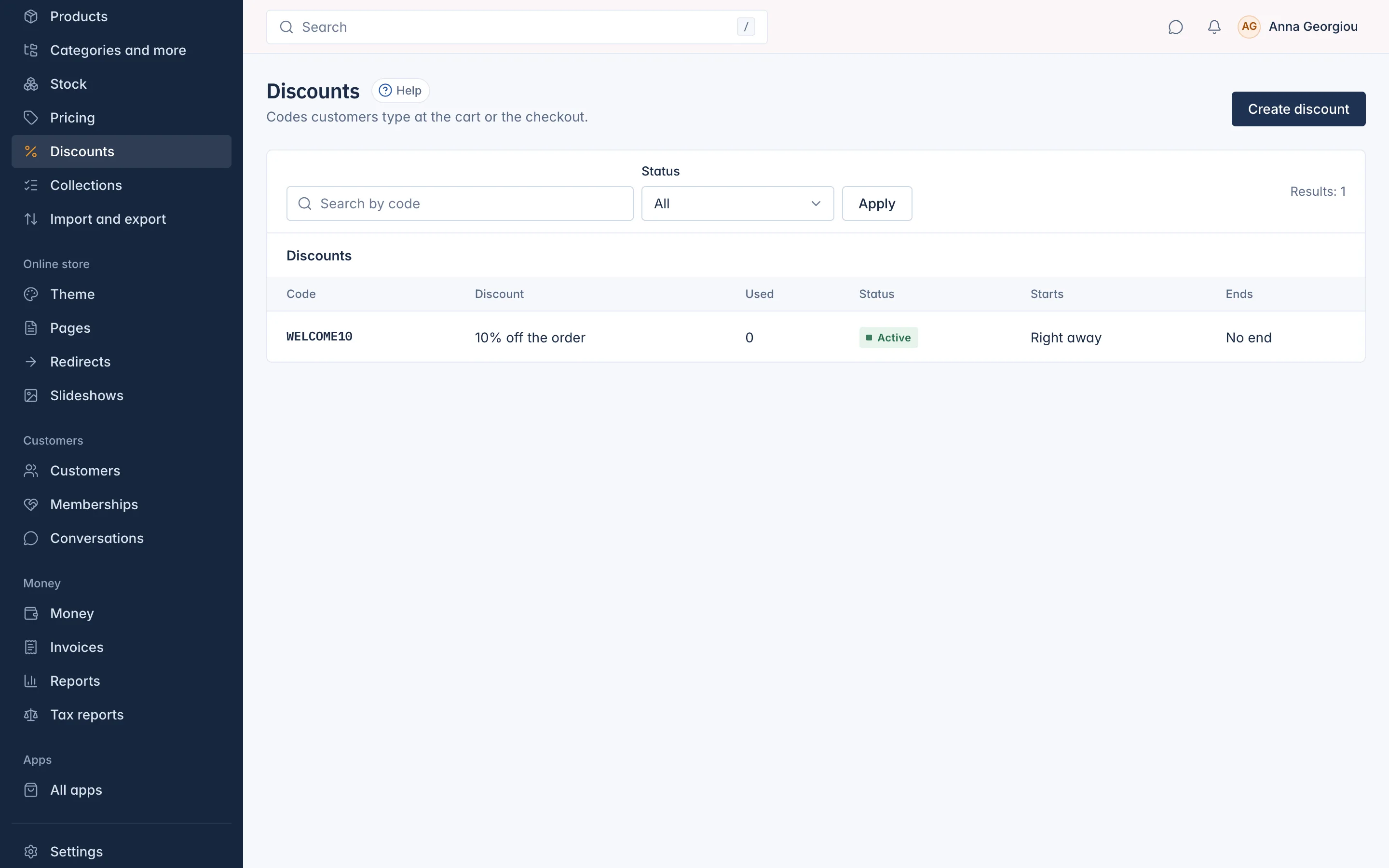
The status tells you whether a code works right now:
| Status | Meaning |
|---|---|
| Active | Customers can use it. |
| Scheduled | Its start date is still to come. |
| Expired | Its end date has passed. |
| Used up | It reached its total number of uses. |
| Paused | You switched it off. |
Create a code
- Click Create discount.
In Select discount type, choose one:
- Amount off products: a percentage or an amount off the products or categories you choose.
- Amount off order: a percentage or an amount off the whole order.
- Free shipping: the delivery charge goes free.
- Fill in the cards described below. Only the fields your type needs are shown, and each limit asks for its value only once you switch it on.
- Click Create discount. The code works from its start date (right away when you leave Starts empty).
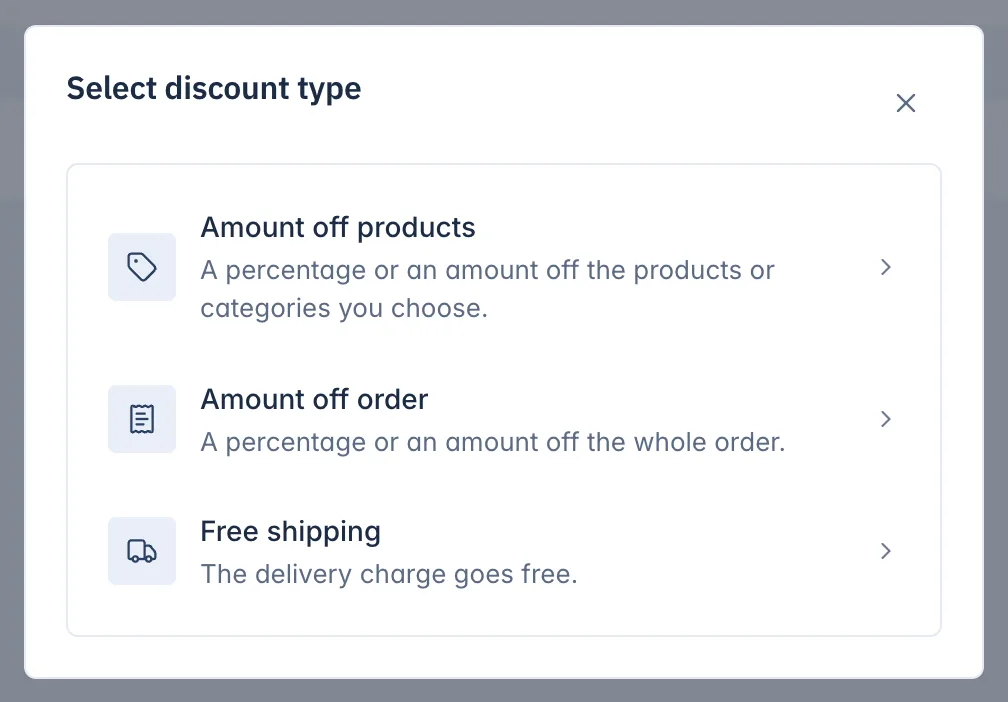
The type cannot be changed later. To offer something else, create a new code.
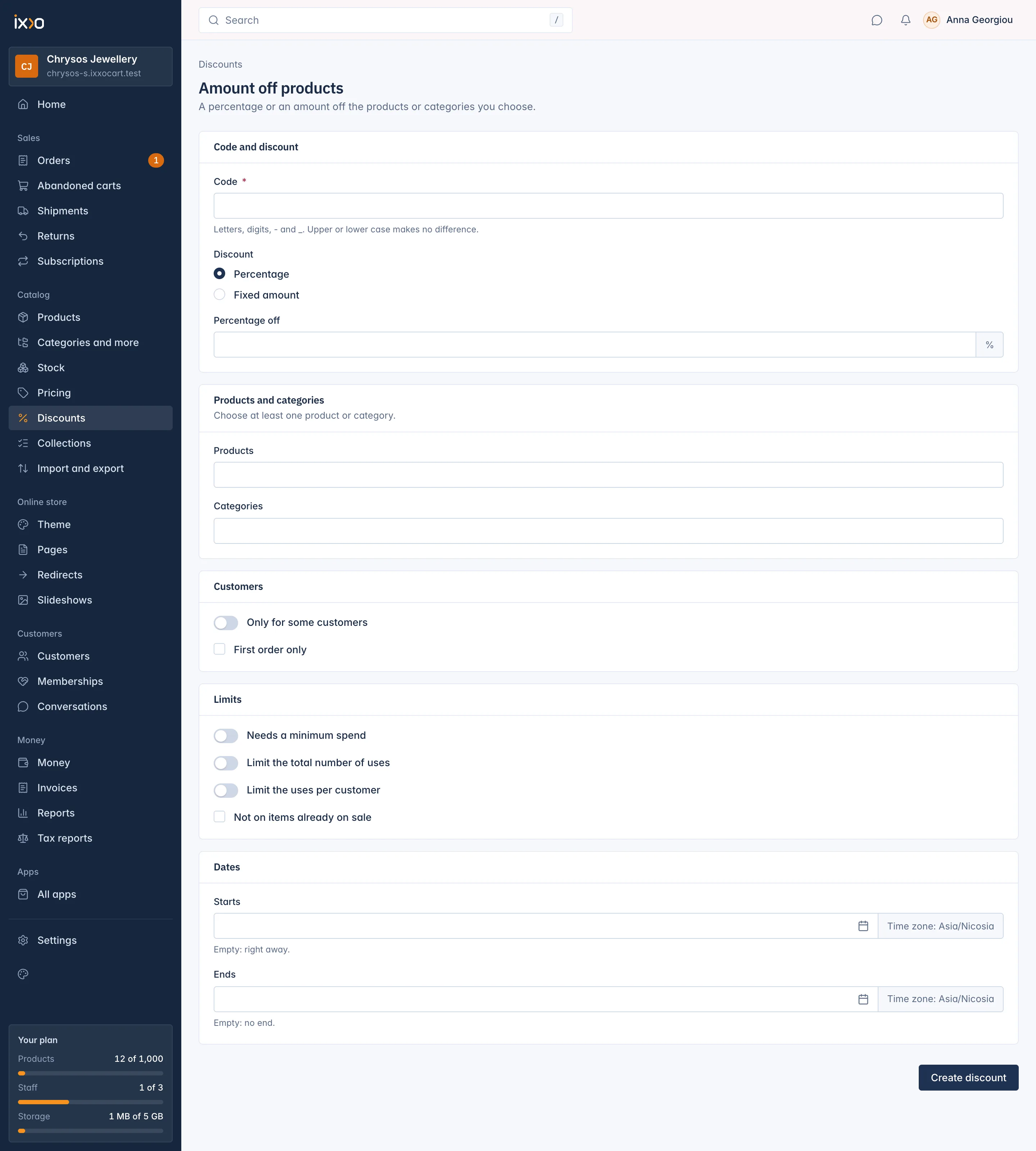
Code and discount
- Code (required): 1 to 64 letters, digits,
-and_. Upper or lower case makes no difference, so SUMMER10 and summer10 are the same code. You cannot have two codes with the same text. - Discount: Percentage or Fixed amount. Not asked for Free shipping.
- Percentage off: above 0, up to 100.
- Amount off: an amount in your main currency, above 0.
Products and categories
- Amount off products: choose at least one product or category under Products and Categories. A category also covers the categories below it. The discount only applies to those goods.
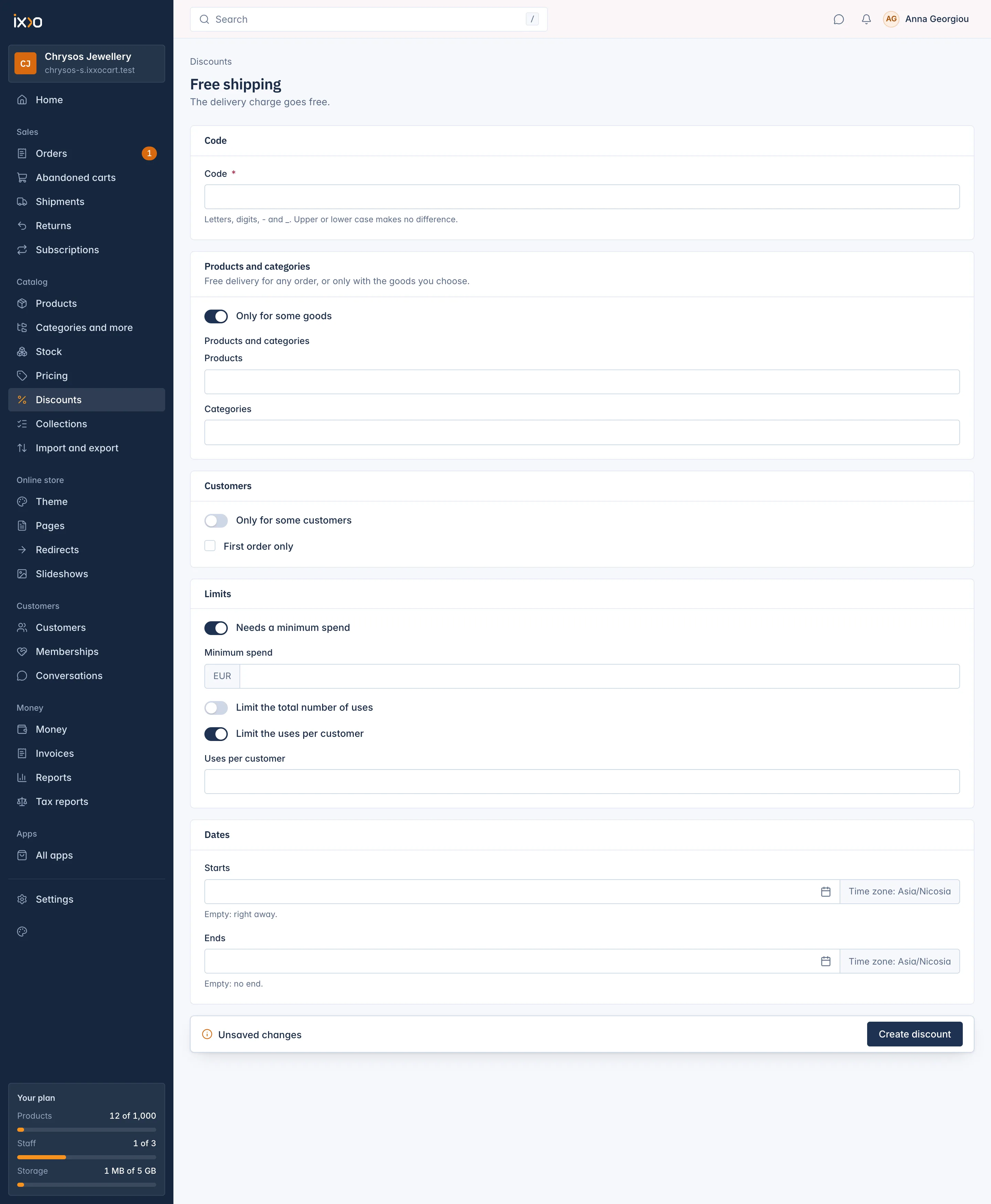
- Free shipping: switch on Only for some goods to give free delivery only when the order holds one of the chosen products or categories. Leave it off for free delivery on any order.
- Amount off order has no product choice: it applies to the whole order.
Customers
- Only for some customers: switch it on, then choose Customers by name and Customer groups (for example a trade group). The code then works only for those people and for members of those groups, once they are signed in. Choose at least one.
- First order only: only for customers who have not ordered from you before. A guest and an account with the same e-mail address count as the same customer.
Staff who may not see customers cannot choose customers by name. If a code already names customers they cannot see, the page says so, and saving keeps those customers on the code.
Limits
Switch on only the limits you need:
- Needs a minimum spend: the Minimum spend the goods the code applies to must reach, in your main currency.
- Limit the total number of uses: Total uses, 1 or more, for everyone together.
- Limit the uses per customer: Uses per customer, 1 or more.
- Not on items already on sale: products with a compare-at price above their price are left out. Not shown for Free shipping.
Dates
- Starts: empty means right away.
- Ends: empty means no end. The end must be after the start.
Both are in your shop's time zone, which the field shows next to it.
Change, pause or delete a code
Click a code in the list to open it. You can change its fields and click Save. The subtitle shows how often it was used, for example "Used 4 of 50 times".
- Pause stops the code at once. Customers who type it are told it is not valid. Click Switch on to start it again.
- Delete removes a code for good: "The code stops working and this cannot be undone." The button only shows for a code that was never used. A used code cannot be deleted, so its count stays right: pause it instead.
A code that named only customers whose data was later erased is paused by the shop, because with nobody left on it, it would work for everyone. Name other customers or a group before you switch it on, or confirm Switch on for everyone.
Who can manage codes
Staff need the permission to make and change coupons to see Discounts. Roles are set under Settings > Roles and permissions (see Settings).
Related
Updated 13 November 2026