
Add staff and manage their accounts
Invite staff to your admin, give each person a role, add or remove single permissions, and disable or remove a staff account.
In the admin: SettingsStaff
On this page
Staff accounts let other people work in your admin with their own sign-in: a colleague who packs orders, a freelancer who writes product texts, your accountant. Each person has their own e-mail address and password and exactly one role, which decides what they may see and change. This article covers inviting people and managing their accounts. What each role allows is in Roles and permissions.
The staff list
Go to Settings and open Staff. The list shows each person's Name, E-mail, Role, whether Two-step sign-in is on, their Last sign-in and their Status: Active, Disabled or Invited. Search by name or e-mail, or filter by Status and Role.
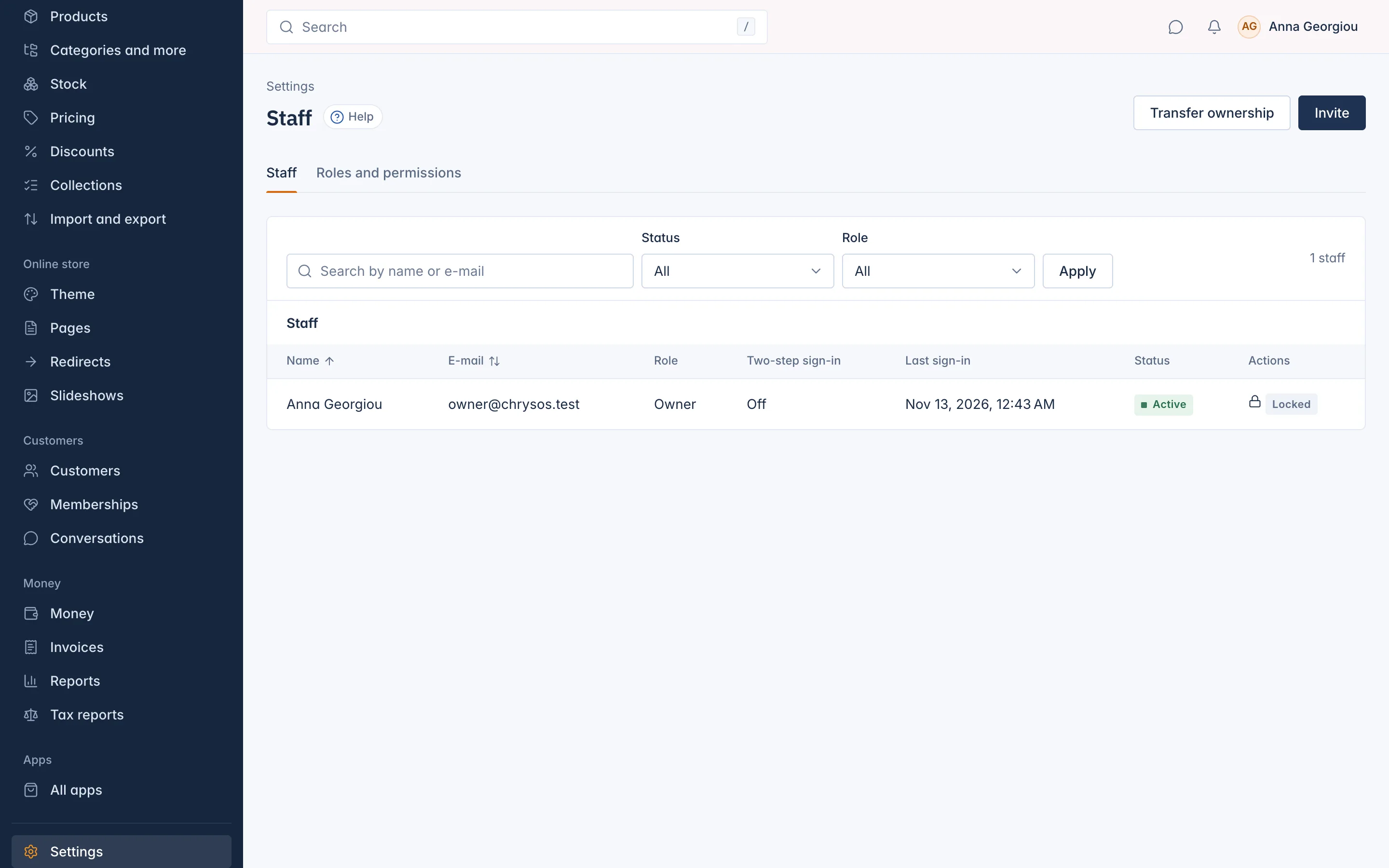
The Owner's row shows a lock instead of Manage: nobody can change the Owner's account here. The only way to hand the shop to someone else is Transfer ownership.
Invite a person
- On Staff, press Invite.
- Enter the person's E-mail.
- Choose a Role. You can only hand out roles whose permissions you hold yourself.
- Press Send invitation.
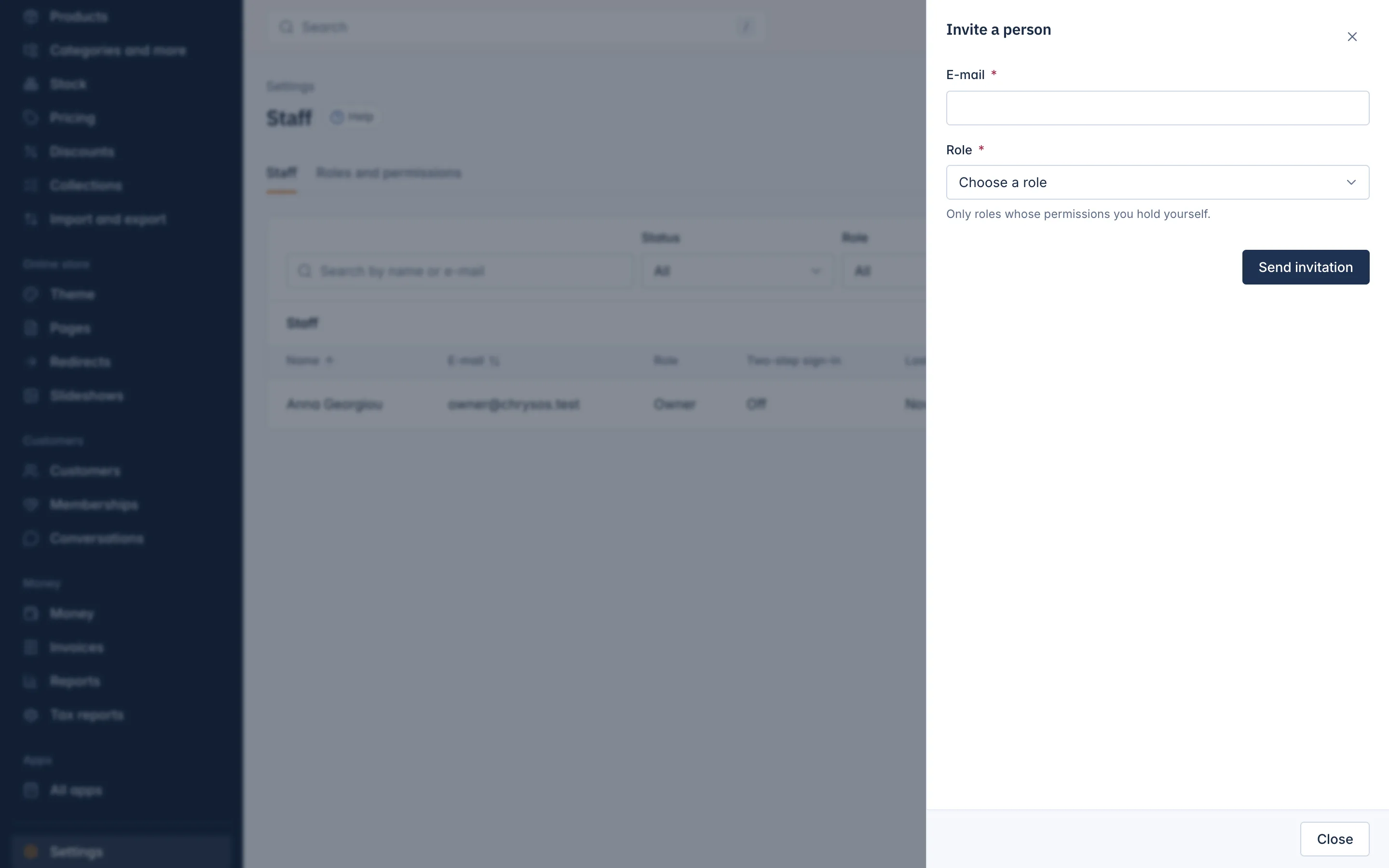
The person gets an e-mail with a link. The link works for 7 days. When they open it, they choose a password of at least 12 characters and they are in. If the address already signs in to an IXXO Cart admin, they type that password instead.
Until they accept, the invitation shows under Open invitations with who invited them and Link works until. From there you can:
- Resend: sends the e-mail again with a new link (the old one stops working).
- Revoke: withdraws the invitation. The link in the e-mail stops working. You can invite the address again later.
Staff seats
People who can sign in and open invitations each take a seat. When every seat of your plan is taken, an invitation is refused with Every staff seat of your plan is taken. Remove someone, withdraw an invitation or add seats to your plan first. An expired invitation no longer holds a seat. Enabling a disabled person takes a seat again.
Change a person's role or permissions
Press Manage on the person's row. A drawer opens with everything you can change for them.
- Role: choose another role and press Change role.
- Own permissions: exceptions to the role for this person only. For each permission choose Uses the role, Allow or Deny, then press Save permissions. Use this when one person needs a little more or less than their role, without making a new role.
You cannot change someone who holds permissions you do not have. Their drawer reads This person holds permissions you do not have, so you can look but not change them.
Reset two-step sign-in
If someone lost the phone with their authenticator app and has no recovery codes, press Reset two-step sign-in in their drawer. They are signed out everywhere and set up two-step sign-in again the next time they sign in. This needs the Reset two-step verification of staff permission.
Disable, enable or remove a person
- Disable: the person is signed out everywhere and cannot sign in until someone enables them again. Their seat is freed. Use this for someone on leave.
- Enable: lets a disabled person sign in again. It needs a free seat.
- Remove: the person loses their role and permissions and is signed out everywhere. Their name stays in the history of orders and notes.
Each of these asks you to confirm first.
Related
Updated 13 November 2026