
Collections
Group products by hand into collections, such as a season or a gift guide, each with its own page in your shop.
In the admin: CatalogCollections
On this page
A collection is a group of products you pick by hand, such as "The edit", "Summer 2026" or "Gifts under €100". Unlike a category, a collection is not part of the shop's tree: it is a hand-made selection in the order you choose. Each collection has its own page in the shop, which you can link from a menu, a slideshow or a section of your home page.
The collections list
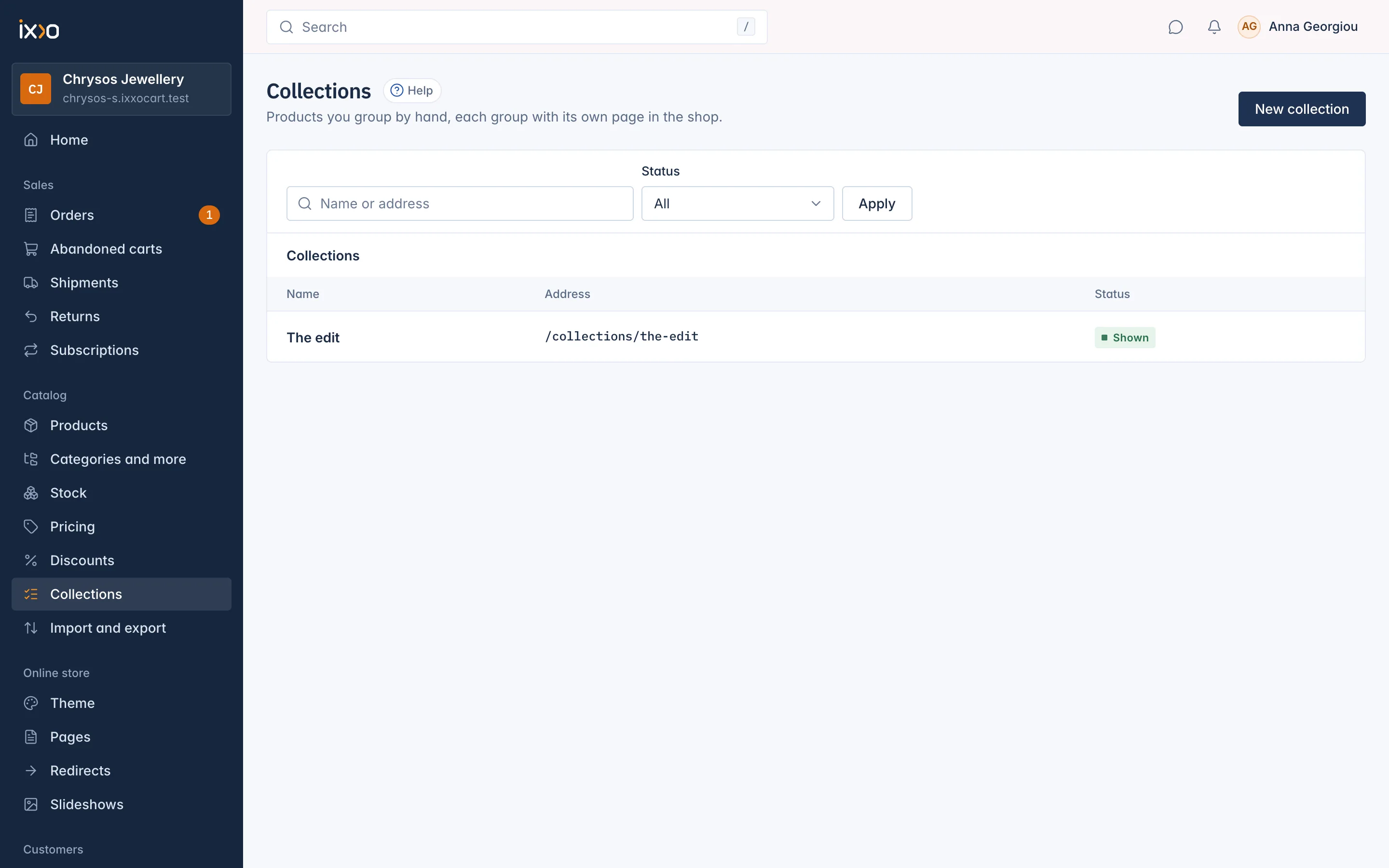
Catalog > Collections lists every collection with its Name, Address and Status. To find one, type its name or address in the search box, or choose a Status, and click Apply.
Make a collection
- Go to Catalog > Collections and click New collection.
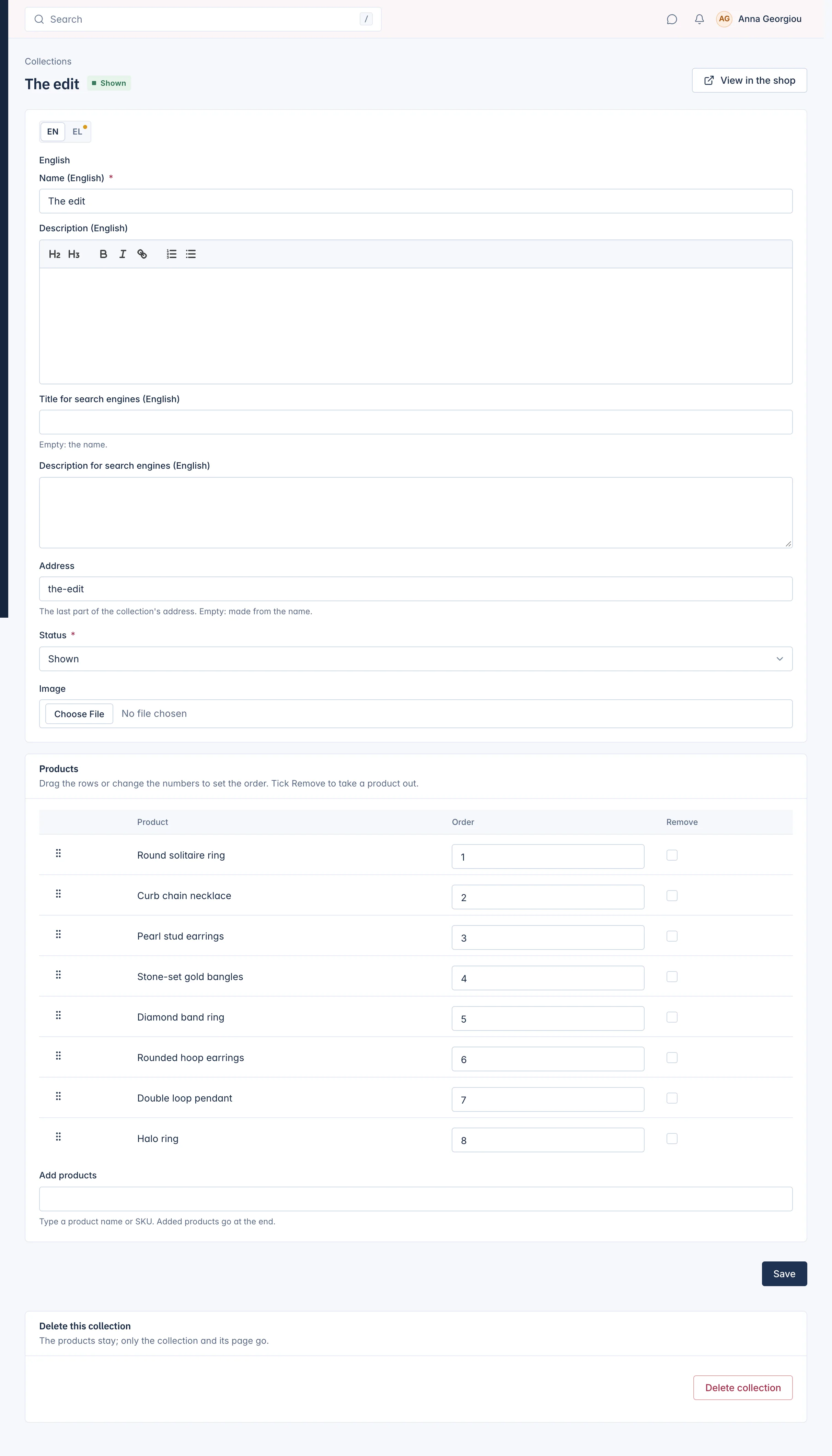
- Type the Name and, if you like, a Description. With several languages, use the language switch for each language.
- Fill in the Title for search engines and Description for search engines if you want them to differ from the name and description. Empty, the name is used as the title.
- Check the Address: "The last part of the collection's address. Empty: made from the name." The collection's page is at /collections/ followed by this address.
- Set the Status: Shown, or Hidden to prepare it without showing it.
- Add an Image if you like.
- Under Add products, type a product name or SKU and pick the product. Repeat for each product. "Added products go at the end."
- Click Save.
Order and remove products
The Products card lists the collection's products in the order the shop shows them. "Drag the rows or change the numbers to set the order. Tick Remove to take a product out." Then click Save.
Removing a product from a collection only takes it out of the group; the product itself is not changed.
You can also add a product to collections from the product: on its Advanced tab, the Collections card shows "The collections this product is in". See Show related products, upsells and accessories.
Show the collection in your shop
- View in the shop at the top of the collection opens its page.
- Add the collection to a menu so customers can find it.
- Show its products on the home page or another page with a product row section set to this collection.
Menus, sections and the theme editor are explained in Online store.
Only products customers can see appear on the collection page: drafts, archived products and products outside their When it shows window are left out until they are visible.
Delete a collection
At the bottom of the collection, Delete this collection: "The products stay; only the collection and its page go." Click Delete collection and confirm. Its page in the shop stops working. This cannot be undone.
Who can use collections
Staff need a role that may see or manage collections. Someone who may only look sees "You can look at this collection but not change it."
Related
Updated 13 November 2026