
How product prices work
The price, compare-at price and cost price of a product, sale prices and the EU lowest-price rule, other currencies, and customer group prices.
On this page
Every product variant has its own price. This article explains the three price fields, how a sale price is shown, the EU rule about the lowest price of the last 30 days, and how prices work in other currencies and for customer groups. Read it before you run your first sale.
The three price fields
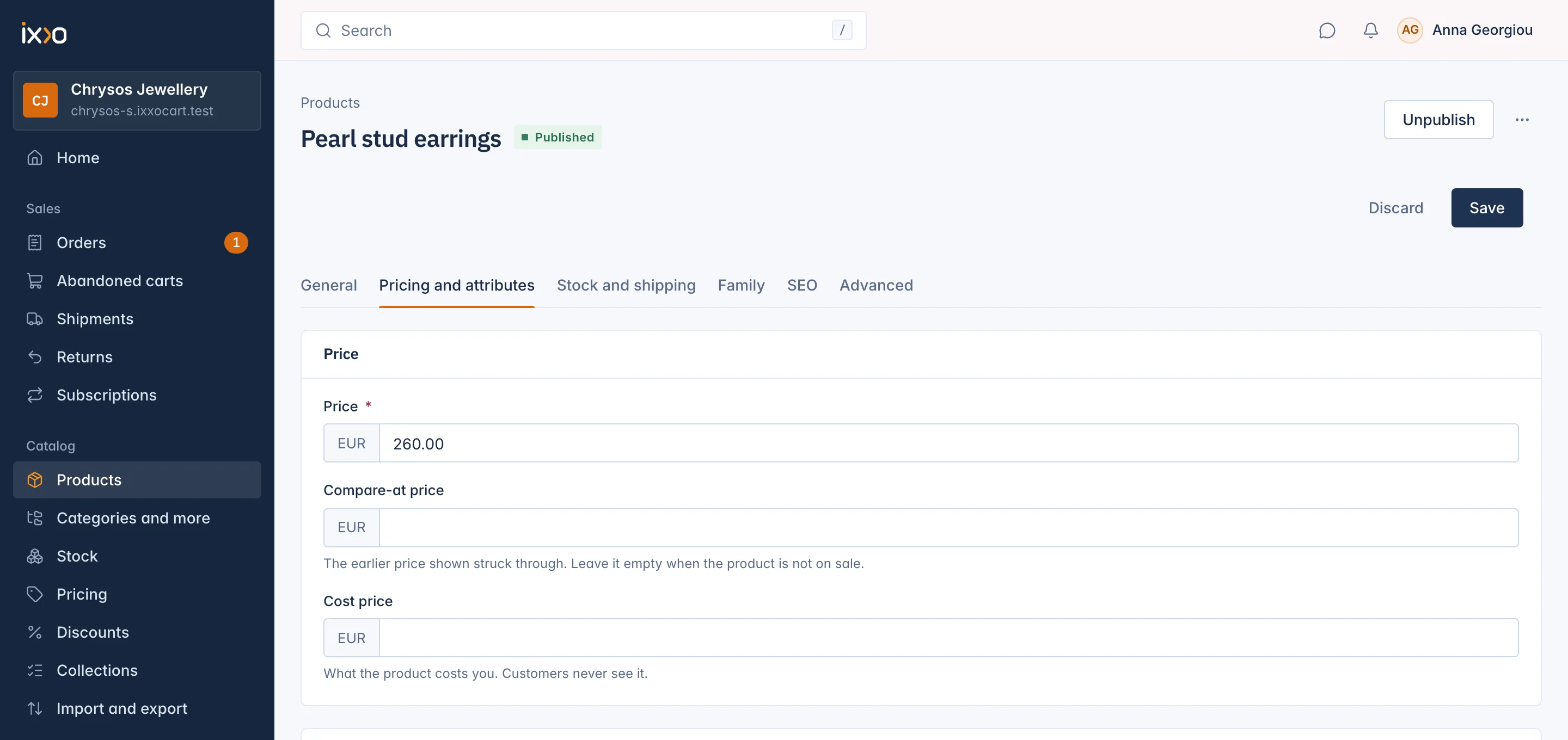
Open a product, then the Pricing and attributes tab. A product without combinations has one Price card:
- Price (required): what the customer pays for one unit.
- Compare-at price: "The earlier price shown struck through. Leave it empty when the product is not on sale." It must be higher than the price to count.
- Cost price: "What the product costs you. Customers never see it." Only staff with the permission See cost prices see this field, in the product and in exports.
A product with combinations (for example sizes with their own stock and SKU) has a price per combination instead. The tab then says "Each combination has its own price. Set the prices in the Combinations table below." The table has a Price and a Compare-at price column for each combination.
Whether you type prices with or without tax is a shop setting under Settings > Tax (see Money and tax). Type every price the same way.
To change many prices at once, use the Pricing screen: see Change many prices at once.
Sale prices
A product is on sale when its compare-at price is higher than its price. Customers then see the compare-at price struck through next to the price.
You can put a product on sale by typing a compare-at price yourself, or let the Pricing screen do it for many products: Start a sale moves the current price to the compare-at price and takes a percent off. End a sale puts the old price back.
Every price change is kept in the product's price history, with the time and the price. The history is what the shop uses for the 30-day rule below.
The lowest price of the last 30 days (EU)
In the EU, a shop that shows a reduced price must also show the lowest price it charged in the 30 days before the reduction started. IXXO Cart does this for you from the price history.
The setting is under Settings > Products: Show the lowest price of the last 30 days on discounts (auto = EU and UK shops). It has three choices:
- Automatic (EU and UK shops): the default. On for shops in the EU and the UK.
- Always
- Never
While it is on:
- The product page shows the lowest price of the 30 days before the sale next to the struck-through price.
- When no such price can be shown, the struck-through price is left out too, so the product simply shows its price. This happens, for example, for a price in another currency, or when the history mixes prices typed with and without tax.
- Product cards in lists and the lines in the cart show the price without a struck-through price.
Prices in other currencies
Your main currency is set under Settings > Languages and currencies > Currencies. Customers can choose to see prices in your other active currencies. These prices are converted from your price at the rate shown on that screen. See Settings for how to add currencies.
Prices for customer groups and quantities
The pricing engine can also give different prices to different customers or quantities:
- Price lists: a list of prices for one currency, and optionally for one customer group. A list either holds your own prices, or converts your prices at the day's rate plus a markup you choose, with an ending such as .99. When two lists fit, the one with the higher priority wins.
- Group prices: a product's own price for a customer group, as an amount or as a percent or amount off.
- Quantity discounts: a lower unit price from a minimum quantity, for example for wholesale tiers. A quantity discount only ever lowers the price.
When several fit, the customer pays the price from the first rule that applies, in this order: a price list for the currency and their group, a price list for the currency, the product's group price, their group's own discount, and finally your normal price. A quantity discount then lowers that price when it applies.
There is no admin screen for price lists, group prices and quantity discounts yet. They are set up through the REST API (see Developers). Customer groups themselves are explained in Customers.
Related
Updated 13 November 2026