
Shipping profiles, boxes and product weights
Set the ship-from address, handling time and fee in a shipping profile, add the boxes you pack into, and give products a weight and size.
In the admin: SettingsShipping
On this page
Three things sit behind every shipping price and label: the profile says where parcels leave from and how long you take to pack them, the boxes say what you pack into, and the product weights and sizes say what goes in. This article covers all three.
Shipping profiles
A profile belongs to a stock location. It holds the ship-from address, your handling time and an optional handling fee, and every delivery method is priced in one profile.
Every shop has a default profile, marked (default) on the Profiles tab. It covers "Every location without its own profile", so a shop with one warehouse or one shop front needs nothing else.
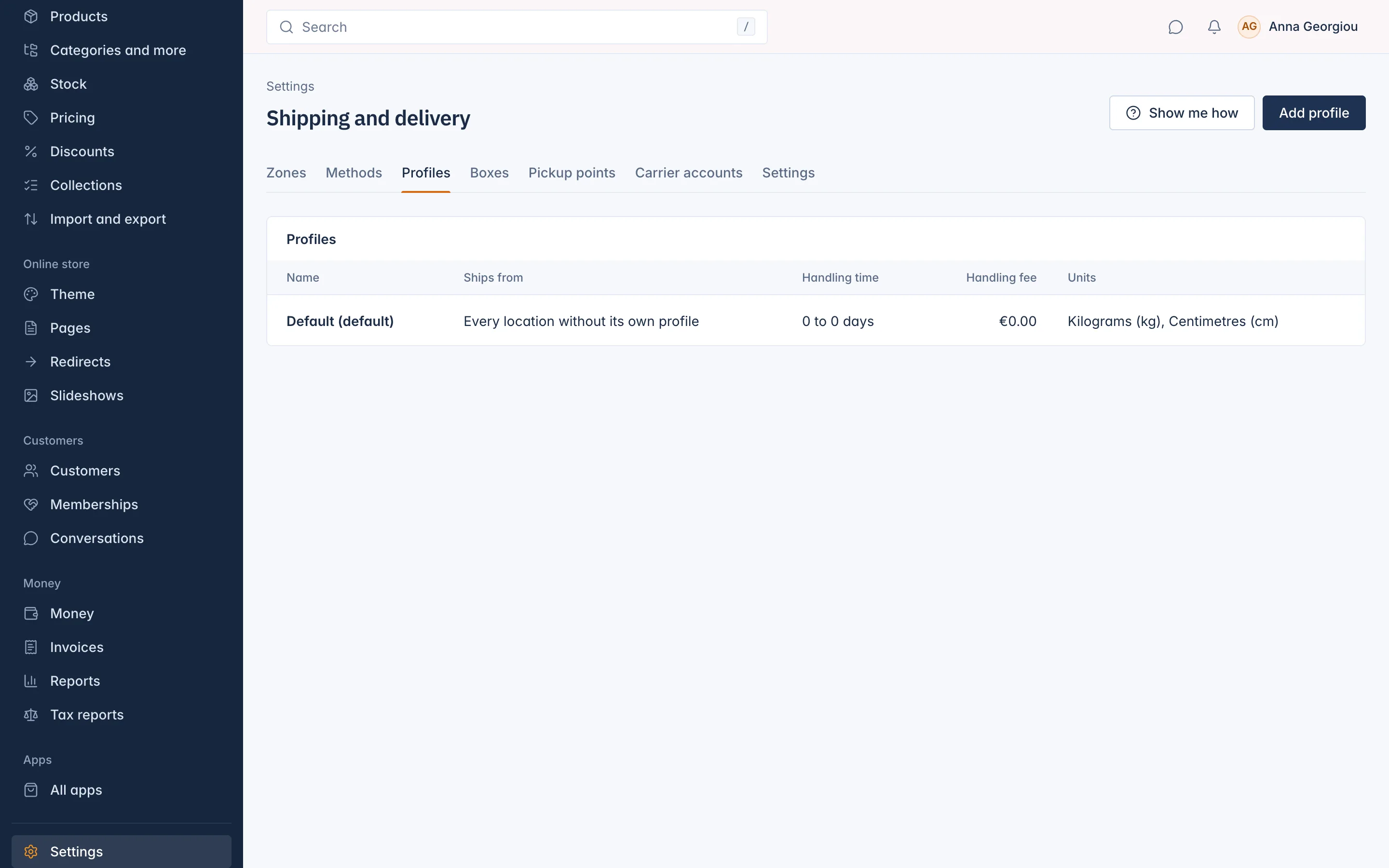
Edit a profile
Open the profile on the Profiles tab and fill in:
| Field | What it does |
|---|---|
| Name | Your own name for it. Customers do not see it. |
| Ships from address | "The address on carrier labels, and the country your sales are taxed from." Fill in the street: carriers need it to buy a label. |
| Handling days from, Handling days to | How many working days you need to pack an order. Added to each method's delivery days at checkout. |
| Handling fee | "Added to every delivery price of this profile." It is dropped when an order ships free or is collected. |
| Weights in, Sizes in | kg or lb, cm or in. The price bands and boxes of this profile use these units. |
Save. You see "Profile saved."
A second profile
Add a second profile only when you ship from a second stock location with a different address, handling time or fee. Press Add profile, choose the Stock location ("Parcels sent from this location use this profile.") and fill in the rest. The location cannot be changed later.
A location's own profile takes over only once it has at least one active method of its own; until then the location keeps shipping with the default profile. Deleting a profile asks "Delete this profile?": "Its location then ships with the default profile." The default profile cannot be deleted.
Stock locations themselves have no admin screen yet; they are added through the REST API. See Developers.
Boxes
Boxes are used to work out the parcels for Live carrier price methods and for labels. With flat or band prices you do not need any.
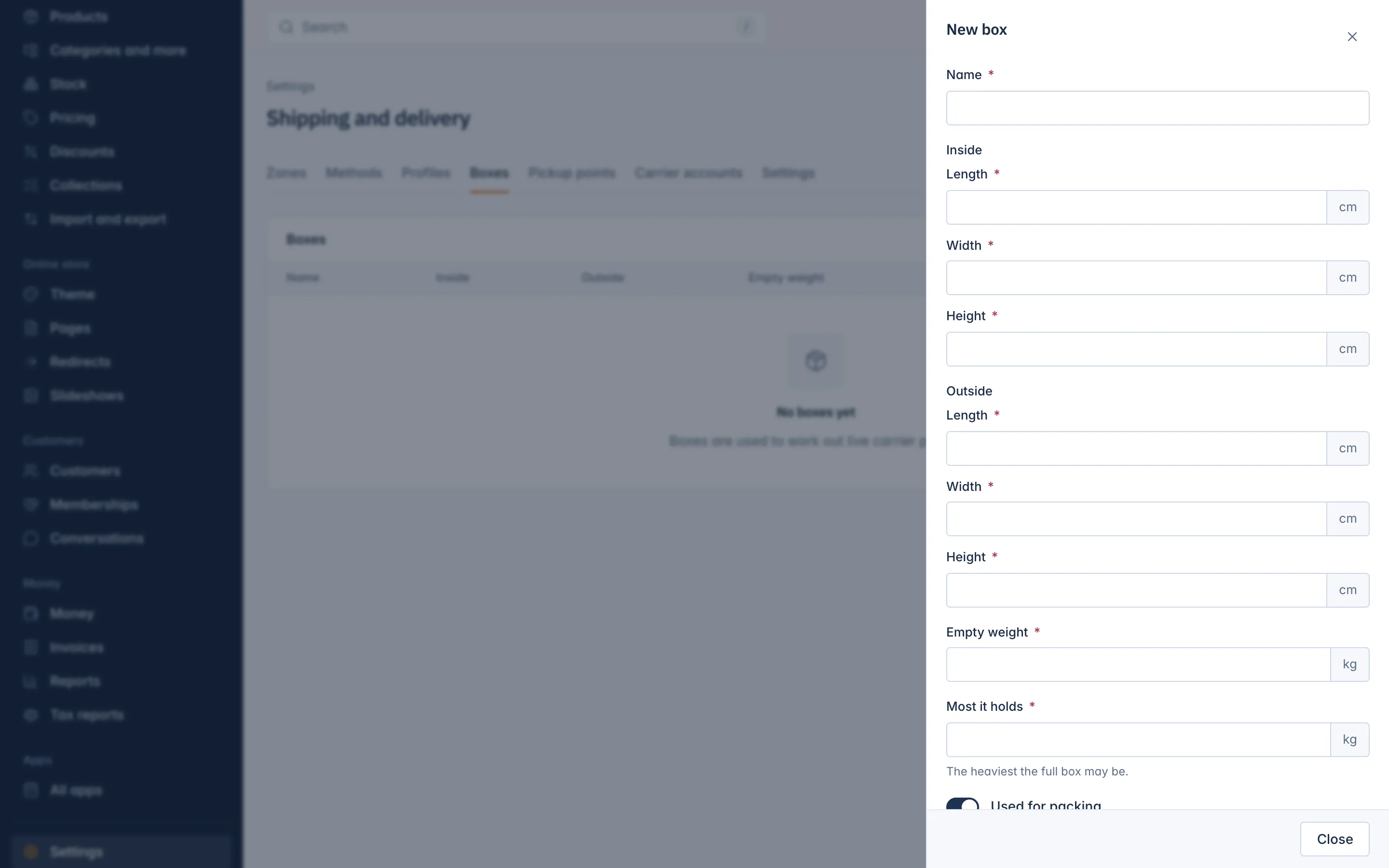
- On the Boxes tab, press Add box.
- Type a Name, such as "Ring box" or "Small mailer".
- Fill in the Inside and Outside sizes: Length, Width, Height.
- Fill in the Empty weight and Most it holds: "The heaviest the full box may be."
- Leave Used for packing on. Switched off, the box is kept but nothing is packed into it.
- Save. You see "Box saved."
How the shop packs
- Products with a length, width and height are packed into your boxes, smallest box first. Each packed box is one parcel, with the box's outside size and its weight plus the goods.
- A product that fits no box goes in a parcel of its own, with its own size and weight.
- Products without a size go into the last box while its weight limit allows; otherwise they make a parcel with a weight only.
- With no boxes at all, the order is one parcel with its weight only. Some carriers then quote a less accurate price.
Deleting a box asks "Delete this box?": "Parcels already made keep their sizes."
Product weights and sizes
Open a product in Products and go to the Stock and shipping tab. Under Shipping fill in:
- Weight in grams;
- Length, Width and Height in millimetres.
The weight is used by Price by weight methods, carrier prices and labels. The sizes are used for packing into boxes. Attribute choices can change the weight on the Pricing and attributes tab, for example a longer chain; see the Catalog section.
The Shipping profile line on the same tab shows the profile the product ships with, and Shipping settings takes you to Settings > Shipping.
Related
Updated 13 November 2026