
Set your shop details
Change your shop name and time zone, choose where order notices go, use maintenance mode, set the date format and take the shop online or offline.
In the admin: SettingsShop
On this page
The Shop settings hold the basic facts about your shop: its name, its time zone, the mailbox that gets order and return notices, how dates are written, and whether visitors can see the shop at all. Check them once when you start, and come back when you need to close the shop for a while.
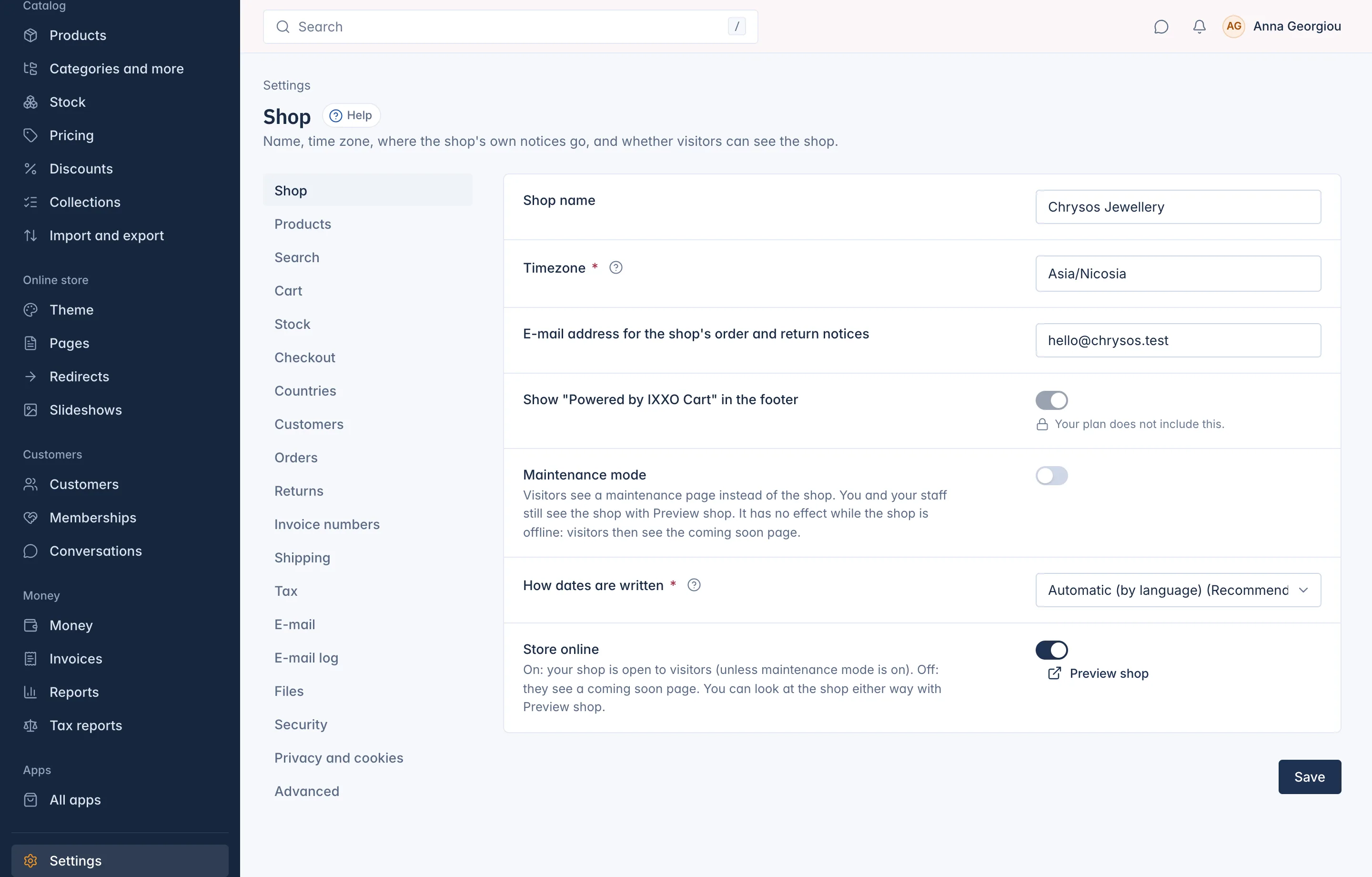
Change the shop details
- Go to Settings and open Shop.
- Change the fields you need (each is explained below).
- Press Save.
If a field is refused, the page shows what to fix and keeps what you typed.
What each setting does
| Setting | What it is for |
|---|---|
| Shop name | Your shop's name, shown in the storefront, in e-mails (for example "The Chrysos Jewellery team") and on the coming soon page. |
| Timezone | Order dates, daily statistics, the go-live time and "today" on the Home page use this zone. Pick where your business is, not where your customers are. |
| E-mail address for the shop's order and return notices | The shared mailbox for notices meant for the shop as a whole, such as new orders and returns. Personal notices to staff go to each person (see Your profile and notifications). Left empty, the shop's contact e-mail from sign-up is used. |
| Show "Powered by IXXO Cart" in the footer | A small line in your storefront footer. It can be switched off only on plans that include white label. On other plans the switch is locked and reads Your plan does not include this. |
| Maintenance mode | Shows visitors a maintenance page instead of the shop. See below. |
| How dates are written | Automatic (by language) writes each date the way its language usually does. You can force day/month/year, month/day/year or year-month-day instead. It is used in the admin, the shop and e-mails. |
| Store online | Whether visitors can see your shop. See below. |
Take the shop offline or put it live
Store online is the big switch for your storefront:
- On: your shop is open to visitors (unless maintenance mode is on).
- Off: visitors see a coming soon page instead.
Only the shop's Owner can move this switch. Other staff who can open the page see it locked with a short note.
When you switch it on, the admin first asks you to confirm and lists any set-up steps that are not done yet, such as a mail account that has not passed its test e-mail. These steps are advice: you can still go live. Until your own mail account passes a test, though, your shop sends no e-mails to customers. When you switch it off, the admin asks Take your shop offline? first.
Press Preview shop under the switch to look at your shop as it is now, whether it is live or not.
Use maintenance mode
Maintenance mode is for short breaks while your shop is live, for example while you change prices or move to a new theme.
- Switch on Maintenance mode.
- Write a Message to visitors, or leave it empty for a short default message ("We are making some improvements. Please come back soon.").
- Press Save.
Visitors now see a "Back soon" page. You and your staff can still see the shop with Preview shop. Switch maintenance mode off and save to open the shop again.
Your shop's legal details
Your company name, address and VAT number for invoices are set where invoices are set up, under Settings > Invoice numbers, and your tax registration under Settings > Tax. See the Money and tax section. The billing details IXXO Cart prints on its own invoices to you are on Billing (see Your plan and billing).
Related
Updated 13 November 2026