
Work with a customer's page
One customer's orders, details, addresses, notes, tags and membership, and the actions: edit, password-reset link, block and log in as customer.
In the admin: CustomersCustomersa customer
On this page
Each customer has a page with everything your shop knows about them: their orders, their details, their addresses and your staff notes. Open it from the Customers list, or from the customer's name on an order.
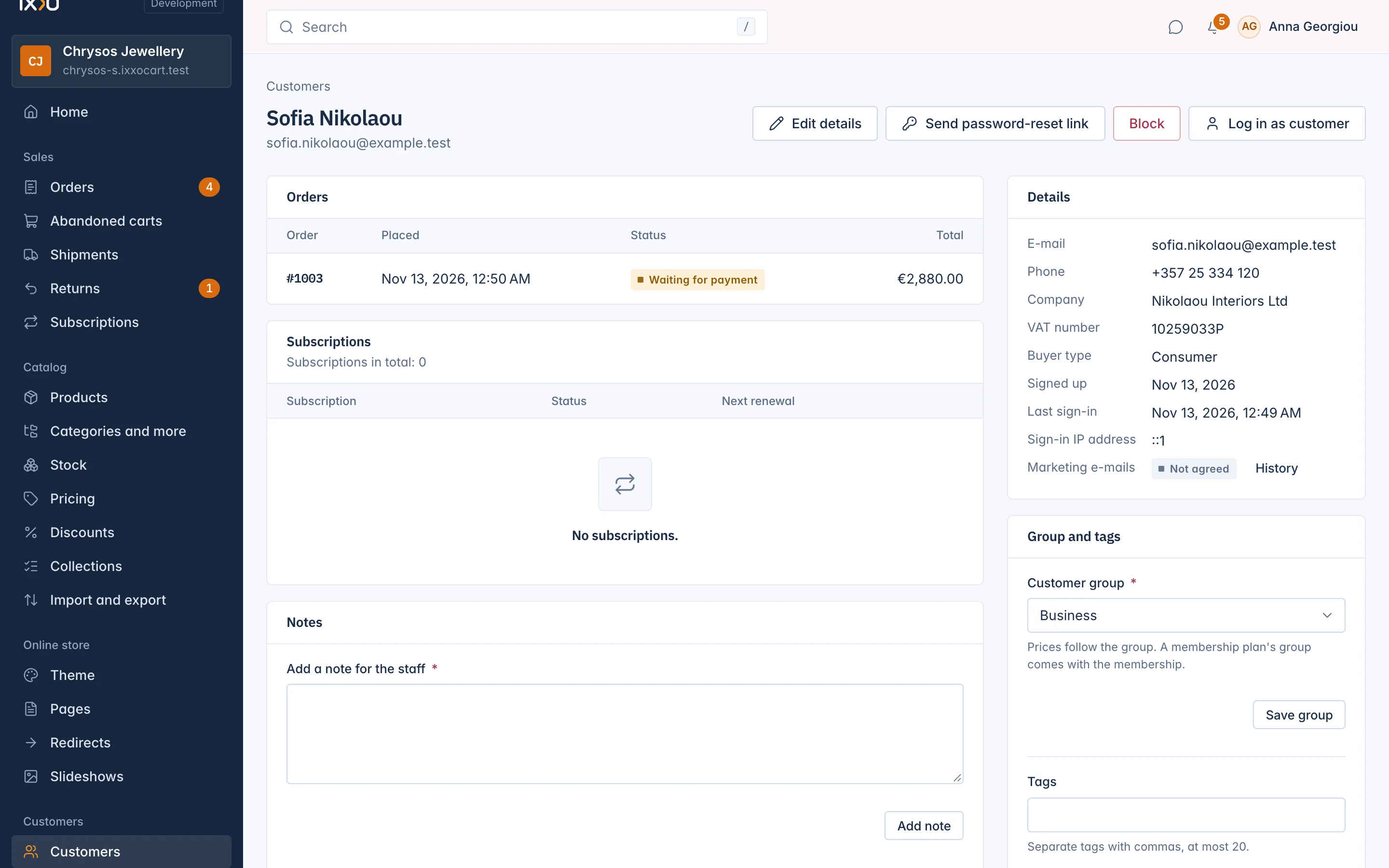
What is on the page
The main column holds:
- Orders: newest first, each with its number, date, status and total. Older orders and Newest orders page through a long history.
- Subscriptions: how many the customer has and the newest ones, each linking to it on the Subscriptions screen.
- Notes: your staff notes, with the date and who wrote them.
- Conversations: the customer's conversations with your shop, open or closed.
The side column holds:
- Details: e-mail, phone, company, VAT number, Buyer type, the sign-up day, the Last sign-in with its IP address, and Marketing e-mails.
- Group and tags: the customer group and your tags.
- Addresses: the customer's address book with the default billing and shipping addresses marked.
- Membership: their membership plan, its status and when it renews or ends.
Some cards only show to staff whose role lets them see that part, for example orders or memberships.
Edit the details
Select Edit details to change the name, company, phone, Birthday, Tax office, the Language of e-mails and the VAT number.
You cannot change the e-mail address here. The customer changes it from their own account, where they confirm the new address with a link.
The VAT number has two fields: Country of the VAT number and Number. A new or changed number is checked with the EU VIES service when you save. Empty the number to take it off. See Business customers and VAT numbers.
Group and tags
- Customer group: choose a group and select Save group. Prices follow the group. A group that belongs to a membership plan cannot be chosen here: the customer gets it with the membership.
- Tags: type tags separated by commas, up to 20, and select Save tags. Tags are saved in lower case. Only staff see them.
Addresses
Select Add address to add one. Give it a name if you like ("Home", "Office"). For a new address you can tick Use as default for billing or Use as default for shipping straight away.
Select Edit on an address to change it, make it a default or Remove it. Removing an address only takes it off the address book: orders keep the address they were sent to.
Notes for your staff
Type in Add a note for the staff and select Add note. Notes are dated and show who wrote them. Customers never see them. Only the person who wrote a note, the Owner or an Administrator can delete it.
Marketing consent
Marketing e-mails shows Agreed, Not agreed, or Waiting for the customer to confirm (the customer said yes, but has not opened the confirmation link yet). Select History to see every answer: when, the answer, where it was given (sign-up, their account, checkout, staff or the unsubscribe link) and who recorded it.
Send a password-reset link
If a customer cannot sign in, select Send password-reset link. The customer gets the usual reset e-mail and chooses a new password. You never see the link or the password. The button shows only for customers with an account who are not blocked.
Confirm an e-mail address by hand
A customer who has not opened their verification link yet shows Not verified next to the e-mail. If you know the address is right, select Mark email as verified: the customer can sign in without the link.
Block a customer
Block a customer to stop them from signing in, for example after fraud.
- Select Block.
- Write a Reason. Only your staff see it.
- Select Block customer.
The customer is signed out everywhere at once and cannot sign in or check out with that e-mail address. Their subscriptions pause within the hour and a paid membership is put on hold. Orders are not changed.
To undo it, select Unblock, then Unblock customer. They can sign in again, and their subscriptions and paid membership resume.
Log in as customer
Log in as customer opens your shop signed in as this customer, so you can see their account as they see it or help them with a cart. A bar at the top of the shop says whose account you are in, with Exit to leave. Some changes, such as their saved payment methods, stay the customer's own.
It shows only for customers with an account who are not blocked, and only for staff whose role has the permission "Log in to the shop as a customer and act for them".
Erased customers
When a customer's personal data was erased (see Customer data requests), the page says "This customer's personal data was erased." It keeps the orders and order conversations, and offers no actions.
Related
Updated 13 November 2026