
Manage a seller
Multi-VendorThe seller page and its tabs: details, vacation, product checks, documents, legal details, profile, team, log in as seller, suspend and close.
In the admin: MarketplaceSellersa seller
On this page
Each seller has its own page in the admin, with everything you need to look after it: its details and figures, products, orders, plan, application and documents, public profile, team and money. Open it from Marketplace > Sellers by clicking the seller's name. This article goes through the page tab by tab, then explains suspending, reinstating and closing a seller.
The header
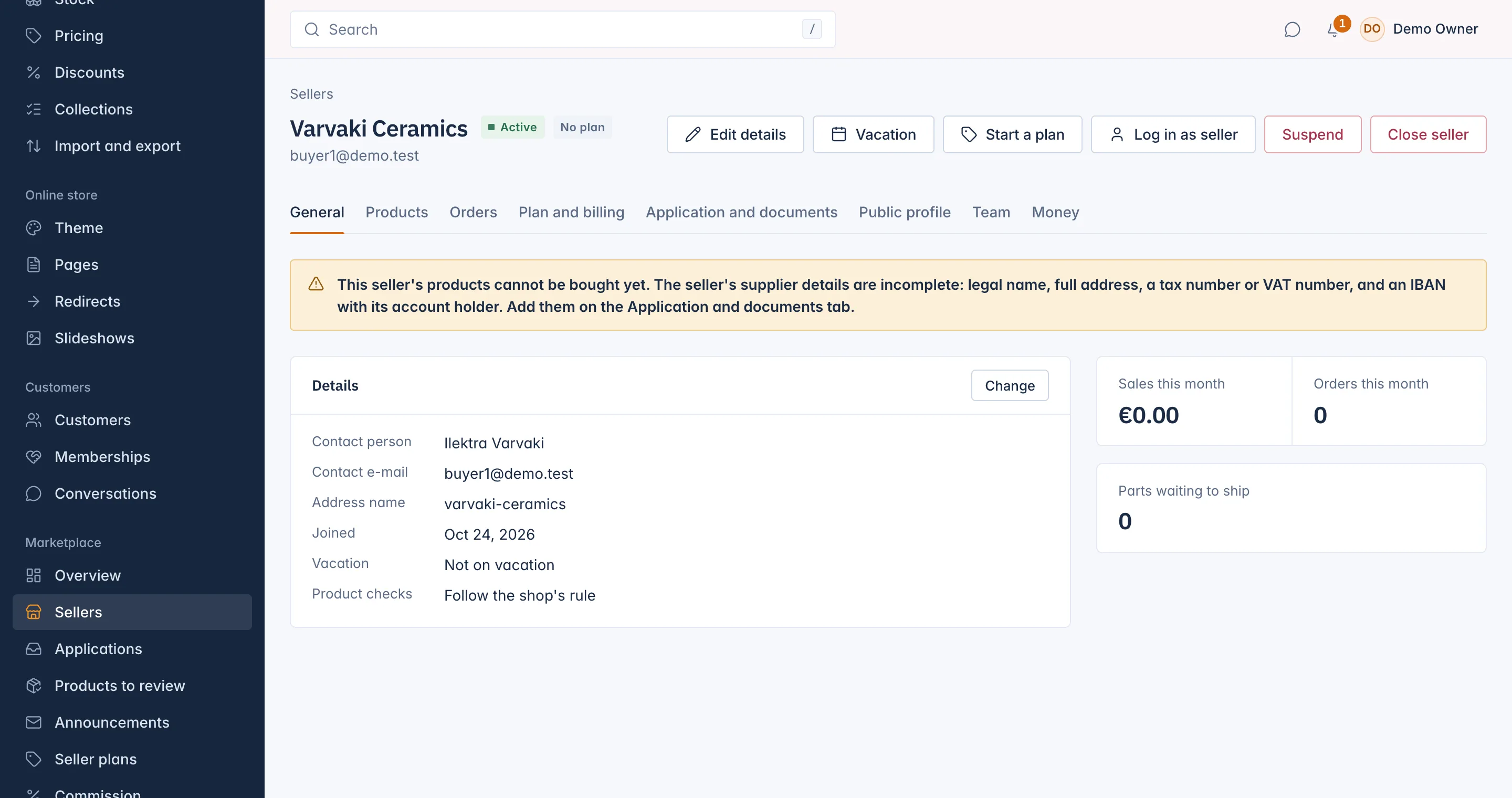
The header shows the seller's name and contact e-mail, its status badge (with the reason for a suspension or closing), its plan, and On vacation or Vacation planned when it applies. The actions sit on the General tab:
- Edit details, Vacation, Change plan (or Start a plan),
- Log in as seller,
- Suspend or Reinstate, and Close seller.
Each action shows only when you have the right to use it and the seller's status allows it.
General
The Details card lists the contact person and e-mail, the Address name (used in the seller's shop address), the day it joined, its vacation and its Product checks rule. Beside it are Sales this month, Orders this month and Parts waiting to ship, which opens the Paid, not shipped list for this seller.
A yellow warning above the card means the seller's products cannot be bought yet, and says what is missing for your selling mode, for example "Waiting for the seller to connect payouts" or incomplete supplier details. The seller fixes most of these in its panel; supplier details you can add yourself on the Application and documents tab.
- Edit details changes the Seller name, Address name (lower-case letters, digits and hyphens), Contact person and Contact e-mail.
- Change beside Product checks sets this seller's own rule: Follow the shop's rule, Always check new and changed products, or Never check this seller's products. See Check sellers' products.
Put a seller on vacation
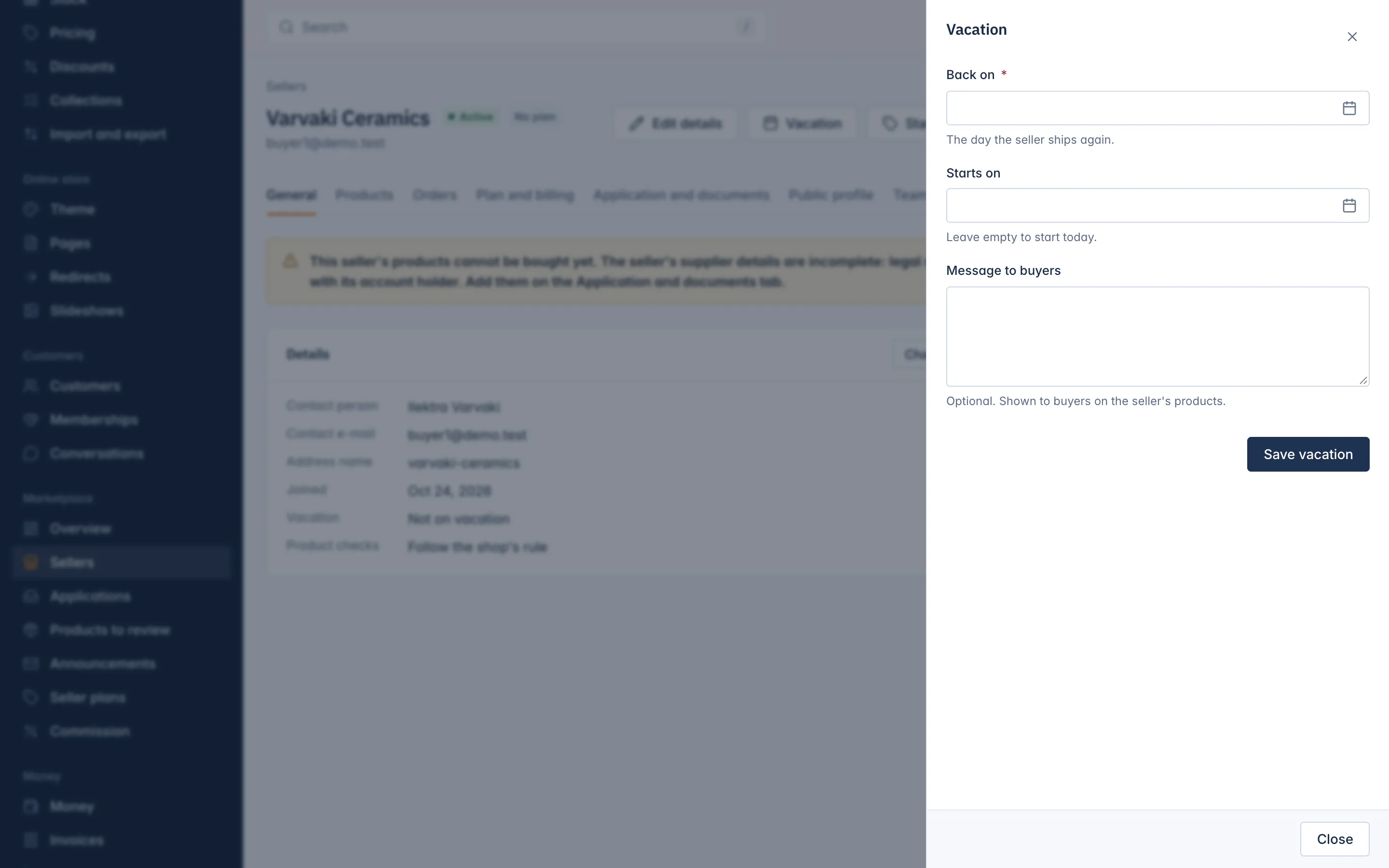
A vacation tells buyers the seller is away. Press Vacation, set Back on (the day the seller ships again), optionally Starts on (empty starts today) and a Message to buyers shown on the seller's products, then press Save vacation. To stop it early, open Vacation again and press End the vacation now.
Log in as seller
Log in as seller opens the seller's panel on your shop's domain, signed in as the seller's owner, so you can see exactly what the seller sees and help with its set-up. Only the Owner and Administrator roles can do this. The session lasts 30 minutes, a banner shows you are logged in as the seller, and Exit ends it. Everything you do is recorded as done by you, as the seller. Some screens, such as the seller's payment details and its team, are read only for you.
If the owner has not accepted the invitation yet, the button is replaced by Activate owner without e-mail.
Products
Five counts of the seller's products: Live, Draft, Waiting for a check, Declined and Archived. Each count opens Catalog > Products filtered to this seller and state.
Orders
The seller's newest 20 order parts with their status, shipping and total, and See all orders of this seller.
Plan and billing
The seller's plan, its status and next fee, and the list of plan fees with Mark paid, Void and Retry the charge. See Seller plans and plan fees.
Application and documents
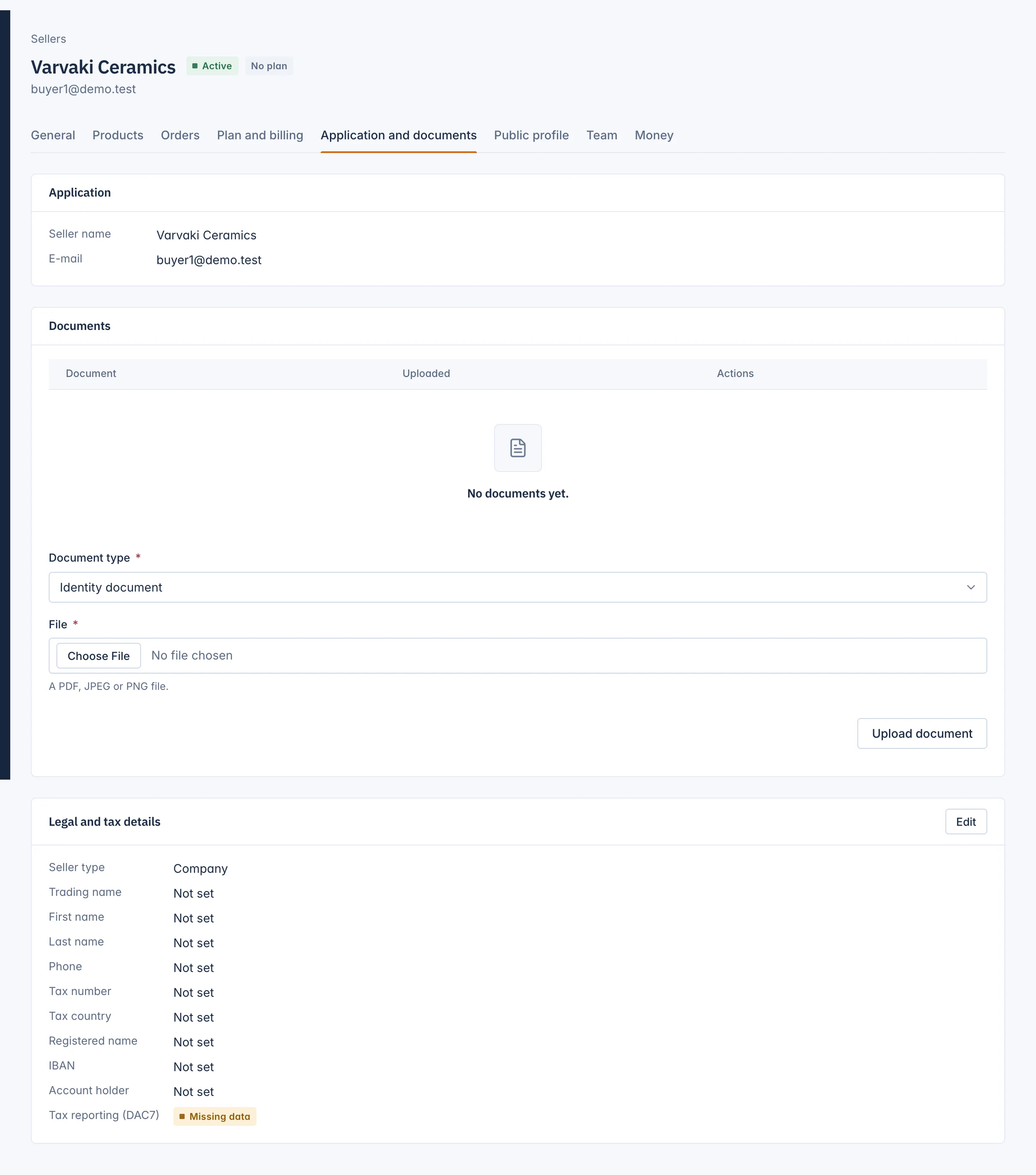
- Application: the answers the seller gave when it applied, including your own questions.
- Documents: the files on record, such as an Identity document or Business registration. Open each one through a fresh secure link, Remove one (the seller is not told), or upload a new one: choose the Document type, pick a PDF, JPEG or PNG File and press Upload document.
- Legal and tax details: the seller type, names, phone, tax number and country, registered name, IBAN and account holder. The tax number and IBAN show only their last four characters. Edit asks for your password again, because these details include the seller's bank account. Tax reporting (DAC7) shows Complete or Missing data when you collect DAC7 data.
Public profile
What buyers see on the seller's page in your shop: the summary, logo and privacy policy, and whether the profile is Shown to buyers. The seller writes its profile in its panel. To take a profile off your seller list, press Hide the profile and give a Reason: the seller sees the reason, and its products stay in the shop. Show the profile brings it back.
Team
The people who work in the seller's panel, with their role, and the open invitations. Send reset link e-mails a person the usual password reset link. Get invite link gives you a link to hand over yourself when e-mail is not set up. The seller manages its own team in its panel; see The seller panel.
Money
The seller's balance in each currency, the month so far, closed statements, last payouts, marketplace credits and commission invoices. See Payouts and seller statements.
Suspend or reinstate a seller
Suspending stops a seller from selling without closing it, for example while you check a complaint.
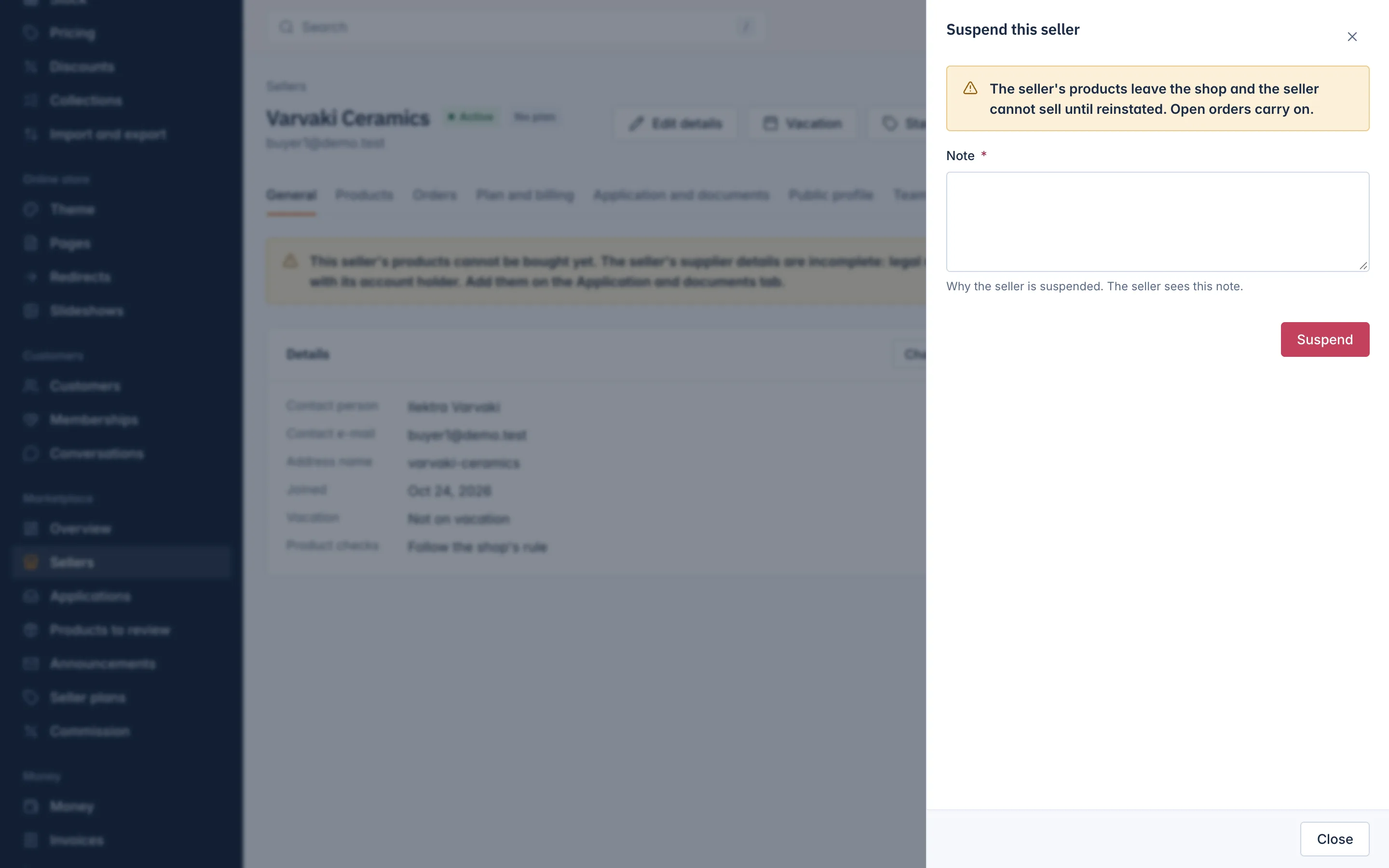
- On the General tab, press Suspend.
- Write a Note. The seller sees it.
- Press Suspend.
The seller's products leave the shop and it cannot sell until reinstated. Open orders carry on. To undo it, press Reinstate: the seller can sell again and its live products return.
A seller suspended for an unpaid plan fee has no Reinstate button. Instead a line tells you to mark each overdue fee paid or void it on the Plan and billing tab; the seller is reinstated once no fee is overdue.
Close a seller
Closing is for good. Press Close seller, write a Note (the seller sees it), type the seller's name to confirm, and press Close seller. The products leave the shop and the seller cannot sign in to sell. Open orders, returns and payouts carry on. The seller's documents are erased after the keeping period, 90 days by default.
Related
Updated 13 November 2026