
Confirm bank transfer and pay on pickup payments
Mark an order as paid when a bank transfer arrives or a customer pays at pickup: the 3-day payment time, reminders and late money.
In the admin: SalesOrdersan order
On this page
Card and PayPal payments confirm themselves. Bank transfers and payments at pickup do not: the money reaches you outside the shop, so you tell the shop it arrived. This article shows how to mark an order as paid, how long the shop waits for the money, and what happens when it does not come.
To offer these methods at all, switch on Bank transfer or Pay on pickup in Settings > Payments, under the offline methods. Payment providers and bank details are covered in the Money and tax section.
What the customer sees
When a customer chooses Bank transfer, the order confirmation and the order e-mail tell them how much to pay, to whom (your bank details: account holder, IBAN and BIC when you entered them) and the reference to quote. The reference is the order number, for example 1042. Ask your bank to show the reference, so you can match each transfer to its order.
Pay on pickup tells the customer to pay when they collect the order, quoting the same reference. It is offered only when everything in the order is collected in person, that is when the customer chose a Pickup delivery method.
Find the orders waiting for money
In Sales > Orders, open View and choose Offline payments waiting. The list shows every order still waiting for a bank transfer or a payment at pickup. The number next to Orders in the menu counts these orders too, together with paid orders not yet sent.
Mark an order as paid
- Check your bank account, or take the money at the counter.
- Open the order. The Payment card shows Waiting and "Paid outside the checkout (bank transfer or at pickup)".
- Press Mark as paid in the header.
- Confirm. The message reminds you: "Do this only when the money is in your account."
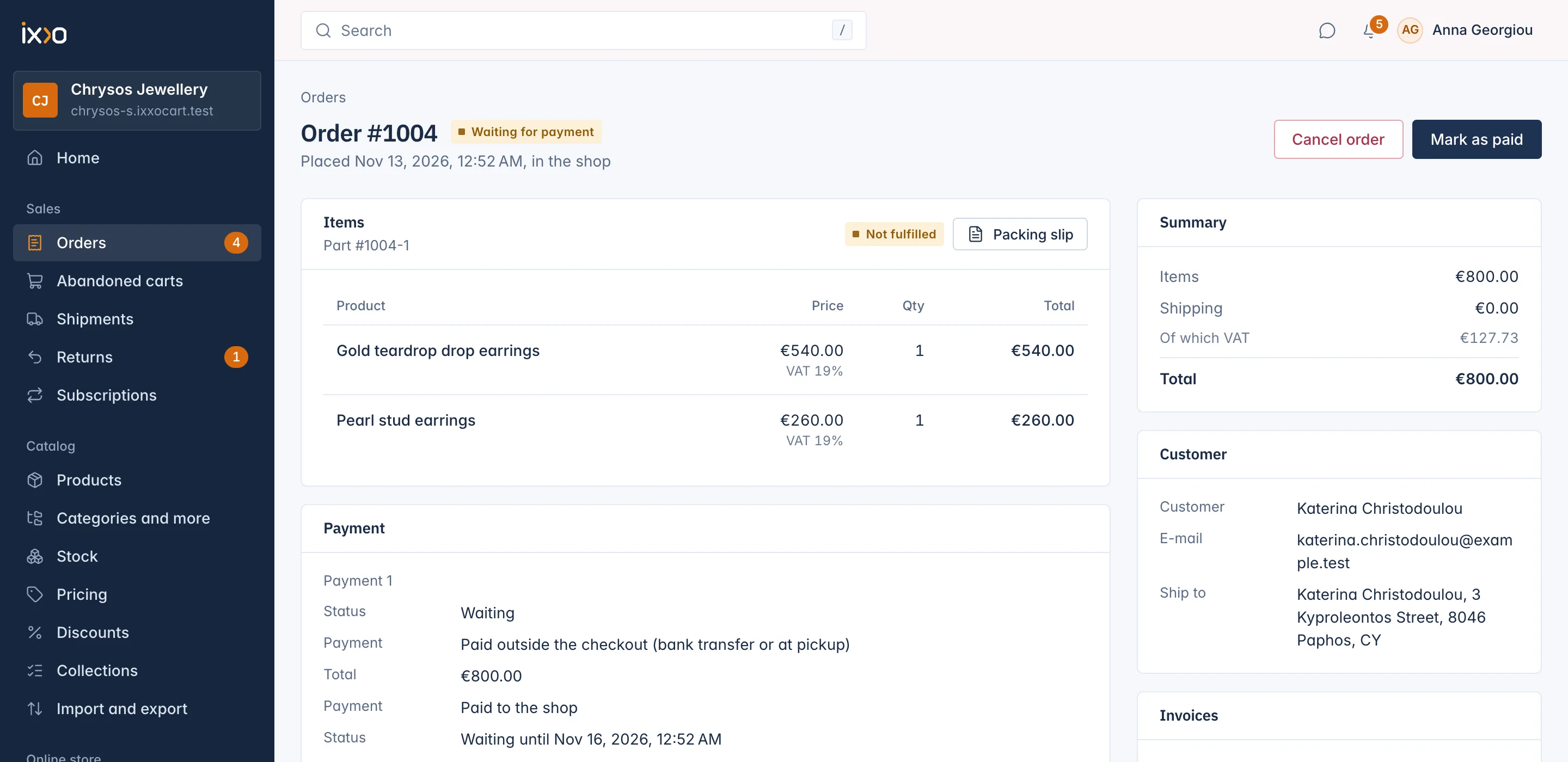
The order moves to Paid and you see "Payment recorded." From then on it is like any paid order:
- the stock is taken from the shelf for good;
- the invoice is issued, if your shop issues invoices;
- the customer gets the payment confirmation e-mail;
- you can ship it, or prepare it for pickup.
How long the shop waits
| Method | Time to pay | Reminder e-mail |
|---|---|---|
| Bank transfer | 3 days from the order | One reminder, 2 days after the order (a day before the time ends) |
| Pay on pickup | No limit | One reminder, 3 days after the order |
The reminder repeats how to pay, with the bank details and the reference. It is sent once per order. You can switch it off, or change its wording, in Settings > E-mails.
When a bank transfer's 3 days pass without the money, the shop cancels the order on its own: the stock goes back and the customer gets the cancellation e-mail. A pay on pickup order is never cancelled by itself. If the customer does not come, cancel it yourself with Cancel order.
Money that arrives late
Once an order is cancelled, it can no longer be marked as paid. If a transfer arrives after the 3 days:
- check whether the goods are still in stock;
- either create the order again with Create order and choose Mark as paid under Payment (see Create an order by hand);
- or send the money back to the customer from your bank.
Pay on pickup and Ready for pickup
The pickup buttons on an order only appear once it is paid. With pay on pickup, the usual order is:
- The customer arrives and pays.
- Press Mark as paid.
- Hand over the goods and press Ready for pickup, then Mark as delivered.
If you want to tell the customer their order is ready before they come, send them a message with Message the customer, or call them.
Cancel an unpaid order
Cancel order shows on any order Waiting for payment. It asks "Cancel this order?" and explains: "The customer has not paid yet. The order is cancelled and its stock goes back." The customer gets the cancellation e-mail. A paid order cannot be cancelled; you refund it instead.
Related
Updated 13 November 2026