
Choose what shop search looks at
Decide which product details your shop's search box looks in, and push some categories to the top or bottom of search results.
In the admin: SettingsSearch
On this page
The search box in your shop's header finds products as customers type. By default it looks in almost everything you write about a product. Settings > Search lets you narrow that down when results feel too loose, and lets you push certain categories up or down in the results, for example to show your own brand first and spare parts last.
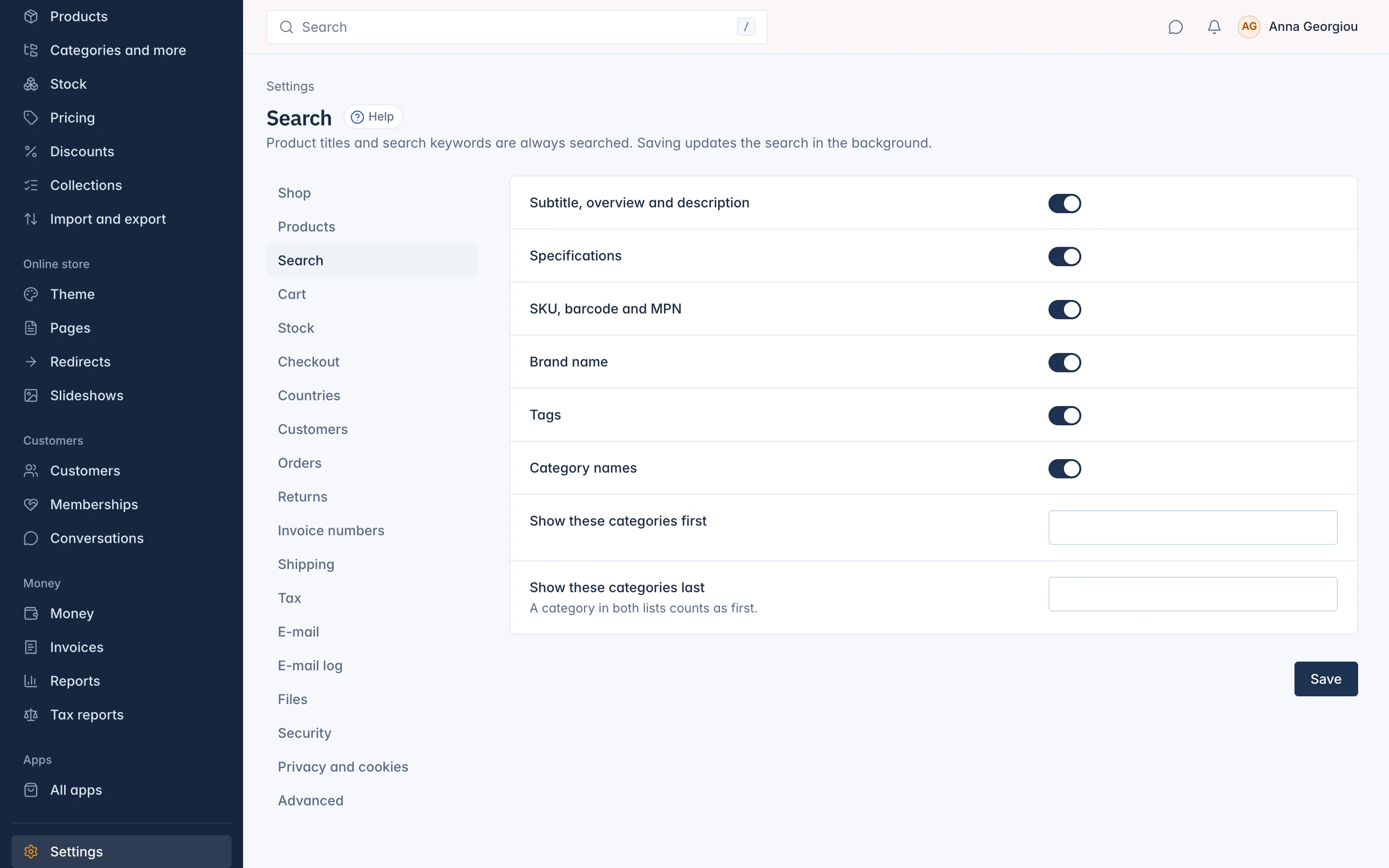
What search always looks at
Product titles and search keywords are always searched. You cannot switch them off.
Search keywords are extra words that help customers find a product, such as other names or common misspellings. They are not shown to customers. They are filled in through a product import or the API, and the AI writing tools can suggest them on paid plans. See Catalog.
Choose the other details
Each switch adds one kind of product detail to the search. All are on by default.
| Switch | What it adds |
|---|---|
| Subtitle, overview and description | The product's longer texts |
| Specifications | The values in the product's specifications |
| SKU, barcode and MPN | The product's codes. A customer who types a code exactly finds that product first. |
| Brand name | The name of the product's brand |
| Tags | The product's tags |
| Category names | The names of the categories the product is in, and of their parent categories |
When to switch one off: if a search for "gold" returns every product whose description mentions gold, while you want only products with gold in the title, switch off Subtitle, overview and description.
Show some categories first or last
- Show these categories first: products in these categories come before others in search results.
- Show these categories last: products in these categories come after others.
Pick the categories in each box. A category's subcategories follow it, unless you list a subcategory itself. A category in both lists counts as first. A hidden category has no effect.
These lists only change the order. They never hide a product from the results.
Save
Press Save. The shop then updates its search for every product in the background. In a large catalogue this can take a few minutes, during which the results slowly change over.
How results are ordered
When a customer searches, the results are sorted by Best match unless they choose another order. Best match puts first:
- a product whose code matches the search exactly, when SKU, barcode and MPN is on,
- then products with every word of the search in the title,
- then the rest, by how well they match.
Inside each of these steps, your first and last categories move products up or down. Stock does not change the order.
Who can change search settings
The page needs its own staff right, which only the shop owner has at first. The owner can give it to other staff. See Settings.
Related
Updated 13 November 2026