
Talk to customers in Conversations
Read and answer customer messages, start a conversation, close or reopen one, and handle reported conversations.
In the admin: CustomersConversations
On this page
Conversations are the messages between your shop and your customers, kept in one place inside IXXO Cart. A conversation can be about an order or about anything else. Customers get an e-mail when you write, and you get a notification when they write.
Where messages come from
- From the customer's account: the Messages page lets a signed-in customer start a conversation and answer yours.
- From an order: a customer can write about an order from the order page in their account. A guest can do the same from the link in their order e-mail.
- From your contact form: a message sent through the contact form on your shop lands here too. The sender is shown with "(Contact form)" after their name.
- From you: you can start a conversation with any customer who has an account.
A customer can start at most 10 conversations a day.
The Conversations screen
Customers > Conversations lists every conversation, with the most recent message first.
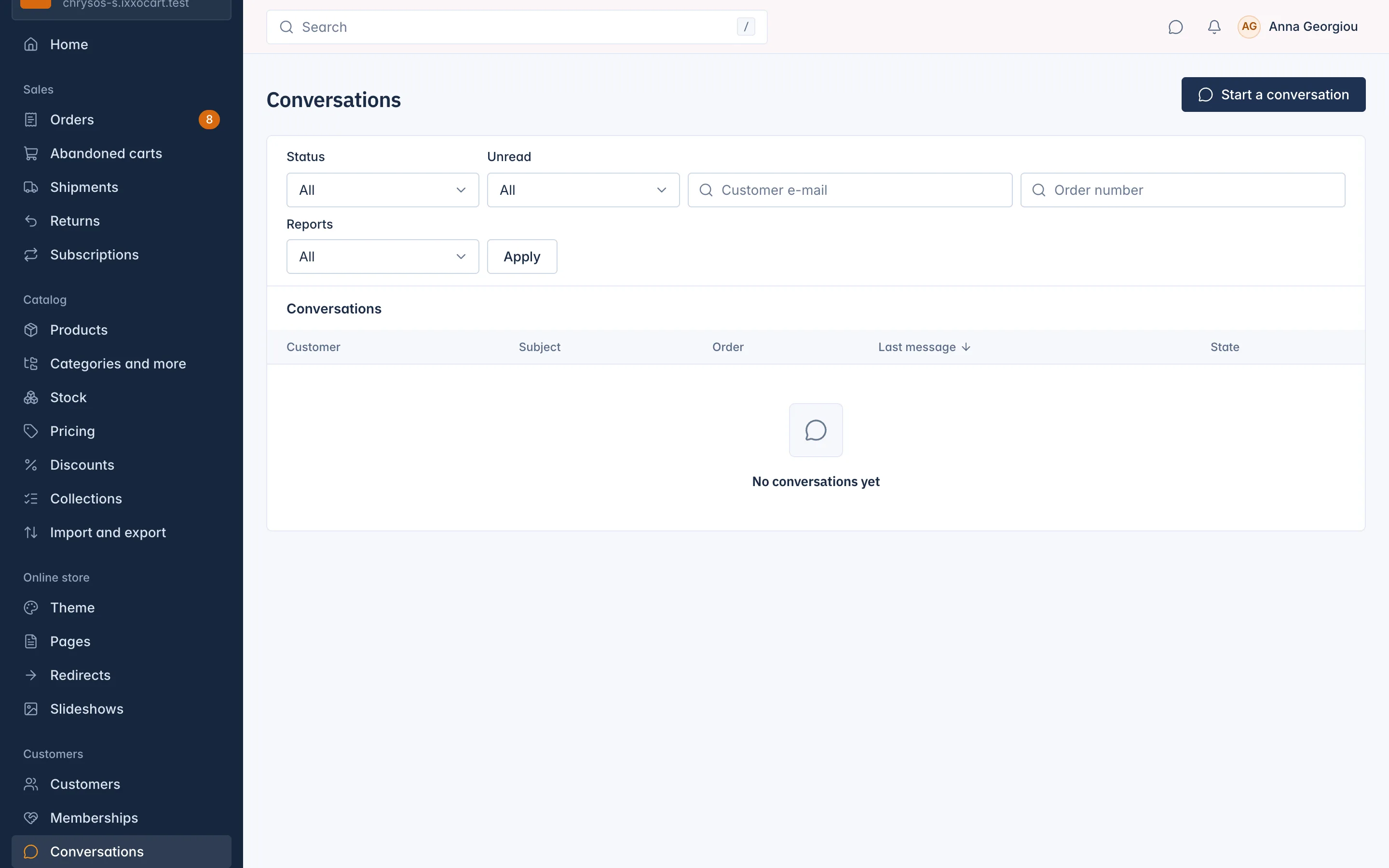
| Column | What it shows |
|---|---|
| Customer | Who you are talking to. "Guest" for a guest buyer, "Former customer" when the account was erased. |
| Subject | The subject of the conversation. |
| Order | The order it is about, if any. |
| Last message | When the last message was written. |
| State | Open, Unread, Closed, Closed for good, Read only or Reported. |
Filter by Status (open or closed), Unread (Unread only), Reports (Reported only), Customer e-mail or Order number.
Read and answer a conversation
Select a conversation to open it.
The messages are on the left. Beside them you see:
- the Order, when the conversation is about one: its status, payment, parcels with tracking, and returns;
- the Customer, with Open the customer page.
To answer:
- Write in Your message under Reply.
- Optionally add Attachments: images (JPEG, PNG, WebP, GIF) and PDF files, at most 5 files of 10 MB each.
- Select Send.
Your message is signed with your shop's name and your first name. The customer gets an e-mail. If you write several messages in a row, they get at most one e-mail every 15 minutes for that conversation, so they are not flooded.
Start a conversation
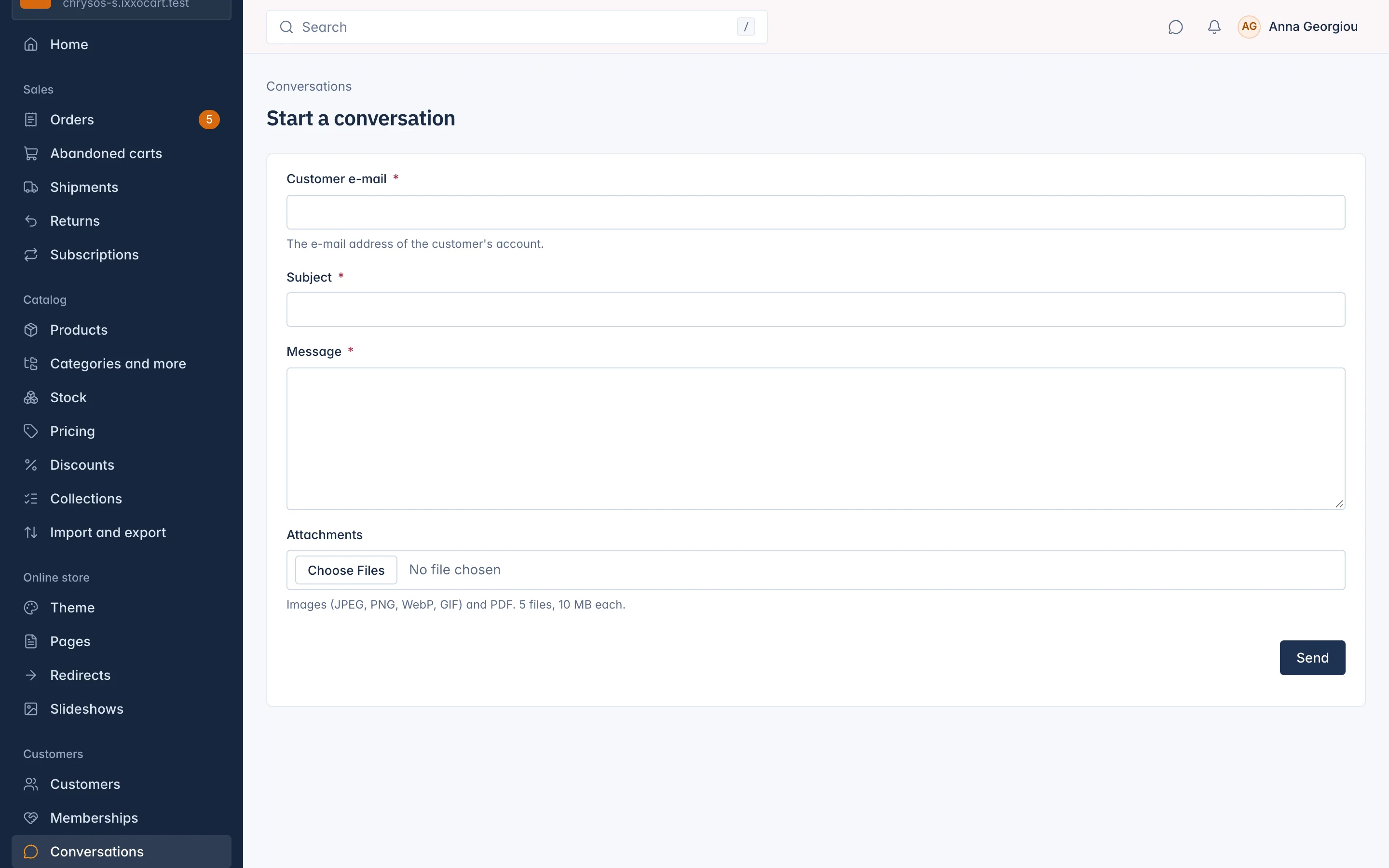
On Customers > Conversations, select Start a conversation.
You can also start one from a customer's page (Start a conversation in the Conversations card) or from an order.
- Type the Customer e-mail. It must be the e-mail address of a customer account. Guests without an account cannot be written to this way.
- Write the Subject (up to 150 characters) and the Message (up to 5,000 characters).
- Optionally add attachments.
- Select Send.
Close and reopen
When a matter is settled, select Close. A closed conversation opens again by itself when the customer writes. Select Reopen to open it yourself.
Close for good is for conversations you want to end, for example spam or abuse. A new message from the customer does not open it again. Staff can still reopen it by hand.
Reported conversations
A customer can report a conversation as Spam, Abuse, Scam or Other. Staff who handle reports get a notification, and the conversation shows Reported. Use the Reported only filter to find them.
Open the conversation to see the reason and note under Reports. Do what is needed (answer, Close for good, or block the customer from their page), then select Mark handled.
When a customer's account is erased
When a customer's personal data is erased, conversations about an order are kept as Read only, shown with "Former customer". Conversations that were not about an order are deleted. See Customer data requests.
Who can do what
Staff roles decide access to conversations:
- Read every conversation of the shop with its customers
- Start conversations with customers, and write in any conversation
- Handle reported conversations and close conversations
Related
Updated 13 November 2026