
Find and filter your orders
Use the orders list to search orders, filter by status, flag, payment method and date, spot orders that need you, and export orders to CSV.
In the admin: SalesOrders
On this page
The orders list is where every order of your shop lands, newest first: orders customers place in the shop, orders you create by hand and subscription renewals. Use it to find an order, to see what needs your attention today and to export orders to a spreadsheet.
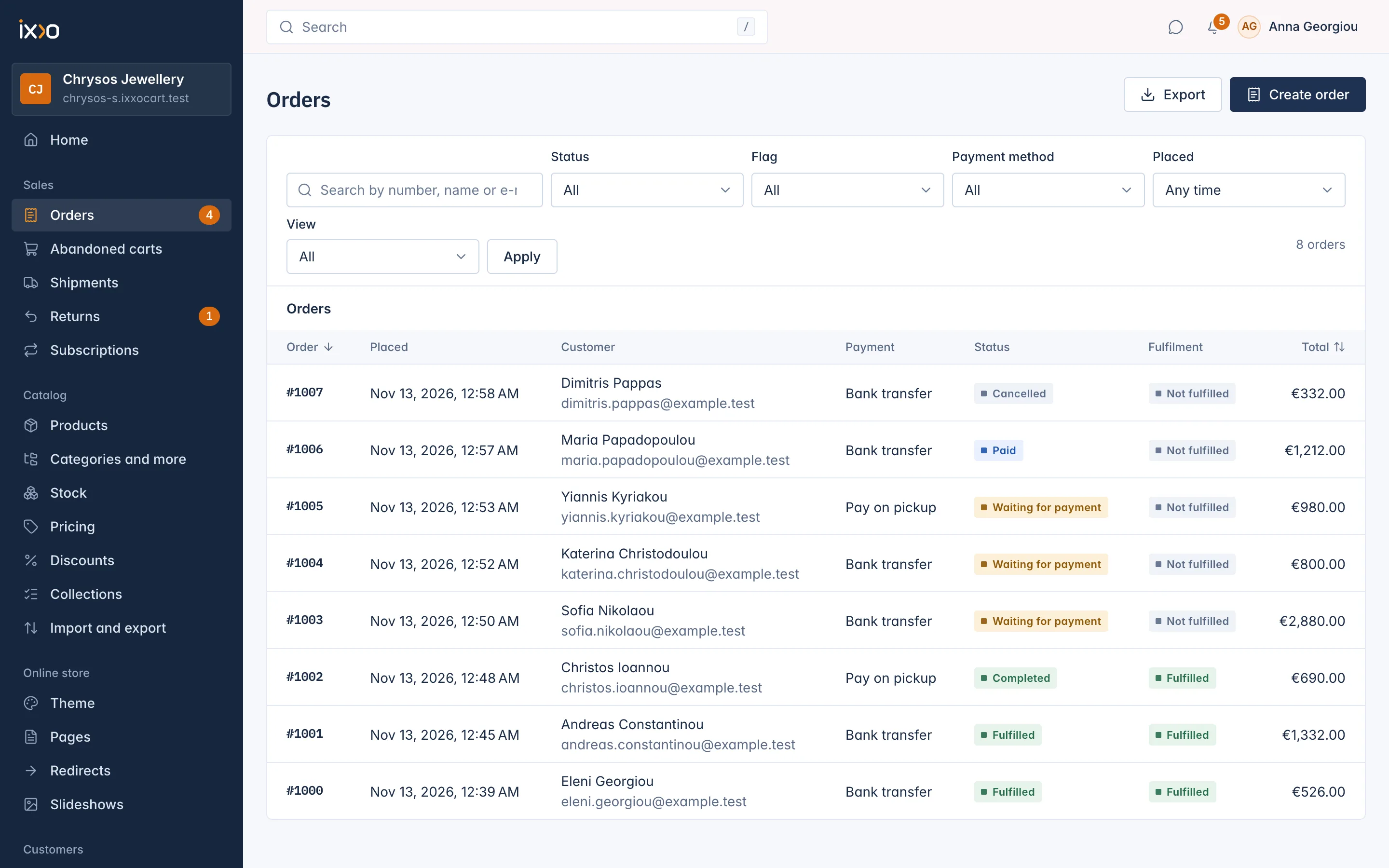
What each column shows
| Column | What it tells you |
|---|---|
| Order | The order number, such as #1042. Click it to open the order. A small warning mark after the number means the order is flagged (see below). |
| Placed | When the customer placed the order, in your shop's time zone. |
| Customer | The customer's name and e-mail address. A guest shows the e-mail only. |
| Payment | How the customer chose to pay, for example Card, PayPal, Bank transfer or Pay on pickup. |
| Status | Where the order stands as a whole: Waiting for payment, Paid, Fulfilled, Completed and so on. |
| Fulfilment | Whether the goods have left: Not fulfilled, Partly fulfilled, Fulfilled or Delivered. |
| Total | What the customer paid, in the order's currency. |
Every status is explained in Order statuses explained.
Click the Order or Total column heading to sort by it. The list is sorted by number, newest first, until you choose otherwise.
Search for an order
Type in the box Search by number, name or e-mail. You can search for:
- the order number, digits only: type
1042, not#1042; - the start of the customer's first name or last name, for example
Elefinds Eleni; - the start of the customer's e-mail address.
The search matches from the beginning of a name or address, so gmail alone finds nothing; type the first letters instead.
Filter the list
The filters sit above the table. Each one narrows the list, and you can combine them.
- Status: one order status, such as Waiting for payment or Refunded.
- Flag: orders carrying one particular flag.
- Payment method: orders paid, or to be paid, with one method. Only the methods your orders actually used are listed.
- Placed: Any time, Today, Last 7 days, Last 30 days, This month or Choose dates for your own range.
View: two ready-made lists:
- Paid this month: the orders paid this calendar month in your main currency. It is the same number as the one on your Home page.
- Offline payments waiting: orders still waiting for a bank transfer or a payment at pickup. Check this list when you look at your bank account.
The line above the table counts the orders that match, for example "38 orders". When nothing matches you see No orders match with a Clear filters button.
Flags: orders that need a look
A flag means something on the order needs a person. Flagged orders show a warning mark next to the number; hover over it to read the flags. On the order page each flag shows as a red tag next to the status.
| Flag | What happened and what to do |
|---|---|
| Refund needed | A payment arrived that the order cannot keep, for example a second payment for the same order, or money that came in after the order was cancelled. Give the money back to the customer. |
| Tax review needed | The VAT on the order could not be confirmed. Check the tax on the order. |
| Invoice review needed | A credit note or invoice could not be made after a refund. Check the order's invoices. |
| Refund after cancel failed | You cancelled units of a paid order, but the refund did not go through. The units stay cancelled; refund the money again. |
| Short of stock | Some units could not be reserved when the order was paid. Cancel the units you cannot send. |
| Paid late | The payment arrived after the payment time had ended and the order was brought back. |
| Fallback tax used | The tax service did not answer at checkout, so the shop's fallback tax was used. |
| Discount not checked | A discount could not be checked at checkout. |
Use the Flag filter to list every order with one flag, for example all orders marked Short of stock.
Export orders to CSV
Export downloads the orders the list shows right now as a CSV file you can open in Excel, Numbers or Google Sheets. Set your search and filters first: the file follows them exactly.
The file has one row per order with these columns: Order, Placed, Customer, E-mail, Country (the billing country), Payment, Status, Fulfilment, Currency and Total.
One export holds at most 10,000 orders. If more match, you see "More than 10 000 orders match. Narrow the filter and export again." Pick a shorter date range under Placed and export in parts.
Related
Updated 13 November 2026