
Publish, schedule, archive and delete products
Product statuses explained: what a product needs before you can publish it, how to schedule when it shows, and when you can archive or delete it.
In the admin: CatalogProducts
On this page
Every product has a status that decides whether customers can see and buy it. This article explains the three statuses, what a product needs before it can be published, how to show a product only between two dates, and the difference between archiving and deleting.
The three statuses
| Status | In the shop | Use it for |
|---|---|---|
| Draft | Not shown, cannot be bought. | A product you are still preparing, or one you took off sale for a while. |
| Published | On sale, shown in lists and search (as its Visibility allows). | Everything you sell. |
| Archived | Not shown in any list, cannot be bought. Its orders keep it. | Products you stopped selling. |
A new product always starts as a Draft.
Publish a product
Open the product and click Publish in the header, or tick several products in the list and use Publish in the bulk bar.
Before a product goes on sale, the shop checks that it has:
- a title in the shop's main language,
- a price, and a price on every combination that is on sale,
- a SKU on the product and on every combination, but only when your shop requires SKUs (Every variant needs a SKU under Settings > Products),
- a value for every custom field marked Required before a product is published that applies to it.
If something is missing, nothing is published and the editor lists each problem above the tabs, for example "Give the product a price, and every choice of its own stock too." Each problem has a button that opens the right tab.
Unpublish
Unpublish turns a published product back into a draft: "Product unpublished. It is a draft again." Use it to take a product off sale for a short time. It keeps its place in its product family, collections and categories.
Schedule when a product shows
Use When it shows on the General tab to limit a published product to a time window, for example a seasonal product or a launch at a set hour.
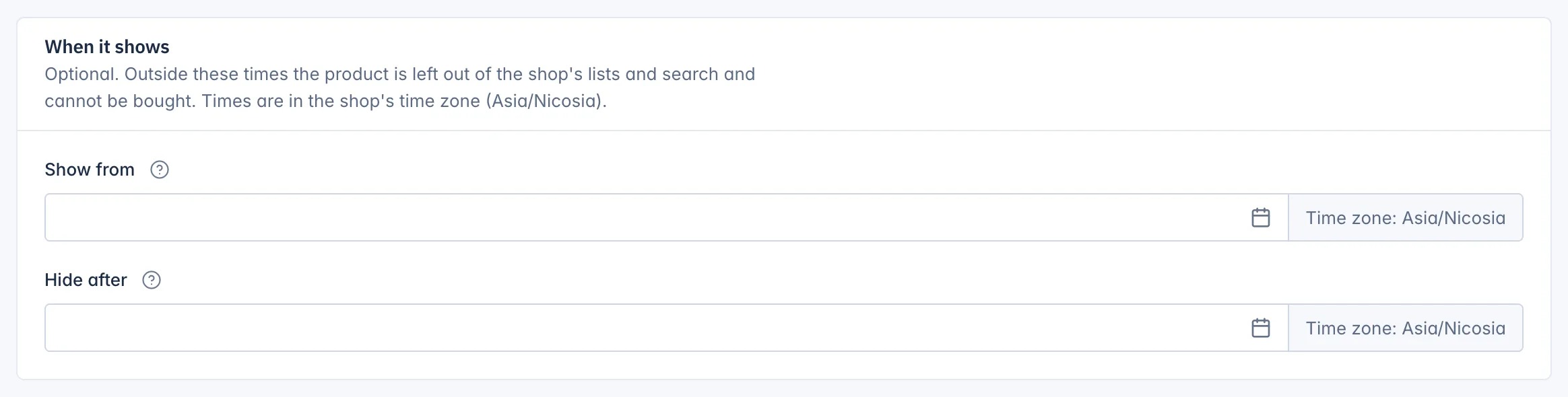
- Show from: the product shows from this date and time. Empty: from when it is published.
- Hide after: the product stops showing after this date and time. Empty: until you unpublish it.
Both are optional. Outside the window the product is left out of the shop's lists and search and cannot be bought. Times are in your shop's time zone, which the card names. Hide after must be later than Show from.
Duplicate a product
Duplicate (in the row menu or under More in the editor) makes a copy as a new draft: "Copy made. It is a draft." The copy takes the texts, photos, attributes, combinations and downloads of the original. SKUs are left empty, because a SKU must be unique in the shop. Change the title and address of the copy before you publish it.
Archive a product
Archive takes a product off sale and out of every list in the shop. You are asked to confirm: "It leaves the shop and every list. Its orders keep it. You can publish it again later."
- Past orders, invoices and returns still show the product.
- To sell it again, open it and click Publish.
- Archived products do not count towards your plan's product limit.
- The main product of a product family cannot be archived. Make another product of the family the main product first, or delete the family.
Delete a product
Deleting removes a product for good. It is only possible in two steps and only for products nobody has bought:
- Archive the product.
- Open it, click More and Delete, and confirm.
A product that was ever ordered cannot be deleted: "This product was ordered, so it cannot be deleted. It stays archived: hidden from the shop, still on its orders." This keeps your orders and invoices complete.
When you delete a product, it also leaves its categories, tags, collections, related product lists and product family. Downloads that customers already bought stay available to them.
Related
Updated 13 November 2026