
Put your shop live
Open your shop to customers with Go live, preview it before, take it offline again, and use maintenance mode while you make changes.
In the admin: Home
On this page
A new shop is not open to visitors: they see a Coming soon page while you set up. When you are ready, the Owner puts the shop live and customers can visit and buy. This article explains the go-live checks, how to preview your shop, and how to close it again, for a while or for maintenance.
Before you go live
The go-live card on Home, Before your shop goes live, is for the shop's Owner and shows while the shop is not live. It lists three checks, each ticked off by itself when done:
- Send a successful test e-mail from your own mail account: without it, your live shop sends no e-mails to customers. E-mail settings takes you there. See Connect your mail account.
- Switch on at least one language: visitors read your shop in the languages you switch on. A new shop has its main language on already.
- Give your shop an active primary domain: customers reach your shop at its primary domain. Every new shop gets its own address when it is created, and it is active and primary from the start.
The badge shows how many are done, for example 2 of 3 done.
These checks are advice, not a lock: Go live always works. They make sure the shop works well for customers. Also look at the Set up your shop card on the same page: a shop with no payment method, no shipping or no published product opens, but nobody can buy.
A short checklist before you press the button:
- A product is published, with a price and stock. See Add your first product.
- At least one payment method is in use. See Connect Stripe or PayPal.
- Shipping covers your customers' addresses. See Set up shipping.
- Your terms of sale page is chosen under Online store > Pages, and your shop's country is set under Settings > Tax.
- Your mail account has passed a test.
- You placed a test order and it looked right.
Preview your shop
Preview shop on the go-live card (and under Settings > Shop) opens your shop in a new tab exactly as it is, whether it is live or not, and also during maintenance. Use it to check your products, theme and checkout before customers see them. Visitors without the preview keep seeing the coming soon page.
Go live
- On Home, press Go live on the go-live card.
The confirmation asks Put your shop live?: "Customers can visit your shop and buy from it as soon as it is live."
- If checks are still open, it names them: "These steps are not done yet: … Customers will see your shop as it is now."
- If your mail account has not passed a test, it adds: Until your own mail account passes a test, your shop sends no e-mails to customers.
- Press Go live in the confirmation.
The message says Your shop is live. Customers can visit it now., or, with checks left, Your shop is live. Still to do: followed by what is missing. The go-live card disappears from Home.
Your shop's address
Your shop is reached at the address it got when you signed up, shown under its name at the top of the admin sidebar; click it to open the shop. To use your own domain name, ask IXXO to set it up for your shop.
Take the shop offline
To close the shop to visitors again, for example while you rework it:
- Go to Settings > Shop.
- Switch off Store online.
- Confirm Take your shop offline?: "Visitors will see the coming soon page until you switch the shop on again."
- Press Save.
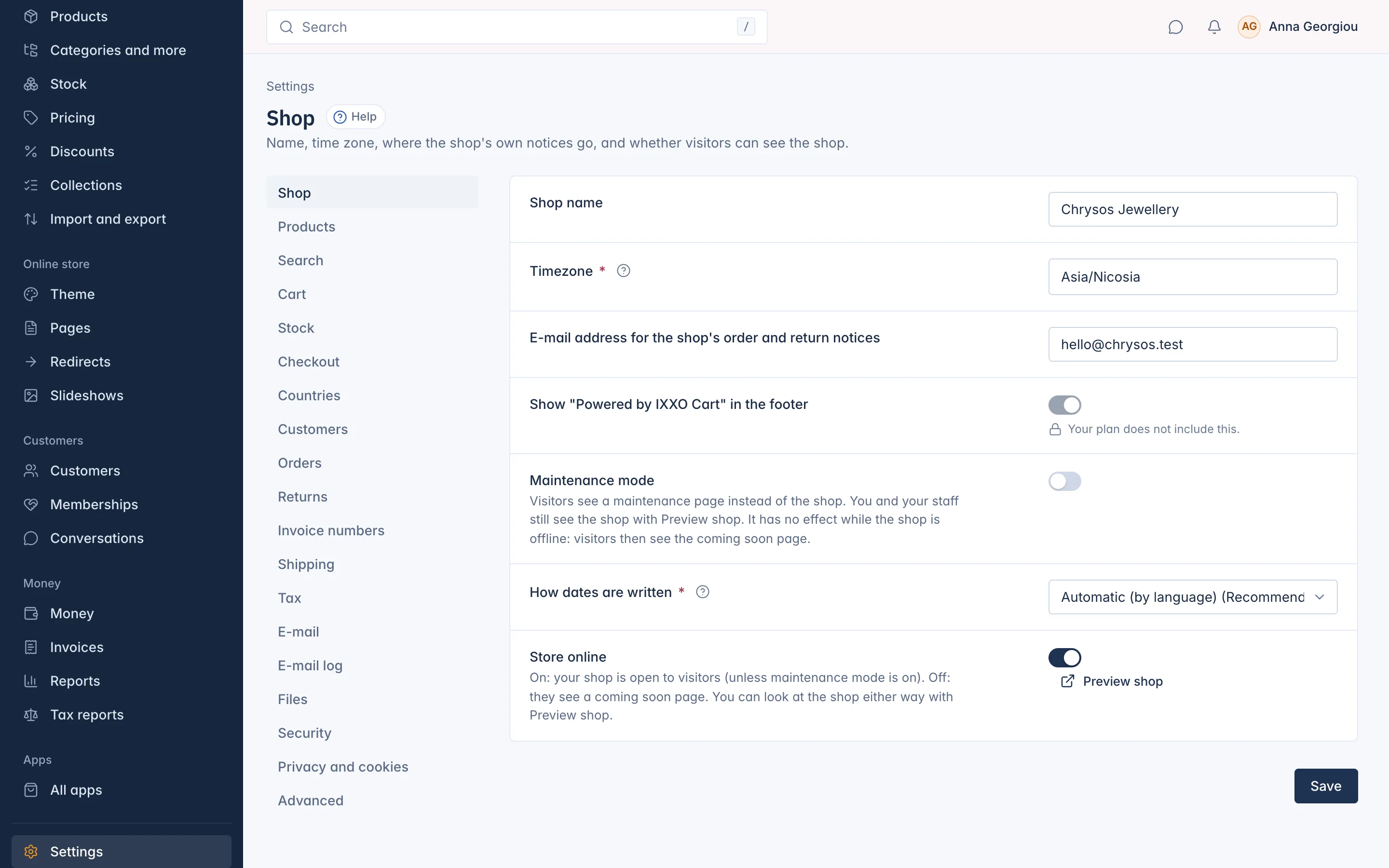
Visitors then see the coming soon page. Switching Store online back on puts the shop live again, with the same confirmation as the Go live button.
Once your shop has been live, your mail account stays required even while it is offline: a shop that has gone live never sends through the platform again.
Maintenance mode
Maintenance mode is for short works on a live shop. Visitors see a Back soon page instead of the shop, while you and your staff still see the shop with Preview shop.
- Go to Settings > Shop.
- Switch on Maintenance mode.
- Optional: write a Message to visitors. Leave it empty for the short default message "We are making some improvements. Please come back soon."
- Press Save.
Switch it off again when you are done. Maintenance mode has no effect while the shop is offline: visitors then see the coming soon page.
What visitors see
| Your shop is | Visitors see |
|---|---|
| Not live yet, or switched offline | Coming soon: "Coming soon. We are getting everything ready for you." |
| Live, maintenance mode on | Back soon, with your message |
| Live | Your shop |
A shop can also be closed by its plan, for example when a payment for the plan is overdue. Visitors then see "This shop is temporarily closed". How billing works is explained in Settings.
Related
Updated 13 November 2026