
Roles and permissions
The ready-made staff roles, making your own role, sensitive and Owner-only permissions, and why nobody can hand out more than they hold.
In the admin: SettingsRoles and permissions
On this page
A role is a named list of permissions, such as "See orders" or "Edit products". Every staff member has exactly one role, so the role decides what that person may see and change in your admin. IXXO Cart comes with ready-made roles for the usual jobs, and you can make your own.
The ready-made roles
Go to Settings and open Roles and permissions. The Staff roles list shows each role, its Type (Ready-made or Your own) and how many People hold it.
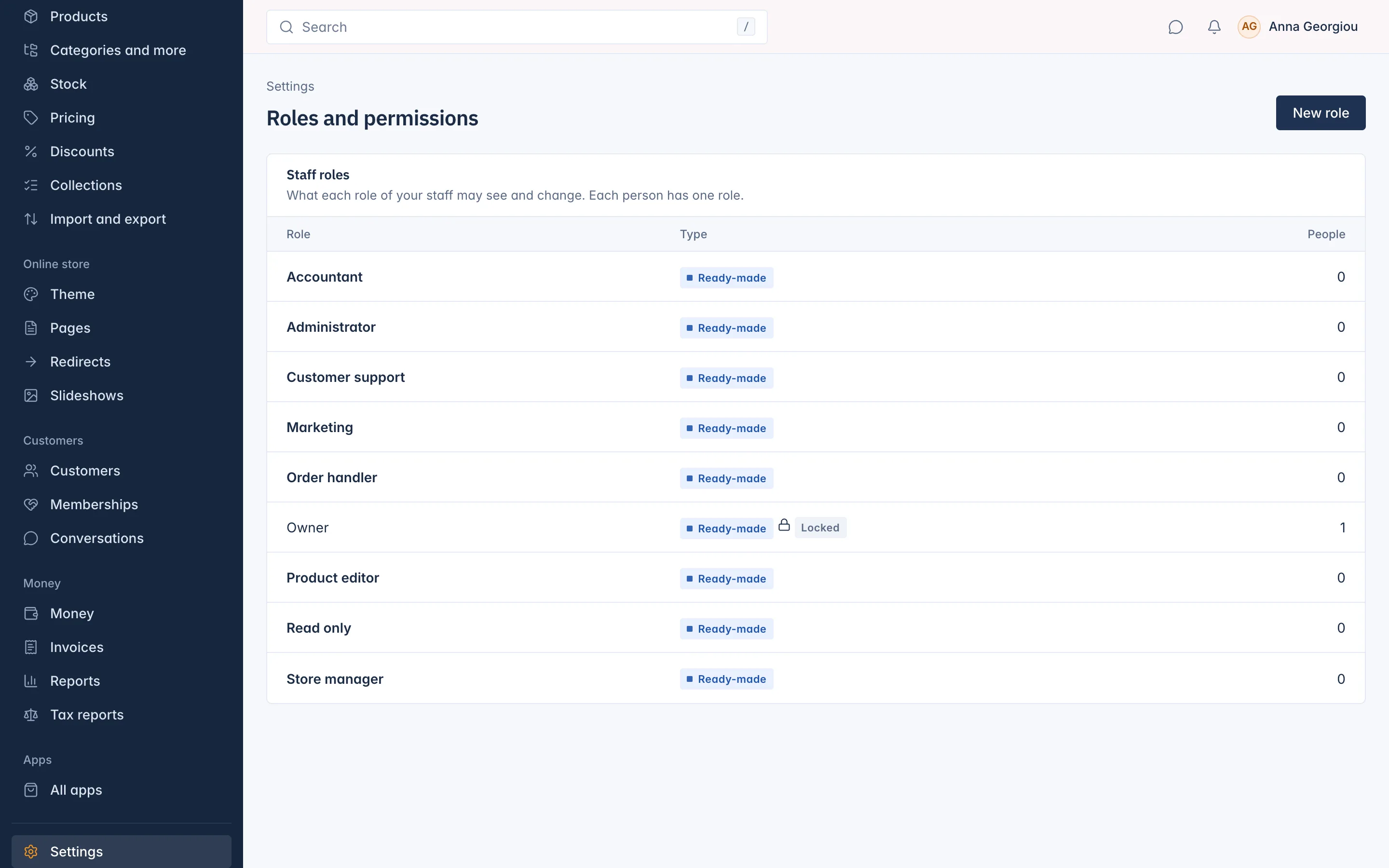
| Role | What it holds |
|---|---|
| Owner | Every permission. Locked: it cannot be changed, copied or deleted, and only Transfer ownership moves it. |
| Administrator | Every permission except the Owner's own: the plan and billing, putting the shop live, the main currency, the tax provider set-up, the search settings and the AI tools. |
| Store manager | Products, stock, categories, collections, the theme, pages and redirects, customers, discounts and coupons, every order action, returns, shipments and the shipping set-up, the e-mail texts, conversations, reports and product reviews. Not payments, tax, staff or the mail account. |
| Product editor | Adds and edits products, categories, brands, tags and collections, and manages product reviews. Cannot publish or delete products. |
| Order handler | Sees orders and customers, records shipments and buys labels, adjusts stock, and sees and resends invoices. No refunds. |
| Customer support | Sees and edits customers, sees orders, refunds up to the support refund limit, changes subscriptions and memberships for customers, and answers conversations. |
| Marketing | Sees products, manages discounts and coupons. |
| Accountant | Read access to orders, invoices, returns, money, the ledger, tax settings, reports and cost prices, and exports of orders and products. Changes nothing. |
| Read only | A starting point for someone who should only look. Open it and tick the "See" permissions they need. |
Open a role to see exactly which permissions it holds. You can change a ready-made role to fit your shop, except the Owner.
Make your own role
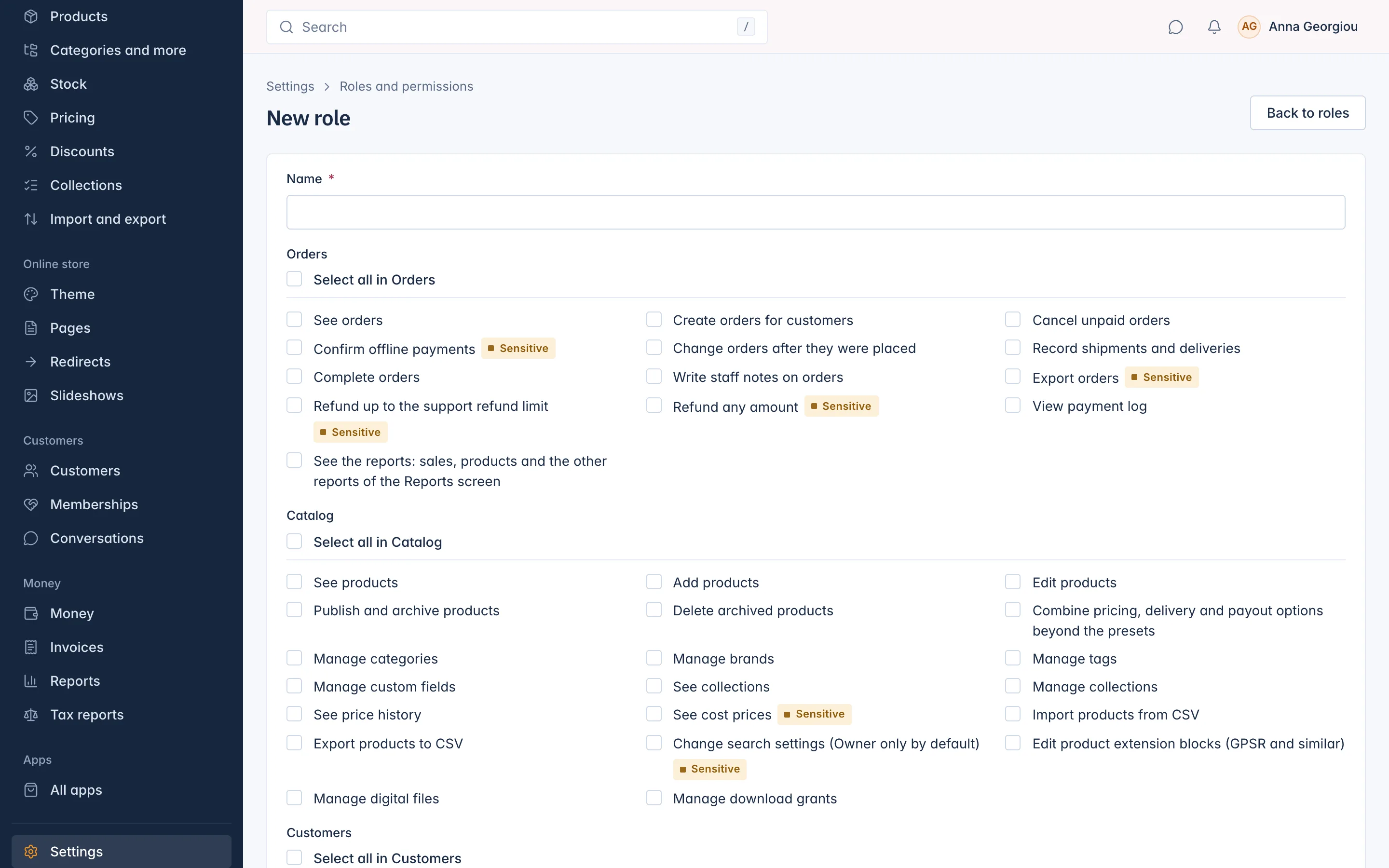
- On Roles and permissions, press New role.
- Give it a Name (up to 64 characters, not used by another role).
- Tick the permissions it should have. They are grouped by area: Orders, Catalog, Customers, Money, Settings and so on. Select all in [area] ticks a whole group.
- Press Save.
To start from an existing role, open it and press Duplicate: you then edit the copy. To delete a role, open it and press Delete. A role someone holds, even through an open invitation, cannot be deleted.
Sensitive and Owner-only permissions
Some permissions carry a Sensitive badge. They can move money or expose private data, for example Refund any amount, See cost prices, Export orders, Connect and disconnect payment providers or Invite staff. Give them only to people who need them, and ask those people to turn on two-step sign-in (or require it for everyone in Security settings).
A few permissions are marked Owner only. They work for the shop's Owner alone, whatever a role says:
- Put the shop live
- Change the main currency
- See the shop's plan, price and renewal and Pay for the plan, apps and AI credits, change the plan and billing details
- The AI permissions (Use the AI assistant, See AI usage and credits, Buy AI credits)
Opening the e-mail log is also for the Owner only.
Refunds by support staff
There are two refund permissions. Refund any amount has no limit. Refund up to the support refund limit allows refunds up to a set amount in one go. That limit is 0 by default, which means a person with only this permission cannot refund at all.
Nobody can hand out more than they hold
You can only put permissions you hold yourself into a role. The ones you lack are listed under Permissions you cannot give. In the same way, you cannot change, copy or delete a role that holds permissions you do not have, and you cannot give such a role to someone. This stops an Administrator from making themselves, or anyone else, more powerful than they are.
Changing a role changes everyone who holds it
When you save a role, every person with that role gets the new permissions at once. If only one person needs something different, give them their own permissions in their staff drawer instead (see Add staff and manage their accounts).
Related
Updated 13 November 2026