
Change stock levels
Set or adjust stock on the Stock screen or a product page, give a reason, read the stock history, and change many products at once.
In the admin: CatalogStock
On this page
Use the Stock screen when a delivery arrives, when you count your shelves, or when something breaks. Every change is saved with a reason and shows in the product's stock history, so you can always see why a number moved. This article covers changing one variant, changing many at once, and reading the history.
The Stock screen
Open Catalog > Stock. You see one row per variant: a product with three sizes has three rows. A variant without a SKU shows an empty SKU cell.
At the top you can filter the list:
- Product or SKU: words of the product's title, or an exact SKU.
- Stock: All, Low or Out of stock.
- Location: shown only when you have more than one stock location. Choose one to see and change the stock of that place.
Click Available in the table header to sort by the number customers can still buy. The columns are explained in How stock works.
Change the stock of one variant
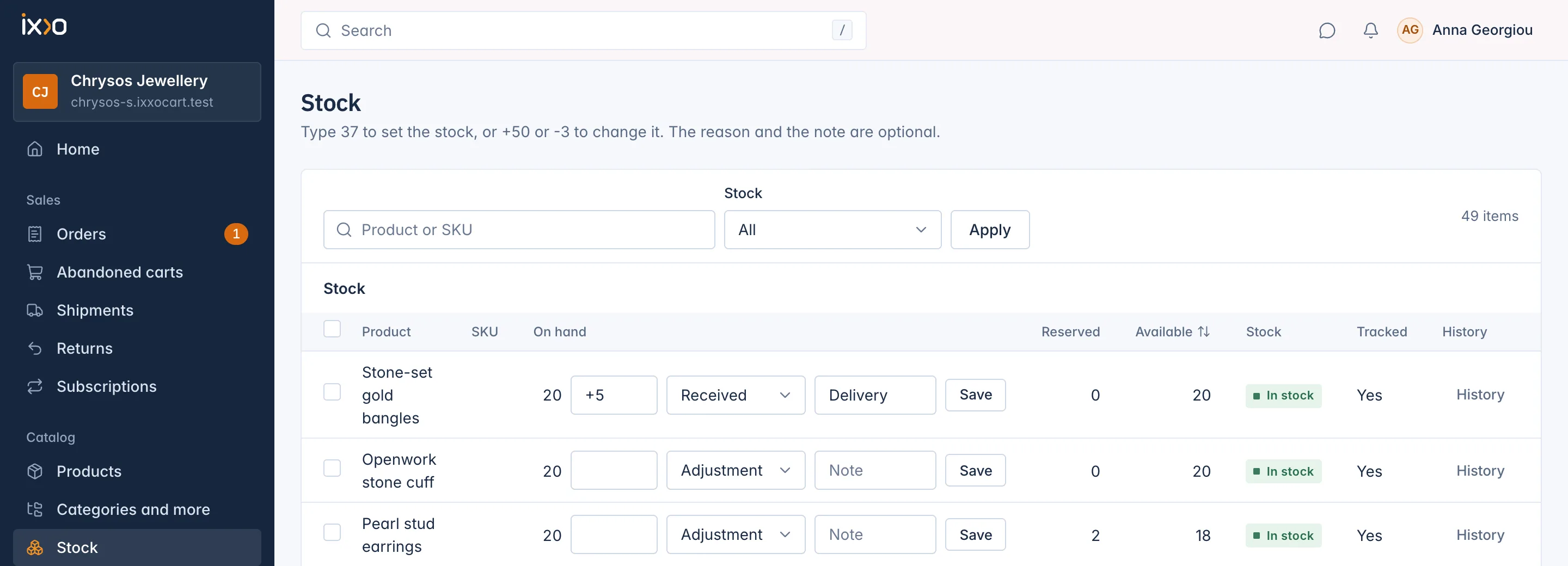
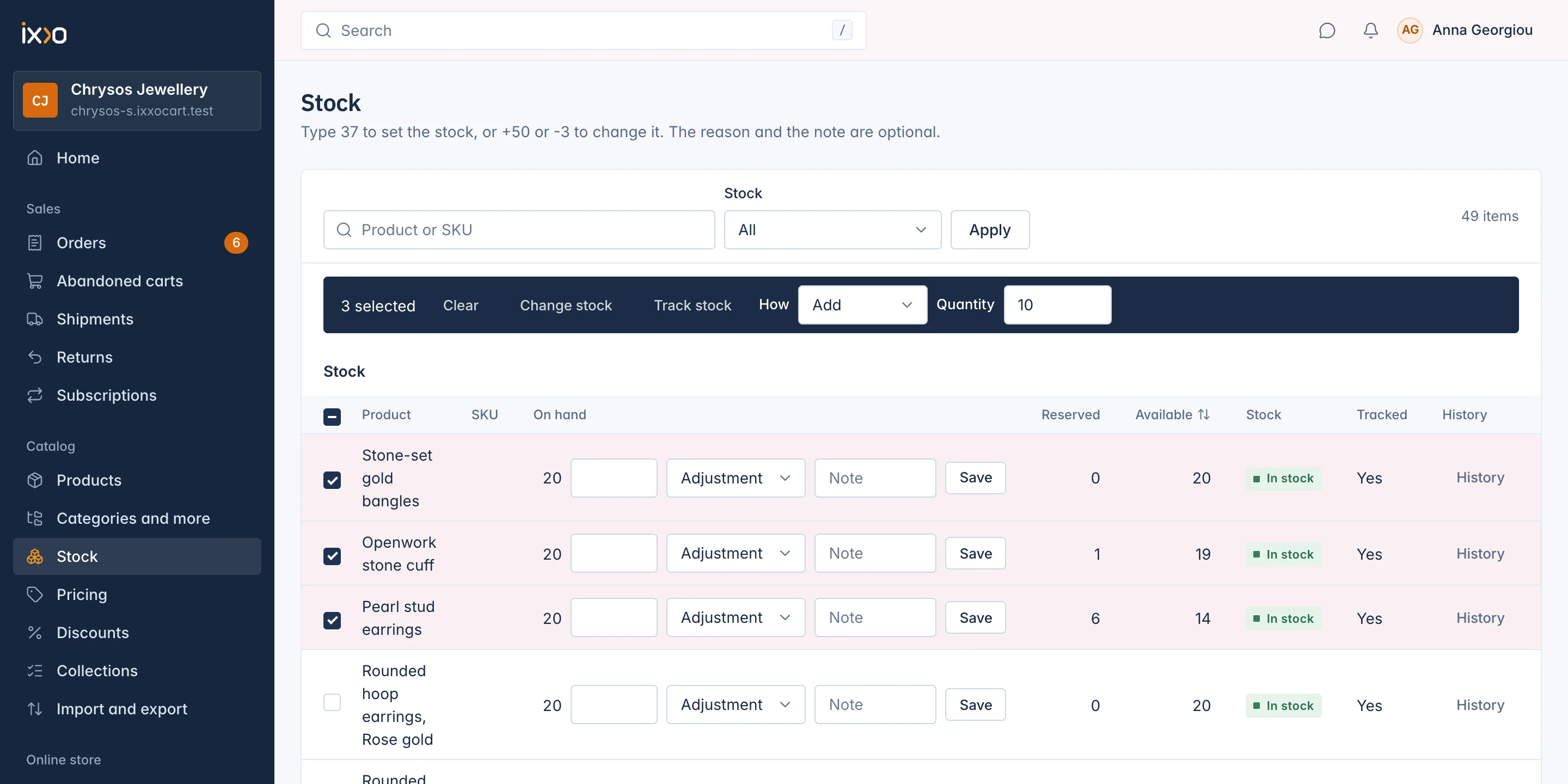
You change stock by typing in the On hand box of the row. What you type decides what happens:
| You type | What happens |
|---|---|
37 | The stock is set to exactly 37. |
+50 | 50 units are added. |
-3 | 3 units are taken away. |
- In the row of the variant, type the number in the box next to the current On hand count.
- Optionally choose a Reason: Received, Adjustment (the default), Damaged or Count.
- Optionally write a Note, up to 200 characters, such as a supplier's delivery number.
- Click Save. The message Stock saved confirms the change.
Only whole numbers work, up to seven digits. Decimals, words or two signs are refused with a message under the row.
Things to know
- You cannot take away units held for orders. If 2 units are reserved, you can lower the stock only as far as the reserved number. The message says how many you can take away at most. A variant that sells on backorder is the exception and may go below zero.
- With several locations, set exact numbers per location. When the list adds up every location,
+50and-3change your default location, but an exact number like37is refused. Choose a location in the Location filter first to set an exact count there. - Each form saves once. Clicking Save twice does not move the stock twice. If you see that the change was already sent, reload the page to make another change.
- Damaged and Count are saved as an adjustment with that word at the start of the note, for example "Damaged: dropped box".
Change stock on the product page
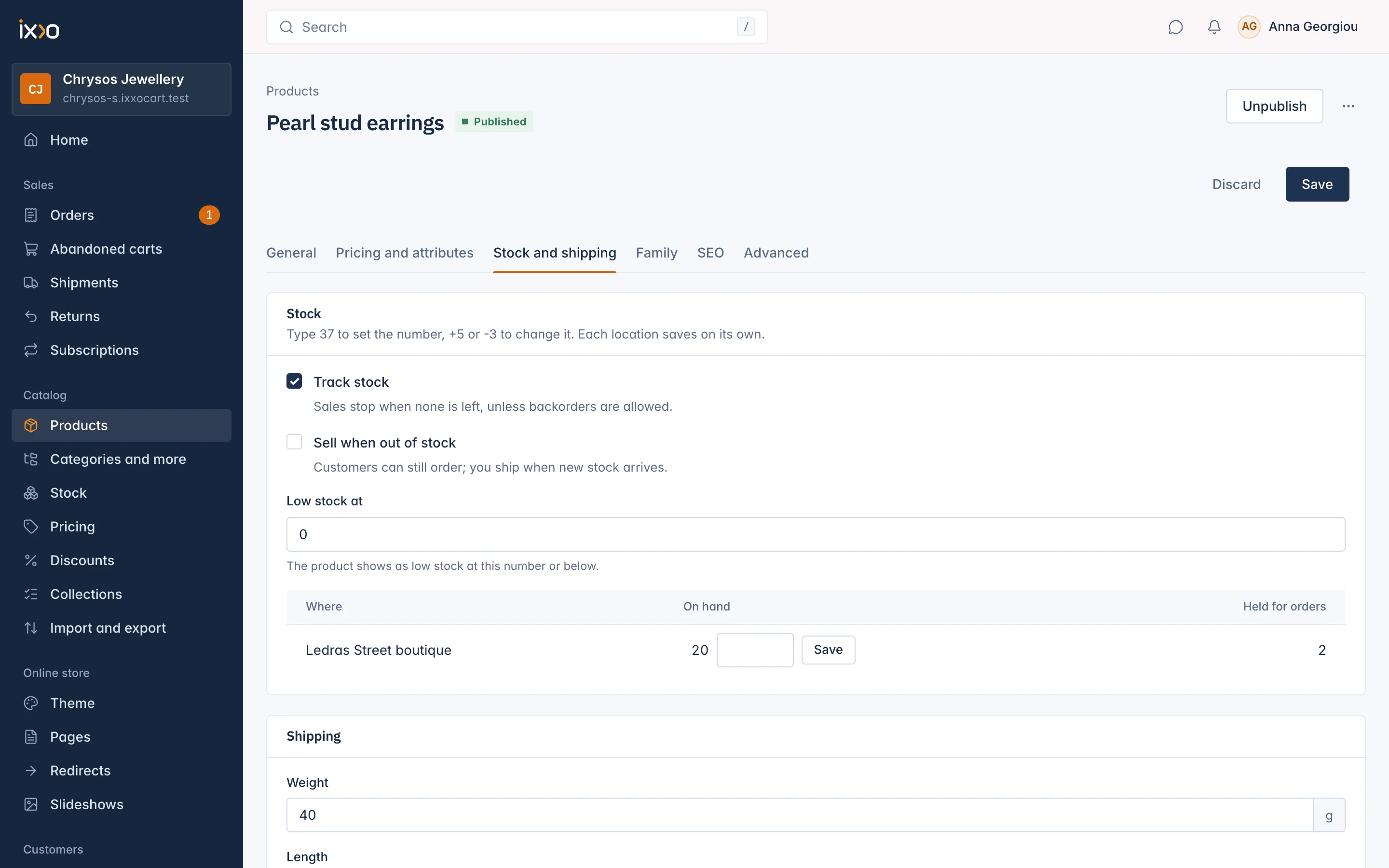
The product page shows the same stock, one row per location (and per combination, for a product with sizes or colours). Open the product, then the Stock and shipping tab. Under Stock per location, type 37, +5 or -3 in a row and click Save next to it. Each location saves on its own.
The same tab holds the stock rules of a product without combinations: Track stock, Sell when out of stock and Low stock at. These are explained in Low stock, out of stock and backorders.
Read the stock history
Click History at the end of a row. A panel opens with every change of that variant, newest first. Each line shows the change and its reason (for example "+20, Import"), the note, the time and who made it. Changes the shop made by itself show Automatic.
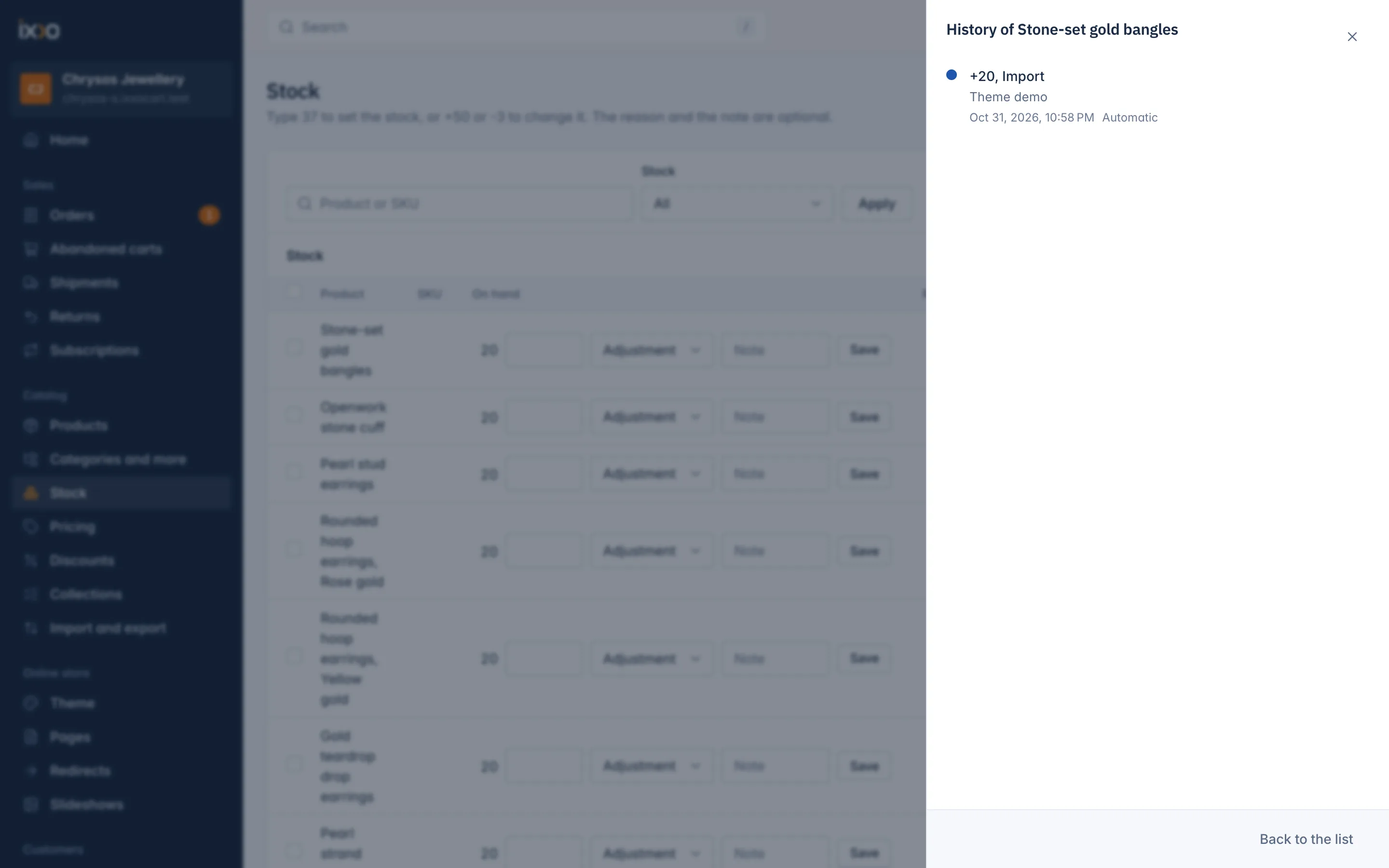
The reasons you can meet are Received, Adjustment, Sold, Returned, Order placed, Moved out, Moved in, Import, Brought from the old shop and Other. With several locations, each line also says which location changed. Use Older changes and Newest changes to page through a long history, and Back to the list to close the panel.
Change many variants at once
Tick the boxes at the start of the rows you want. To take more than one page, tick the box in the header, then choose Select all ... that match the filters (the number of rows shows in the link). A dark bar appears with two actions.
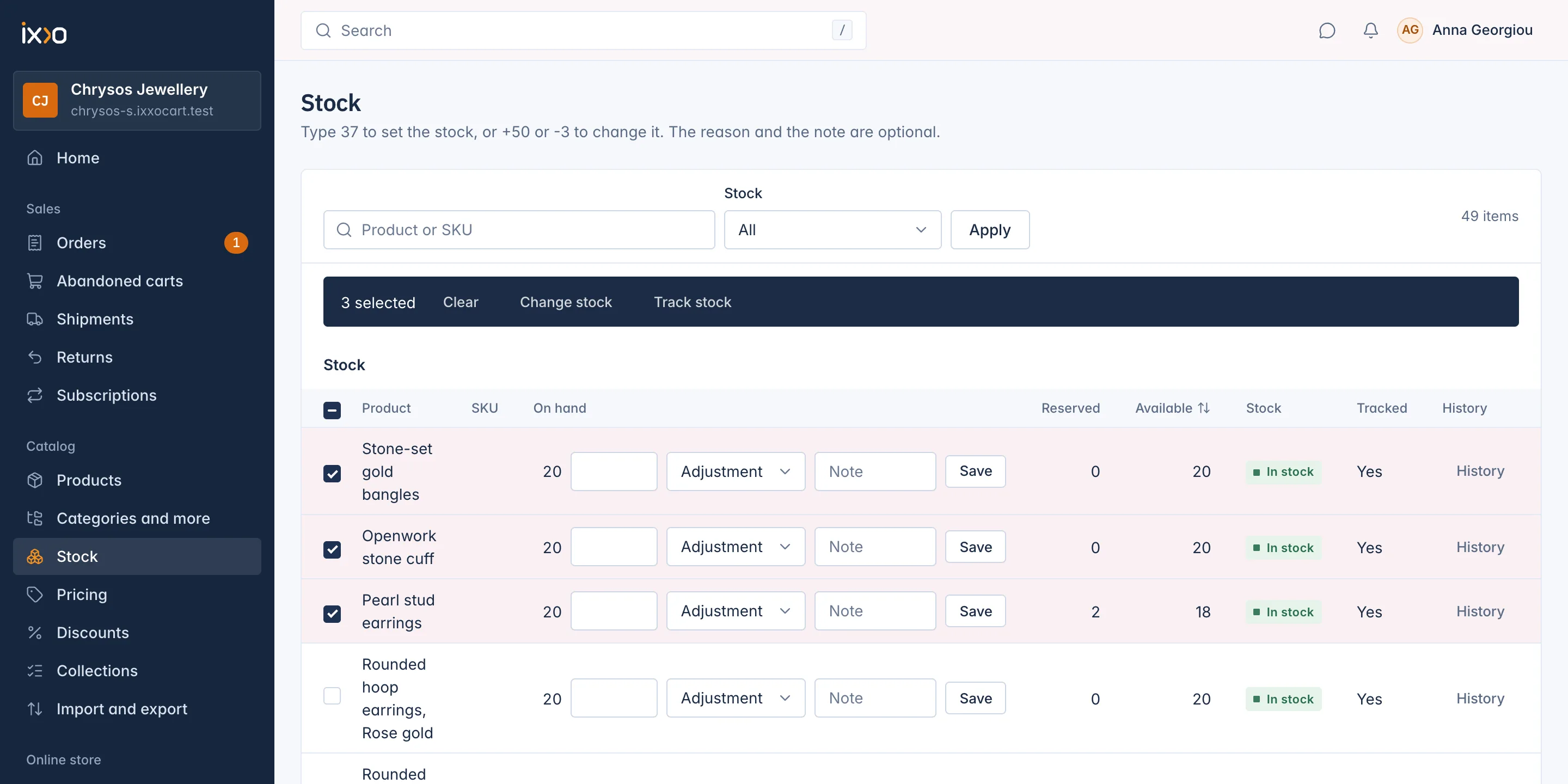
- Click the action once. Its fields appear in the bar.
- Fill them in.
- Click the same action again to run it.
Change stock asks How and Quantity:
- Set to: every selected variant gets exactly this number (0 or more).
- Add: this number is added to each.
- Take away: this number is taken from each.
Track stock asks Yes, sales stop when none is left or No, stock is not counted and never sells out.
Some things to know:
- The change goes to the location chosen in the Location filter, or else to the default location.
- Variants that do not track stock are skipped by Change stock. Taking away units held for orders is refused for that variant only; the others still change. The result message counts what changed, what was skipped and what was refused.
- One change takes at most 20,000 variants. Up to 200 change while you wait. Larger changes run in the background, and you can follow them in the top bar.
- Every bulk change shows in each variant's history as an Adjustment with the note "Bulk change".
- Track stock changes the product itself, so it also needs the right to edit products.
To change stock from a spreadsheet instead, see Update prices and stock from a file.
Who can change stock
Staff need the permission to view stock to open the screen, and the permission to adjust stock to change numbers. Without it, the On hand numbers show without a box. Roles are set under Settings > Roles and permissions (see Settings).
Related
Updated 13 November 2026