
Create a slideshow
Make a slideshow of pictures and videos, add titles and buttons to its slides, set how it plays, and show it on a page with the Slideshow section.
In the admin: Online storeSlideshows
On this page
A slideshow is a set of pictures or videos that take turns in one place, each with an optional title, text and button. Use it for a seasonal campaign, new arrivals or a look book. You make slideshows in Online store > Slideshows and then show one on a page with the Slideshow section in the theme editor. One slideshow can show on several pages.
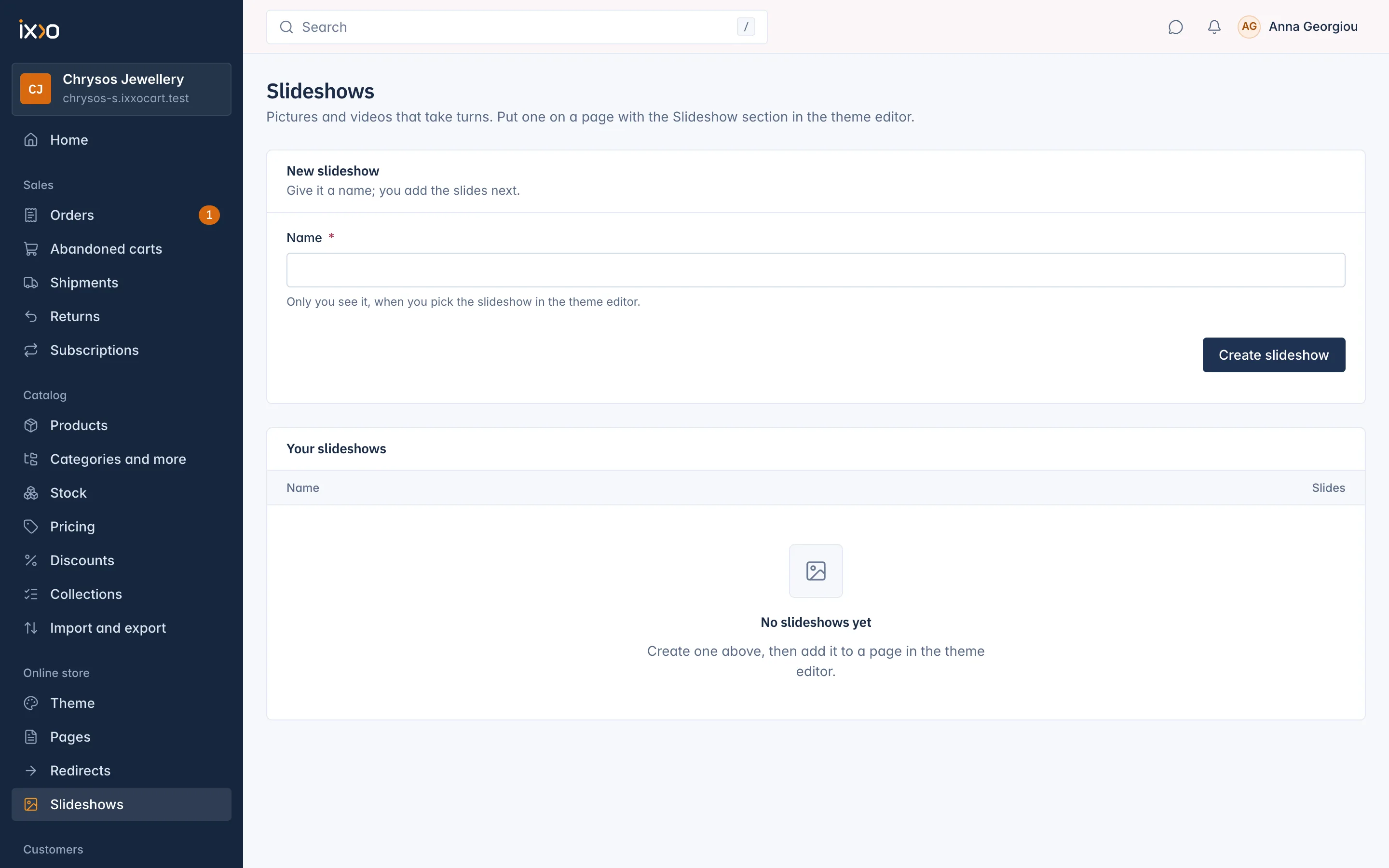
Create a slideshow
- Go to Online store > Slideshows.
- In New slideshow, type a Name. Only you see it, when you pick the slideshow in the theme editor.
- Press Create slideshow.
The slideshow opens, ready for its slides.
Add slides
- In Add a slide, choose a Picture or video: a JPEG, PNG, WebP, GIF or AVIF picture, or an MP4 or WebM video. Videos play without sound, over and over.
Optionally fill in the texts. If your shop has more than one language, fill in each one:
- Title, up to 120 characters
- Text, up to 300 characters
- Button text, up to 60 characters
- Button link: a page of your shop such as
/sale, or a web address. The button shows when it has both a text and a link.
- Press Add slide.
A slideshow holds up to 10 slides. They show in the order of the Slides list. Drag a row, or use Move up and Move down, to change it.
To change a slide, click it in the list, change its texts or choose a New picture or video (leave it empty to keep the current one), and press Save slide. To remove it, use Delete slide. The slide and its file are deleted.
Set how it plays
In How it plays:
- Move to the next slide on its own: the slides change by themselves. Customers who ask their device for less motion still move the slides themselves.
- Seconds per slide: from 2 to 30. Shown when the slides move on their own.
- Show arrows: previous and next arrows.
- Show dots: one dot per slide, to jump to it.
- Height: Small, Medium, Large or Full screen.
Press Save.
Show the slideshow on a page
A new slideshow shows nowhere until a page uses it.
- Go to Online store > Theme and press Customise, or use Open the theme editor on the slideshow's screen.
- Pick the page in Page: and press Add section.
- Choose Slideshow, then pick your slideshow in the Slideshow setting. Choose a Style: Classic or Progress tabs.
- Press Publish.
The slideshow's Where it shows card lists every page that uses it: In your shop for published pages, In the theme draft only for pages you have not published yet.
Delete a slideshow
Use Delete slideshow on the slideshow's screen and confirm. Its slides and their files are deleted too, and this cannot be undone.
You cannot delete a slideshow that a Slideshow section still shows, in the live theme or in the draft. Remove or change that section in the theme editor first, and publish.
Slideshow or Hero?
Both show large pictures with text. The Hero section keeps its slides inside the section, in the theme draft, and holds up to 6. A slideshow lives on its own, holds up to 10 slides, can show videos and can be reused on several pages. See Section types.
Related
Updated 13 November 2026