
Protect forms from bots
Stop spam sign-ups and fake messages with Cloudflare Turnstile or Google reCAPTCHA v3: get keys, test them, and choose which shop forms are checked.
In the admin: SettingsSecurity
On this page
Bots are programs that fill in forms automatically: fake customer accounts, spam through the contact form, attempts to guess passwords. Bot protection checks that a person, not a program, sends your shop's forms. IXXO Cart works with two services, Cloudflare Turnstile and Google reCAPTCHA v3. You create keys with one of them and paste them into Settings > Security.
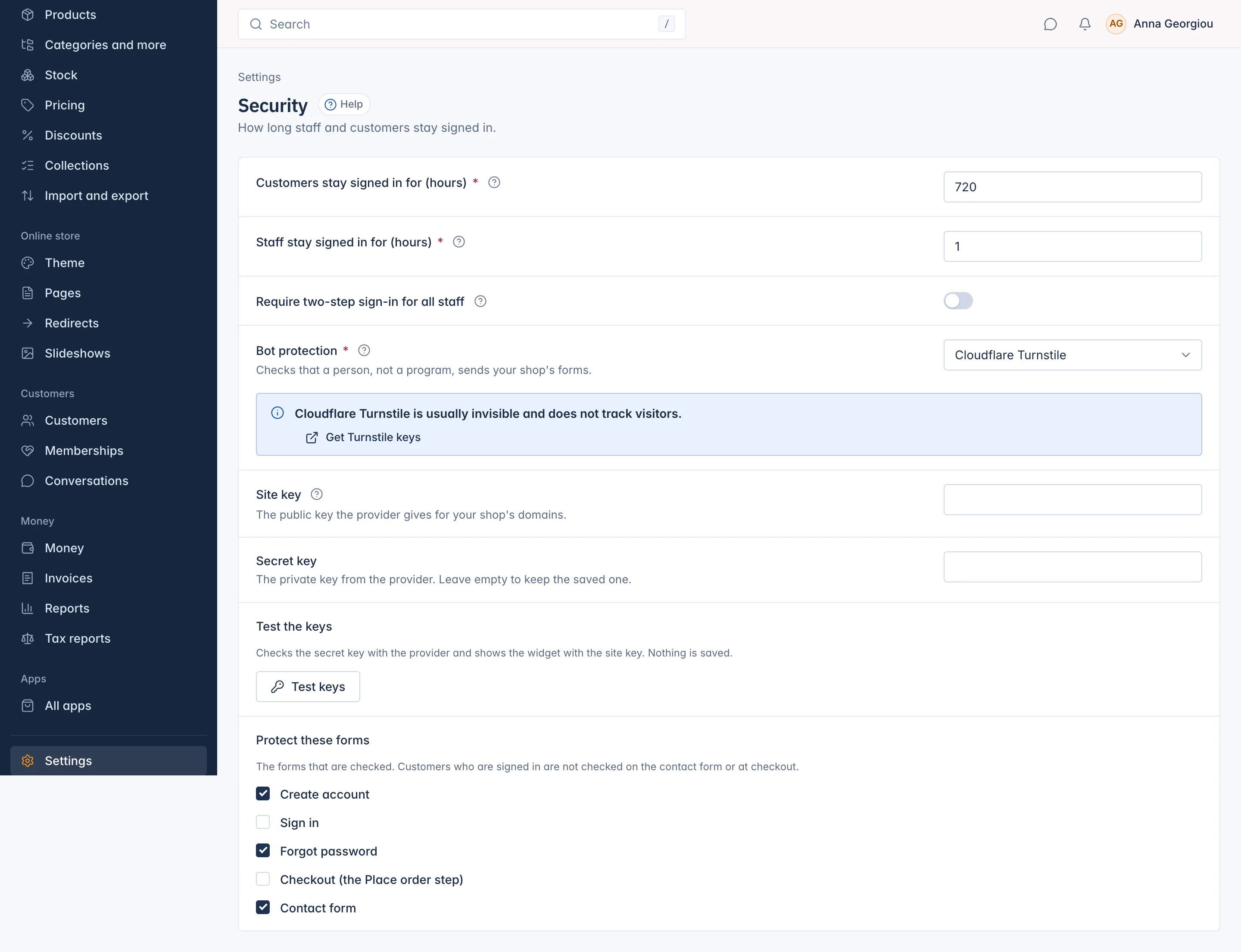
Which provider to choose
| Provider | What visitors see |
|---|---|
| Cloudflare Turnstile | Usually nothing. It does not track visitors. |
| Google reCAPTCHA v3 | Nothing to click, but a small Google badge on the page. |
Both providers offer free use for small sites; check their current terms. If you have no preference, Turnstile is the more private choice. The provider sets its own cookie, which shows in your cookie list in Settings > Privacy and cookies.
Set up bot protection
- Go to Settings > Security.
- In Bot protection, choose Cloudflare Turnstile or Google reCAPTCHA v3.
- Press Get Turnstile keys or Get reCAPTCHA v3 keys. The provider's site opens in a new tab.
- At the provider, create a site (Cloudflare calls it a widget) and add every domain your shop answers on: your own domain, with and without
www, and your shop's IXXO Cart address. Copy the two keys it gives you. - Back in IXXO Cart, paste them into Site key (the public key) and Secret key (the private key). Paste them exactly, without spaces.
- Press Test keys. IXXO Cart checks the secret key with the provider and shows the provider's widget using the site key. Nothing is saved by the test. Keys work means you are ready.
- Under Protect these forms, tick the forms to check.
- Press Save.
After saving, the secret key field stays empty and shows Saved, ends in … with its last characters. Leave it empty to keep the saved key, or paste a new one to replace it.
Choose the forms to protect
| Form | Ticked at first |
|---|---|
| Create account | Yes |
| Sign in | No |
| Forgot password | Yes |
| Checkout (the Place order step) | No |
| Contact form | Yes |
In a marketplace there is also Seller application.
Customers who are signed in are not checked on the contact form or at checkout: they already proved themselves when they signed in. At checkout, only guests are checked, on the Place order step.
When a check fails
If a visitor fails the check, the form is not sent and they see: "We couldn't confirm you're not a robot. Please try again. If it keeps happening, allow scripts on this page (an ad blocker may stop the check)." Some ad blockers stop the provider's script, so a real person may need to allow it.
When the provider has a problem
The shop protects your sales first:
- If the provider does not answer, answers with an error, or refuses your secret key, forms are let through without the check, so customers can still sign up and order. You get a notice in the bell in your admin saying what went wrong.
- If the provider refuses your shop's requests, for example because a usage limit is reached, forms are refused until it is fixed. You get a bell notice for this too.
Act on these notices quickly: check your keys and your account at the provider, then use Test keys.
Switch bot protection off
Choose None in Bot protection and save. To save a provider, both keys are needed, so if you are not ready with keys, keep None.
Related
Updated 13 November 2026