
Take your shop online or into maintenance
Put your shop live or take it offline with the Store online switch, show a maintenance page while you work, and preview the shop either way.
In the admin: SettingsShop
On this page
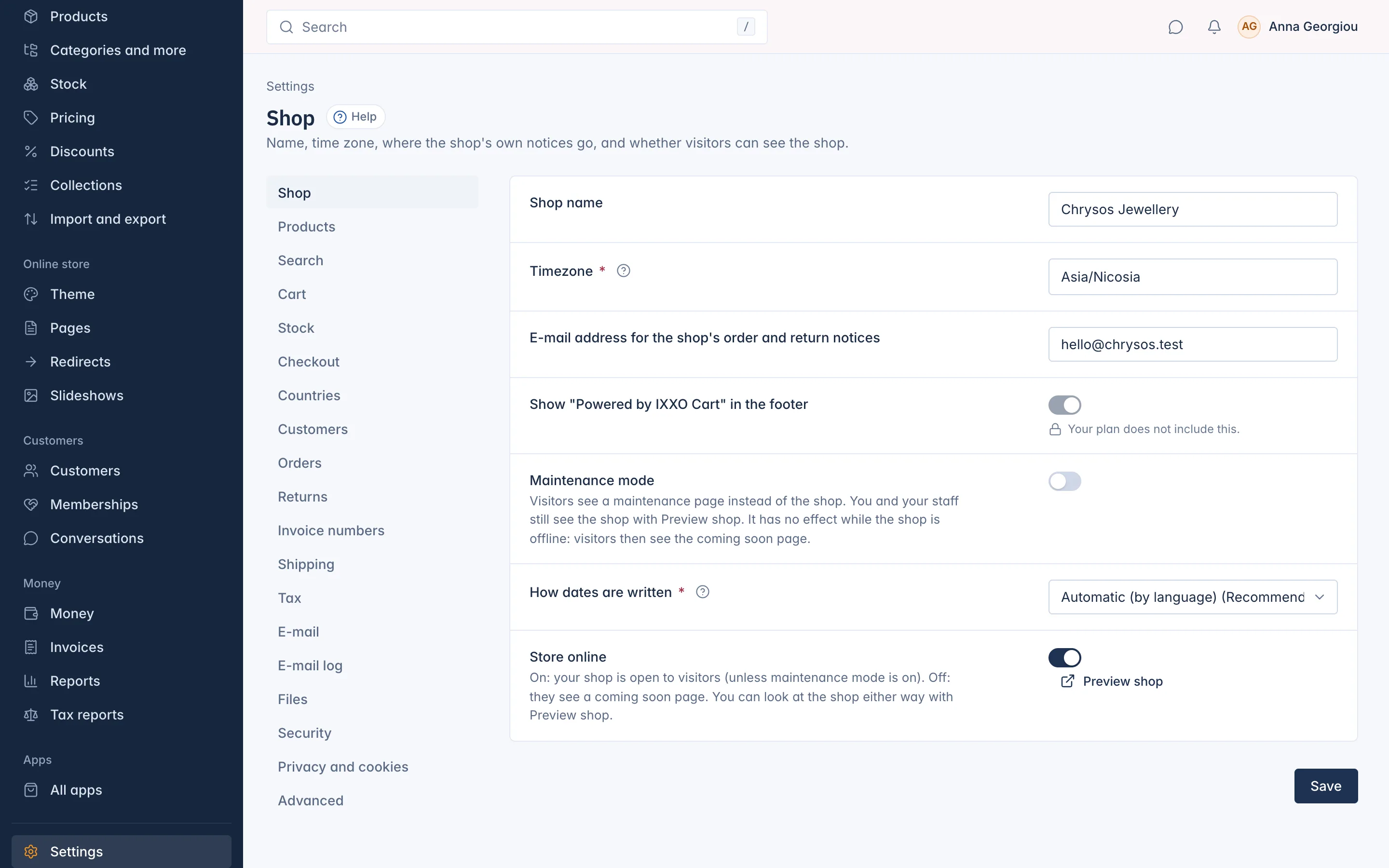
Two switches decide what visitors see when they open your shop: Store online opens or closes the whole shop, and Maintenance mode puts up a short "back soon" page while you make changes. Both are in Settings > Shop. You and your staff can always look at the real shop with Preview shop.
What visitors see
| Store online | Maintenance mode | Visitors see |
|---|---|---|
| Off | Off or on | A Coming soon page |
| On | Off | Your shop |
| On | On | A Back soon page with your message |
While the shop is offline, maintenance mode has no effect: visitors see the coming soon page either way. While the shop is offline, search engines are also told to stay away. See How SEO works in your shop.
Preview your shop
Press Preview shop under the Store online switch. Your shop opens in a new tab exactly as it is, whether it is live, offline or in maintenance. Use it to check the shop before you open it, or to look around while maintenance mode is on.
To preview design changes you have not published yet, use the theme editor instead. See How the theme editor works.
Put the shop live
Only the shop's Owner can put the shop live or take it offline. Other staff see the switch locked with Only the shop's Owner can change this.
- Go to Settings > Shop.
- Switch on Store online.
- Read the Put your shop live? question and confirm with Switch on.
- Press Save.
Before you go live, the shop checks a few things. If some are not done, the question lists them, for example:
- Send a successful test e-mail from your own mail account. Until it passes, your shop sends no e-mails to customers, not even order confirmations.
- Switch on at least one language
- Give your shop an active primary domain
You can still go live with steps missing; customers then see the shop as it is. The checklist on your admin home page shows the same steps with links to fix them. See Getting started.
Take the shop offline
- Switch off Store online.
- Confirm Take your shop offline? with Switch off.
- Press Save.
Visitors see the coming soon page until you switch the shop on again. Orders already placed are not affected.
Use maintenance mode
Maintenance mode is for short breaks on a live shop: a big catalogue change, a theme switch you want to check calmly, a stock count.
- Go to Settings > Shop.
- Switch on Maintenance mode.
- Optionally write a Message to visitors. It shows on the maintenance page. Leave it empty for a short default message: "We are making some improvements. Please come back soon."
- Press Save.
Visitors now see the Back soon page. Switch maintenance mode off and save when you are done. Any staff member who can change shop settings can use maintenance mode; it does not need the Owner.
Related
Updated 13 November 2026