
Sell gift cards and take them at checkout
Install the Gift cards app, sell gift cards sent by e-mail, let customers pay with them at checkout, and issue, adjust or disable cards.
In the admin: AppsGift cards
On this page
The Gift cards app lets you sell digital gift cards. The buyer picks an amount and who the card is for, and the recipient gets the code by e-mail on the chosen day. At checkout a gift card is a way of paying: it pays all or part of an order, and what is left stays on the card.
Install the app
- Go to Apps > All apps and open Gift cards.
- Click Install.
The app adds Gift cards under Apps and the Gift card product type. Nothing shows in your shop until you publish a gift card product.
Create the gift card product
- Go to Catalog > Products, press Add product, set Product type to Gift card, type the Title and press Create product.
- On Pricing and attributes, make one combination per fixed amount, for example an attribute "Amount" with 25, 50 and 100. Each combination's price is the card's value. See Build combinations of choices.
- To let the buyer type an amount, add one more combination such as "Other amount", priced at the lowest amount. On the Gift card tab, tick Customer picks an amount, fill in Lowest amount and Highest amount (in cents: 1000 is 10.00) and pick that combination under Variant for the typed amount.
- Add photos on the General tab. They are the designs: with more than one, the buyer picks one, and it heads the e-mail.
- Publish the product.
A gift card has no stock and no shipping, so there is no Shipping tab. Discount codes never lower its price, and a gift card cannot pay for another gift card.
What the buyer fills in
Under Who is it for? on the product page, the buyer fills in Their name and Their e-mail (a signed-in customer can pick Send it to me), a Message (optional) of up to 500 characters, and When should it arrive?: Today or On a later day with a Send date up to one year ahead. Amount and Choose a design show when they apply. Each recipient is its own cart line.
The card is made when the order is paid; for a bank transfer, when you confirm the payment. On the send date the recipient gets the e-mail within the hour: the design, the amount, the sender's name and message, the code, the use-by date if the card expires, a Shop now button and a link to check the balance. It goes out in your shop's default language. Edit its wording in your e-mail templates under Gift card to its recipient (Gift cards).
The buyer never sees the code. Their order page shows when each card was sent or is scheduled.
Paying with a gift card
At checkout the customer clicks Have a gift card?, types the Gift card code and presses Apply. Up to 5 cards fit on one order. Each shows what it pays and what is left after this order, with a Remove link.
Cards pay for products, shipping and tax. The rest is paid the normal way, and when cards cover everything the payment reads No payment needed. The card that expires soonest is used first. The money leaves the card when the order is placed and goes back if the rest of the payment then fails, expires or is cancelled.
A card is refused when it is disabled, expired or empty, when the cart holds only gift cards, or when the order has a subscription.
Balance page and customer account
Your shop has a page at /gift-card where anyone can type a code and press Check balance to see the balance, expiry and status. The e-mail links to it, and you can add /gift-card to your menu (see Navigation menus).
A signed-in customer whose confirmed e-mail address received cards gets Gift cards in their account menu, listing each card with its code, balance, expiry and status from its send date.
Manage gift cards
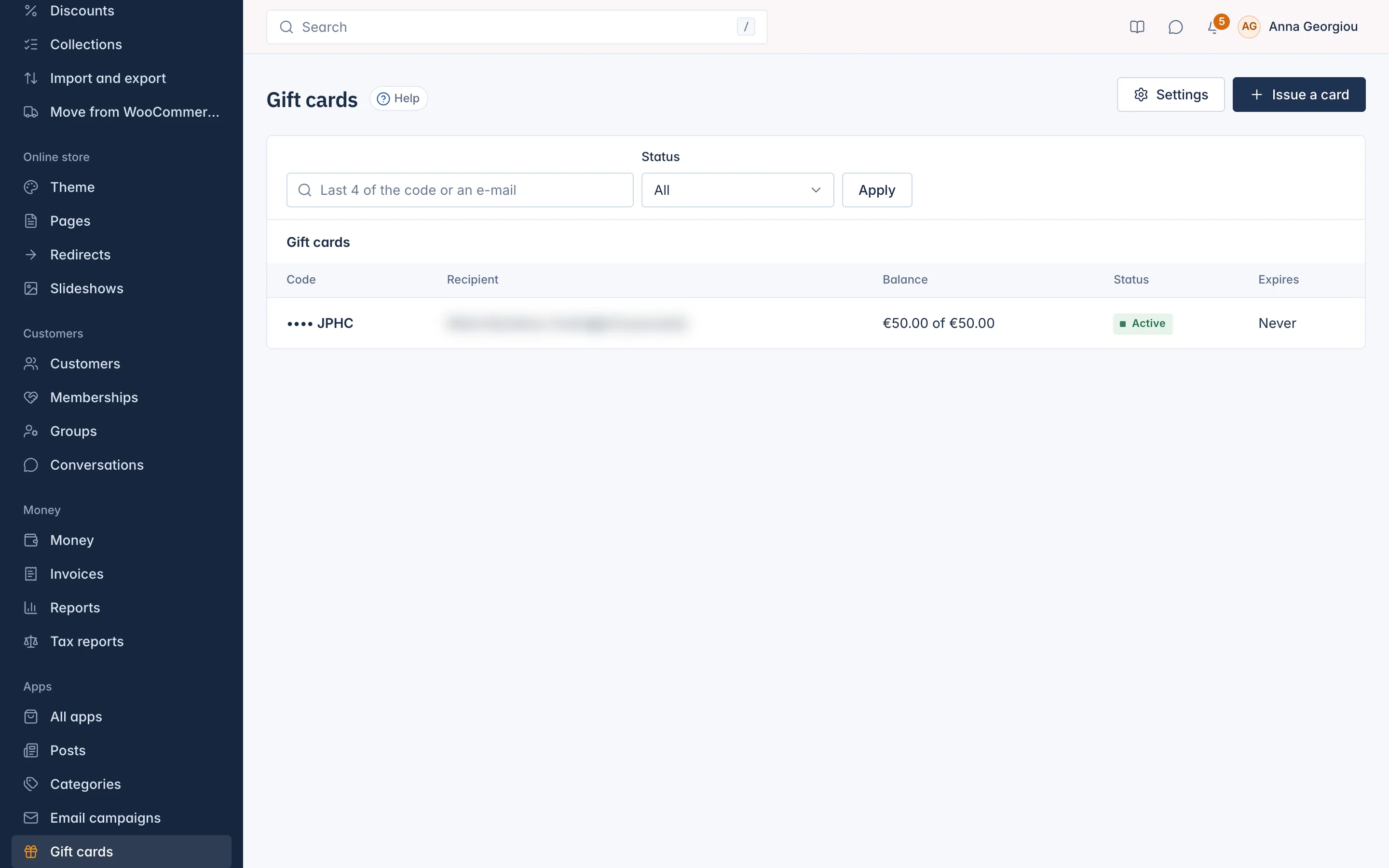
Apps > Gift cards lists every card with its Code (last 4 characters), Recipient, Balance, Status and Expires. The statuses are Active, Scheduled, Used up, Expired and Disabled. Search by code or e-mail, and filter by status.
Click a card for its Details and its History of changes, with who made each and why. Under Manage:
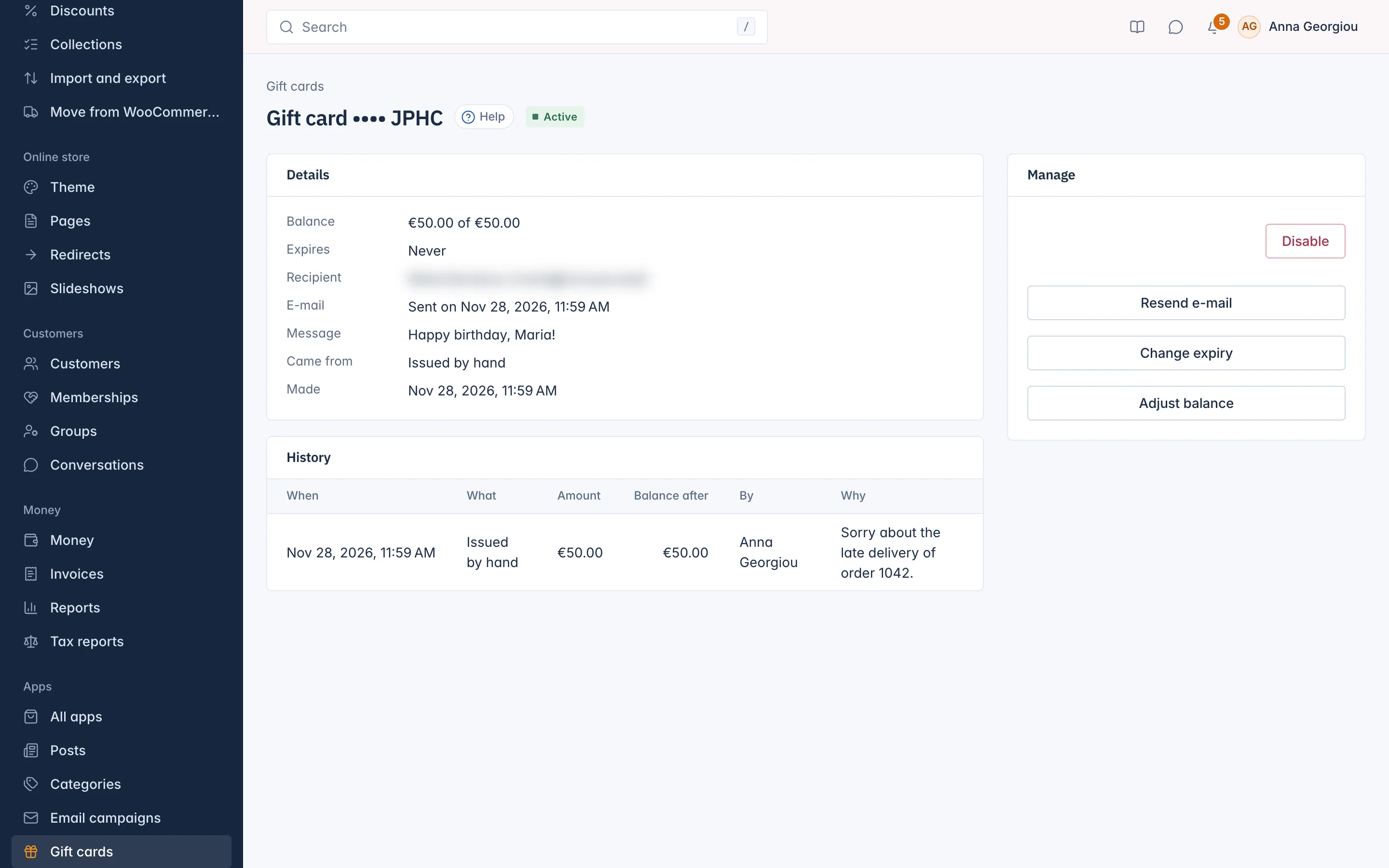
- Disable: the card cannot pay until you Enable it again. Its balance stays.
- Resend e-mail: sends the card again, to a corrected address under Send to if needed. A card whose e-mail failed says Not sent.
- Change expiry: a new Expires on date, or empty for never.
- Adjust balance: Add to the balance or Take off the balance, with an Amount and a Reason.
- Write off: only on an expired card with money left. It removes what is left for good.
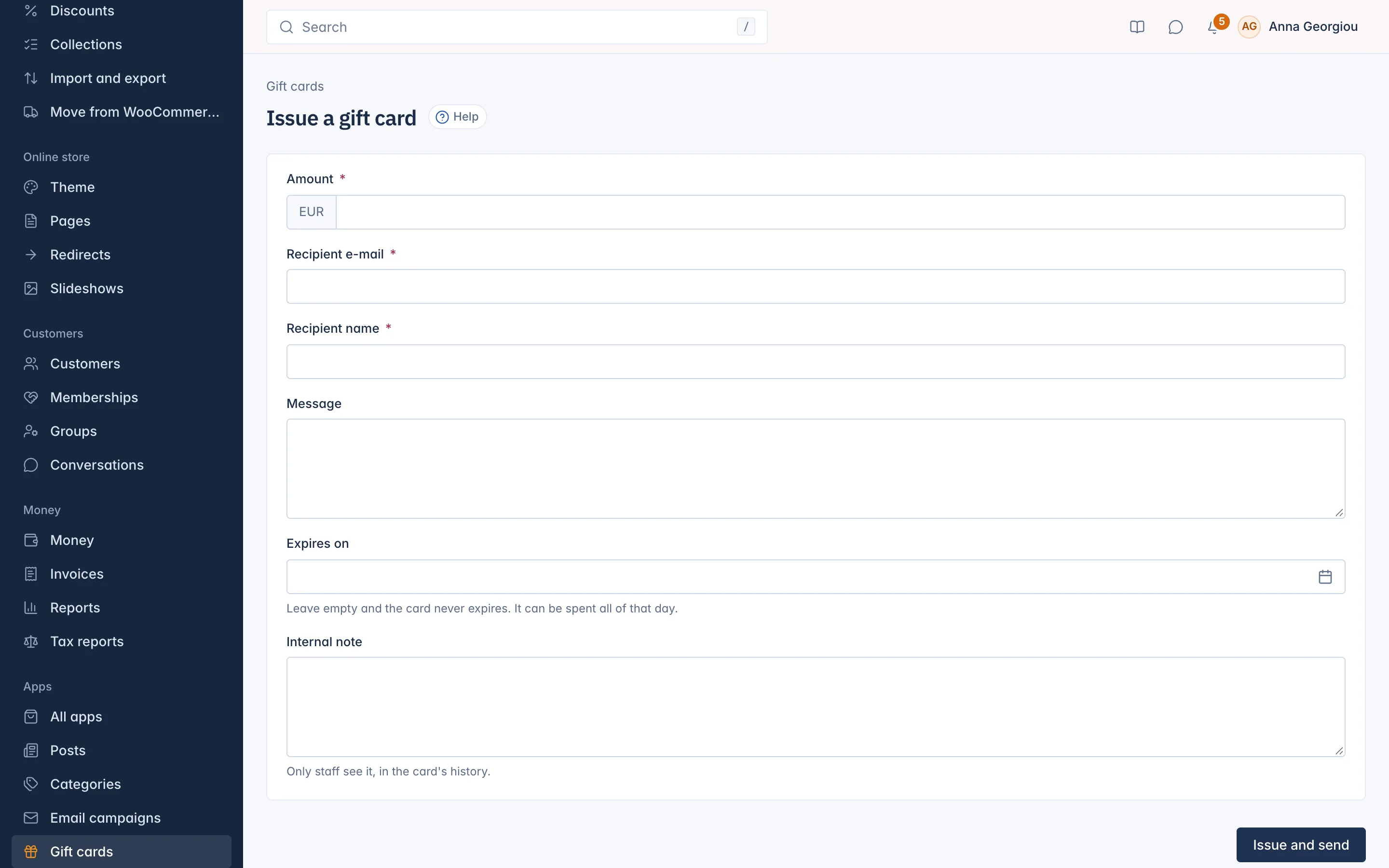
To give a card away, press Issue a card. Fill in the Amount, Recipient e-mail, Recipient name, an optional Message, Expires on and an Internal note only staff see, then press Issue and send.
Owners and Administrators can do all of this. Other roles need the gift card permissions ticked in their role (see Roles and permissions).
Expiry
By default a gift card never expires. To set a limit, press Settings on Apps > Gift cards and fill in Months a gift card can be spent (empty = never expires), from 1 to 120. The months count from the day the order is paid. Cards already made keep their date. On Issue a card, Expires on starts from this setting and you can change it.
Refunds
When you refund an order a gift card helped pay, the money goes back to the card first, up to what the card paid; only the rest goes to the bank card or account. The order's Money card shows where each refund went. An expired card that gets money back can be spent for 90 more days. A disabled card gets the money but stays disabled.
A bought gift card can be refunded only whole and only while nothing has been spent from it; the card is then cancelled. If a customer disputes the payment of an order that bought gift cards, those cards are disabled at once. See Refund an order.
Tax
A gift card is sold without VAT, as a multi-purpose voucher: its invoice line says "Multi-purpose voucher: VAT due when it is used". The products are taxed as usual when the card is spent, so a card never lowers the tax.
In a marketplace
Your shop's cards pay for any seller's goods. In Settings you can switch on Sellers may sell their own gift cards (off by default). A seller's card pays only for that seller's goods, and only in the Split, Direct and Mixed selling modes. Sellers then manage their own cards under Gift cards in the seller panel, and your list gets an Issuer column. Check with your lawyer before you sell cards that pay other sellers.
Uninstall
After an uninstall you can no longer sell, issue or manage cards, the account page goes and scheduled e-mails are not sent. Those cards keep working: they pay at checkout, take refunds and answer on the balance page until used up or expired. After 30 days only the delivery details of cards with nothing left are deleted; a card itself never is.
Related
Updated 28 November 2026