
How the theme editor works
A tour of the theme editor: the page picker, the Sections, Styles and Custom CSS tabs, the live preview, autosave of your draft and Publish.
In the admin: Online storeThemeCustomise
On this page
The theme editor is where you design your shop. You change the sections of each page, the header and footer, the colours, fonts and buttons, and you see the result in a live preview. Everything you change goes into a draft first. Your customers keep seeing the published shop until you press Publish.
To open it, go to Online store > Theme and press Customise. The editor fills the whole browser window.
The three parts of the editor
The editor has a top bar, a column on the left and the preview in the middle. When you select a section, its settings open in a panel on the right.
The top bar

From left to right:
- The back arrow takes you back to the Theme page.
- Page: picks which page of your shop you are editing. See below.
- Desktop and Mobile switch the preview between a computer width and a phone width.
- The status says Everything is published or Unpublished changes. While you edit, a small line also says Saving…, Draft saved or Not saved.
- View shop opens your published shop in a new tab.
- Versions lists your last published versions so you can restore one.
- More options is where you switch to another theme.
- Discard draft throws away everything you changed since the last publish.
- Publish puts your draft live.
Publishing, versions and switching are explained in Publish, restore and switch themes.
The left column
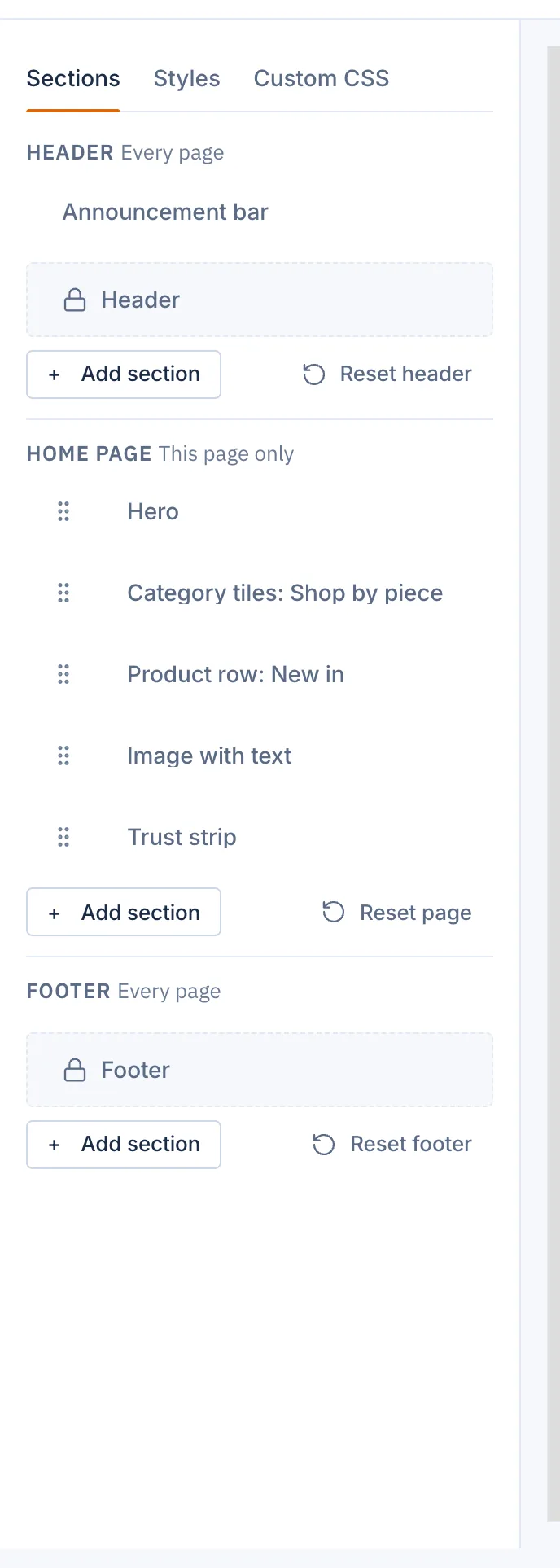
The left column has three tabs:
- Sections: the building blocks of the page you picked, plus the header and footer. See Add, hide and arrange sections.
- Styles: the look of the whole shop: layout, colours, buttons and type. See Change colours, fonts and buttons.
- Custom CSS: your own CSS for anything the settings cannot do. See Add custom CSS.
The preview
The preview in the middle shows your shop with your draft applied, so you see changes as you make them. It works even while your shop is not live yet. When you select a section in the left column, the preview marks it and scrolls to it. It also works the other way round: click a section in the preview and its settings open.
Desktop shows the shop at a computer's width, scaled down to fit your screen. Mobile shows it at a phone's width.
If a page needs an example to show, the editor picks one for you: the product page preview shows one of your products, the category page one of your categories, and so on. If you have none yet, the editor says so, for example Add a product first. Until then the preview shows the home page.
Pick the page you are editing
Each kind of page in your shop has its own list of sections. Use the Page: menu in the top bar to switch.
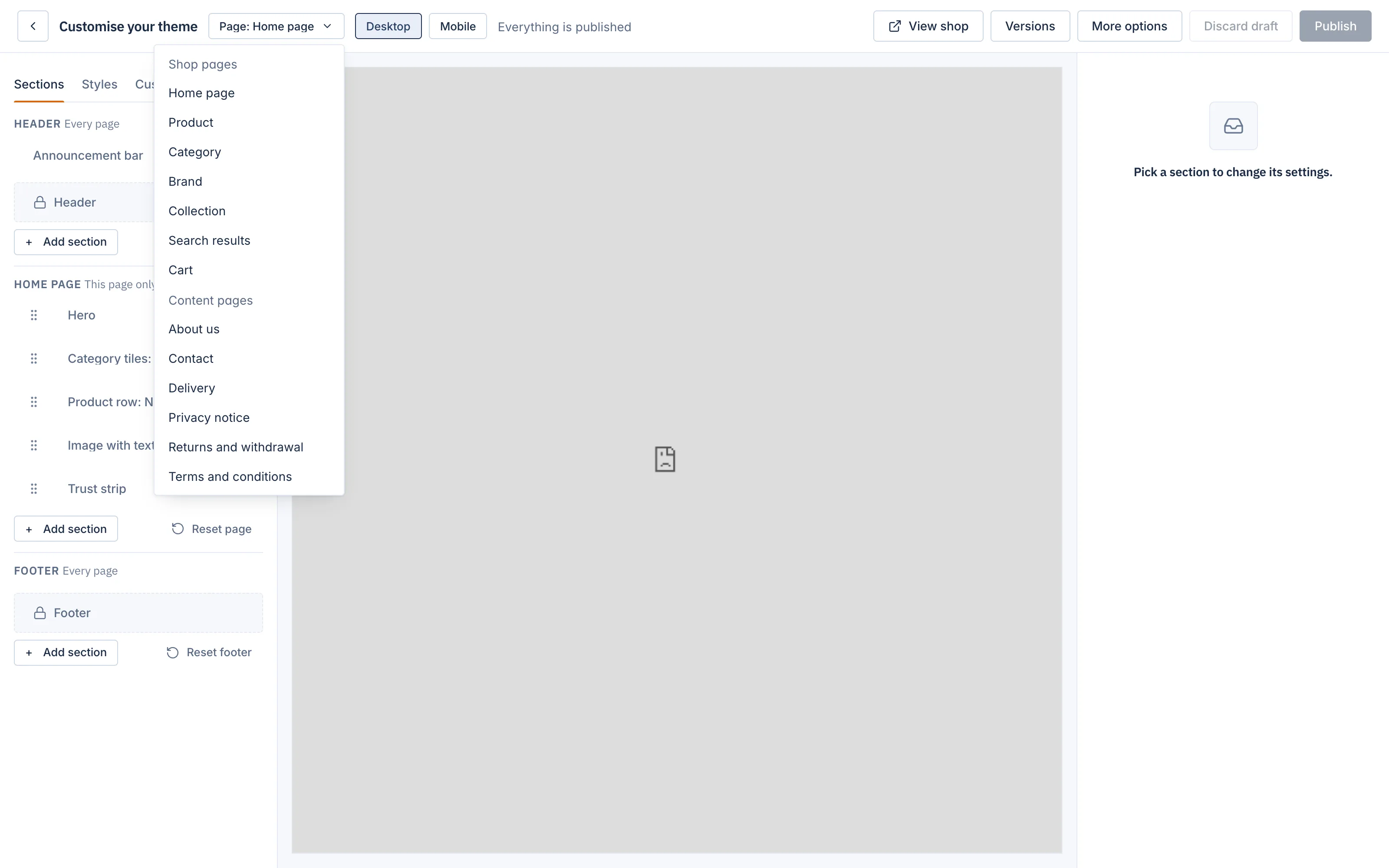
The menu has two groups:
- Shop pages: Home page, Product, Category, Brand, Collection, Search results and Cart. Changing the Product page changes every product page; changing Category changes every category page.
- Content pages: your pages from Online store > Pages, such as About us or Delivery. Each content page has its own sections. A page that is still a draft is marked (Draft).
In a marketplace the list also has Sellers and Seller page.
How saving works
You never press Save in the Sections or Styles tabs. Each change saves itself into your draft a moment after you make it. The status line tells you Draft saved. The one exception is Custom CSS, which has its own Save CSS button.
The draft belongs to the shop, not to you. If two people edit the theme, they work on the same draft.
Nothing reaches your customers until someone presses Publish. If you change your mind, Discard draft takes the draft back to what is live.
Who can use the editor
Staff need the right to manage the theme. The same right lets them manage slideshows. Ask the shop owner to change staff rights in Settings if the Theme page does not open for you.
Let the AI assistant help
Related
Updated 13 November 2026