
Publish, restore and switch themes
How the theme draft works: publish your changes, discard a draft, restore one of the last 10 published versions, and switch to another theme safely.
In the admin: Online storeThemeCustomise
On this page
Everything you change in the theme editor goes into a draft first, so you can work on your shop's design without customers seeing half finished changes. This article explains how to put the draft live, how to throw it away, how to go back to an earlier version and how to switch to a different theme.
The draft and the live theme
Your shop always has a live theme, the one customers see. As soon as you change something in the editor, a draft is made next to it. The top bar shows the state:
- Everything is published: there is no draft. What you see in the editor is what customers see.
- Unpublished changes: you have a draft. The preview shows it, the shop does not.
The Theme page also shows You have unpublished changes while a draft exists.
The draft covers sections on every page (home, shop pages and content pages), the header and footer, Styles and custom CSS. It does not cover your logo and favicon, which save at once on the Theme page, or slideshows, whose changes show at once wherever a slideshow is used.
Publish your changes
- Check the draft in the preview. Use Desktop and Mobile to see both sizes, and switch pages in Page: to check them all.
- Press Publish in the top bar.
The message Published. Your shop shows the changes now. confirms it. Publish is greyed out while there is nothing to publish.
Each publish is kept as a version, so you can always go back.
Discard a draft
If you do not like your changes, press Discard draft and confirm Discard your unpublished changes?. Everything you changed since the last publish is thrown away and the editor shows the live theme again. Your live shop does not change.
Discard draft is also the way to undo a theme switch or a restored version before you publish it.
Restore an earlier version
The editor keeps your last 10 published versions.
- Press Versions in the top bar.
- Find the version by its date in Published. By shows who published it, and Theme which theme it used.
- Press Restore and confirm Restore this version?.
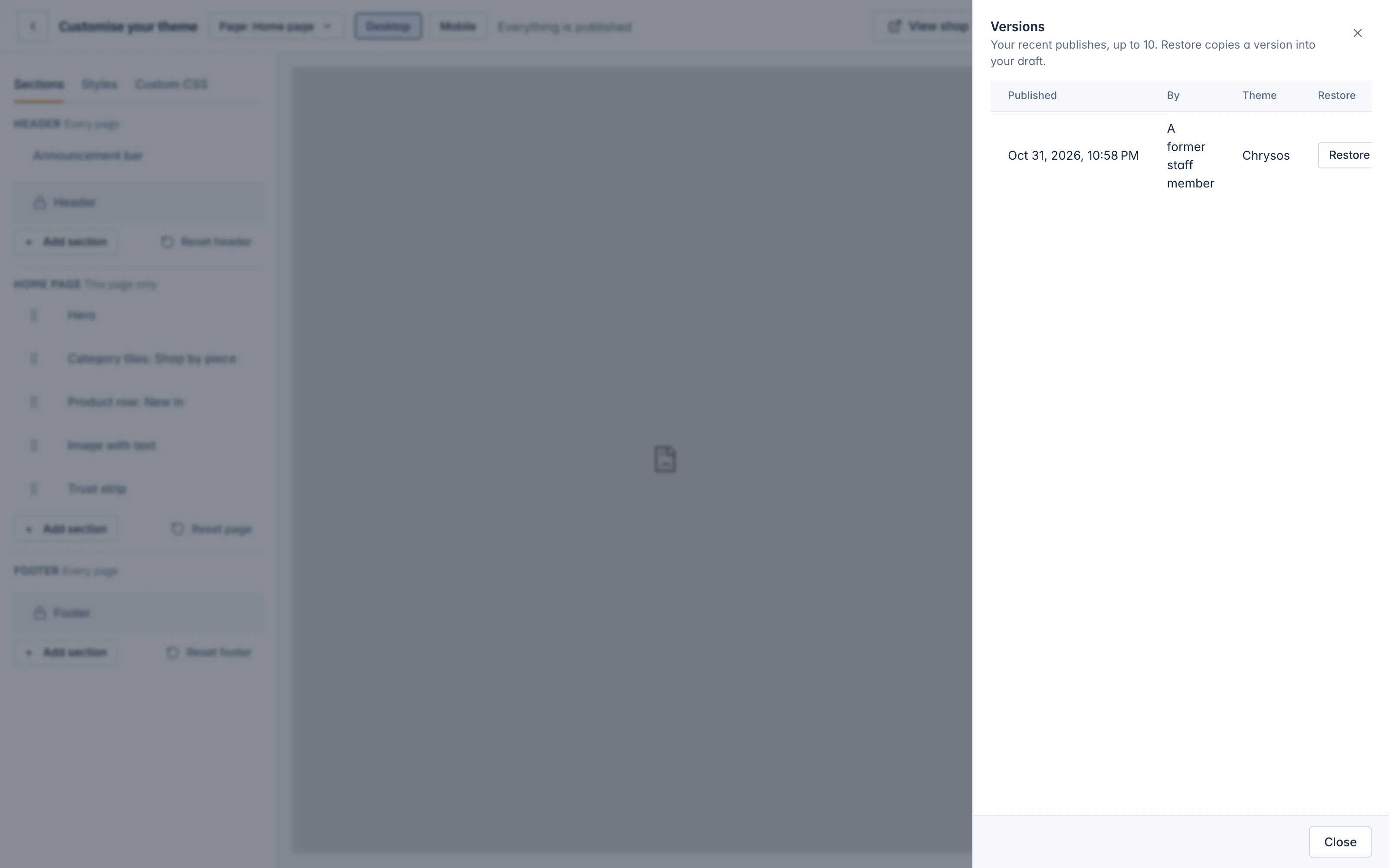
The version is copied into your draft and replaces it. Nothing changes in your shop until you press Publish. That gives you time to check the old version in the preview first.
Switch to another theme
You can change theme at any time. See The five shop themes for how they differ.
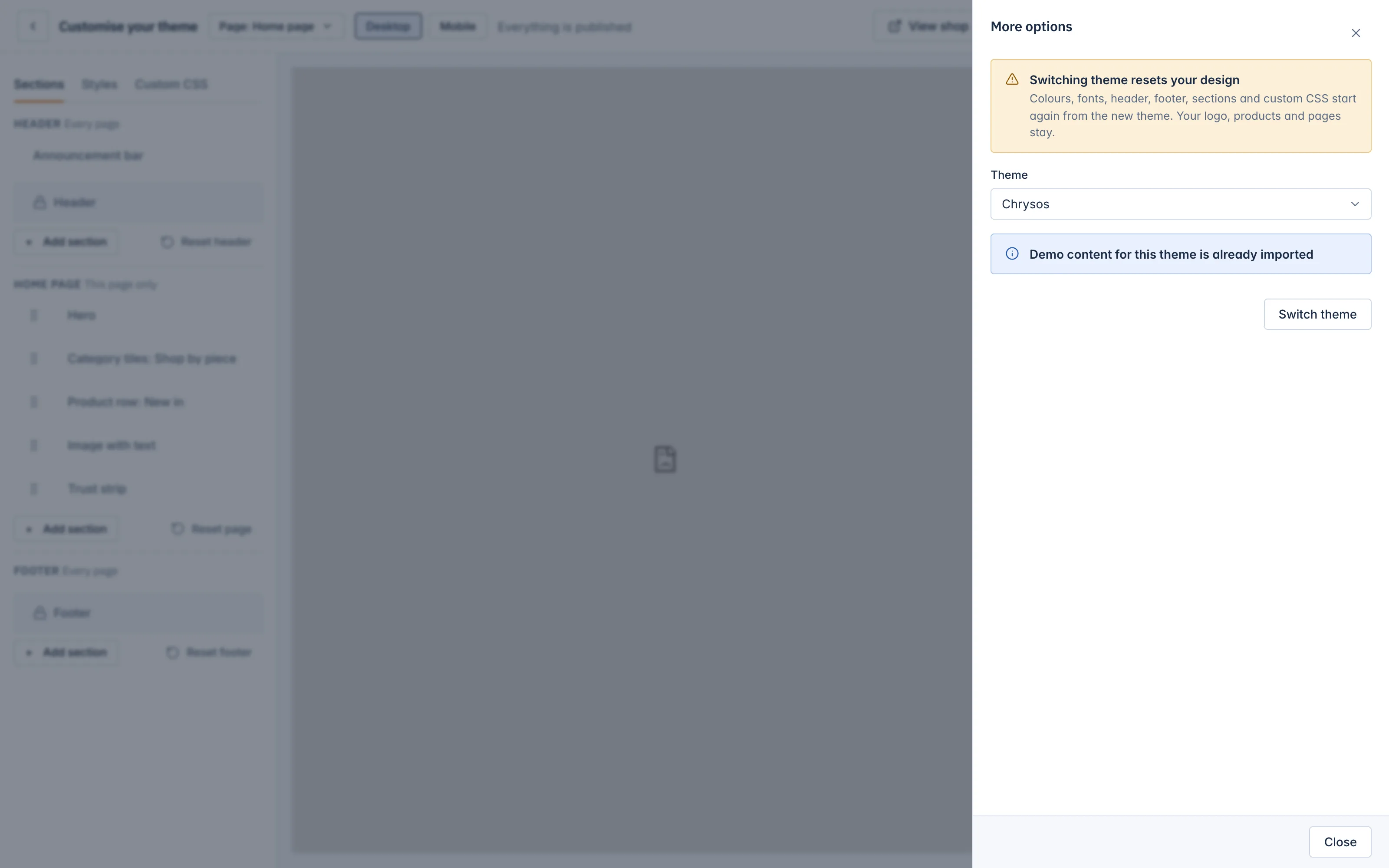
- Press More options in the top bar.
- Read the warning Switching theme resets your design.
- Choose the new theme in Theme.
- If you want the new theme's sample products and home page too, tick Also import demo content. See Set your logo, favicon and demo content.
- Press Switch theme and confirm Switch to this theme?.
- Look around the preview, change what you need, and press Publish.
What a switch resets and what stays
| Starts again from the new theme | Stays as it is |
|---|---|
| Colours and palette | Your logo and favicon |
| Fonts, buttons, layout settings | Your products, categories, brands and collections |
| Header and footer settings, including menu links and footer columns | Your pages and their texts |
| The sections of every page | Your slideshows |
| Custom CSS | Your shop settings |
The switch goes into your draft. Your live shop keeps the old theme until you press Publish, and Discard draft undoes the switch. Even after publishing, the old theme is in Versions, so you can restore it.
When two people edit at once
The draft belongs to the shop, so two staff members editing the theme work on the same draft. If the draft changed in another tab or by someone else, the editor says This draft changed in another tab. Reload to continue. Reload the page to see the latest draft, then carry on.
Related
Updated 13 November 2026