
Send newsletters with Email campaigns
Install Email campaigns, send newsletters with products and a coupon to your subscribers, see opens and clicks, and add 2nd and 3rd cart e-mails.
In the admin: AppsEmail campaigns
On this page
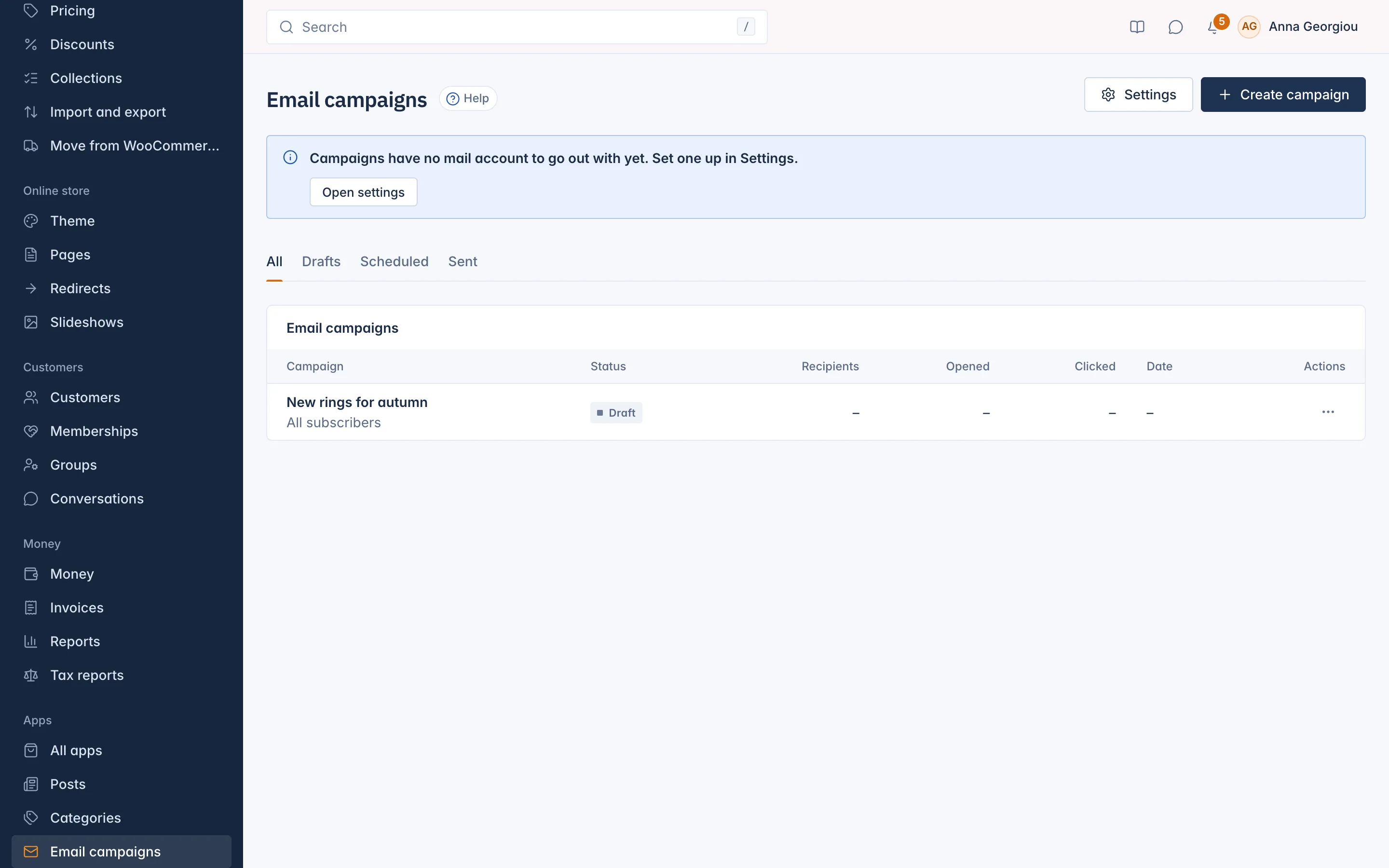
The Email campaigns app sends newsletters with news, offers and new products to the people who agreed to marketing, now or at a set time. Each report shows who opened and clicked. The app can also send a 2nd and 3rd e-mail to shoppers who left a cart.
Install the app
- Go to Apps > All apps and open Email campaigns.
- Click Install.
The app adds Email campaigns under Apps.
Who gets your campaigns
Campaigns go only to customers who agreed to marketing e-mails, for example through your newsletter sign-up form. Consent is checked again just before each e-mail, so someone who unsubscribed meanwhile is skipped.
Under To, pick one of four audiences:
- All subscribers
- Customers who have ordered
- Customers who haven't ordered in the last few days: people who ordered before, but not in the number of days you type under No order in the last (1 to 3650, 90 to start with).
- Subscribers who have never ordered
The editor shows how many people match now. The list is taken again when sending starts.
Set up the sender
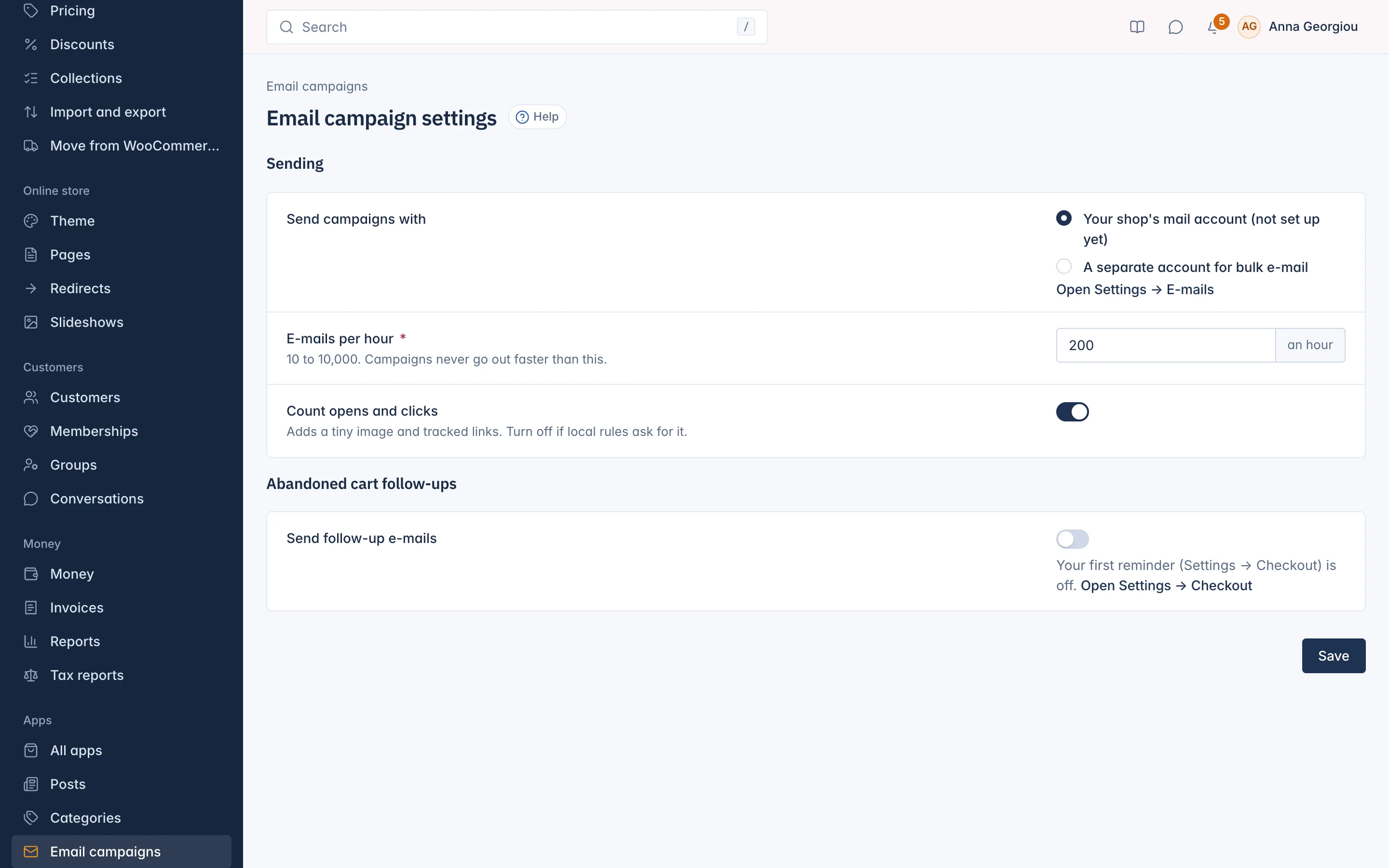
Open Apps > Email campaigns and click Settings. Under Send campaigns with, choose:
- Your shop's mail account: the account your order e-mails use. See Connect your mail account.
- A separate account for bulk e-mail: the SMTP details of a bulk e-mail service such as Brevo, Amazon SES or Mailgun. Fill in Sender name, Sender address, SMTP host, Port, Encryption, Username and Password, then press Test connection. The account is saved once the connection works.
E-mails per hour (10 to 10,000, 200 to start with) is the most your shop sends an hour, shared by all its campaigns. Gmail and Microsoft accounts send only about 500 to 2,000 e-mails a day, so keep this low (about 50) with them. With a bulk service, use the rate it allows. A big campaign never holds up your order e-mails.
Count opens and clicks adds a tiny image and tracked links to each e-mail. Turn it off if local rules ask for it.
Write a campaign
- Click Create campaign and pick a layout under Start from: Products, Sale with a coupon or Blank. Then click Create.
- Under Details, choose who gets it in To.
- Under Content, type the Subject and, if you like, a Preview text, shown next to the subject in most inboxes. Both take up to 150 letters. Insert first name adds each person's first name.
- Change the blocks. Add block offers Heading, Text, Image, Button, Products, Coupon, Divider and Spacer. Use Edit block to change one, and drag the rows to reorder them.
- Click Save. The Preview shows the e-mail as you work, on Desktop or Mobile.
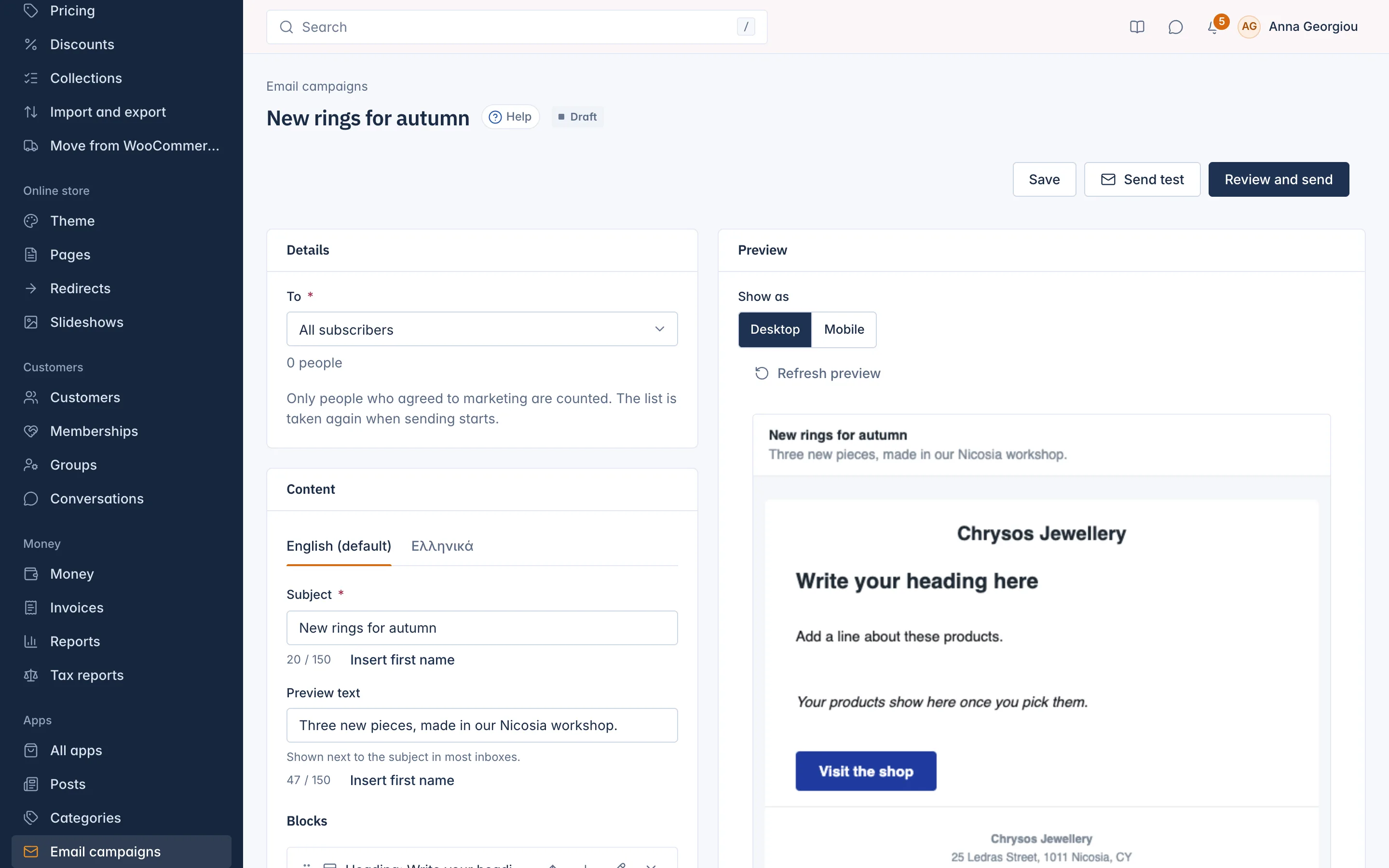
Your logo shows above every campaign. Every campaign ends with your shop's name, its address (from Settings > Invoice numbers), why the person gets it and an Unsubscribe link. These are added for you.
A Products block shows up to 6 products with picture and price, 1 to 3 in a row. Prices are read when the e-mail is sent, and a product your shop no longer shows is left out. A Coupon block shows one of your active discount codes. Its button puts the code in the shopper's cart.
Languages
When your shop has more than one language, the content has a tab per language. A language without a version offers a button such as Add Greek version, which copies the default version for you to translate. Each person gets the version in their own language, or else the default one.
Send a test
Click Send test and type up to 5 addresses, one a line. The test arrives with [Test] before the subject and is not counted in the report. You can send 3 tests every 10 minutes. Tests show in the e-mail log; campaign e-mails do not, as the report is their log.
Review and send
- Click Review and send. It shows the sender, how many people get each version, and each subject.
- Read the checks. Red ones stop the send, such as a missing subject, an empty products block or a coupon that has ended. Amber ones are warnings, such as starter text still in the e-mail. You also see how long sending takes at your pace.
- Under When, choose Send now, or Schedule with a Date and time at least 5 minutes from now.
- Click Send to your number of people, or Schedule. A sent e-mail cannot be called back.
To change a scheduled campaign, click Unschedule first. When its time comes the checks run again: if one fails, or nobody matches, it goes back to drafts and you get a notice.
Only staff with the Send, schedule and stop email campaigns permission can send.
Follow a campaign
The campaigns list has the tabs All, Drafts, Scheduled and Sent. Open a campaign that has started to see its report:
- While it sends, a progress bar shows how far it got. Stop sending ends it for good.
- The tiles show Sent, Opened, Clicked and Unsubscribed. Opens are estimates, as some mail apps open every e-mail by themselves. With counting off, they say Not counted.
- Links shows the clicks per link. People lists everyone with their status and any error.
If your mail account refuses five e-mails in a row, the campaign pauses and you get a notice. Fix the account, then press Resume.
Who got a campaign, opened it and clicked is cleared 12 months after it ended. The numbers stay.
Unsubscribing
The Unsubscribe link opens a page in your shop with an Unsubscribe button. Nothing changes until the person presses it, since mail scanners open links by themselves. Mail apps with their own unsubscribe button use the same link. Unsubscribing withdraws the person's marketing consent, so no further campaigns reach them.
Abandoned cart follow-ups
Your shop can already send one reminder to shoppers who left a cart. You set it up in Settings > Checkout; see Abandoned carts. The app adds a 2nd and 3rd e-mail. They go whether the first reminder is on or off.
- In the app's Settings, switch on Send follow-up e-mails.
- Under Who gets them, choose Only people who agreed to marketing (required in the EU and UK) or Everyone who left a cart, with a stop link.
- Switch 2nd e-mail and 3rd e-mail on or off. For each, set Send after (1 to 14 days, the 3rd later than the 2nd) and a Coupon, or No coupon.
- Click Save.
Each cart gets each e-mail once, and only for carts left in the last few days, so old carts are not mailed when you switch this on. Nothing goes once the shopper has ordered, emptied the cart or pressed the stop link. The e-mail's link brings back the cart with the coupon's code added. Edit the wording opens the two e-mails in Settings > E-mails. The card also shows the last 30 days' figures.
Uninstall
When you uninstall the app, nothing more is sent. Unsubscribe links already sent keep working. Your campaigns and the bulk account are kept for 30 days: install the app again in that time and everything is back. After 30 days they are deleted. Your customers and their consent stay.
Related
Updated 28 November 2026