
Set up tax
Set your shop's tax country, whether your prices include tax, how prices are shown, your registrations and your VAT number.
In the admin: SettingsTax
On this page
IXXO Cart works out the tax on every order by itself, from your settings and your tax rates. This article walks through Settings > Tax from top to bottom. Most EU shops only need the first two steps.
The page has four tabs: Settings, Provider, VAT number and Classes and rates. Show me how at the top starts a short guided tour.
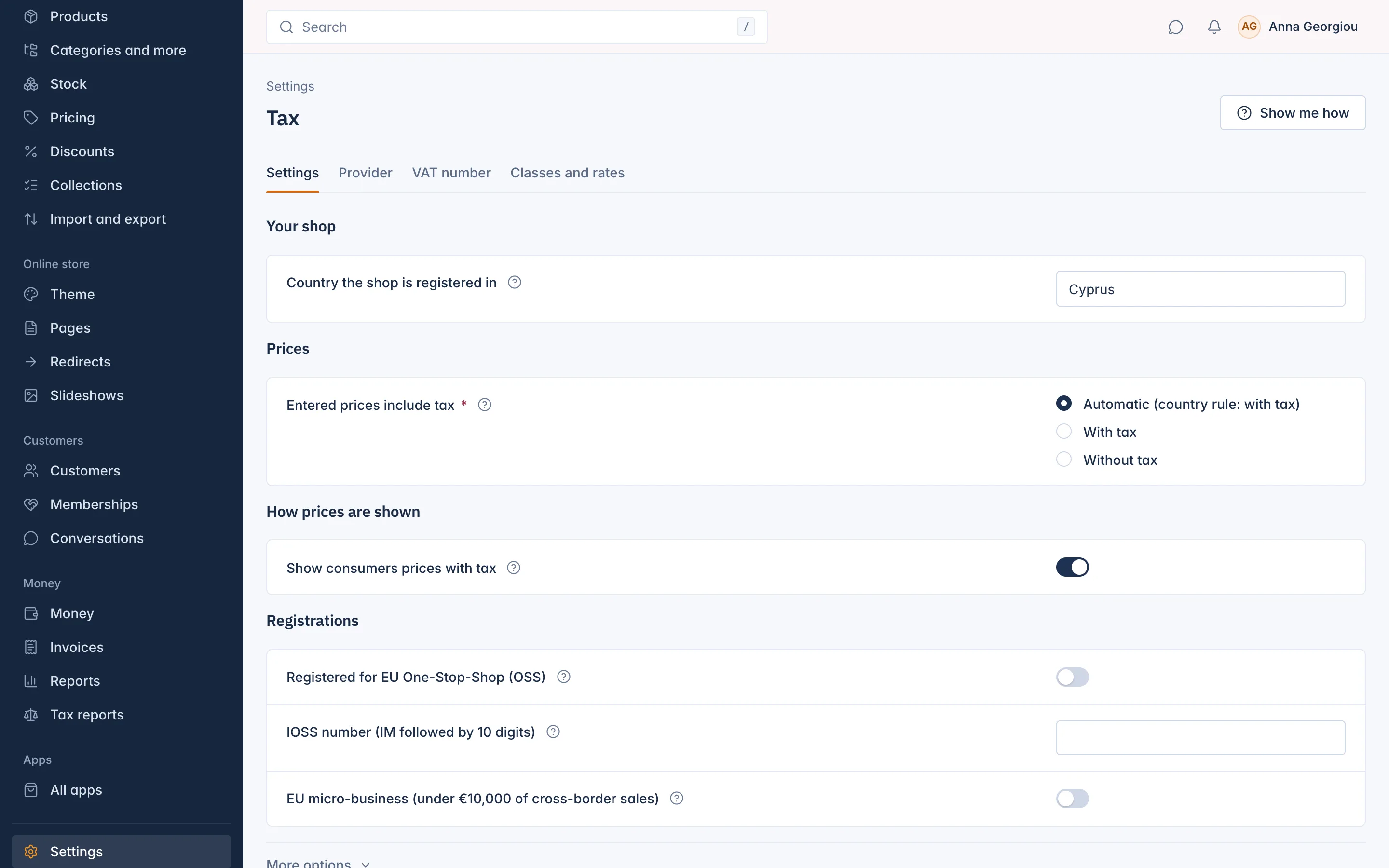
1. Choose your country
Under Your shop, choose the Country the shop is registered in: the country where your business is registered for tax. A shop run from Nicosia picks Cyprus.
The first time you set the country, IXXO Cart creates a starter tax table for you: a tax class Standard, a zone for your country and its standard VAT rate from today. Check it on the Classes and rates tab. (The US and Canada get no starter table, because their rates depend on the state or province.)
2. Say whether your prices include tax
Under Prices, Entered prices include tax says how to read the prices you type on products:
- Automatic follows your country's rule. In the EU that is With tax.
- With tax: you type 24.80 and the shopper pays 24.80, VAT included. Usual in the EU.
- Without tax: you type 20.00 and the tax is added on top. Usual in the US.
If you change this after adding products, your prices stay as they are and are read the new way. Tick I understand: keep my prices as they are to confirm.
3. How prices are shown
Under How prices are shown, Show consumers prices with tax decides what shoppers see on product and category pages. In the EU, consumer prices must be shown with VAT.
4. Registrations
Under Registrations, tell IXXO Cart about the EU schemes you use:
- Registered for EU One-Stop-Shop (OSS)
- IOSS number (IM followed by 10 digits): only if you ship goods worth under €150 from outside the EU to EU consumers.
- EU micro-business (under €10,000 of cross-border sales)
What these mean is explained in EU VAT, OSS and reverse charge.
Select Save.
More options
More options holds the settings most shops leave on Automatic. Open them only if your accountant asks, or if you sell to businesses or outside the EU.
| Setting | What it does |
|---|---|
| Round tax per line or per rate total | Per line rounds the tax of each line. Per rate total rounds once per rate on the invoice. |
| Rounding | Half up (0.5 becomes 1) or Half to even (banker's rounding). |
| Prices for business buyers in your own country | Without tax, With tax or As their customer group says. Only what they see, not what they pay. |
| Prices for EU business buyers in other countries | The same choices. These buyers usually pay no VAT, so Without tax shows the price they actually pay. |
| Let customers switch between prices with and without tax | Adds a small switch on the shop. Useful if you sell to both consumers and businesses. |
| Registered for UK VAT | Only with a UK VAT number. UK buyers are then charged UK VAT. |
| US states where you must charge sales tax | Buyers in other states pay no sales tax. |
| Registered for Canadian GST/HST and Canadian provinces where you are registered | For sales to Canada. |
| Stop the checkout while a tax scheme is not confirmed | Orders that need a scheme not yet confirmed wait at checkout instead of being charged the wrong tax. Most shops leave this off. |
5. Your VAT number
On the VAT number tab, enter the Country of the VAT number and the VAT number, with or without the country letters, and select Save. It is checked with the EU VAT system (VIES).
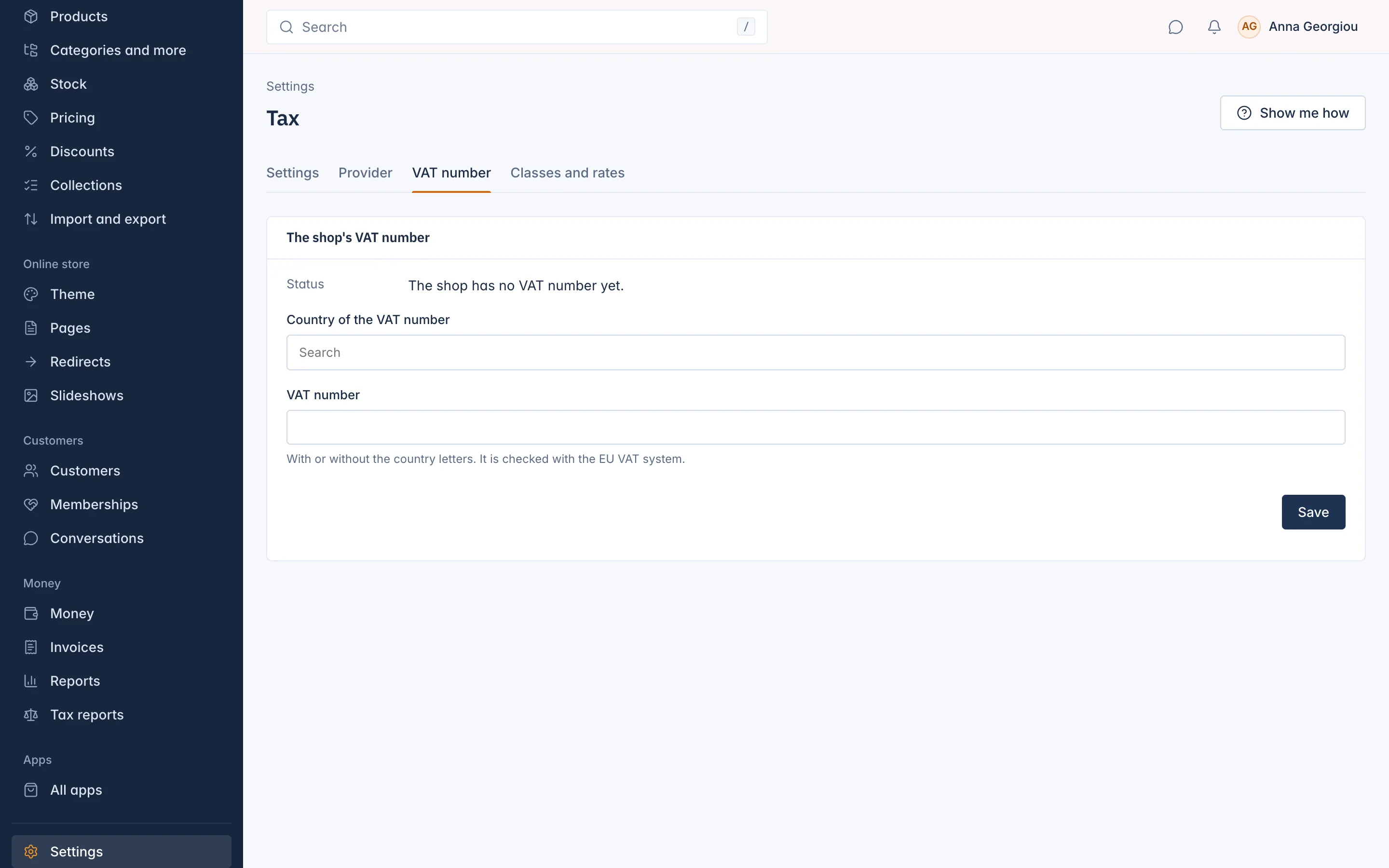
The Status shows Checked: valid, Not checked yet, Not checked: the EU VAT system was unreachable or Not valid, and how the number is Printed on invoices.
Your VAT number is printed on every invoice. Remove the VAT number takes it off new invoices. If you have no other tax id, new invoices then wait until you add one.
6. Tax calculation provider
The Provider tab, for the shop's Owner only, chooses the Tax calculation:
- IXXO tax tables (the default, nothing extra to pay): you keep your own rates under Classes and rates.
- Stripe Tax: Stripe works out the rates for you, which helps for US or Canadian sales where rates change by state or province. It needs a Stripe secret key and costs extra at Stripe.
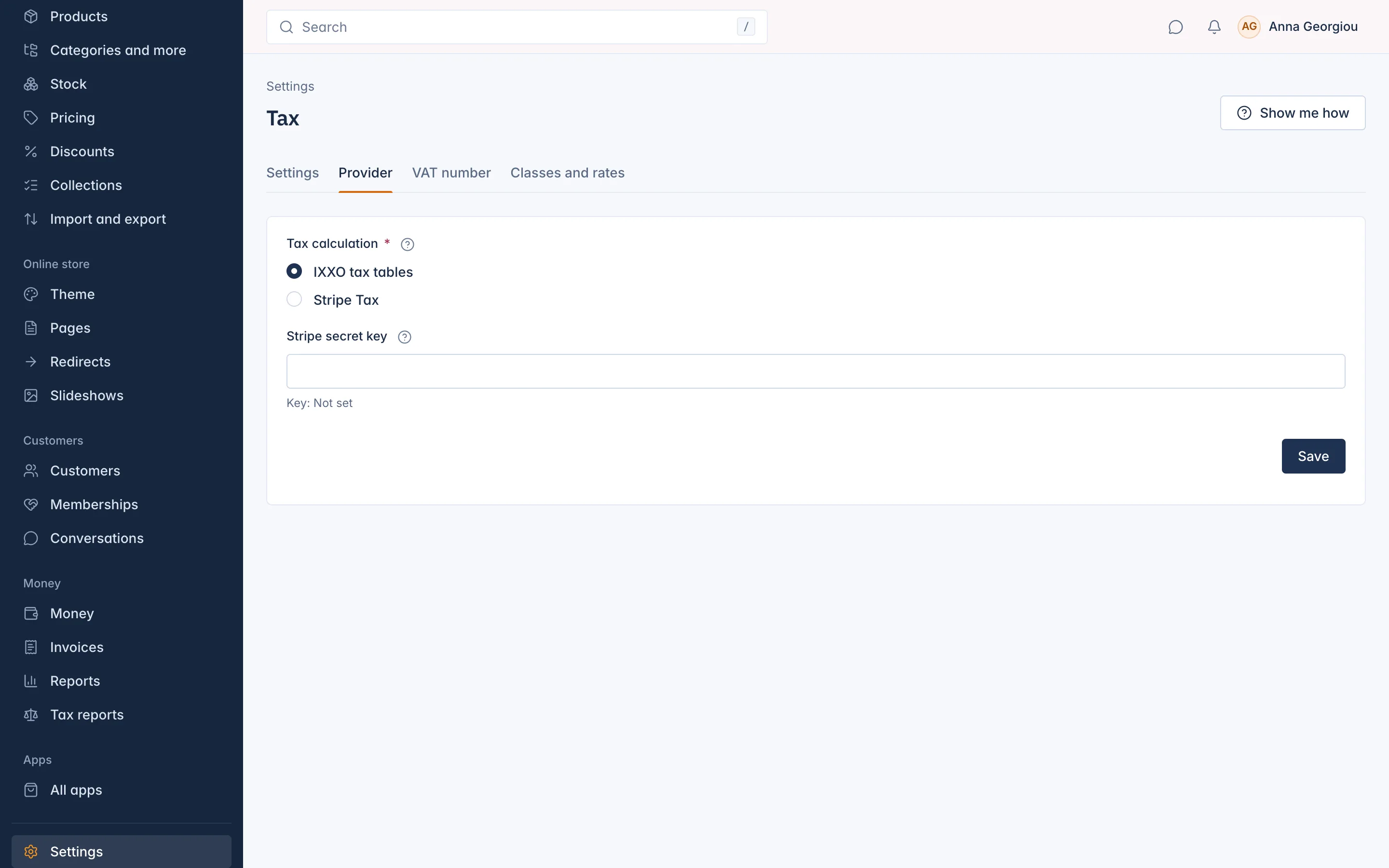
With Stripe Tax, your own classes and rates are kept, and used again if you go back to the IXXO tax tables.
Related
Updated 13 November 2026