
Find, install and remove apps
Browse the apps for your shop, install one, ask for a paid app, uninstall an app and get its data back within 30 days.
In the admin: AppsAll apps
Apps add features that not every shop needs, such as product reviews or a "shop the look" photo. Nothing of an app shows in your admin or your shop until you install it, so your admin stays tidy.
Browse the apps
Go to Apps in the menu and open All apps. Each card shows the app's name, what it does and its price: Free, or a price a month or once.
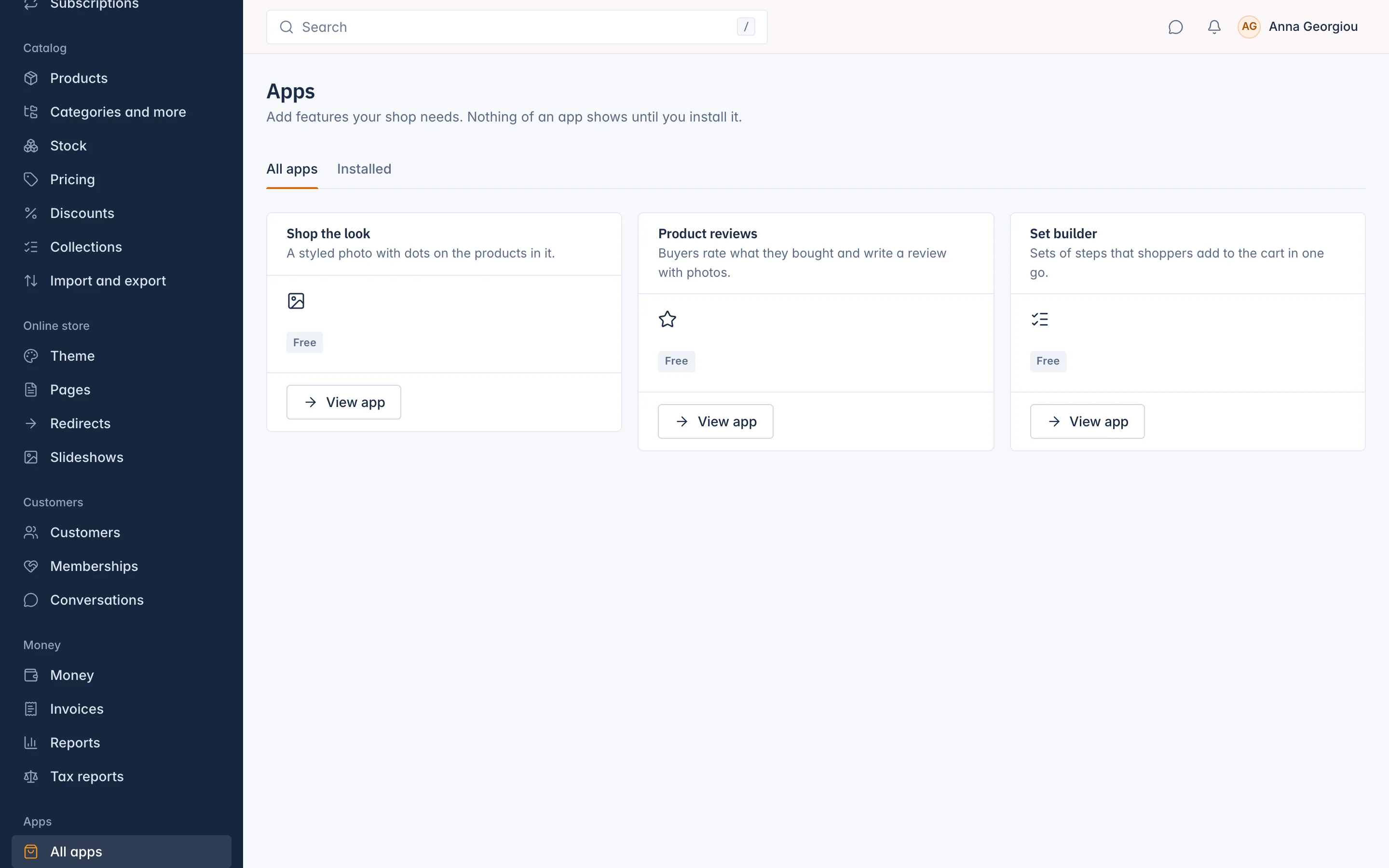
Use All apps and Installed at the top to switch between every app and the ones your shop has. Press View app to open an app's page.
The app's page explains About this app and lists What it adds: the screens, the storefront sections and the settings that come with it.
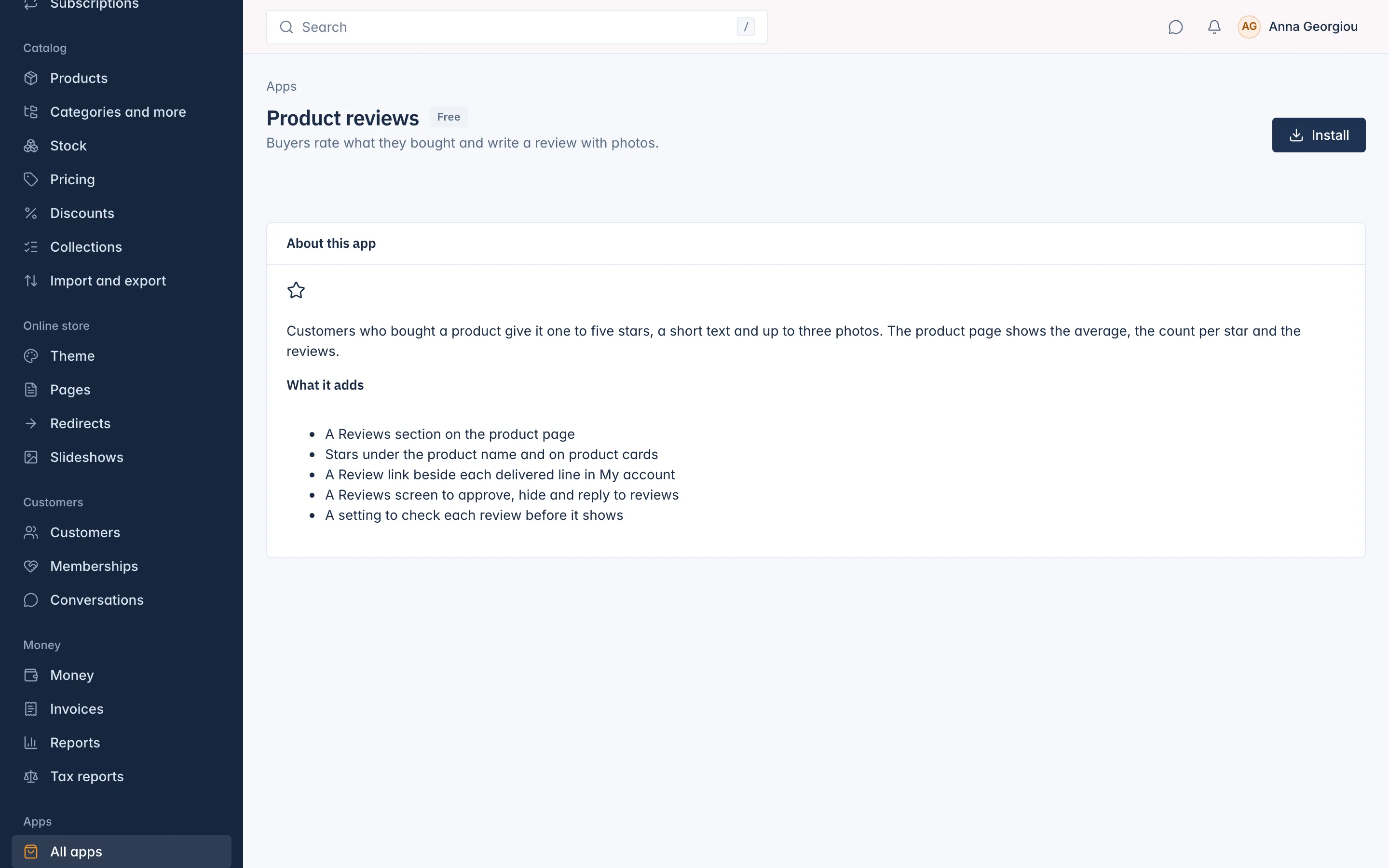
The apps available today:
| App | What it does |
|---|---|
| Product reviews | Buyers rate what they bought and write a review with photos. |
| Shop the look | A styled photo with dots on the products in it. |
| Set builder | Sets of steps that shoppers add to the cart in one go. |
Install an app
- Open the app's page.
- Press Install.
The admin confirms that the app is installed. The app's own screen appears under Apps in the menu, and the app's section shows up in the section editor of your theme. The button on the app's page now reads Open.
Paid apps
A paid app shows its price on the card. What you see depends on the app:
- Buy for a price a month or once: the shop's Owner buys it. A summary shows what you pay now, including VAT. A monthly app is then billed with your plan; a one-off app gets its own invoice. Only the Owner can buy apps.
- Ask for this app: send a request and IXXO Cart gets back to you about the price. The page shows Request sent until we answer.
Uninstall an app
- Open the app's page from Installed.
- Press Uninstall and confirm.
The app's screens, sections and storefront parts disappear at once. Your app data, such as reviews, looks or sets, is kept for 30 days. Install the app again within 30 days and everything comes back. After that the data is deleted.
Who can manage apps
Installing, uninstalling and asking for apps needs the Install and remove apps, ask for paid apps permission, which the Owner and Administrators hold.
Each app also brings its own permissions, for example See product reviews and Manage product reviews. They appear in the role editor under Apps for the apps your shop has (see the Settings section).
Related
Updated 13 November 2026