
Security settings
Set how long staff and customers stay signed in, require two-step sign-in for all staff, and protect your shop's forms against bots.
In the admin: SettingsSecurity
On this page
The Security settings decide how long people stay signed in, whether your whole team must use two-step sign-in, and whether a bot check protects your shop's forms. This article also explains the password rules that always apply.
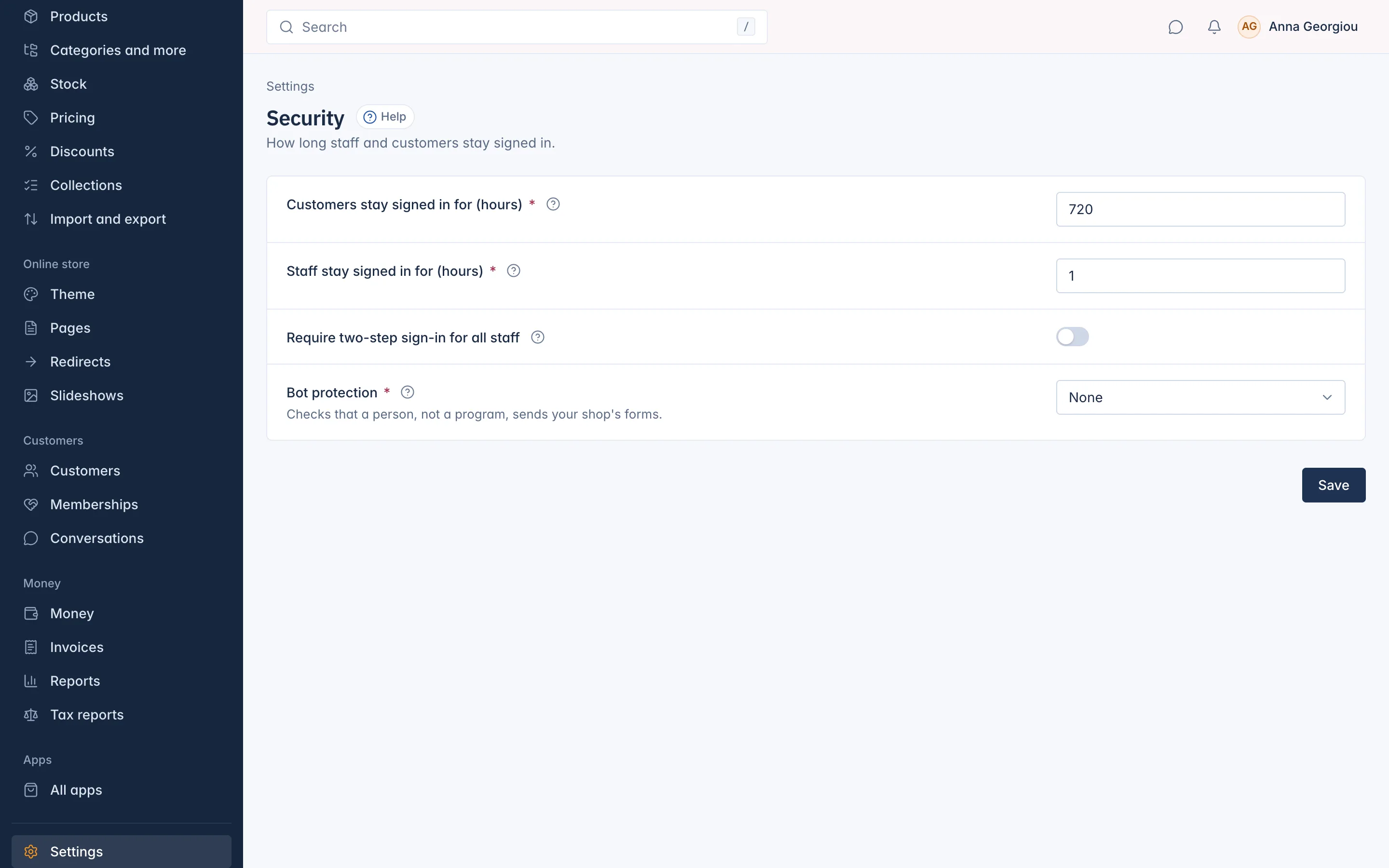
How long people stay signed in
- Customers stay signed in for (hours): how long a customer may stay away from your shop before they must sign in again. Each visit starts the count again. The default, 720 hours, is 30 days.
- Staff stay signed in for (hours): how long your team may leave the admin untouched before they must sign in again. Each click starts the count again. The default is 1 hour. A staff session also ends after 12 hours in all, or after the hours you set when that is longer.
Press Save after a change.
Require two-step sign-in for all staff
Switch on Require two-step sign-in for all staff and press Save. From then on, everyone who signs in to your admin must use two-step sign-in. Anyone who has not set it up yet is asked to do so at their next sign-in, and nobody can turn it off on their profile.
How each person sets it up is in Your profile and notifications. The staff list shows who already uses it.
Bot protection
Bots fill in shop forms to create fake accounts or send spam. Bot protection checks that a person, not a program, sends the form. It is set to None until you choose a provider:
- Google reCAPTCHA v3: invisible to visitors, shows a small Google badge.
- Cloudflare Turnstile: usually invisible, and does not track visitors.
You need an account with the provider to get the two keys.
Turn it on
- Choose the provider under Bot protection.
- Press the link to get keys from the provider (Get reCAPTCHA v3 keys or Get Turnstile keys) and create keys there. Add every domain of your shop to the keys, also one you add later.
- Paste the Site key and the Secret key.
- Press Test keys. The shop checks the secret key with the provider and shows the widget. Nothing is saved yet. Keys work means you can go on.
- Under Protect these forms, tick the forms to check: Create account, Sign in, Forgot password, Checkout (the Place order step) and Contact form. A marketplace also has Seller application.
- Press Save.
By default Create account, Forgot password and Contact form are ticked. Customers who are signed in are not checked on the contact form or at checkout.
Once saved, the secret key shows only its last four characters. Leave the field empty to keep it. If you switch back to None, the saved keys are kept for later.
Password rules
These rules always apply to staff passwords and need no setting:
- A password has at least 12 characters.
- A password known from a data breach is refused.
- After several wrong passwords in a short time, signing in with that address is paused for a while, so nobody can guess a password by trying many.
- Sensitive screens, such as staff and roles, payment providers, API keys and the mail account, ask for your password again when you last typed it more than 15 minutes ago.
Who can change it
Changing the Security settings needs the Change the shop settings permission, which the Owner and Administrators hold (see Roles and permissions).
Related
Updated 13 November 2026