
Product titles, photos and categories
The General tab of the product editor: title and description, product tabs, photos, categories, brand, tags, condition and visibility.
In the admin: CatalogProductsGeneral
On this page
The General tab holds what customers read and see first: the product's name and description, its photos, the extra tabs on the product page, and where the product appears in your shop (categories, brand, tags and visibility). This article goes through each card of the tab.
Name and description
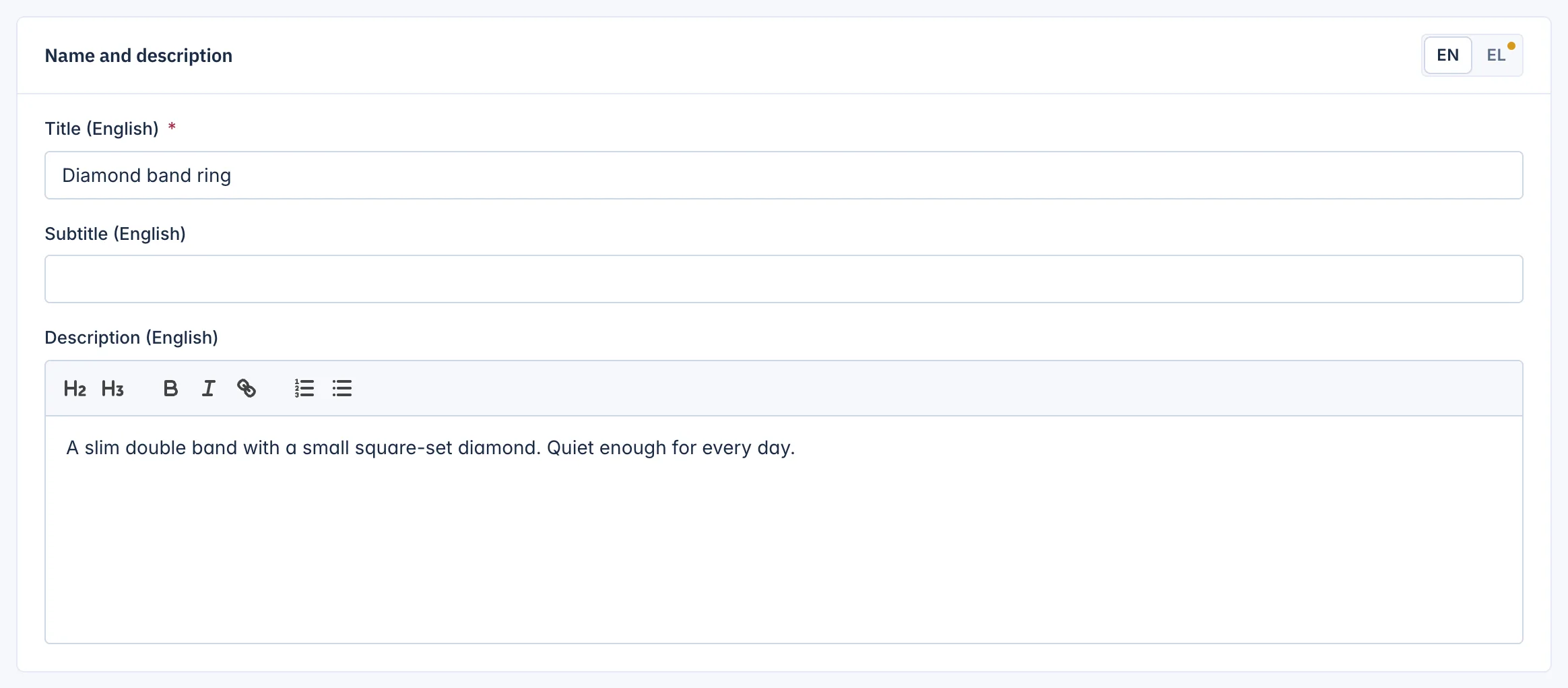
- Title: the product name, required in the shop's main language. Up to 191 characters.
- Subtitle: an optional short line under the title, for example "18 ct gold, handmade".
- Description: the main text of the product page. The editor offers headings, bold, italic, links and lists.
With several languages, use the language switch at the top of the card to fill in each language. A language with a dot still has empty texts.
Product tabs
Product tabs add up to 6 extra tabs to the product page, next to Description and Specifications. Use them for care instructions, size guides, delivery notes or anything else buyers ask about.
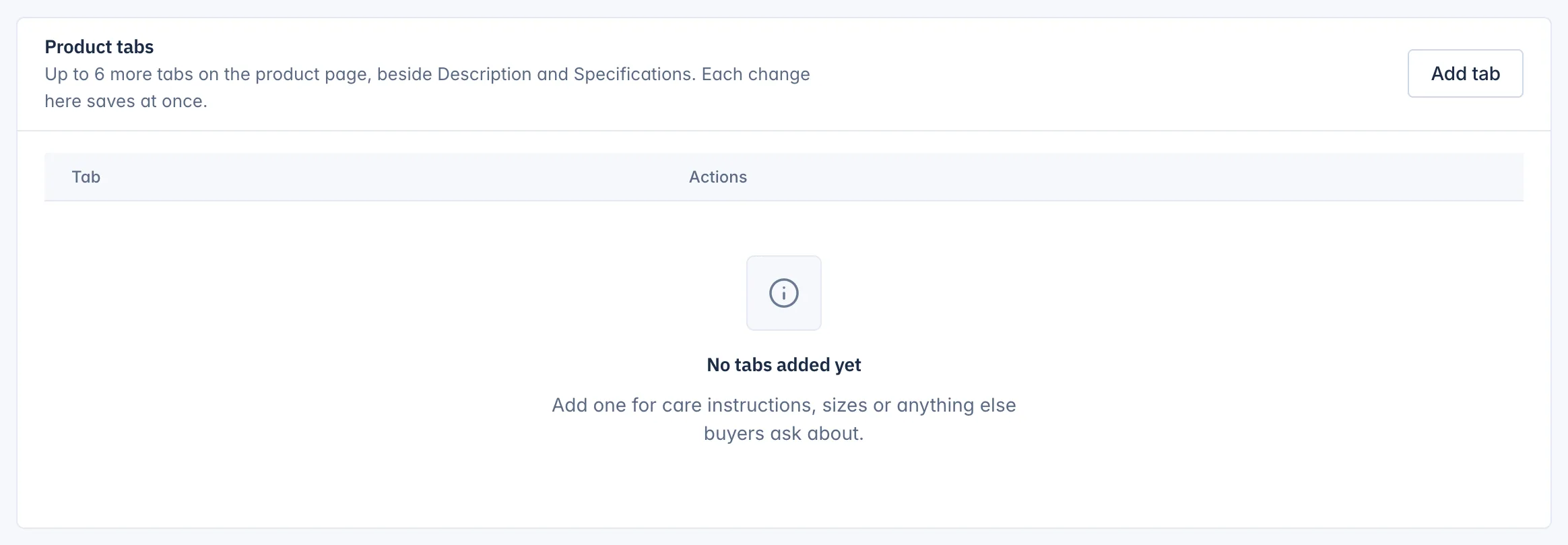
- Click Add tab.
- Type a Title and a Text in the shop's main language (and in other languages if you like). The title has at most 100 characters.
- Click Add tab in the dialog. The tab saves at once.
Each tab in the list has Edit, Move up, Move down and Remove. The order in the list is the order on the product page. Removing a tab takes it off the product page in every language. The tabs belong to this product only.
Photos
Photos save on their own form, so add them after the product is saved.
- Under Add photos, choose one or more picture files.
- Click Save photos.
Each photo then has its own fields:
- Order: its position. Photo 1 is the main photo in lists and on the product page.
- Text for screen readers: a short description of the picture, per language. It helps blind customers and search engines. It is optional.
- Photo of: All choices, or the one combination it shows, such as White gold. When a customer picks that combination, the product page shows its photo.
- Remove: tick it and save to take the photo off the product.
Change any of these and click Save photos again. Your plan sets how many photos a product can have.
Categories, brand and tags
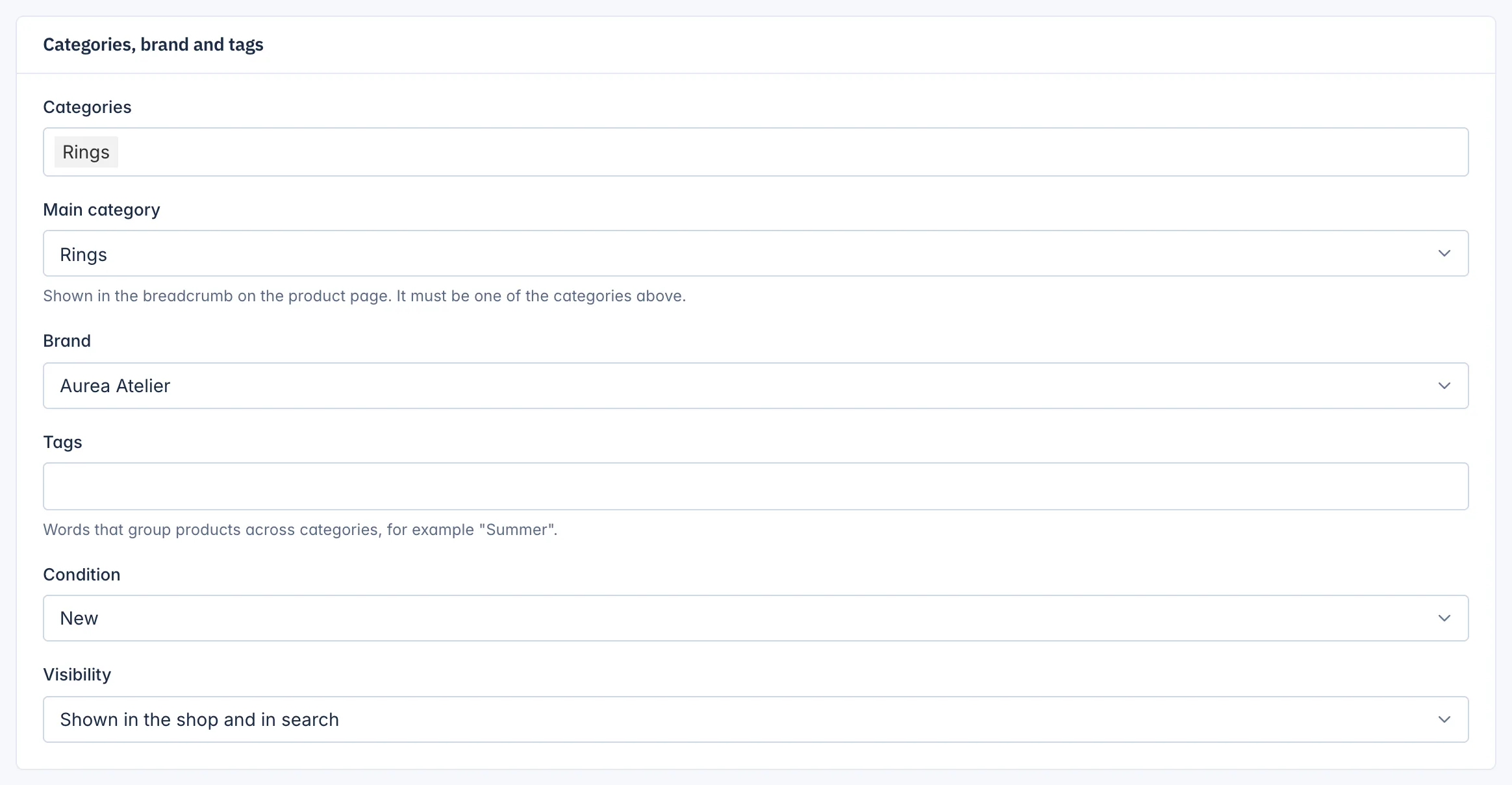
- Categories: every category the product belongs to. A product can be in several, for example Rings and Gifts.
- Main category: the one shown in the breadcrumb on the product page. It must be one of the categories above.
- Brand: one brand, or None.
- Tags: words that group products across categories, such as "Summer" or "Bestseller".
- Condition: New, Used or Refurbished. Search engines read it.
- Visibility: where the product can be found (see below).
Categories, brands and tags are made under Catalog > Categories and more. See Categories, brands and tags.
Visibility
| Choice | What it means |
|---|---|
| Shown in the shop and in search | The normal choice: in category and brand lists and in search results. |
| Shown in search only | Found by the shop's search and by its link, but not listed in categories. Useful for spare parts or refills. |
| Hidden, reachable only by its link | Not in any list or search. Only people with the link can open it, for example a private offer. |
Visibility only matters for a published product. A draft is never shown.
When it shows
The last card, When it shows, limits a product to a time window with Show from and Hide after. See Publish, schedule, archive and delete products.
Product type on a new product
On a new product, the first field of this tab is Product type, for staff whose role may choose it. Later you change the type on the Advanced tab. See Product types and digital downloads.
Related
Updated 13 November 2026