
Seller plans and plan fees
Multi-VendorCreate the plans sellers pay to sell in your marketplace, with fees, trials, limits and features, and handle unpaid plan fees.
In the admin: MarketplaceSeller plans
On this page
A seller plan sets what a seller pays you to sell in your marketplace, and what it may do there: how many products and people it may have, and which features it may use. Plans are optional. Without them sellers pay no fee and have no limits, and you earn only commission. This article covers creating plans, putting sellers on them, and following up unpaid fees.
Plan fees are separate from sellers' sales money. They are invoiced to the seller and never taken from its payouts.
Create a plan
- Go to Marketplace > Seller plans and press New plan.
- Under Name and description, write the Name and a Description sellers see, in each of your shop's languages.
- Type a Code: lower-case letters, digits,
_and-, up to 32 characters. It cannot change later. - Under Availability, choose the Status (see below) and tick Offered at sign-up if applicants may choose this plan on the application form.
Under Price, set the fees. Plans are charged in your shop's main currency.
- Setup fee: charged once, when the seller starts on the plan.
- Fee and Charged: the plan fee and how often: Every month, Every 3 months, Every 6 months or Every year.
- Trial: days free before the first fee. Leave empty for no trial.
- Discount and Discounted cycles: a percentage off the fee for the first cycles, for example 50% off the first 3 months.
- Under Limits, set the most Products, People and Stock locations the seller may have. Leave a limit empty for no limit.
- Under Features, untick what this plan does not include: Auctions, Bookings, Subscribe & save products, Donations, Digital products (downloads), CSV import and export of products, Reports and statistics and Own API keys.
- Press Create plan.
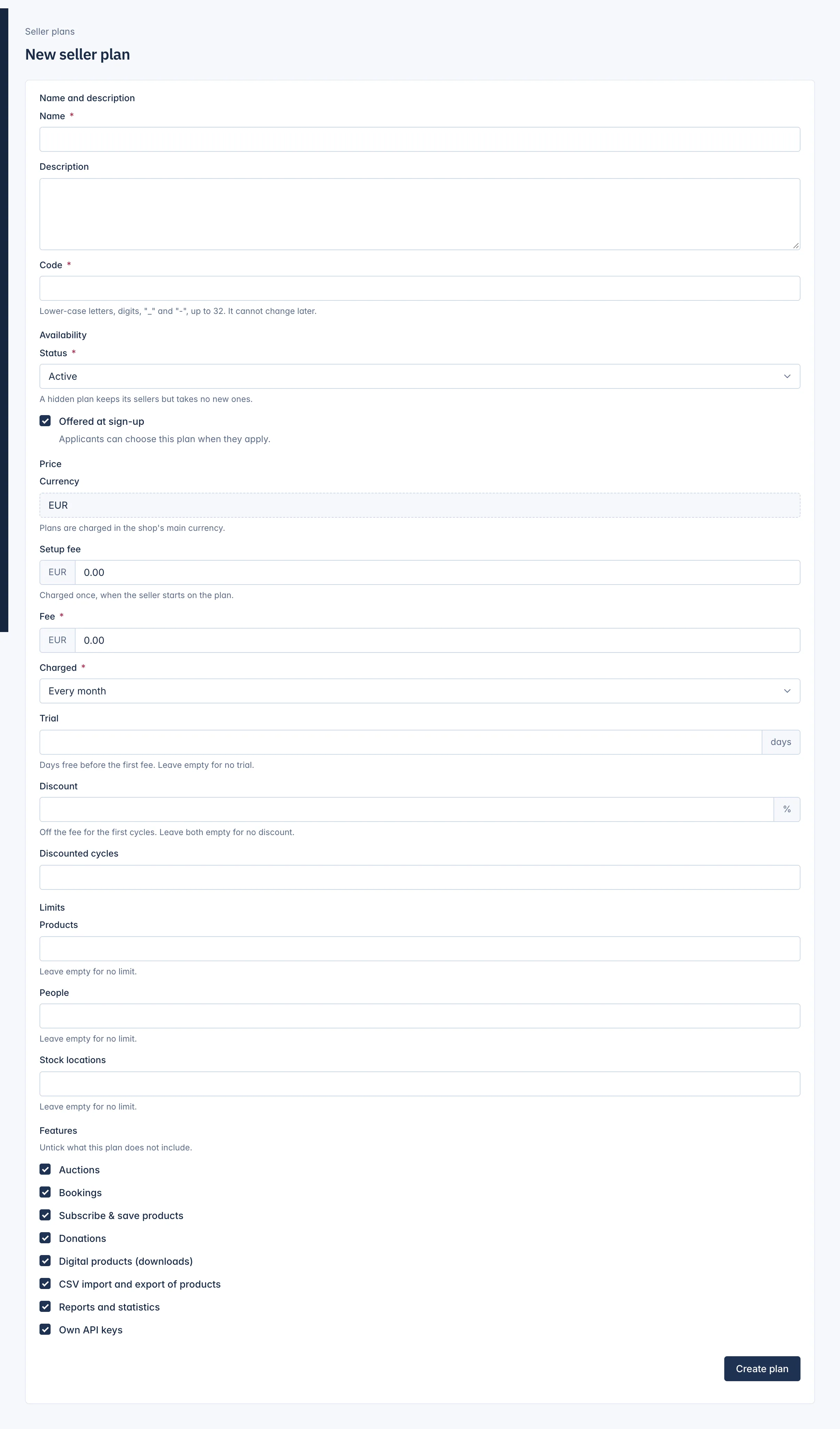
A plan with a fee of 0 is a free plan: useful as a starter plan with tight limits.
Plan status
| Status | Meaning |
|---|---|
| Active | Sellers can be put on it. |
| Hidden | It keeps its sellers but takes no new ones. |
| Archived | No seller can be put on it any more. Only a plan no seller is on can be archived. |
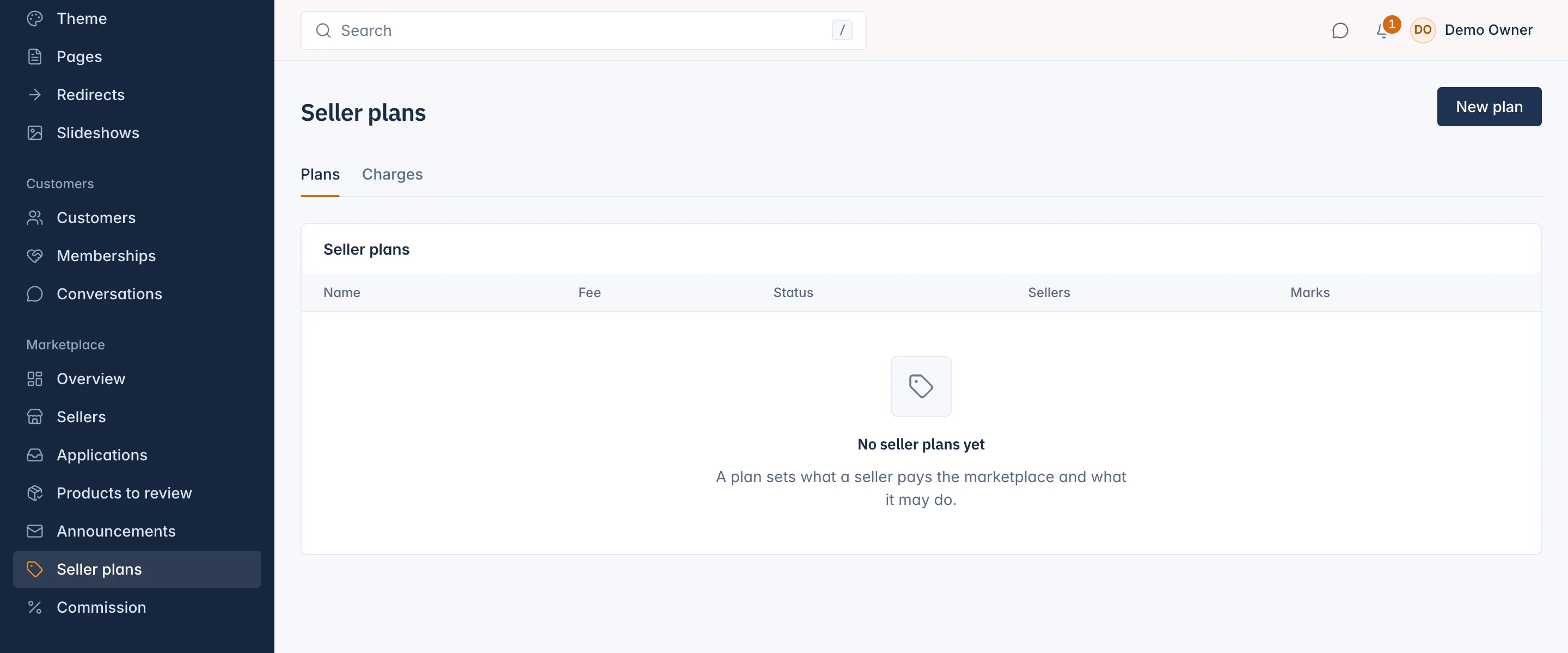
The first active plan you create becomes the Default plan: the plan of every seller who chose none. The default plan cannot be hidden or archived. Choosing another default plan is done through the marketplace settings of the REST API; see the Developers section.
Put a seller on a plan
A seller gets its plan in one of these ways:
- It chooses a plan offered at sign-up when it applies, and the plan starts when you approve it.
- You choose the Seller plan when you create the seller yourself.
- It is on the default plan because it chose none.
A plan starts with its trial when it has one, otherwise with the first fee.
Change a seller's plan
- Open the seller from Marketplace > Sellers and go to the Plan and billing tab.
- Press Change plan, choose the new plan and press See what changes.
- Read the preview. It says whether the change is an Upgrade or a Downgrade, when it takes effect, the Fee charged now before tax, any limit the seller is over ("12 in use, the new plan allows 10"), and the Products losing a plan feature. For a downgrade you choose whether it happens at the end of the period or now.
- Press Change plan.
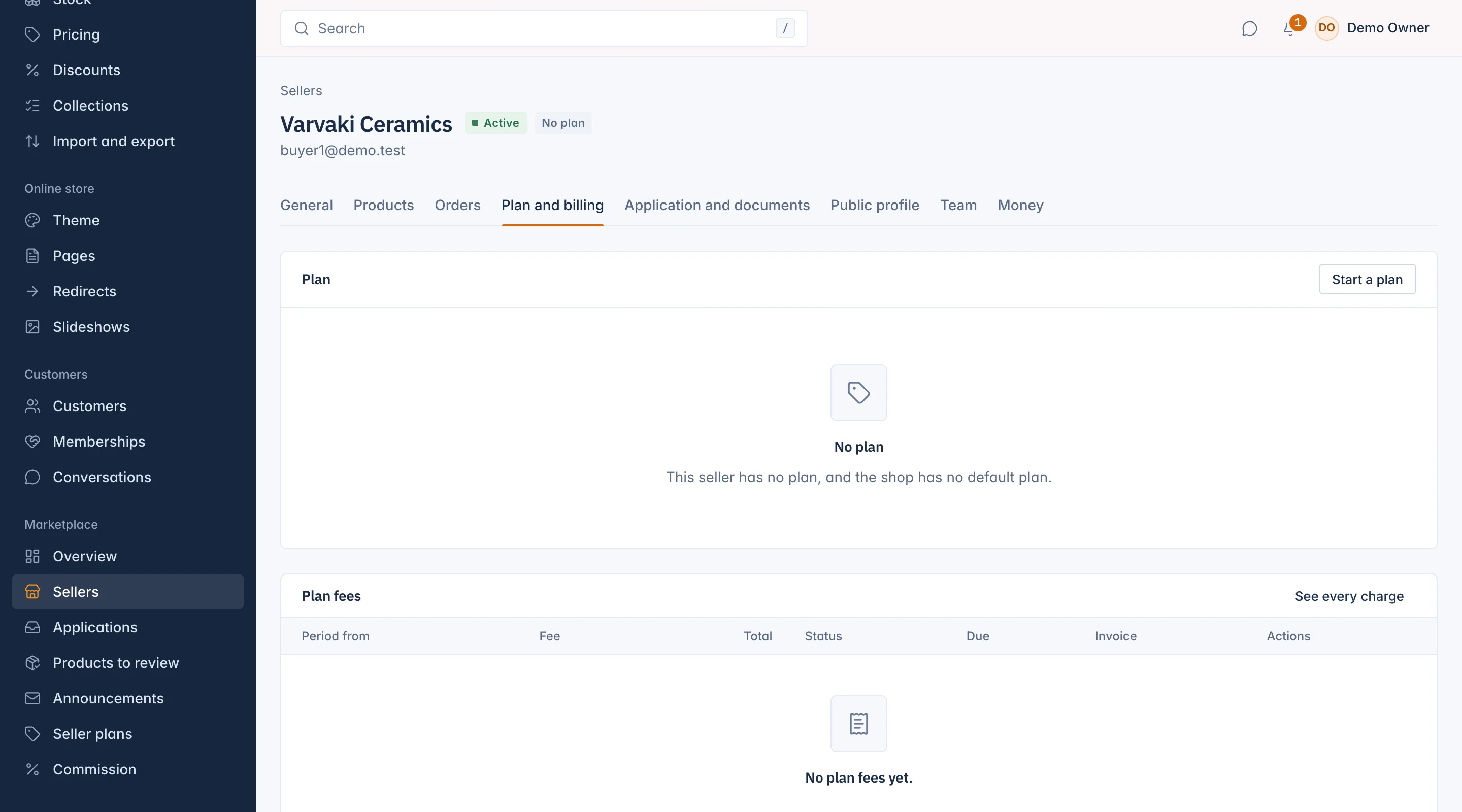
A seller that joined before you had plans has no plan of its own. Start a plan puts it on one; switch on Free of charge if it should never pay for it. Without that, the plan starts as usual.
Free of charge
On the Plan and billing tab, Free of charge keeps the seller on its plan, with the plan's limits and features, but it pays no plan fees. Fees already open stay owed until you mark them paid or void them. Switch it off and the seller pays its fees again.
Sellers cannot change their own plan in their panel. Their Your plan page shows the plan and its fees, and tells them to contact you.
How plan fees are paid
Each fee is a charge with an invoice from you to the seller. A fee is taken from a card the seller saved, when your Stripe account can save cards. Otherwise the seller pays the invoice, by default within 14 days, for example by bank transfer.
The seller sees each fee and can download its invoice on its Your plan page.
When a fee is not paid
- The seller's plan shows Fee overdue. The seller keeps selling during a grace period, 7 days by default, and gets reminders.
- When the grace period ends, the seller is suspended For an unpaid plan fee: its products leave the shop.
- A seller still suspended after 30 days has its plan cancelled.
You can follow up unpaid fees on the Charges tab of Marketplace > Seller plans, or on the seller's Plan and billing tab. The grace period, payment terms and cancellation delay are changed through the REST API.
Handle a plan fee
The Charges tab lists every plan fee charge, with the Seller, Plan, Period starts, Amount, Status and Invoice. Filter by Seller, Status or Period starts and press Apply. Use Plan fee set to Unpaid plan fee on the Sellers list to find who owes you.
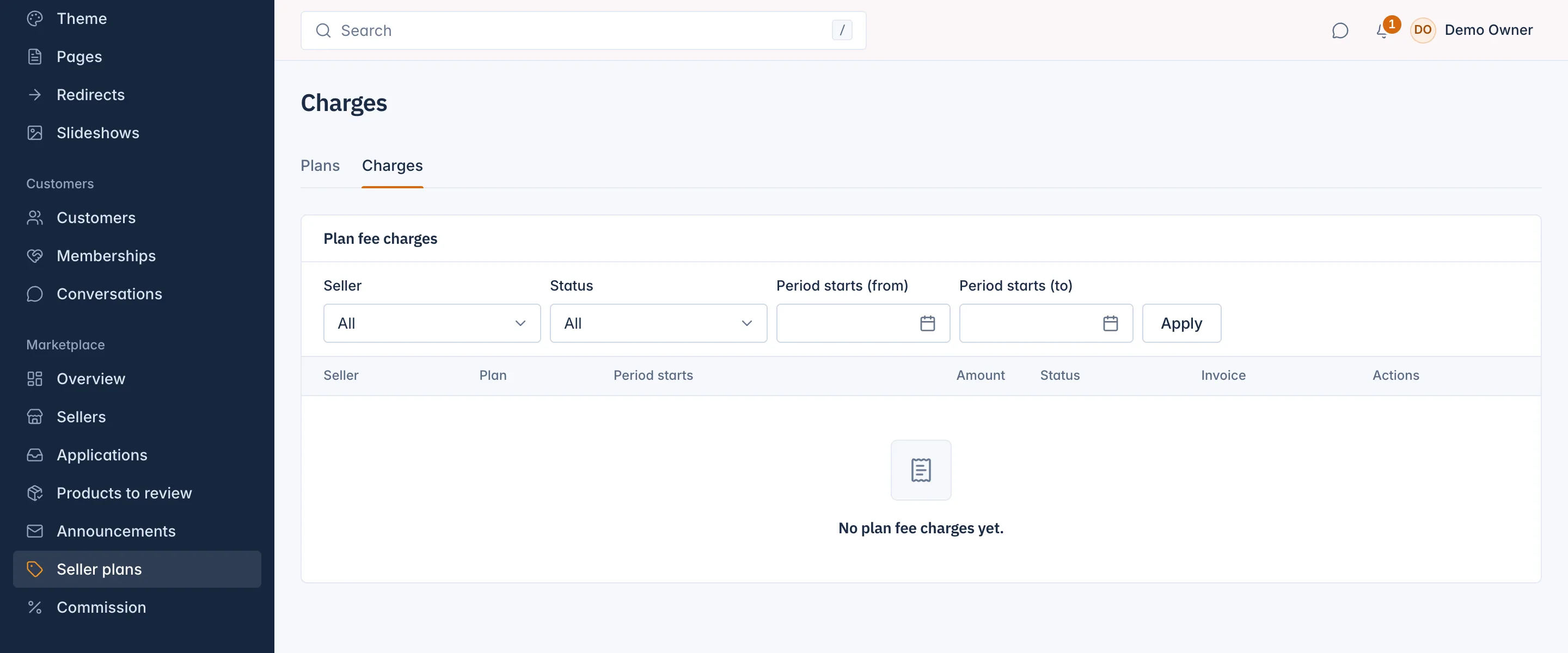
A charge is Due, Processing, Paid, Failed, Waived or Void. Its kind is First fee, Renewal, Upgrade or Reactivation. The actions are:
- Mark paid: for a fee paid by bank transfer. Enter the Paid on date, the Bank reference and an optional Note. A seller suspended for this fee is reinstated.
- Void: the seller no longer owes the fee. Give a Reason. A seller suspended for it is reinstated.
- Retry the charge: charges the card on file again. A fee paid by invoice is never charged again; mark it paid when the money arrives.
A seller whose plan was cancelled for non-payment shows a note on its page: reactivating its plan is not on the admin screens yet. The seller picks a plan again through the seller API and is reinstated once the new plan is active.
Related
Updated 13 November 2026