
Edit the header and footer
Change the header (menu links, logo position, search, account, wishlist and cart icons) and the footer (about text, columns, pickers).
In the admin: Online storeThemeCustomise
On this page
The header and footer frame every page of your shop. The header holds your logo, the menu, the search and the cart. The footer holds your shop's short description, columns of links and the legal links. You change both in the theme editor, and the change shows on every page.
Open the header or footer settings
- Go to Online store > Theme and press Customise.
- In the Sections tab, click the locked Header row in the HEADER group, or the Footer row in the FOOTER group.
Their settings open on the right. Like everything in the editor, changes go into your draft and show in the shop after you press Publish.
The header and footer rows are locked: they cannot be moved, hidden or deleted. You can add sections above them, such as an announcement bar in the header group or a trust strip in the footer group. See Add, hide and arrange sections.
Header settings
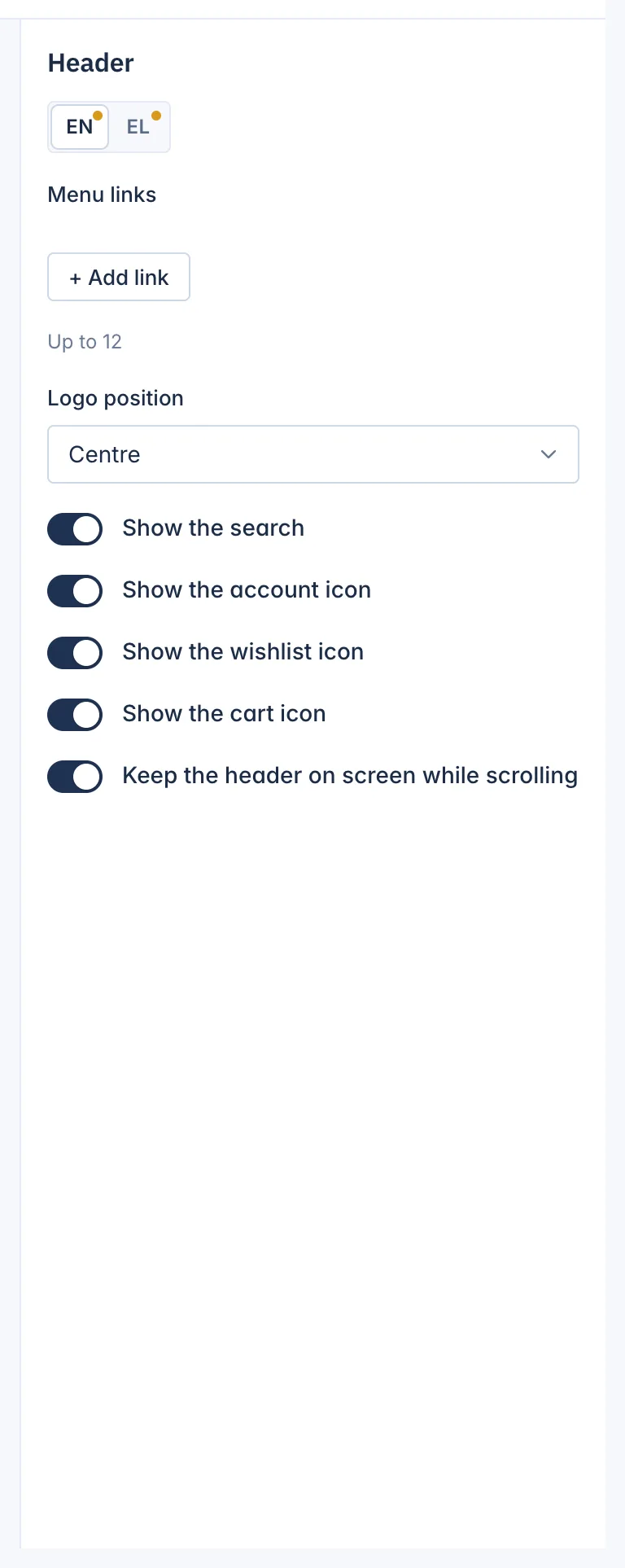
- Menu links: your own links in the menu, up to 12. Each has a Label, written per language, and an Address: a page of your shop starting with
/, or a full web address starting withhttps://. They show after your categories. See Change the shop's navigation menu. - Logo position: Left or Centre. Shown only in themes with the classic header. Moda's header always has the logo in the centre.
- Show the search: the search box in the header.
- Show the account icon and Show the wishlist icon: these mean something only while customer accounts are switched on in your shop. While accounts are off, the icons never show and the switches are hidden.
- Show the cart icon
- Popular searches: up to 8 words that show when a customer opens the search. Only in themes whose search opens as a panel, such as Moda.
- Keep the header on screen while scrolling: the header stays at the top of the screen as the customer scrolls down.
Your logo itself is set on the Theme page, not here. See Set your logo, favicon and demo content.
Footer settings
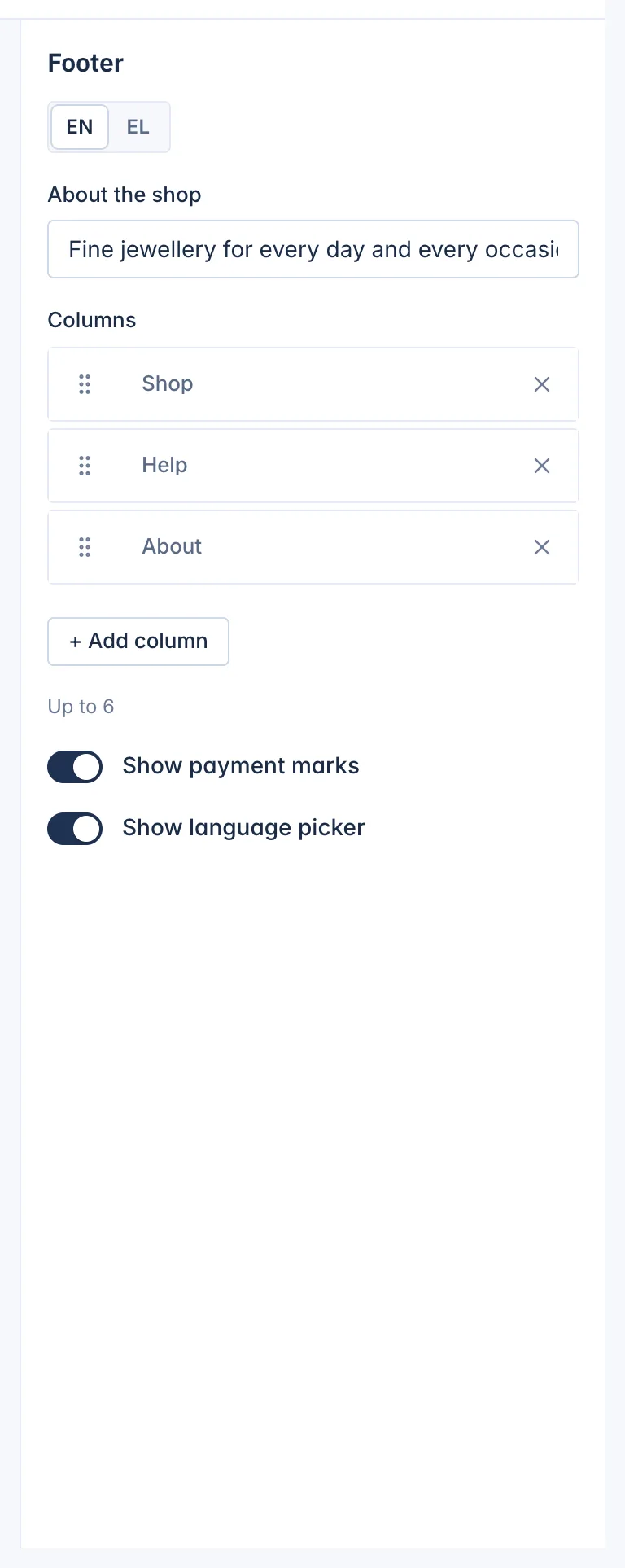
- About the shop: a short line about your shop, per language.
- Columns: up to 6 columns. Click a column to open it, drag to reorder, or press the cross to remove it. Add one with + Add column.
- Show payment marks: shows the payment methods your shop takes.
- Show language picker: lets customers switch language in the footer, when your shop has more than one. The same switch also shows the currency picker when your shop shows prices in more than one currency.
Footer column types
Each column has a Column title and a Column type:
| Column type | What it shows |
|---|---|
| Links | Up to 12 links you choose, each with a label and an address |
| Text | A short text, for example your opening hours or phone number |
| Social profiles | Icons linking to your pages on Facebook, Instagram, X, TikTok, YouTube, LinkedIn and Pinterest. Enter the full address of each page. A network left empty does not show. |
| Shop categories (filled in for you) | Your first 6 top level categories and a link to the brands page. It updates by itself when your categories change. |
| Help pages (filled in for you) | Links to your published help pages, such as Delivery, Returns and withdrawal, Contact and About us. A page that is still a draft is left out. |
The social profiles also tell search engines which pages belong to your shop. See How SEO works in your shop.
The legal row
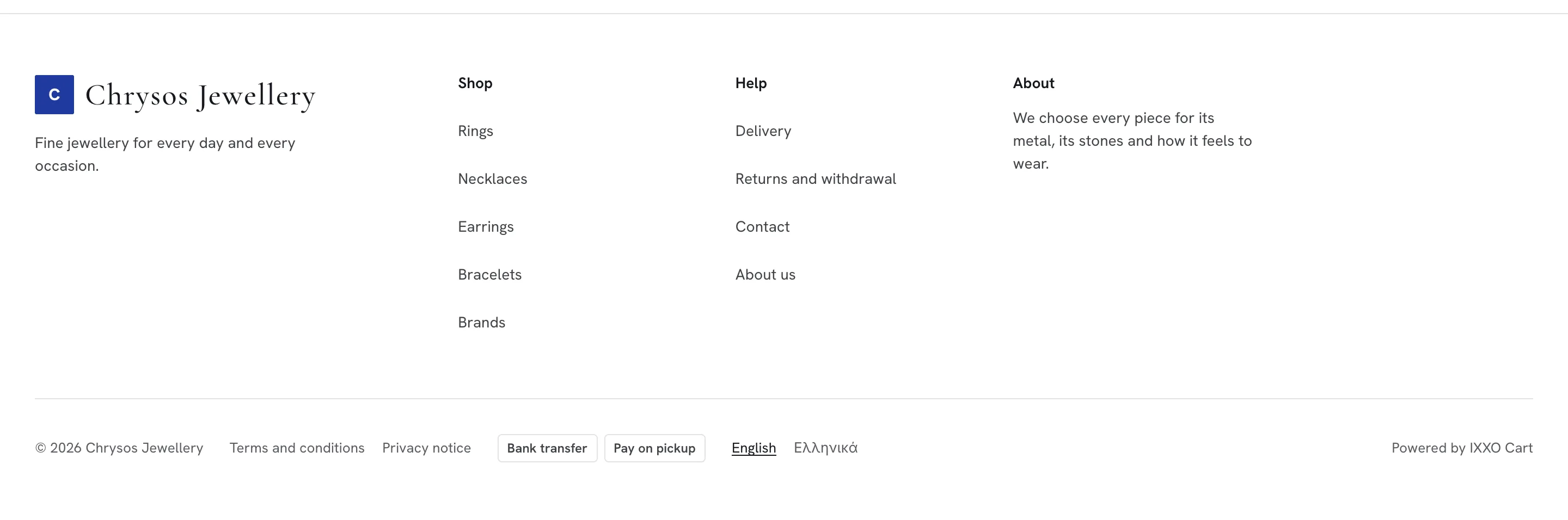
Under the columns, the footer always lists your Terms and conditions and Privacy notice pages once they are published. You do not need to add them to a column. If the cookie banner is on, a Cookie settings link sits there too, so customers can change their choice. See Show a cookie banner.
On IXXO Cart Solo Starter, €1 a month, the footer also shows a small "Powered by IXXO Cart" line. Paid plans can switch it off in Settings > Shop.
Start again from the theme
Press Reset header or Reset footer under the group. The header's or footer's sections and settings go back to how the theme has them, on every page. As always, your live shop changes only when you publish.
Related
Updated 13 November 2026