
Commission rules
Multi-VendorSet the shop default commission, add rules for a seller, plan, category or product, charge fulfilment fees, and preview what a sale pays.
In the admin: MarketplaceCommission
On this page
Commission is your share of each seller's sale. You set one shop default, then add rules where a seller, a seller plan, a category or a product should pay something else. The same screen holds fulfilment fee rules, for sellers' goods you ship from your own warehouses. This article explains how commission is worked out and how to set it. For the monthly invoices, see Commission invoices.
How commission is worked out
Commission is worked out for each order line when the order is placed, and kept with the order. A later change to your rules never changes orders already placed.
- The base is the line's goods, net of tax, after any discount the seller paid for itself. Shipping and tax are not included.
- Your own products sold by the house seller never pay commission.
- One rule per line. The rule that applies is the narrowest one that matches: a Product rule first, then Category, Seller, Seller plan, and last Whole shop. When no rule matches, the Shop default applies.
- Dates count. A rule applies to orders placed between its Starts on and Ends on dates.
- Currency. A percentage rule applies to orders in any currency. A rule with a fixed amount applies only to orders in its own currency.
How commission reaches you depends on your selling mode. In Split mode it is kept from the seller's share of each payment. In Direct and Mixed modes a seller with its own payment set-up pays it on a monthly invoice. In Reseller mode you sell the goods yourself, and commission sets what you owe your supplier: the sale price less commission. See Selling modes and money flows.
Set the shop default
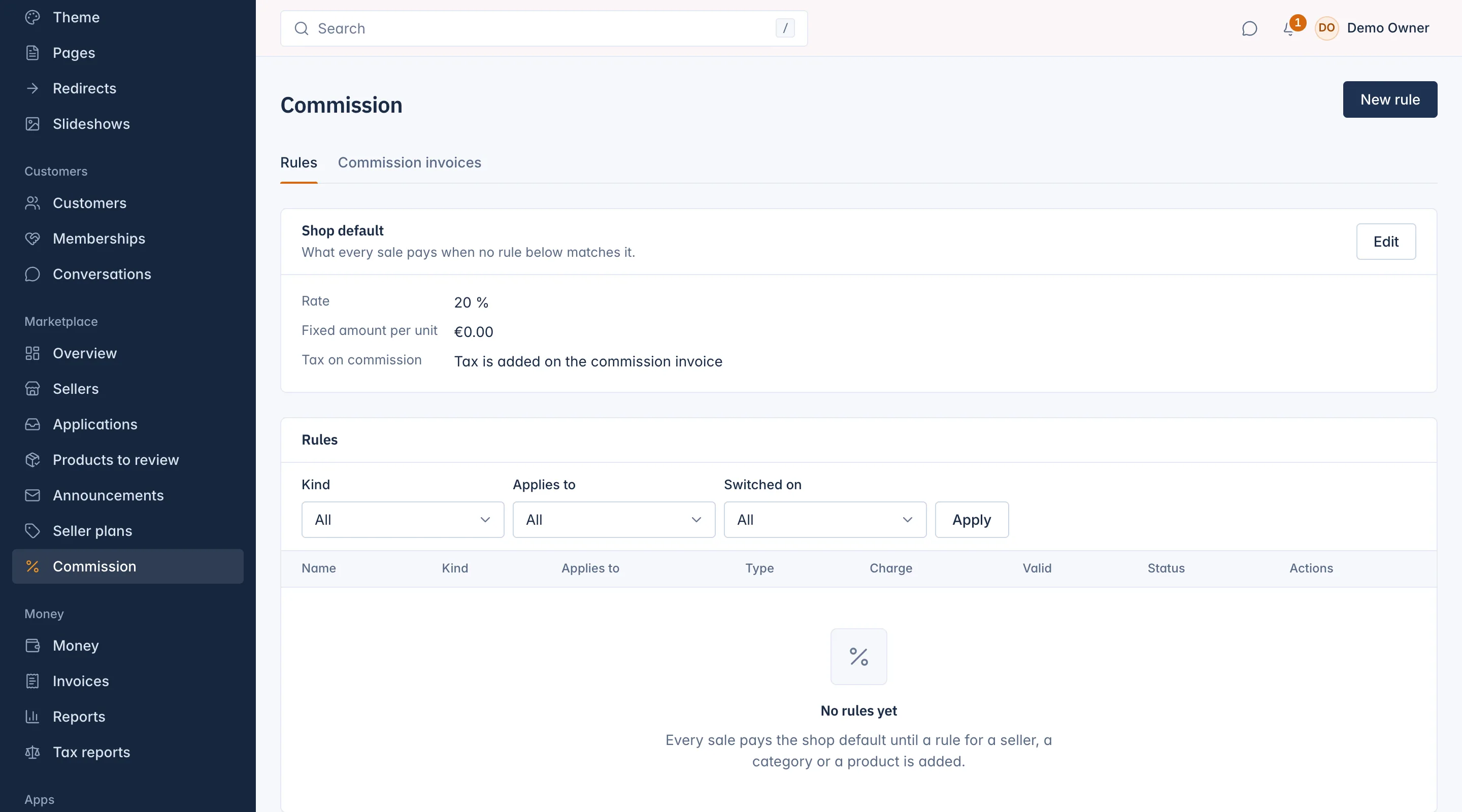
The Shop default card shows what every sale pays when no rule matches it: 20% by default.
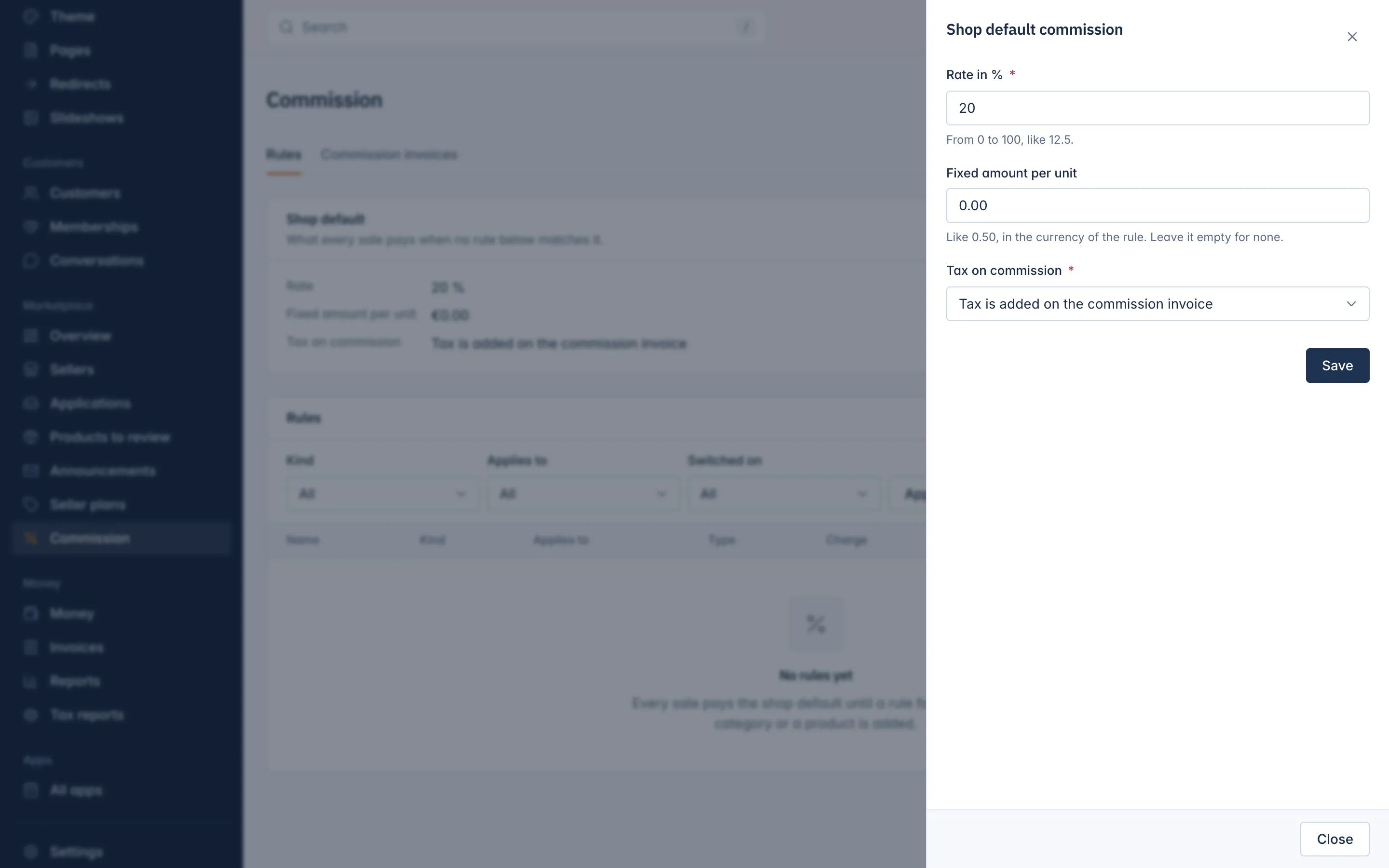
- Go to Marketplace > Commission and, on the Rules tab, press Edit on Shop default.
- Set the Rate in % (from 0 to 100, like 12.5) and, if you want, a Fixed amount per unit added for each item sold.
- Choose the Tax on commission: Tax is added on the commission invoice (the default) or No tax on commission. This applies to every commission invoice.
- Press Save.
Add a rule
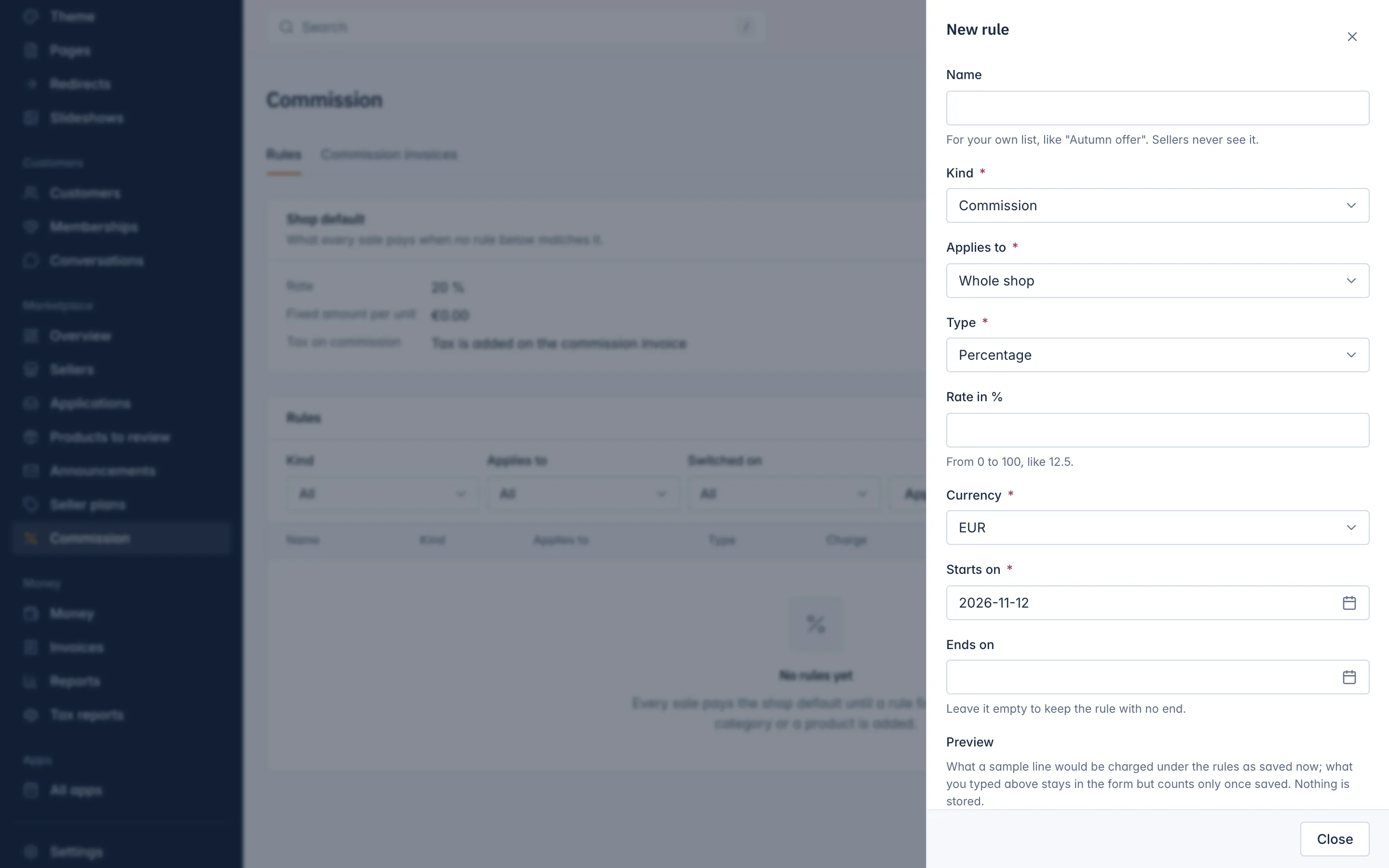
- On the Rules tab, press New rule.
- Give it a Name for your own list, like "Autumn offer". Sellers never see it.
- Choose the Kind: Commission, or Fulfilment fee for goods you ship for the seller.
- Choose what it Applies to: Whole shop, Seller plan, Seller, Category or Product, then pick the plan, seller, category or product. A category rule applies to products placed in that category.
Choose the Type:
Type What the seller pays Percentage A rate of the line, like 12.5%. Fixed amount per unit An amount for each item sold. Fixed amount per line One amount for each order line, whatever the quantity. Percentage plus a fixed amount per unit Both together. Tiered percentage A rate that depends on the size of the line. - Fill in the Rate in %, the Fixed amount, or the Tiers, and the Currency. For tiers, write one a line: the amount the tier starts from and its rate, like
0: 10and1000: 8. The whole line pays the rate of the highest tier it reaches, so a line of 1,200 pays 8% on all of it. - Set Starts on and, if the rule should stop, Ends on.
- Press Save.
Change, end or disable a rule
The Rules list shows each rule's Kind, what it Applies to, its Type, the Charge, the dates it is Valid, and its Status: Active, Starts later, Ended or Disabled. Filter by Kind, Applies to or Switched on.
- Edit changes a rule. If the rule was already used on orders, saving ends it today and starts a new copy with the new numbers, so earlier orders keep the rule they were charged under.
- End stops the rule for orders placed from now on.
- Disable switches the rule off and ends it now. It stays in the list, so orders charged under it can still be read.
A rule marked Set by plan belongs to a seller plan's per-item fee and is changed on the plan, through the REST API.
Fulfilment fees
A fulfilment fee is what a seller pays you to ship its goods from your fulfilment centre. It is worked out like commission, with rules of the kind Fulfilment fee, but only on lines you ship. There is no default fulfilment fee: without a rule, nothing is charged. Shipping by the marketplace is switched on in Settings > Payments; see Choose your selling mode and money rules.
Related
Updated 13 November 2026