
Show a cookie banner
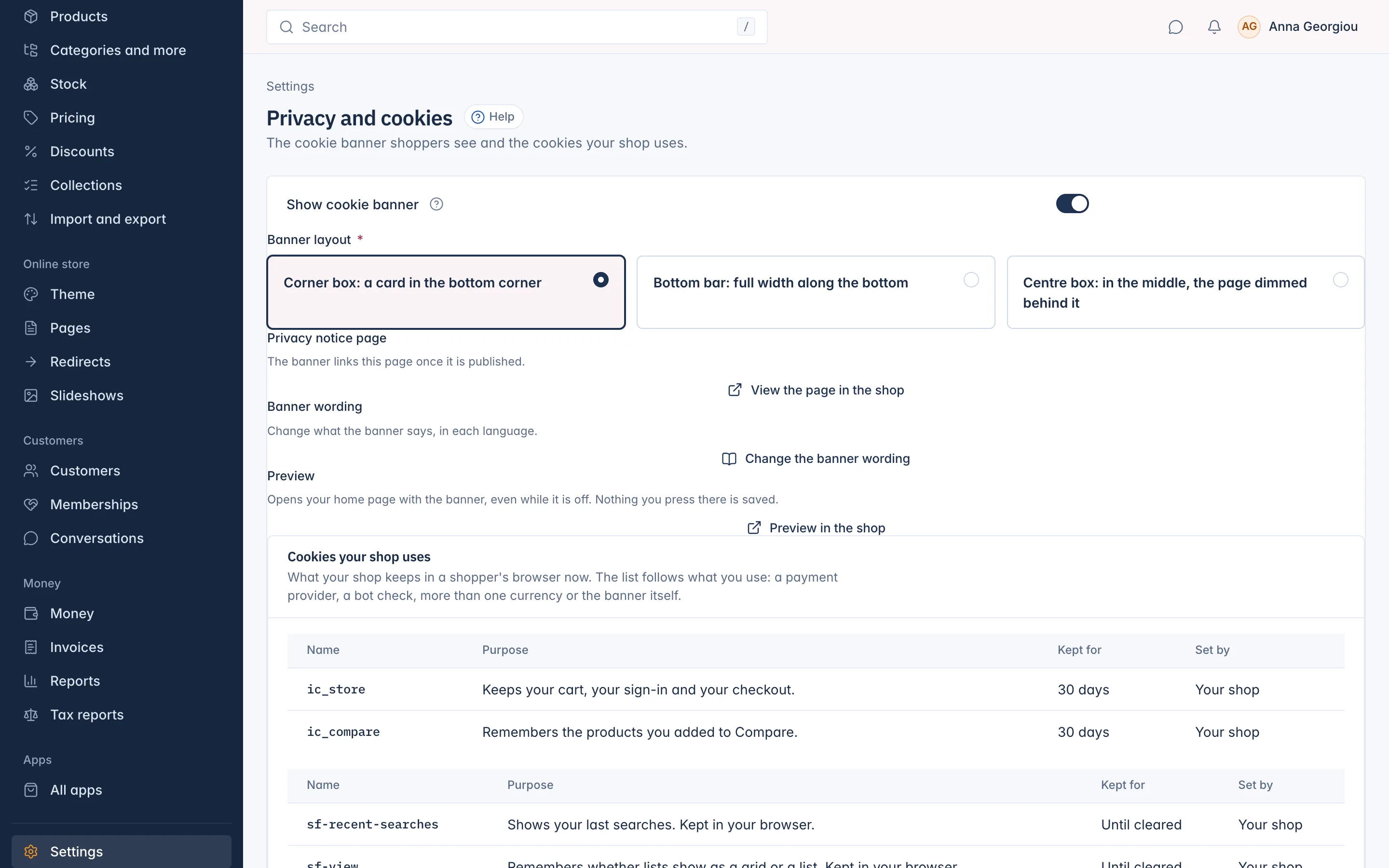
Switch on the cookie banner, choose its layout, change its wording, preview it, and see which cookies your shop uses.
In the admin: SettingsPrivacy and cookies
On this page
A cookie banner asks visitors which cookies they accept. In the EU and many other places, you need one as soon as your shop uses cookies that are not strictly needed, such as analytics or marketing cookies. IXXO Cart has a built-in banner that you switch on in Settings > Privacy and cookies. The same page lists every cookie your shop uses, which helps you write your privacy notice.
Do you need the banner?
Out of the box, an IXXO Cart shop uses only cookies that it needs to work, such as the one that keeps the cart, and a few preference items, such as recent searches. Whether these alone need a banner depends on your country's rules. Once you add something that sets analytics or marketing cookies, for example a tracking app, you need the banner.
If your shop uses analytics or marketing cookies while the banner is off, this page warns you: Your shop uses analytics or marketing cookies but the cookie banner is off.
Switch on the banner
- Go to Settings > Privacy and cookies.
- Switch on Show cookie banner.
Choose a Banner layout:
- Corner box: a card in the bottom corner
- Bottom bar: full width along the bottom
- Centre box: in the middle, the page dimmed behind it
- Press Save.
The banner is off by default. The layout choice shows only while the banner is on.
Link your privacy notice
The banner links to your Privacy notice page once it is published. While that page is still a draft, the page warns you: Your Privacy notice page is a draft, so the banner leaves its link out. Publish it so shoppers can read it. Use Edit the Privacy notice page to write and publish it. See Set your terms and legal pages.
Change the wording
Press Change the banner wording. It opens Settings > Translations with the banner's texts, where you can change what the banner says in each language. See Translate your shop's text.
Preview the banner
Press Preview in the shop. Your home page opens with the banner, even while the banner is off, so you can check it before you switch it on. Nothing you press in the preview is saved. The preview link works for a short time only, so open it again from this page when you need it.
What shoppers see
The banner is titled Cookies on this shop and offers three buttons:
- Accept all: yes to every kind of cookie the shop uses.
- Reject all: only the needed cookies.
- Choose: opens the list of groups, each with a switch and Show cookies for the details. Save my choices keeps the ticked ones.
The groups are:
| Group | What it covers |
|---|---|
| Needed | The cart, sign-in, checkout and payment. Always on. |
| Preferences | Choices such as recent searches and how lists are shown |
| Analytics | Seeing how visitors use the shop |
| Marketing | Ads on other sites that match the shopper's interests |
Only the groups your shop actually uses are offered. While the banner is on, the shop keeps preference items only after the shopper agrees to Preferences, and apps that track visitors must wait for Analytics or Marketing.
A Cookie settings button in the footer's legal row lets shoppers change their choice at any time. The choice is kept for 180 days, then the banner asks again.
The centre box keeps the keyboard inside the banner until the shopper answers. The corner box and the bottom bar leave the page usable behind them.
Proof of consent
Each answer is recorded as proof that the shopper gave consent: which groups and when. The record holds no IP address and is not tied to a customer account. Records are deleted after 730 days.
Cookies your shop uses
The Cookies your shop uses list shows, for each cookie or browser storage item, its Name, Purpose, how long it is Kept for and who sets it (Set by). The list follows what your shop actually uses: a payment provider, a bot check, more than one currency, or the banner itself each add their own entries. Some examples:
| Name | Purpose |
|---|---|
ic_store | Keeps the cart, sign-in and checkout |
ic_compare | Remembers products added to Compare |
ic_currency | Remembers the chosen currency |
ic_consent | Remembers the shopper's cookie choice |
Copy this list into your privacy notice, so it always matches what the shop does. A newly connected payment provider can take a few minutes to show up in the list.
Related
Updated 13 November 2026