
The contact form
How your shop's contact form works: where it shows, how to change its wording, where messages arrive and how replies reach the customer.
In the admin: Online storeThemeCustomise
On this page
The contact form lets visitors send you a message from your shop without opening their e-mail. Messages arrive in your admin as conversations, so you answer them in the same place as other customer messages. Every shop has one on its Contact page, and you can add it to other pages too.
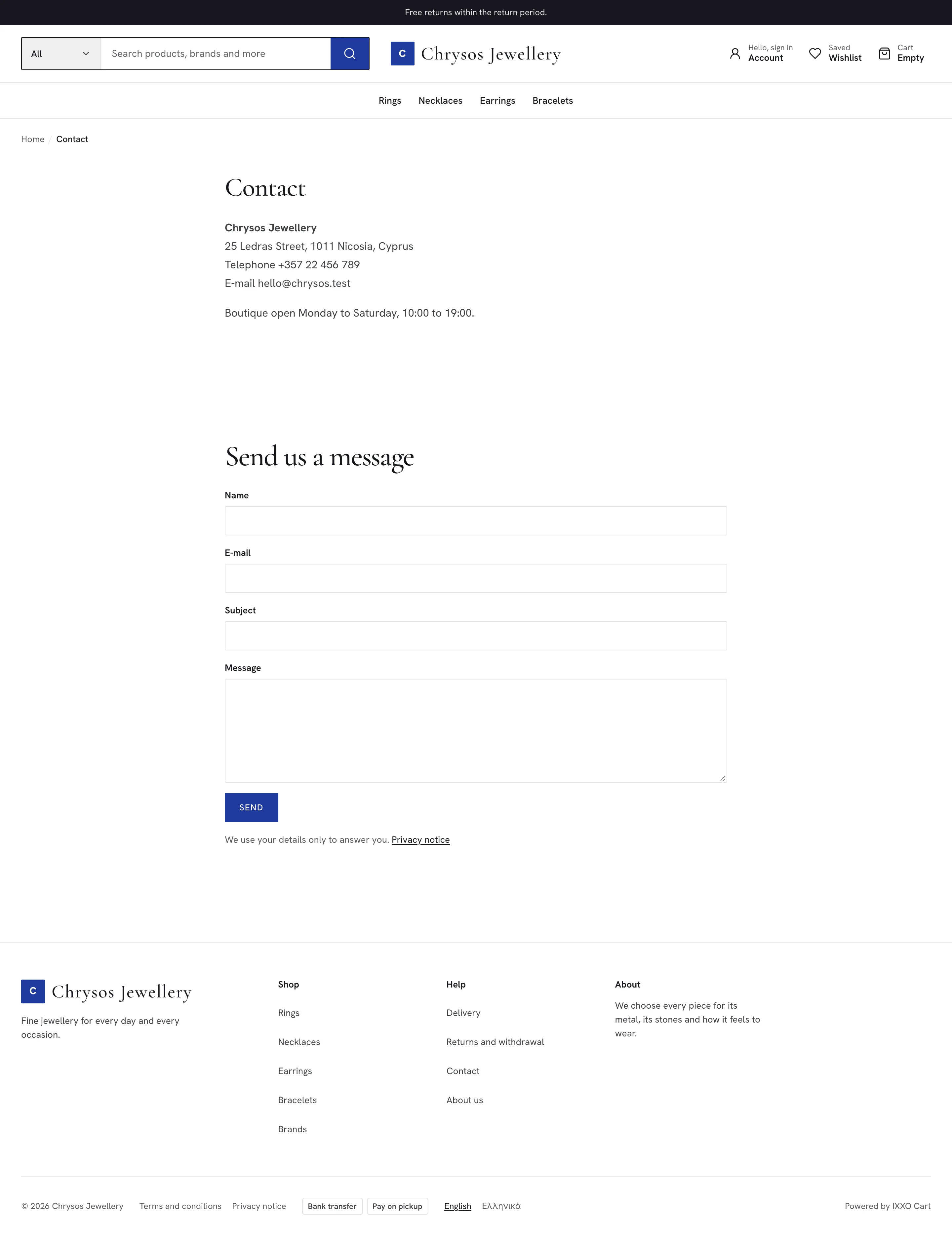
Where the form shows
- On the Contact page. The Contact page at
/contactshows the form under its own text by default. Write your address, phone number and opening hours in the page's text in Online store > Pages, and publish the page. See Create and edit shop pages. - On other pages. Add a Contact form section to the home page or any content page in the theme editor. See Add, hide and arrange sections.
Change the form's wording
- Go to Online store > Theme, press Customise and pick the page in Page:, for example Contact under Content pages.
- Click the Contact form section.
Change the texts, per language:
- Heading (empty shows "Send us a message"), up to 80 characters.
- Intro text: a line above the form, up to 300 characters, such as "We answer within one working day."
- Button label (empty shows "Send"), up to 40 characters.
- Press Publish.
The form's fields are always the same: Name, E-mail, Subject and Message. All four are required. Under the button, a line says the details are used only to answer, with a link to your Privacy notice.
What happens when someone sends a message
The message starts a conversation in Customers > Conversations, where you and your staff read and answer it. See Customers.
The visitor sees Thanks, we got your message. We'll answer by e-mail.
Signed-in customers
A signed-in customer's message goes on their account. The name and e-mail come from the account, and they also find the conversation in My account under messages, where they can read your replies and answer.
Guests
A guest's message keeps the name and e-mail they typed. Even if the e-mail belongs to a customer account, the message is not added to that account, so nobody can write in someone else's name. The guest gets your replies by e-mail, with a link to the conversation.
A guest also gets a short "we got your message" e-mail, but only when the form passed the bot check. Without bot protection, anyone could make your shop send e-mails to any address. That is one more reason to switch on bot protection for the contact form.
Limits against abuse
To stop floods of messages, the shop limits how many new messages one e-mail address can start in a day, and how many confirmation e-mails it sends a day. When a limit is reached, a guest's message is still saved and you still see it; only the confirmation e-mail is skipped. A visitor who sends too much at once sees You have sent several messages today. Please try again later.
Protect the form from spam
Spam through contact forms is common. Switch on bot protection in Settings > Security and tick Contact form. Signed-in customers are not checked. See Protect forms from bots.
Related
Updated 13 November 2026