
Manage your payment connections
Connect Stripe or PayPal, choose which connection is in use, move from test to live, update keys and disconnect.
In the admin: SettingsPayments
On this page
A connection links your shop to one Stripe or PayPal account, in test or live mode. This article covers every action on the Online payments card. The short first-time version is in Connect Stripe or PayPal.
Connect a provider
- Go to Settings > Payments.
- Under Online payments, select Connect a payment provider.
- Choose the Provider and the Mode: Test (Sandbox) or Live.
Fill in the keys:
- Stripe: the Secret key and the Publishable key from your Stripe dashboard. Both must come from the same account and the same mode (
sk_test_withpk_test_, orsk_live_withpk_live_). A restricted key (rk_) works too. Without the publishable key the card form cannot show. - PayPal: the Client ID and Secret of your app at developer.paypal.com. Use a PayPal business account. Where do I find these? opens PayPal's guide.
- Stripe: the Secret key and the Publishable key from your Stripe dashboard. Both must come from the same account and the same mode (
- Select Connect.
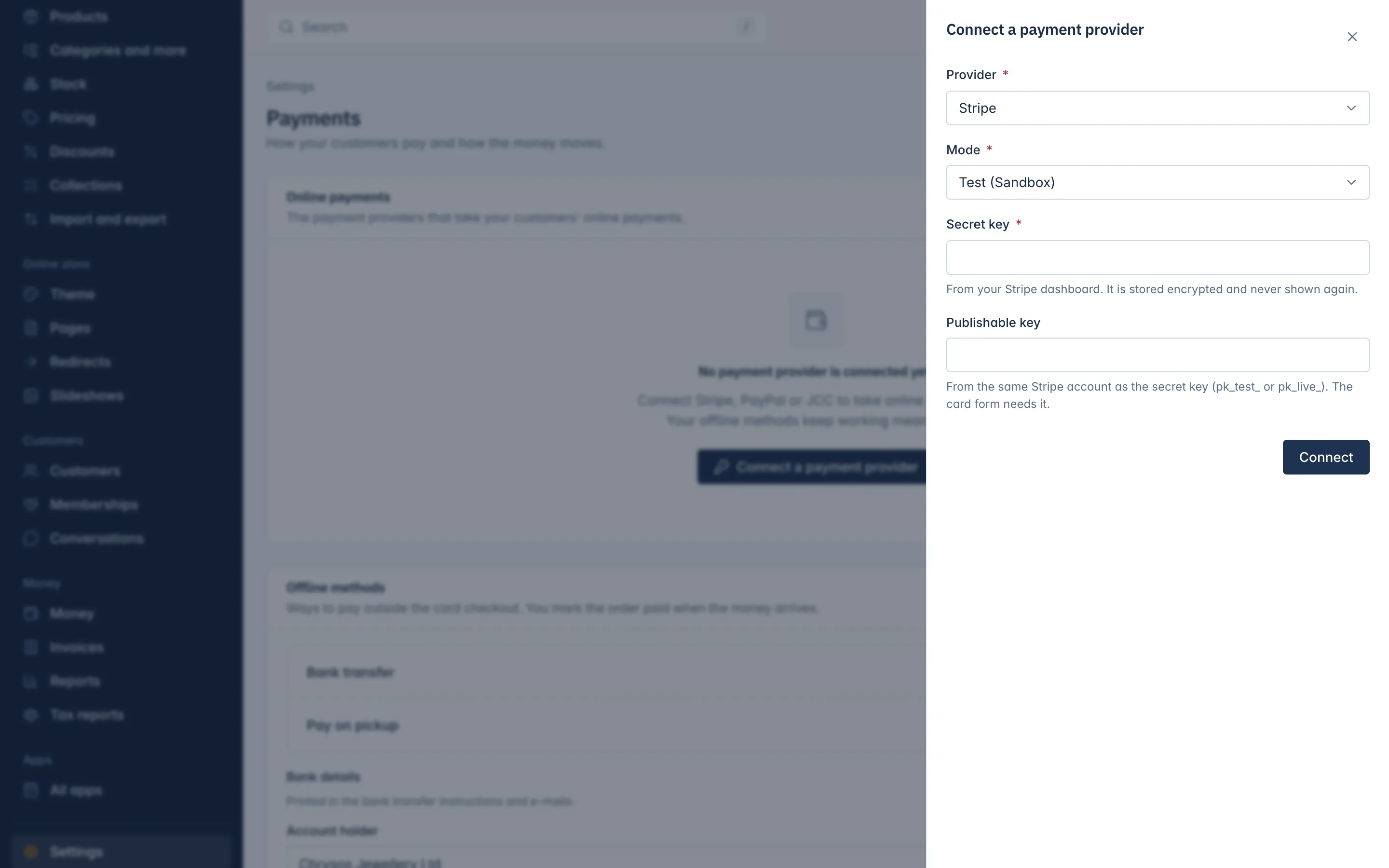
IXXO Cart checks the keys with the provider before it saves anything, and sets up the provider's notifications to your shop by itself. You do not need to add a webhook by hand. Secret keys are stored encrypted and never shown again.
The message Connected. Choose Use this connection to take payments with it. means the connection is ready but not yet taking payments.
The connections list
| Column | What it shows |
|---|---|
| Provider | Stripe or PayPal. |
| Mode | Test, Sandbox or Live. |
| State | In use or Connected, not in use. |
| Actions | Use this connection, Update keys, Disconnect. |
Start using a connection
Select Use this connection on its row. It becomes In use and takes your customers' payments from now on. If another connection of the same provider was in use, it steps back to Connected, not in use. Stripe and PayPal do not replace each other: you can have one of each in use.
Move from test to live
- Connect the same provider again, this time with Mode set to Live and your live keys.
- Select Use this connection on the live row.
- When no customer is still paying through the test connection, Disconnect it if you no longer need it.
Update keys
Use Update keys when you roll your keys at Stripe or make a new secret at PayPal. The drawer shows the provider and mode; type the new keys and select Save new keys. For Stripe, the Publishable key is optional here: leave it empty to keep the one you have.
The new keys must belong to the same account. Keys from another account are refused with This key belongs to a different account from the one connected in this mode. To change to another account, connect it as a new connection instead.
Disconnect
Select Disconnect, then confirm Disconnect this connection? Payments through it stop. You can connect it again later.
Disconnecting is refused while customers are still paying through that connection, for example a checkout that is waiting for the bank's confirmation. Wait until those payments are finished, then try again.
When something is refused
| Message | What to do |
|---|---|
| The payment provider did not accept this key. | Copy the key again from the provider's dashboard, in the right mode. |
| PayPal did not accept this Client ID and Secret. | Check you copied both from the same app and the right mode (Sandbox or Live). |
| The payment provider could not be reached to check the keys. | Nothing was saved. Try again in a minute. |
| This connection is not finished yet. | Wait a moment, or connect it again. |
| Customers are still paying through this connection. | Wait until those payments are finished. |
Related
Updated 13 November 2026