
The ledger and money checks
How IXXO Cart records every payment, fee and refund in a ledger, how to export it, and how nightly money checks catch differences.
In the admin: MoneyMoneyLedger
On this page
Behind every payment, refund, fee and dispute, IXXO Cart writes a record in a ledger, the same way an accountant's books work. Every night it compares the ledger with your payment provider's balance. You rarely need these tabs, but they are there for your accountant and for the day a figure looks wrong.
The ledger
Money > Ledger has two views.
Accounts lists the ledger accounts with their balances, for example Payment provider balance, Sales revenue, Shipping revenue, Payment provider fees and Tax payable. Each row shows the Code, the Account, who it Belongs to (the shop, the payment provider or the tax authority), the Currency and the Balance.
Transactions lists every record, newest first: when it was Posted, What it records, its Kind (for example Order paid, Payment settled, Refund or Dispute) and the Order. Filter by Account, Order number, Kind or Posted date.
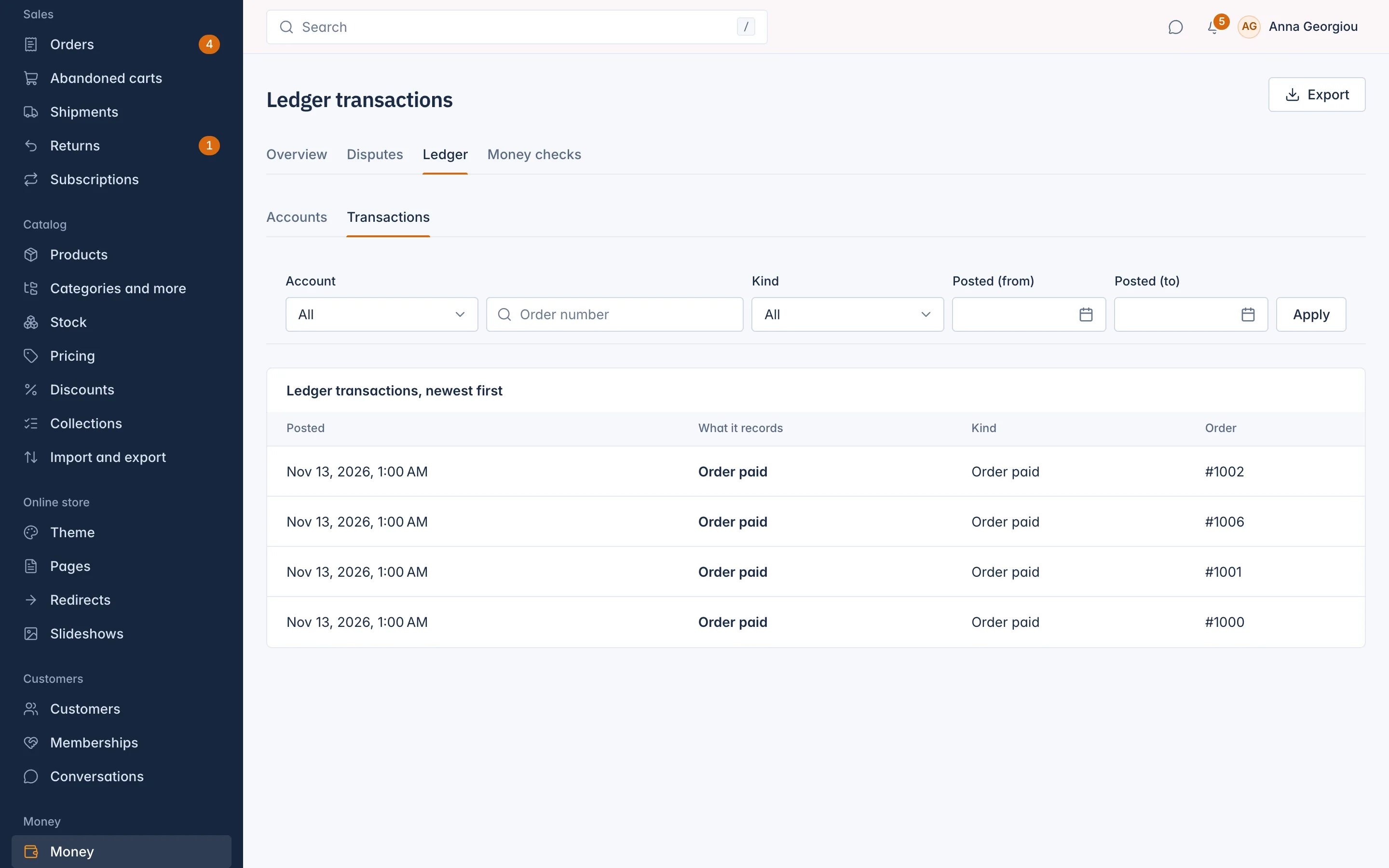
Open a transaction to see its Entries: the debit and credit lines, and the line The debits equal the credits. A correction never changes an old record. It is a new transaction that reverses the first one, and both link to each other.
Export the ledger
Select Export to download the transactions of a period as a CSV file for your accountant or spreadsheet. A period can be at most 366 days.
Money checks
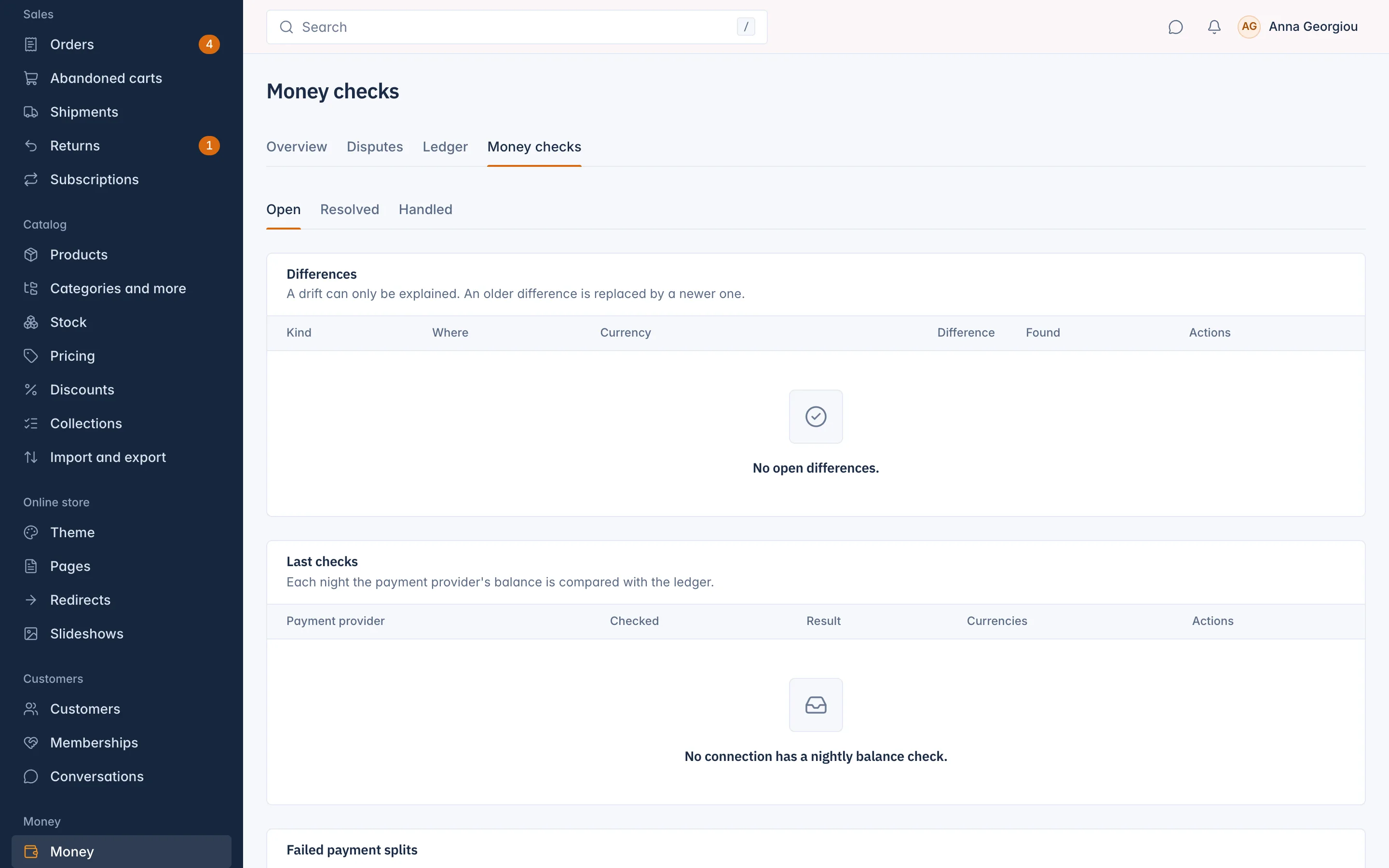
Money > Money checks is where IXXO Cart reports anything about the money that does not add up. Most of the time it is empty.
Last checks
Each night the payment provider's balance is compared with the ledger. Last checks shows when each connection was last checked and the result. Select Check now to run the check at once, for example after you fixed something.
Differences
When the provider's balance and the ledger do not match, a difference is listed:
- Provider balance difference: the provider's balance is not what the ledger expects.
- Balance drift: a ledger account's balance moved in a way it should not.
Look into the difference, for example a fee the provider charged outside an order, then select Resolve and choose:
- Explained: nothing is posted. Your Note says why the figures differ.
- Adjusted: the difference is posted to the ledger against the payment fees.
A drift can only be explained. Resolved differences move to the Resolved view.
Failed refund steps
A refund that the payment provider did not complete is listed with the order, the amount and the last error. Select Retry to send it again. If it cannot be sent again, for example because you already refunded the customer another way, select Mark as handled and write What was done, for example "refunded by bank transfer". Marking it as handled does not move any money. Handled items move to the Handled view.
Who can see what
Each tab has its own permission in Settings > Roles and permissions: viewing the ledger, exporting it, viewing money checks, resolving differences, and retrying or marking items as handled. Retrying and marking as handled belong to the Owner and Administrator roles.
Related
Updated 13 November 2026