
Tax classes and rates
How tax classes, zones and rates work together, how to add a reduced rate or a new country, and how to plan a rate change.
In the admin: SettingsTaxClasses and rates
On this page
Your tax table decides which rate each product pays in each country. It is built from three parts:
- a class is a kind of product, for example Standard, Reduced or Books;
- a zone is a group of countries, for example Cyprus or Greece;
- a rate joins one class and one zone, with a percentage and the dates it applies.
A product in the class Reduced, sold to a customer in the zone Greece, pays the rate of Reduced for Greece.
Your shop starts with a class Standard, a zone for your country and your country's standard rate. For many shops that is all they need.
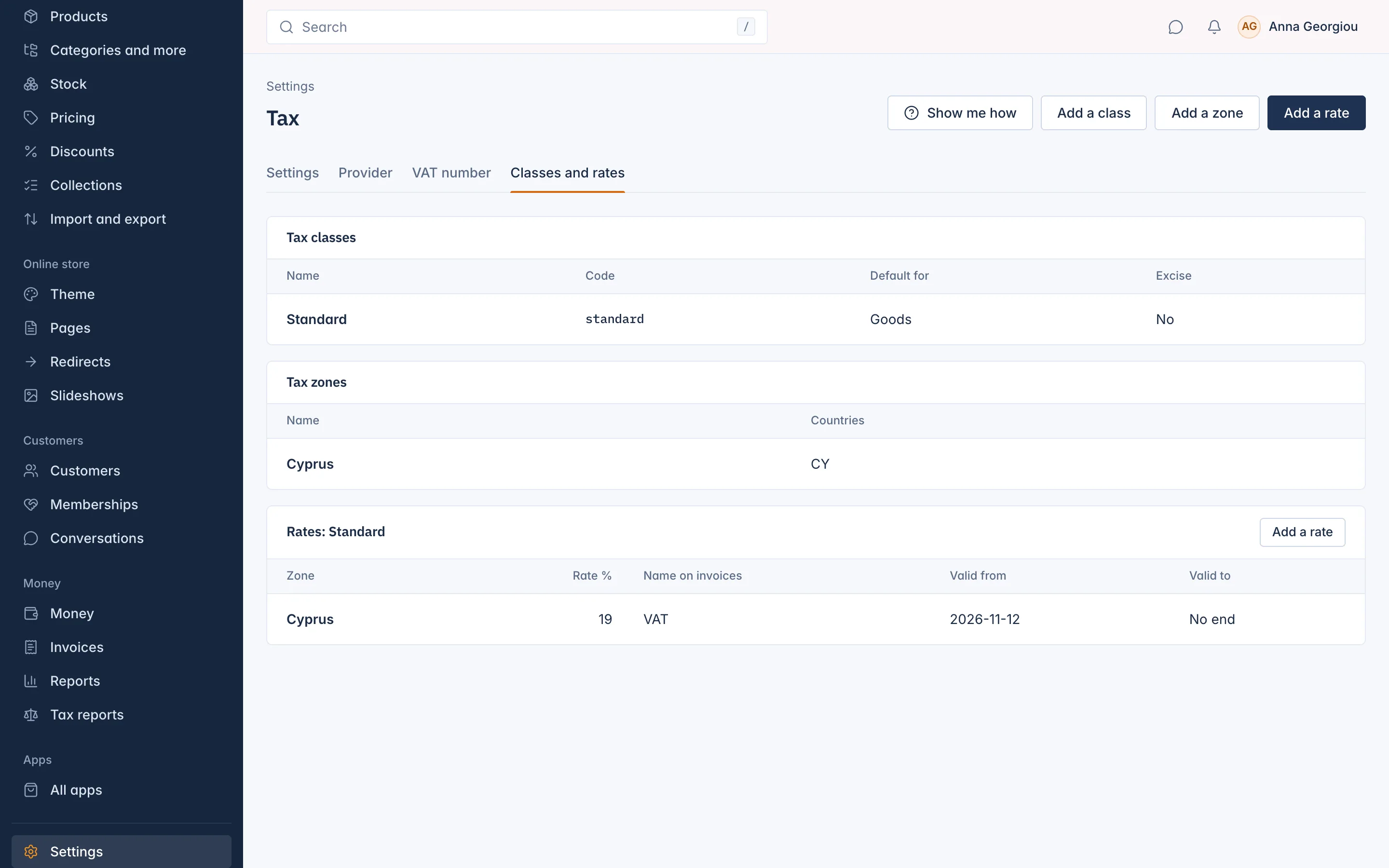
Add a class
Add a class when some of your products pay a different rate, for example books or food at a reduced rate.
- On Settings > Tax, open Classes and rates and select Add a class.
- Give it a Name, for example "Reduced", and a Code, for example
reduced(letters, digits,_and-). - Choose what it is Used for: Goods or Shipping.
- Tick The default class for this use if new products should get this class.
- Tick Excise goods (alcohol, tobacco, energy) if it is for such goods.
- Select Save.
Then give the products their class: on each product, under Tax, choose the Tax class. Products left on The shop's default use the default goods class.
Add a zone
- Select Add a zone.
- Give it a Name and a Code, and choose its Countries. Customers in these countries are in the zone.
- Select Save.
Add a rate
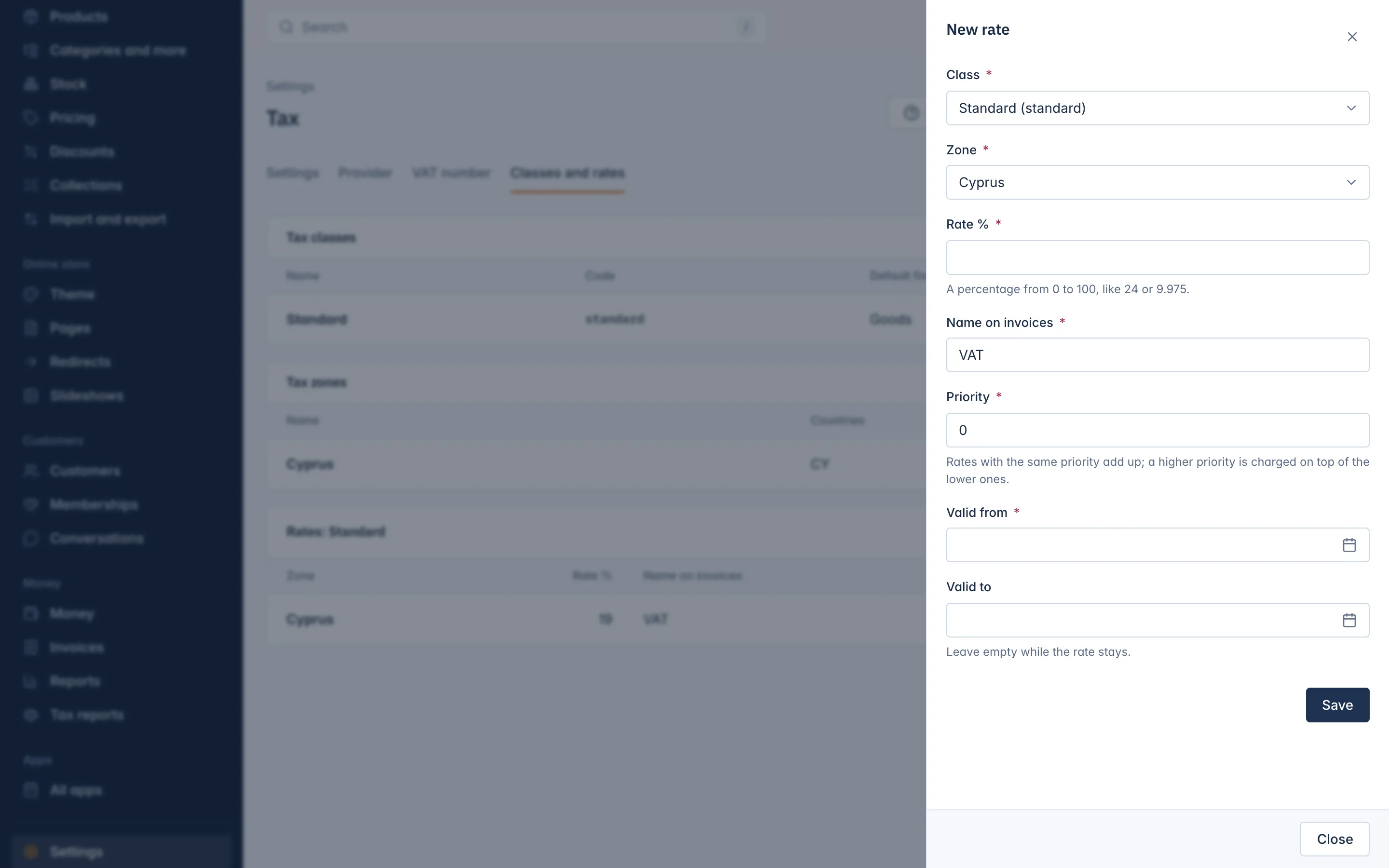
- Select Add a rate.
- Choose the Class and the Zone.
- Type the Rate %, for example
19or9.975. - Type the Name on invoices, usually "VAT".
- Leave Priority at 0 unless you need tax on top of tax: rates with the same priority add up, and a higher priority is charged on top of the lower ones.
- Set Valid from, the first day the rate applies, and leave Valid to empty while the rate stays.
- Select Save.
Two rates of the same class and zone cannot cover the same days: Another rate of this class and zone covers these dates.
Plan a rate change
When your government changes a rate, do not edit the old rate. Instead:
- Open the current rate and set Valid to to the last day of the old rate.
- Add a new rate for the same class and zone, with Valid from set to the first day of the new rate.
Orders on each day get the right rate by themselves, and your invoices and VAT summary show both rates.
Selling to other countries
Tax is only charged where your table has a rate. If tax is due in a customer's country (for example under OSS) and no zone of your table covers that country, the line is charged 0% and shows up in your reports so you can spot it. Add a zone and its rates for every country where you must charge tax. See EU VAT, OSS and reverse charge.
Tax on shipping
Shipping is taxed too. In Settings > Shipping, Tax class of shipping can be The same tax as the goods it ships, which handles mixed baskets by itself, or a class of your own made with Used for set to Shipping.
Delete a class, zone or rate
Select Delete and confirm. This cannot be undone. A class that still has rates or shipping methods, or a zone that still has rates, cannot be deleted: delete or move those first.
With Stripe Tax
When the Provider tab is set to Stripe Tax, this tab says Stripe Tax works out the rates. Your classes and rates are kept, and used again if you go back to the IXXO tax tables.
Related
Updated 13 November 2026