
Your first order, from checkout to delivery
What happens when a customer buys: the order, the payment, the e-mails, the invoice, shipping the parcel and how the order completes.
On this page
Your first order is a good moment to see how the parts of IXXO Cart fit together. This article follows one order from the customer's checkout to its completion, so you know what the shop does by itself and when it is your turn. Each step links to the detailed guides in Orders and delivery.
1. The customer checks out
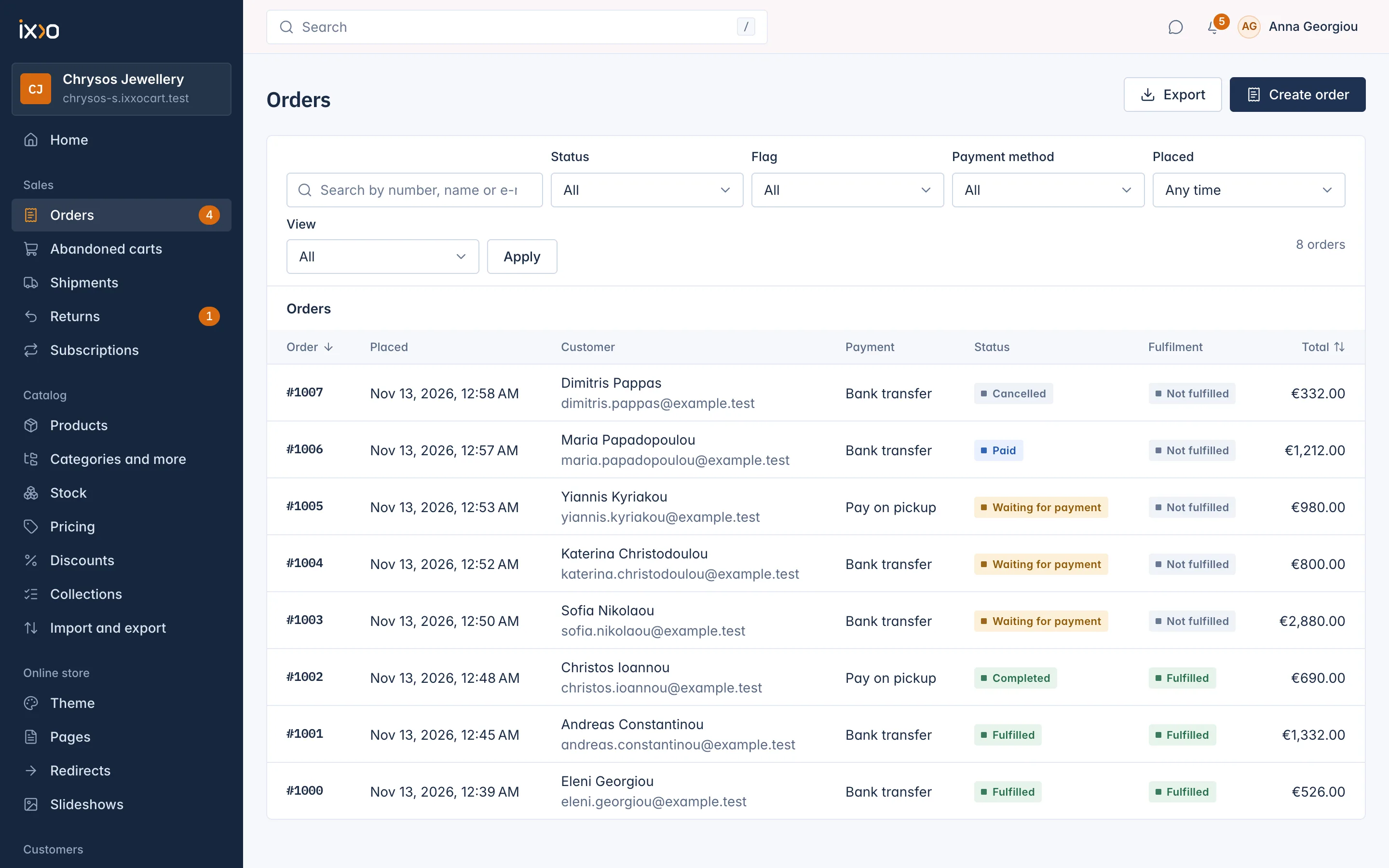
The customer fills the cart, gives an address, picks a delivery method from the ones that cover that address, and chooses how to pay under How would you like to pay? When they place the order, the shop checks once more that the prices, stock and totals are exactly what the customer was shown, then creates the order with its number (the first one is #1000 unless you chose another start under Settings > Orders).
From that moment the order's items are held for it, so the same stock cannot be sold twice while the customer pays.
The customer gets the Order received e-mail, and the shop's notice goes to the address under Settings > Shop (E-mail address for the shop's order and return notices). The order also appears on Home under Latest orders.
2. The payment arrives
How the order gets paid depends on the method the customer chose:
- Card through Stripe, or PayPal: the customer pays during checkout. The order turns Paid by itself as soon as the provider confirms it.
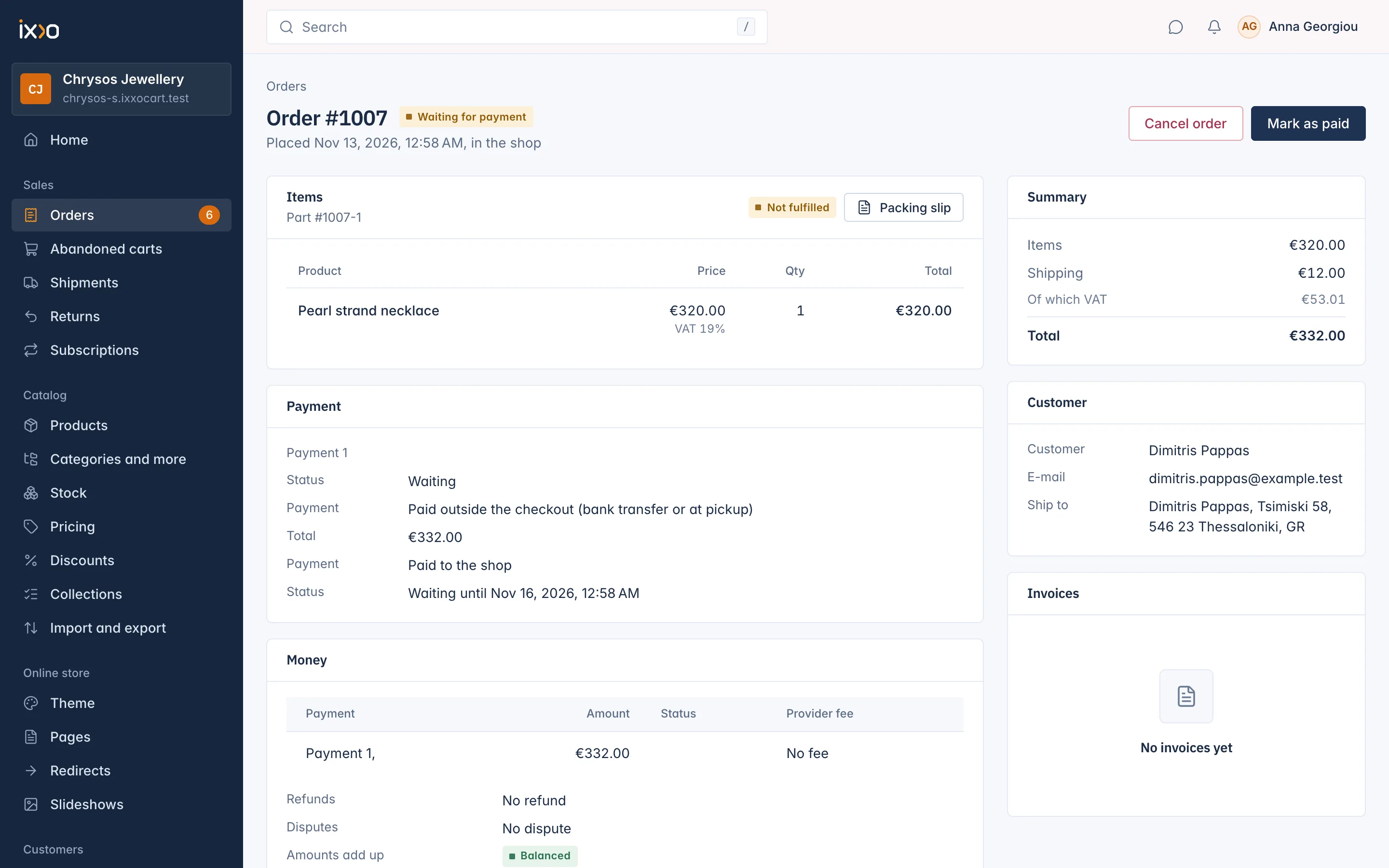
- Bank transfer: the order shows Waiting for payment, and the customer gets your bank details. The order waits three days for the money. When it arrives in your bank, open the order and press Mark as paid. Do this only when the money is really in your account. Home lists these orders under Needs your attention: "Confirm each payment once the money has arrived."
- Pay on pickup: the customer pays when collecting the order, and you then press Mark as paid.
An order not paid in time is cancelled by itself, its stock goes back, and the customer gets Payment not received in time. A payment that still arrives after that is flagged Paid late on the order.
When the order is paid, the customer gets Payment received. With the default settings the invoice is issued at the same moment; you can change that to When the goods are shipped or Only by hand under Settings > Invoice numbers.
3. You pack and ship
A paid order is ready to send. Open it from Sales > Orders:
- Pick the items and pack them. Packing slip prints the list to put in the parcel.
- Record the parcel. Record by hand saves the Carrier, Tracking number and Tracking link of a parcel you sent yourself. With a carrier account connected, Buy label buys and prints the label from the order instead.
- The customer gets Order shipped with the tracking details.
If you send the order in several parcels, record each one; the order shows Partly fulfilled until everything is on its way, then Fulfilled. For a pickup order, press Ready for pickup when it is waiting for the customer.
4. Delivered
With a connected carrier, tracking updates come in by themselves and the customer is told when the parcel is out for delivery and delivered. For a parcel you recorded by hand, press Mark as delivered when you know it has arrived.
5. The order completes
After delivery, customers may still return goods within your returns window (14 days by default, set under Settings > Returns). When every window has closed, the order turns Completed by itself. Complete now closes a shipped order earlier.
A return request, a refund or a change to a paid order (for example cancelling units you cannot send) is handled from the order page. See Orders and delivery.
Statuses at a glance
| Status | Means |
|---|---|
| Waiting for payment | Placed, not paid yet (bank transfer, pay on pickup). |
| Paid | The money is in. Time to pack. |
| Partly fulfilled | Some items are shipped. |
| Fulfilled | Everything is shipped. |
| Completed | Delivered and the returns window has closed. |
| Cancelled | Not paid in time, or cancelled before payment. |
| Refunded / Partly refunded | Money went back to the customer. |
Try it yourself
The best way to learn the flow is a test order. Connect Stripe in Test (Sandbox) mode (or switch on bank transfer), use Preview shop to open your shop, buy a product, and follow the order through the steps above. The Set up your shop card on Home ticks A test order (optional) off when it is done.
Related
Updated 13 November 2026