
Money overview and disputes
Read the Money overview, see what needs your attention, and follow card disputes from opening to the bank's decision.
In the admin: MoneyMoney
The Money screen is where you follow the money after the sale. In a single store it has four tabs: Overview, Disputes, Ledger and Money checks. This article covers the first two. The ledger and money checks are in The ledger and money checks.
The overview
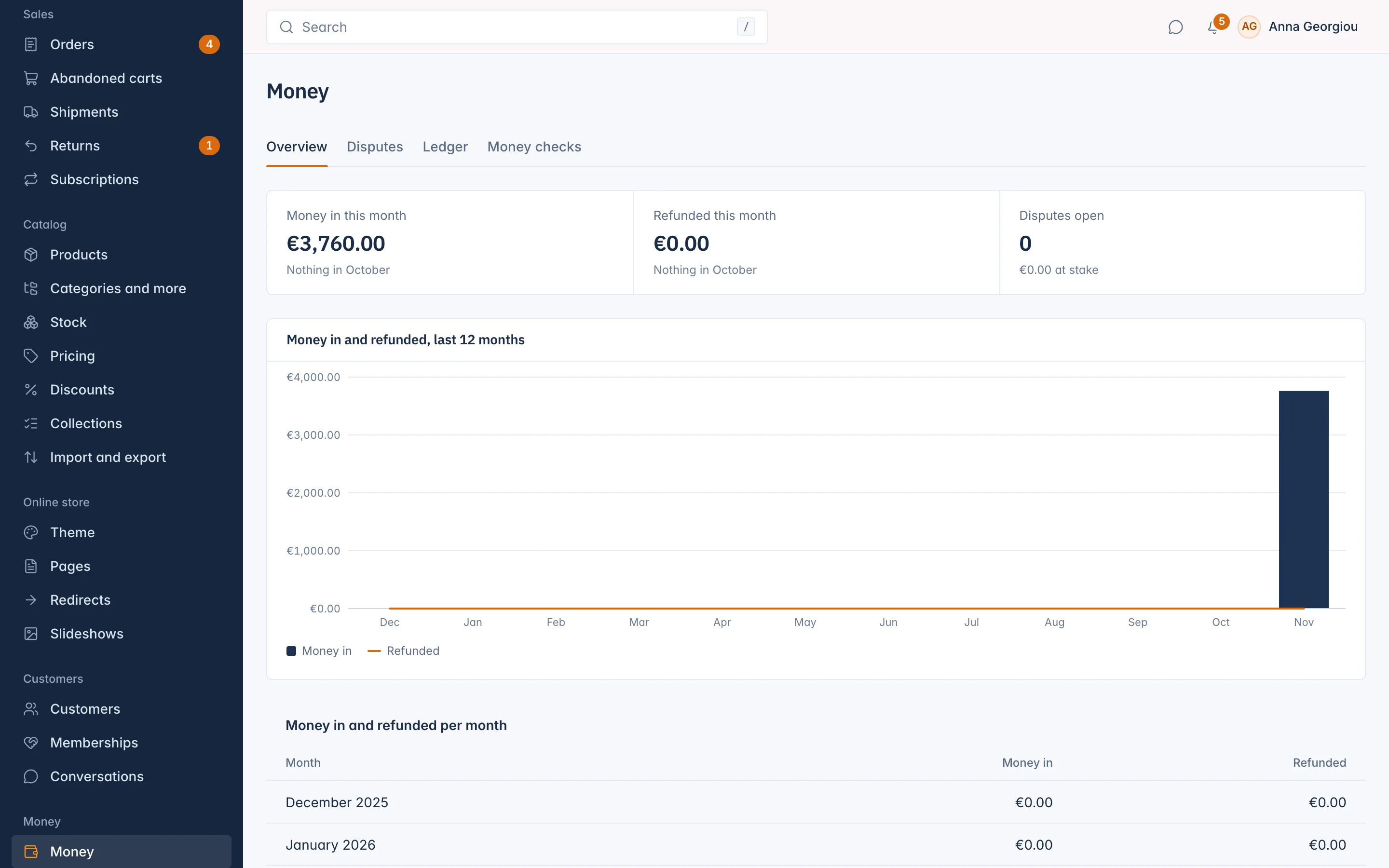
At the top, three figures:
- Money in this month: what customers paid this month so far, compared with the same days of last month.
- Refunded this month: what you gave back, compared the same way.
- Disputes open: disputes that need a response or are under review, with the amount at stake.
Amounts are in your shop's main currency. When you also have sales in other currencies, the figure says "+ other currencies": see Sales and product reports for each currency on its own.
Below is the chart Money in and refunded, last 12 months, with the figures for each month in a table under it.
Needs attention
This card lists what needs you, with a link to each:
- disputes whose answer is due within 7 days, or already late;
- differences found by the money checks and not yet resolved;
- refunds the payment provider did not complete.
When all is well it says Nothing needs your attention.
Disputes
A dispute (also called a chargeback) happens when a customer asks their bank to take back a card payment, for example because they do not recognise the charge or say the goods never arrived. The bank holds the money until it decides.
Money > Disputes lists every dispute. Staff who can see disputes get a notification, in the bell and by e-mail, when a new one opens. The number next to Money in the menu counts the disputes that need a response.
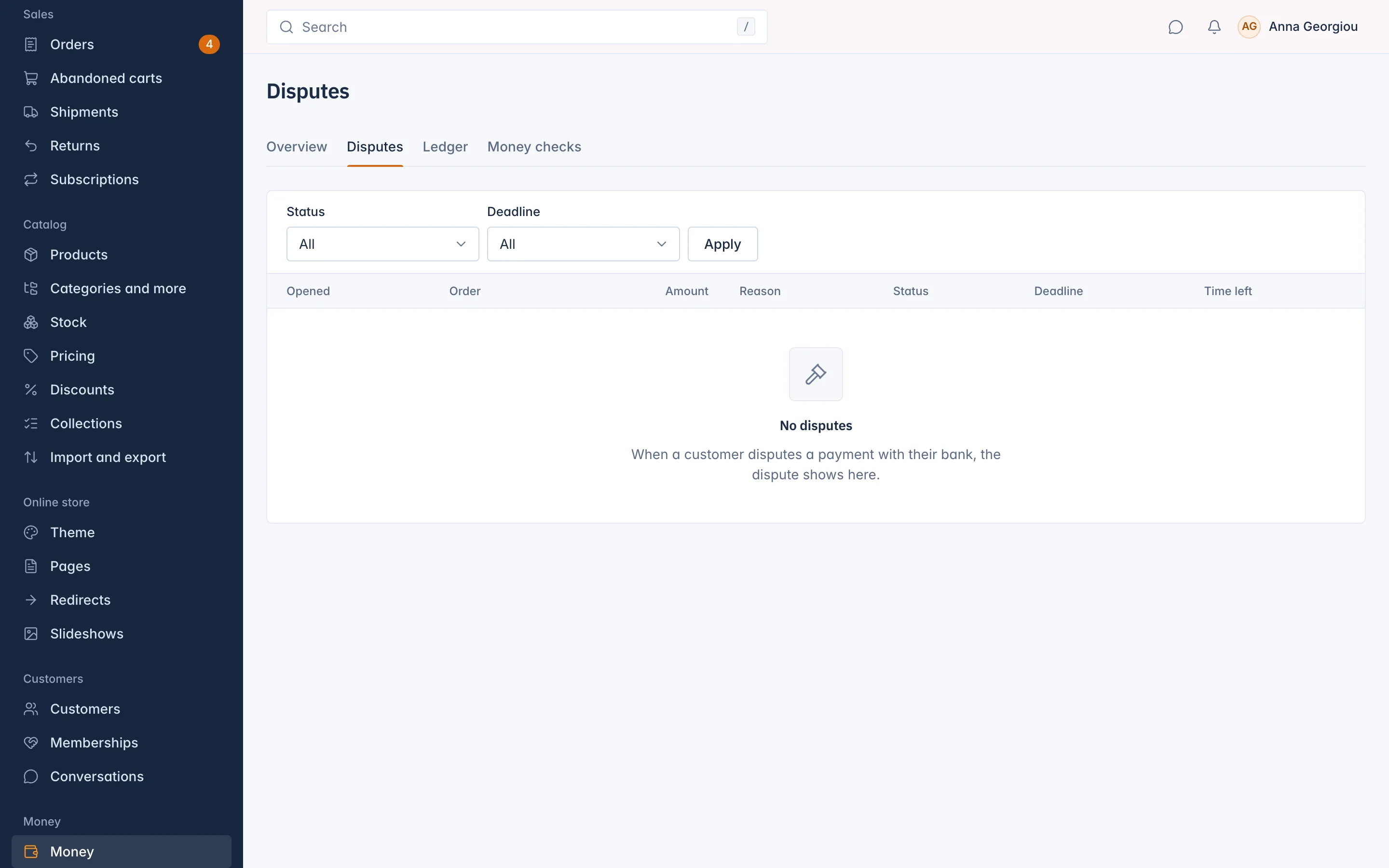
| Column | What it shows |
|---|---|
| Opened | When the bank opened it. |
| Order | The order that was paid. |
| Amount | The disputed amount. |
| Reason | The bank's reason, for example Product not received or Fraudulent. |
| Status | Needs a response, Under review, Won, Lost or Closed with warning. |
| Deadline and Time left | The last day to send your answer. |
Filter by Status, or choose Deadline within 7 days to see the urgent ones.
Answer a dispute
You answer a dispute at the payment provider, where you can upload your evidence. IXXO Cart shows the facts and takes you there.
- Open the dispute from the list.
- Check the Disputed amount, the Dispute fee, the Reason and Answer by.
- Select Answer in Stripe. Stripe's dashboard opens in a new tab.
- Send your evidence there: for example the tracking number and proof of delivery, the invoice, and messages with the customer.
The status here follows the provider by itself: Under review once you answered, then Won or Lost when the bank decides.
PayPal disputes are handled in your PayPal account.
Related
Updated 13 November 2026