
Let customers collect orders in person
Turn a stock location into a pickup point, add a free Pickup method, offer Pay on pickup, and hand orders over at the counter.
In the admin: SettingsShippingPickup points
Customers who live nearby can collect their order from your shop or workshop instead of paying for delivery. Collecting is always free. You can also let them pay at the counter.
Turn on a pickup point
Pickup points are your stock locations: your shop, workshop or warehouse. Their names and addresses are not changed here. Stock locations have no admin screen yet; they are added and changed through the REST API (see Developers).
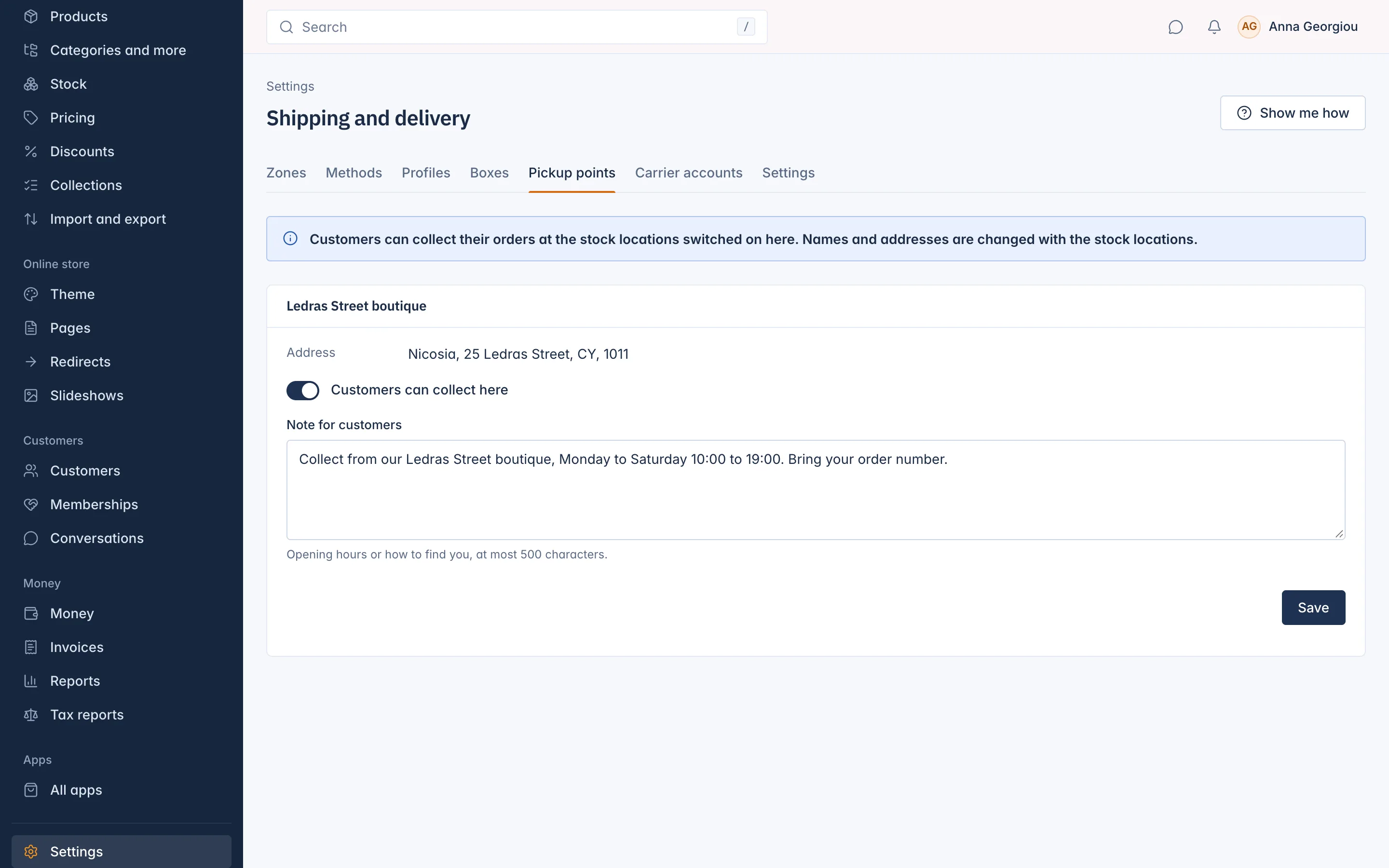
- Go to Settings > Shipping and open the Pickup points tab.
- Switch on Customers can collect here for each location customers may visit.
- Type a Note for customers: "Opening hours or how to find you, at most 500 characters." For example "Mon to Sat 10:00 to 19:00, ring the bell at the side door."
- Save. You see the location's name followed by "saved."
Add a Pickup method
A pickup point is only offered through a method of the type Pickup.
- Open the Methods tab and press Add method.
- Name it, for example "Collect from our shop".
- Choose the Zone. Usually Every zone, or only the zone of your own country.
- Choose the Type Pickup. The price is always Free.
- Save.
At checkout the customer sees one option for each pickup point, with its name, address and your note. Without any location switched on, the method offers one option: collecting at the ship-from address of the profile.
Pay on pickup
To let customers pay when they collect, switch on Pay on pickup in Settings > Payments, under the offline methods. It is offered only when everything in the order is collected, that is when the customer picked a Pickup option. The customer is told to pay when collecting, quoting the order number. Payment methods are covered in the Money and tax section.
Hand over a pickup order
- The order is paid: online at checkout, or at the counter. For Pay on pickup, press Mark as paid when the customer pays.
- Prepare the order and press Ready for pickup on the order's Items card. The customer gets an e-mail that the order is ready, with the pickup point.
- When the customer has collected it, press Mark as delivered.
Details are in Ship an order and add tracking and Confirm bank transfer and pay on pickup payments.
Related
Updated 13 November 2026