
Set up shipping
The quick way to set up shipping rates: one zone for your country, one flat price method, and free shipping over an order value.
In the admin: SettingsShipping
Customers can only check out when a shipping method covers their address. This quick guide sets up the simplest working shipping: one zone for your own country, one delivery method with a flat price, and free delivery over an amount you choose. Weight-based rates, pickup points, carrier accounts and labels are covered in Orders and delivery.
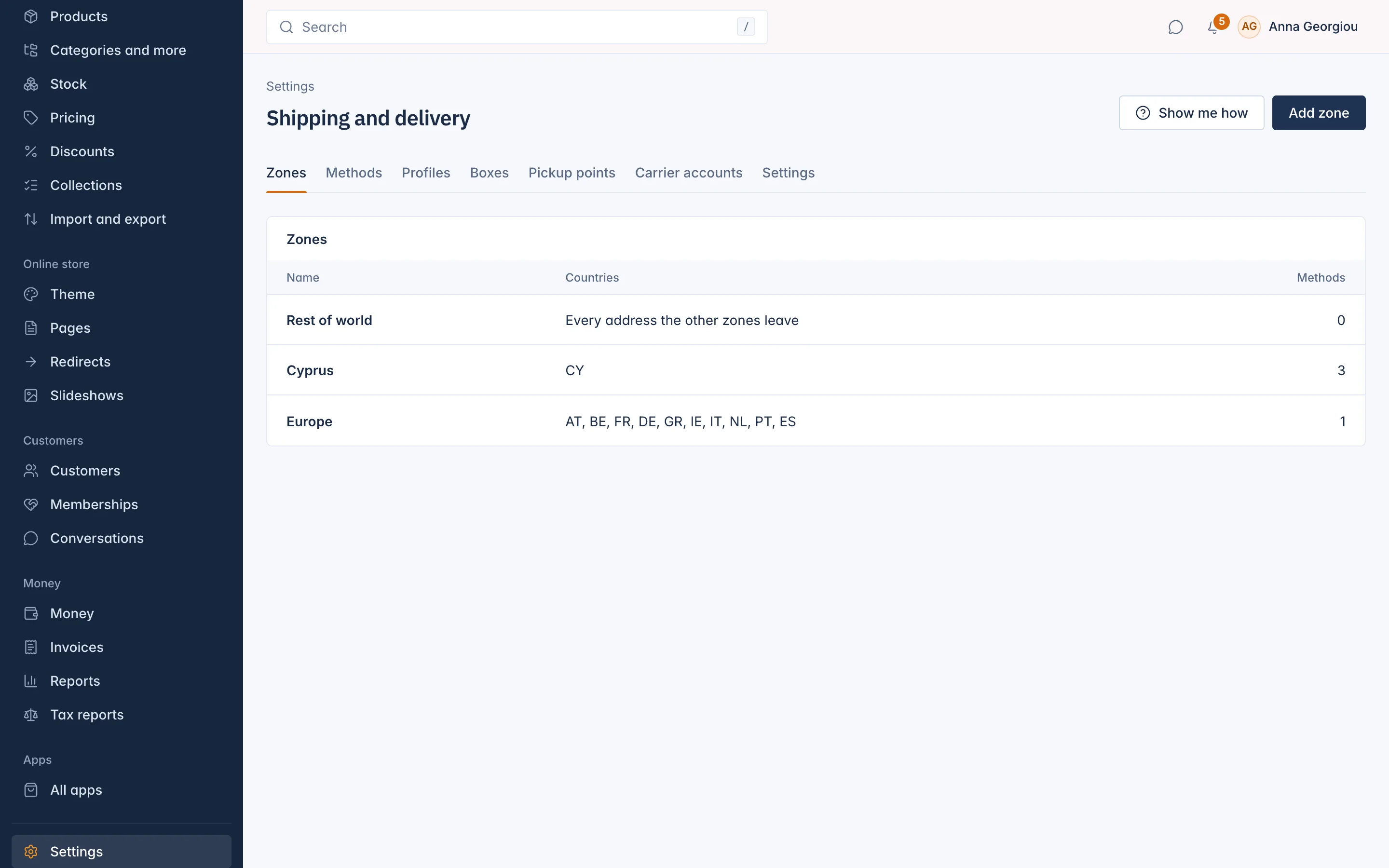
Open Settings > Shipping. The page is called Shipping and delivery and has the tabs Zones, Methods, Profiles, Boxes, Pickup points, Carrier accounts and Settings. For a first set-up you need only the first two.
1. Add a zone
A zone is a group of countries with the same delivery prices. Start with your own country; add more zones later only where prices differ.
- On the Zones tab, press Add zone.
- Type a Name for your own reference, for example "Greece".
- Under Countries, pick the countries this zone covers.
- Save.
The list also has a default zone, shown as Every address the other zones leave. It holds no countries of its own: it catches every address no other zone covers. Give it a method only if you deliver everywhere.
2. Add a method
Methods are the delivery choices customers see at checkout.
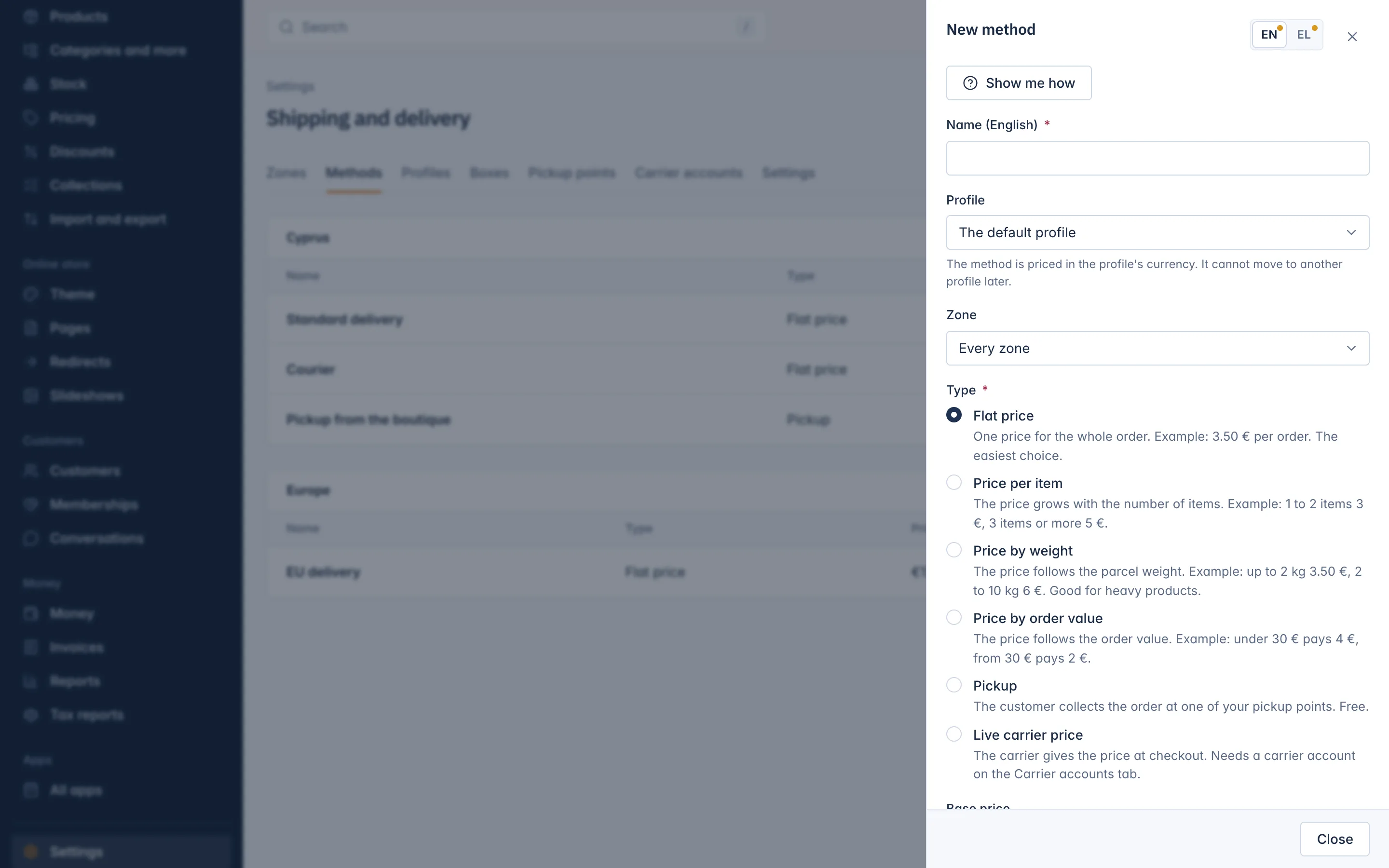
- On the Methods tab, press Add method.
Fill in:
- Name: what customers see, for example "Courier".
- Zone: the zone you just made. Every zone offers the method to all addresses.
- Type: Flat price is the easiest, one price for the whole order.
- Base price: the delivery price, for example 3.50.
- Free over: orders above this amount ship free, for example 50. Leave it empty if delivery is never free.
- Delivery days from and Delivery days to: shown at checkout, for example 1 to 3 days.
- Offered at checkout: leave it on.
- Save.
That is all a first order needs. Check it by putting a product in the cart in your shop and going to checkout with an address in your zone.
Other method types
When one flat price does not fit, choose another Type. Each shows an example in the drawer:
- Price per item: the price grows with the number of items.
- Price by weight: the price follows the parcel weight, in Price bands. Give your products a weight for this.
- Price by order value: the price follows the order total.
- Pickup: the customer collects the order at one of your pickup points, for free. Switch on a pickup point on the Pickup points tab first. Pay on pickup needs this.
- Live carrier price: the carrier gives the price at checkout. Needs a carrier account.
When no method fits
On the Settings tab, the setting When no shipping method fits an address: block the checkout, or show a "contact us" note decides what customers see: Stop the checkout (the default and the safest, the customer sees "These items cannot be delivered to this address.") or Show a "contact us" note, so you can quote shipping by hand.
The same tab has How you deliver. If you never charge for delivery at checkout, for example because you deliver locally yourself, choose We arrange delivery ourselves (no shipping methods or costs). Pickup points and pay on pickup are then not offered.
The Set up your shop card ticks Delivery off once you have a zone with at least one method.
Related
Updated 13 November 2026