
Add custom CSS
Add your own CSS for changes the settings cannot make: where it applies, the 50 KB limit, what is removed and which class names are stable.
In the admin: Online storeThemeCustomiseCustom CSS
On this page
Custom CSS lets you change details of your shop's look that the editor's settings do not cover, such as the size of a heading or the spacing of the footer. You need to know some CSS to use it. If you only want different colours, fonts or buttons, use Styles instead, see Change colours, fonts and buttons.
Add your CSS
- Go to Online store > Theme and press Customise.
- Click the Custom CSS tab.
- Type or paste your CSS in the CSS box.
- Press Save CSS.
- Check the result in the preview, then press Publish to put it live.
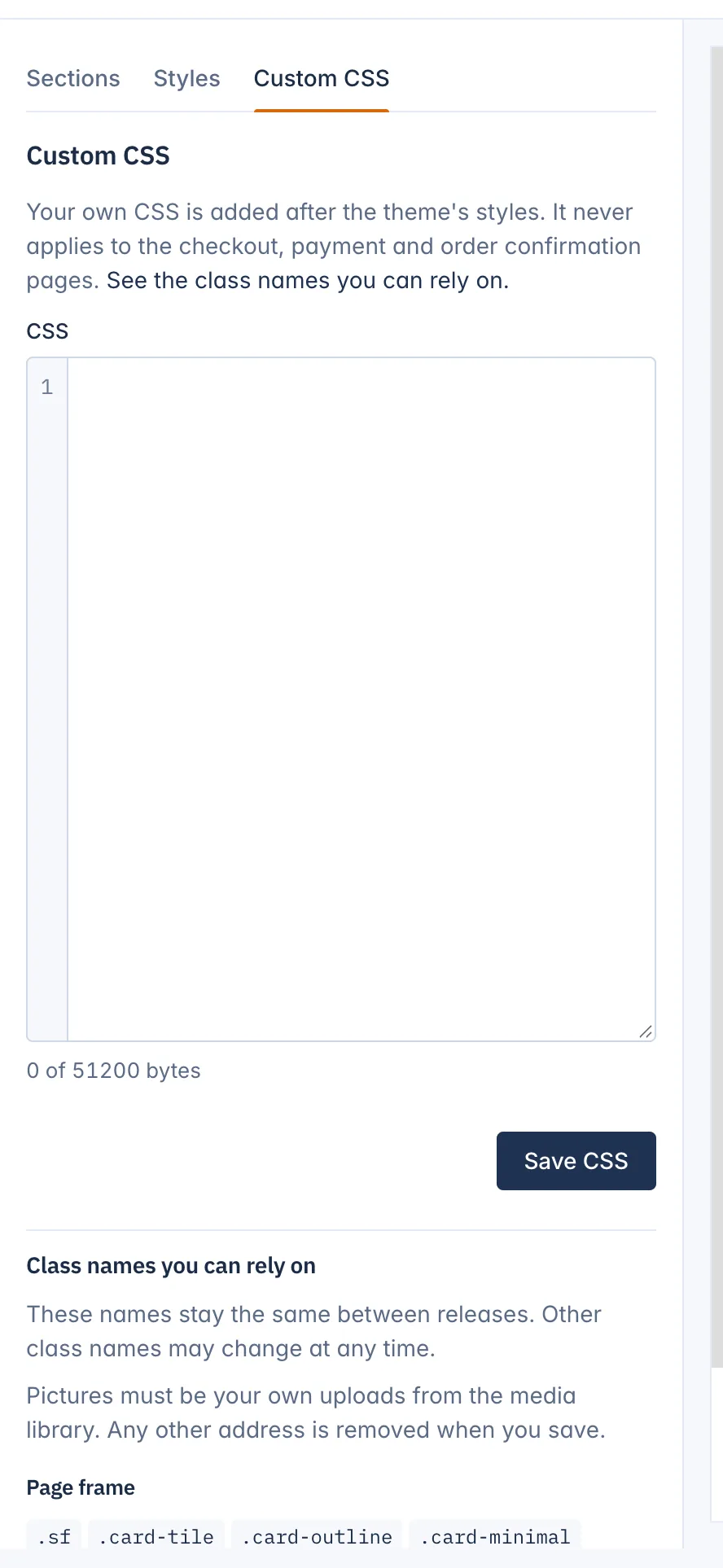
Unlike the rest of the editor, custom CSS does not save itself as you type. It saves when you press Save CSS, and like everything else it goes into your draft. The message The CSS is saved in your draft. Publish to show it in your shop. confirms it.
Where your CSS applies
Your CSS is added after the theme's own styles, so your rules win when they are equally specific. It applies to every page of your shop except the checkout, payment and order confirmation pages, which always keep their own simple look. That way a mistake in your CSS can never stop a customer from paying.
When you switch to another theme, your custom CSS is reset with the rest of the design. Copy it somewhere first if you want to keep it.
Limits and safety rules
- The CSS can be up to 50 KB. The counter under the box shows how much you have used, for example 0 of 51200 bytes.
- If a bracket, string or comment is not closed, the CSS is not saved and the message names the line, for example Line 12: a bracket, string or comment is not closed.
For your customers' safety, some things are removed when you save. The rest of your CSS is kept exactly as you typed it.
@importrules.expression(,javascript:and</.- Pictures from other websites. A
url()must point to a file you uploaded to your shop. Any other address is removed, together with the whole declaration it is in, such asbackground: url(...).
If a removed part sits in a selector, the whole rule is removed. So if a rule seems to have vanished after saving, check it for one of these.
Class names you can rely on
Under the CSS box, Class names you can rely on lists the class names that stay the same between releases. They are grouped as Page frame, Header, Footer, Sections, Product cards, Buttons and Prices. Most start with sf-, for example .sf-hdr for the header, .sf-card for a product card and .sf-btn for a button.
Use only these names in your CSS. Other class names in the shop's code may change in any update, and CSS that uses them could stop working.
A small example that makes product titles on cards bold:
.sf-card-title {
  font-weight: 700;
}Related
Updated 13 November 2026