
Find and manage your products
Search, filter and sort the products list, see stock and prices at a glance, and change many products at once with bulk actions.
In the admin: CatalogProducts
The products list is where every product of your shop lives: drafts you are still working on, products on sale and archived ones. Use it to find a product fast, check its status, stock and price, and change many products in one go with bulk actions.
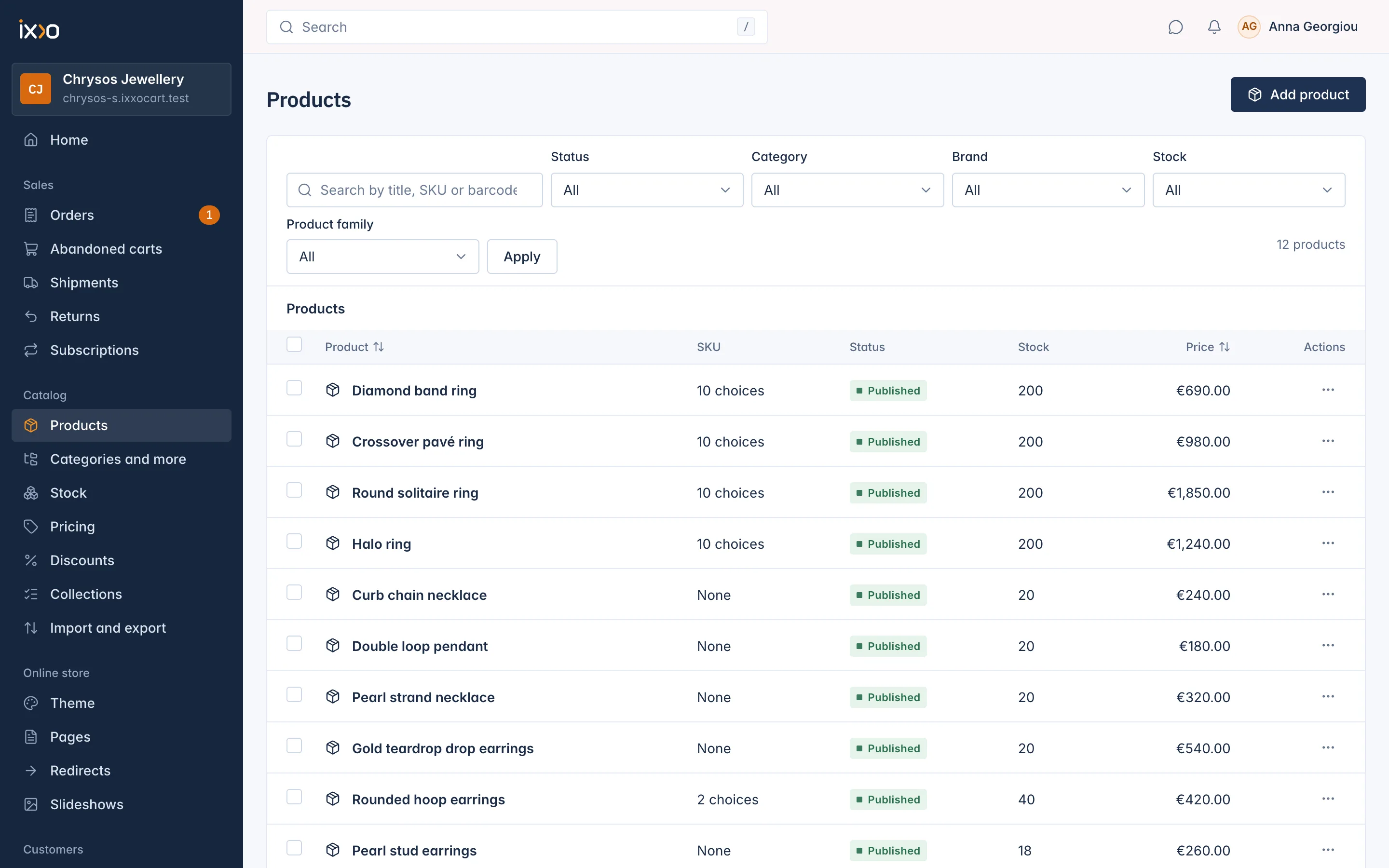
What each column shows
| Column | What it tells you |
|---|---|
| Product | The photo and title. Click the title to open the product. A product in a product family also shows a Family: name tag, and Main product on the main one. |
| SKU | The product's SKU, or None. A product with combinations shows how many it has, such as 10 choices. |
| Status | Draft, Published or Archived. |
| Stock | Units ready to sell, with a Low stock or Out of stock tag when it applies. A product that does not count stock says Not tracked. |
| Price | The price, or From the lowest to the highest price when combinations have different prices. No price means no price is set yet. |
| Actions | The row menu (see below). |
The list shows 25 products a page, newest changes first. Click the Product or Price heading to sort by title or price instead.
Search and filter
Type in Search by title, SKU or barcode to find a product by its title, its SKU or its GTIN barcode. Then narrow the list with the filters and press Apply:
- Status: Draft, Published or Archived.
- Category and Brand: products in one category or of one brand.
- Stock: In stock, Low stock or Out of stock.
- Product family: In a product family shows every product that belongs to a family; Main products only shows just the main product of each family.
The number of matching products shows on the right. When nothing matches, Clear filters brings the full list back.
The row menu
The ... button at the end of each row offers:
- Edit: opens the product editor.
- Duplicate: makes a draft copy of the product.
- View in shop: opens the product page in your shop. Shown for published products only.
- Archive: takes the product off sale. Not shown for a product that is already archived.
Change many products at once
Tick the box in front of each product you want to change, or tick the box in the header to select every product on the page. A dark bar opens above the table with the actions you are allowed to use:
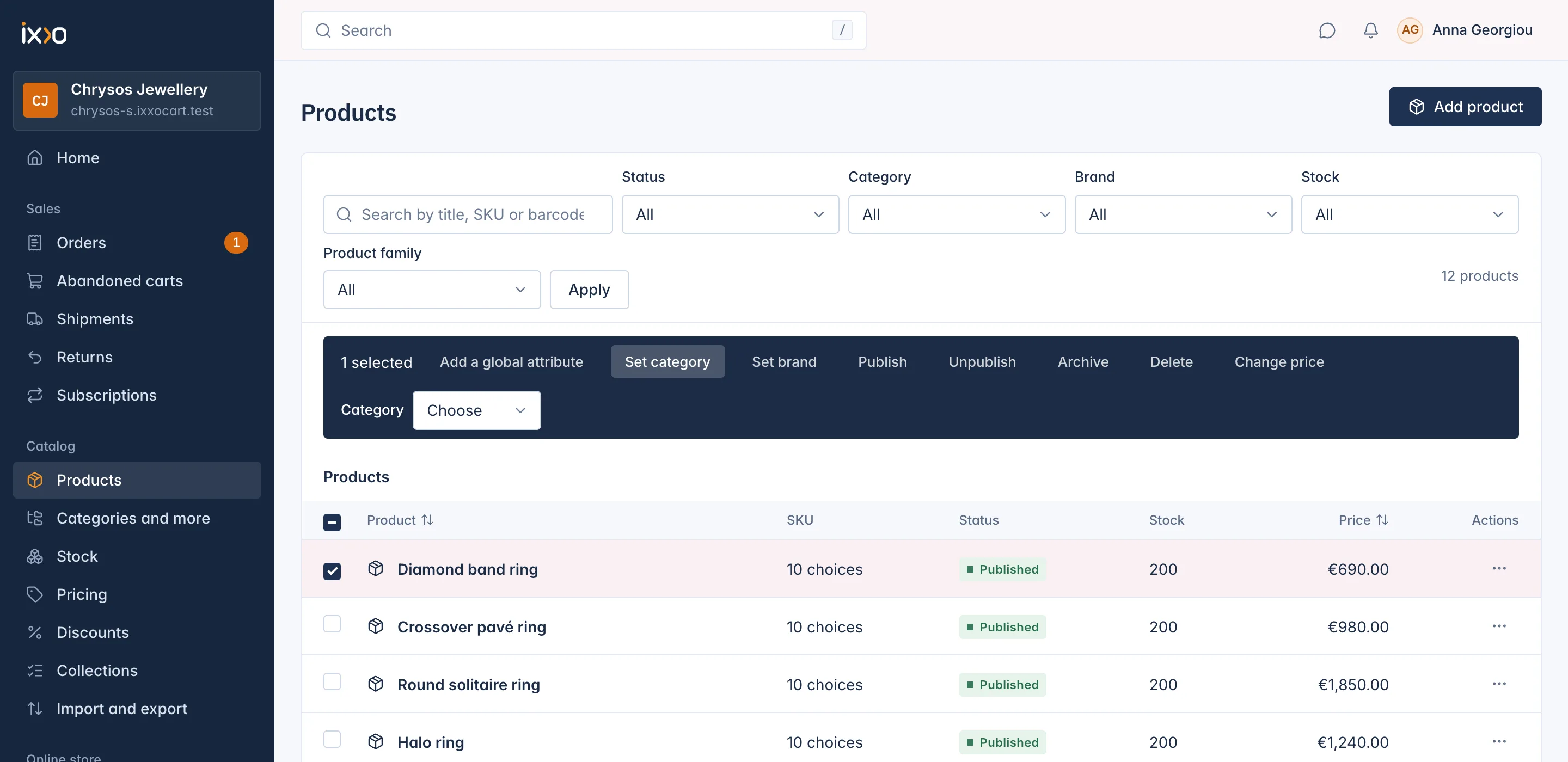
| Action | What it does |
|---|---|
| Add a global attribute | Adds one of your global attributes to every selected product. Choose it in Global attribute first. |
| Set category | Adds the category you choose to each product and makes it the product's main category. The product keeps its other categories. |
| Set brand | Gives every selected product the brand you choose. |
| Publish | Puts drafts on sale. A product that still misses something it needs is skipped. |
| Unpublish | Turns published products back into drafts. |
| Archive | Takes the products off sale and out of every list in the shop. |
| Delete | Deletes archived products for good. |
| Change price | Opens the Pricing screen with the selected products, where you set the new prices. |
For the actions that need a value (Add a global attribute, Set category, Set brand), click the action, choose the value in the field that appears, then click the action again to run it.
You can change at most 100 products at a time. When the run is done, a message says how many products were changed and how many were refused, with the reason for each refused product, for example:
- "Not published yet, as a title, a price or another detail it needs is missing. Open the product to see what."
- "Archive it before deleting it."
- "It was ordered, so it stays archived and is not deleted."
- "Not archived, as it is the main product of a product family."
The other products still change when one is refused.
Related
Updated 13 November 2026