
How the product editor works
The six tabs of the product editor, what Save and Discard change, which parts save on their own, and the actions in the header.
In the admin: CatalogProductsAdd product
On this page
The product editor is the one page where you create and change a product. It splits the product into six tabs, so a simple product needs only a title and a price, while the other tabs wait until you need them. This article explains how the page works: how saving works, what each tab is for and what the buttons in the header do.
Create a product
- Go to Catalog > Products and click Add product.
- If your role may choose it, pick the Product type first. Most products are a Physical product. See Product types and digital downloads.
- Type the Title. It is the only required field.
- Click Create product.
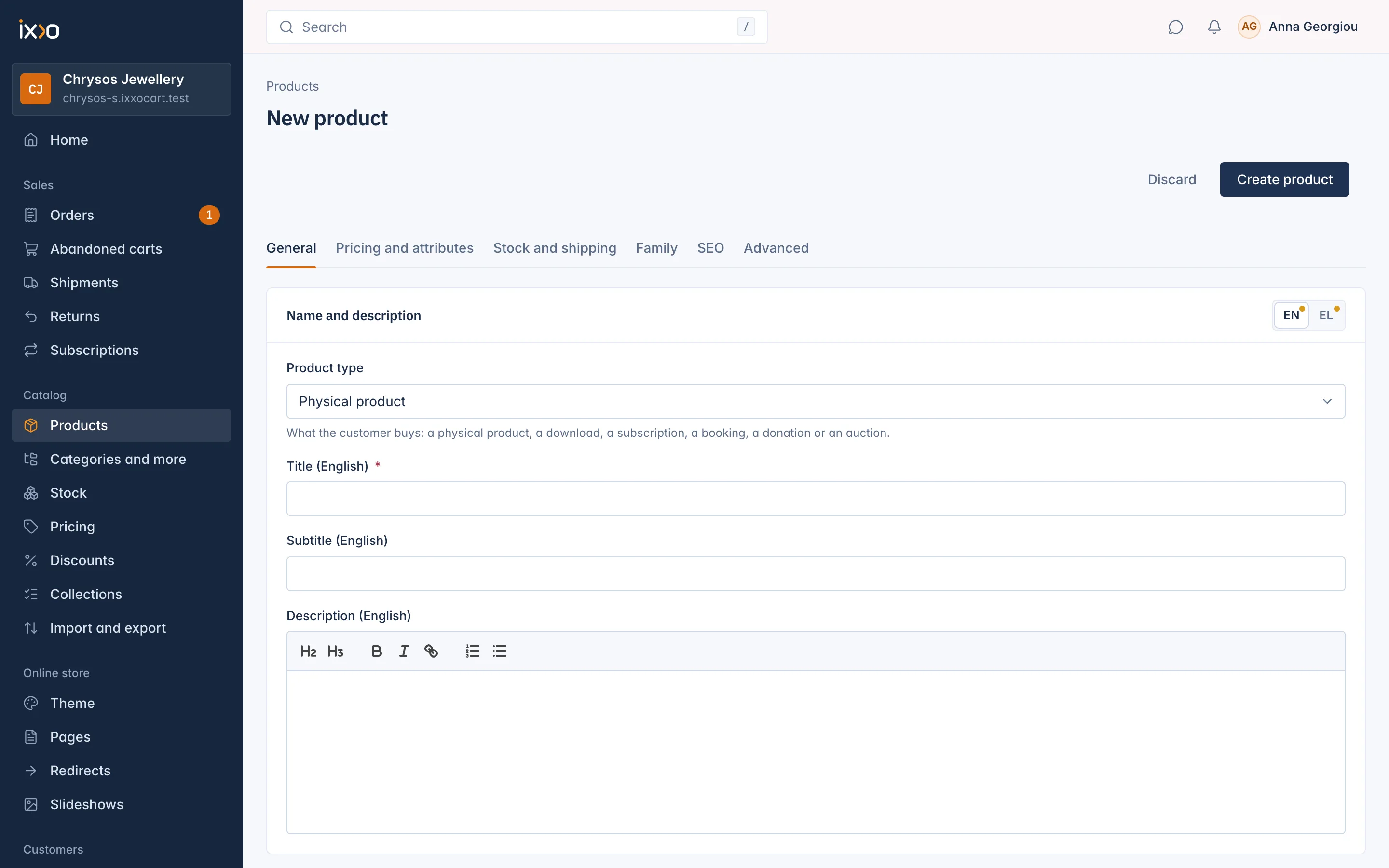
The product is saved as a Draft and the editor opens on Pricing and attributes with the message "Product created. Now set its price." Nothing shows in your shop until you publish it.
Photos, product tabs, attributes, stock and downloads need a saved product. Before the first save, those parts say "Save the product first".
The six tabs
| Tab | What you set there |
|---|---|
| General | Title, subtitle and description in each language, product tabs, photos, categories, brand, tags, condition, visibility and When it shows. See Product titles, photos and categories. |
| Pricing and attributes | Price, compare-at price, cost price, SKU, GTIN and MPN; attributes such as sizes and colours; the combinations table. See Set a product's price, SKU and barcode and Add sizes, colours and other attributes. |
| Stock and shipping | Track stock, backorders, low stock warning, stock per location, weight and size. See Product stock, weight and size. |
| Family | Join separate products under one main product with a switcher. See Product families. |
| SEO | The product's address and its title and description in search results. See Product address and search engine texts. |
| Advanced | Product type, tax, custom fields, related products, collections and downloads. See Product types and digital downloads and Custom fields. |
When a save is refused, the tab with the problem gets a small dot, and the message names the tab with an Open button that takes you there.
Save, Discard and the parts that save on their own
Most fields belong to one form for the whole page. Change as many fields as you like on any tab, then click Save at the top. Only the fields you changed are written. Discard throws away the changes you have not saved yet.
Some parts are forms of their own and save the moment you use them, without Save:
- photos (Save photos),
- product tabs (Add tab, Save tab, Move up, Move down, Remove),
- attributes, their choices and Build combinations,
- the combinations table (Save combinations),
- stock per location (each row has its own Save),
- the family steps on the Family tab,
- downloads (Add download, Remove).
The header actions
The header shows the product's status badge and its actions:
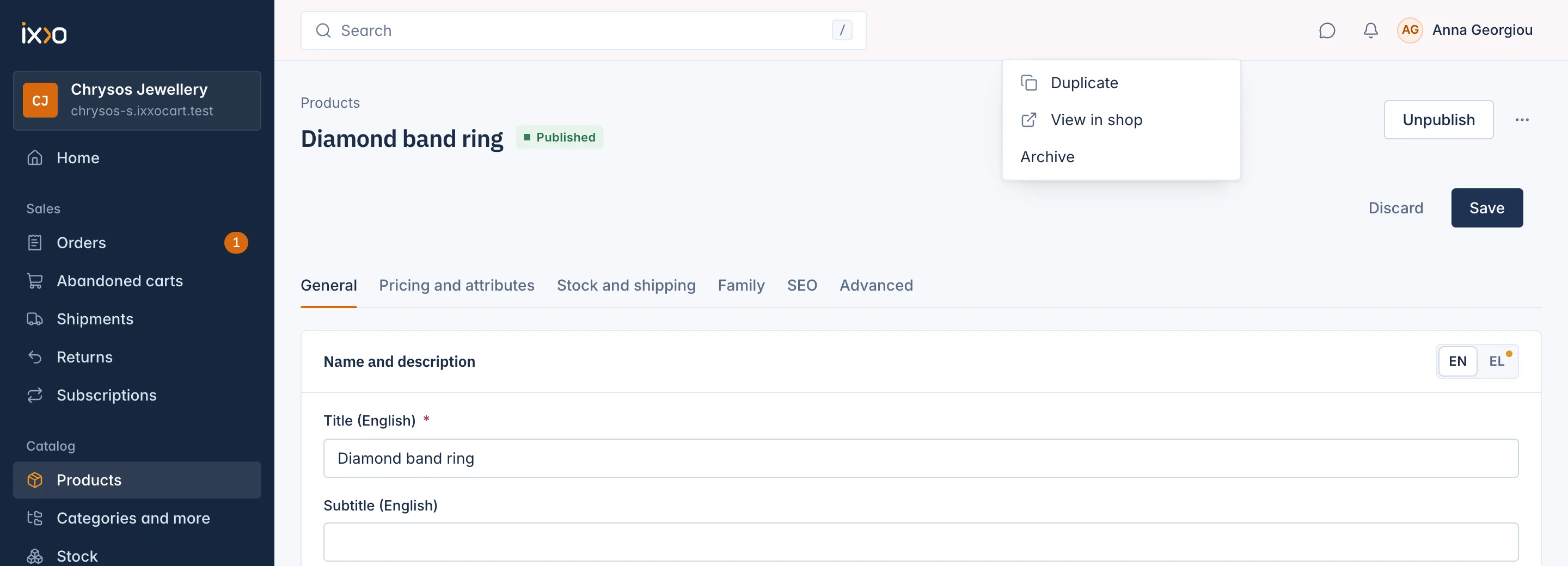
- Publish (on a draft or archived product) puts it on sale.
- Unpublish (on a published product) turns it back into a draft.
- More opens Duplicate, View in shop (published products only), Archive and, on an archived product, Delete.
Each action works at once; Archive and Delete ask you to confirm first. When a product cannot be published yet, the editor lists what is missing above the tabs, each problem with a button to its tab. See Publish, schedule, archive and delete products.
Languages
When your shop has more than one language, the cards with texts show a language switch (for example EN and EL). A dot on a language means its texts are not filled in yet. Only the shop's main language is required; a field left empty in another language shows the main language's text in the shop.
View only
Staff whose role may see products but not change them get the same page without Save: "You can view this product but not change it."
Related
Updated 13 November 2026