
Low stock, out of stock and backorders
Get warned when stock runs low, decide what happens when a product sells out, sell on backorder, and how customers hear a product is back in stock.
In the admin: CatalogProductsStock and shipping
On this page
Three settings on each product decide what happens as stock runs down: whether stock is counted at all, when it counts as low, and whether customers may still order when none is left. This article explains each one, the warnings you get, and what customers see.
The three stock rules
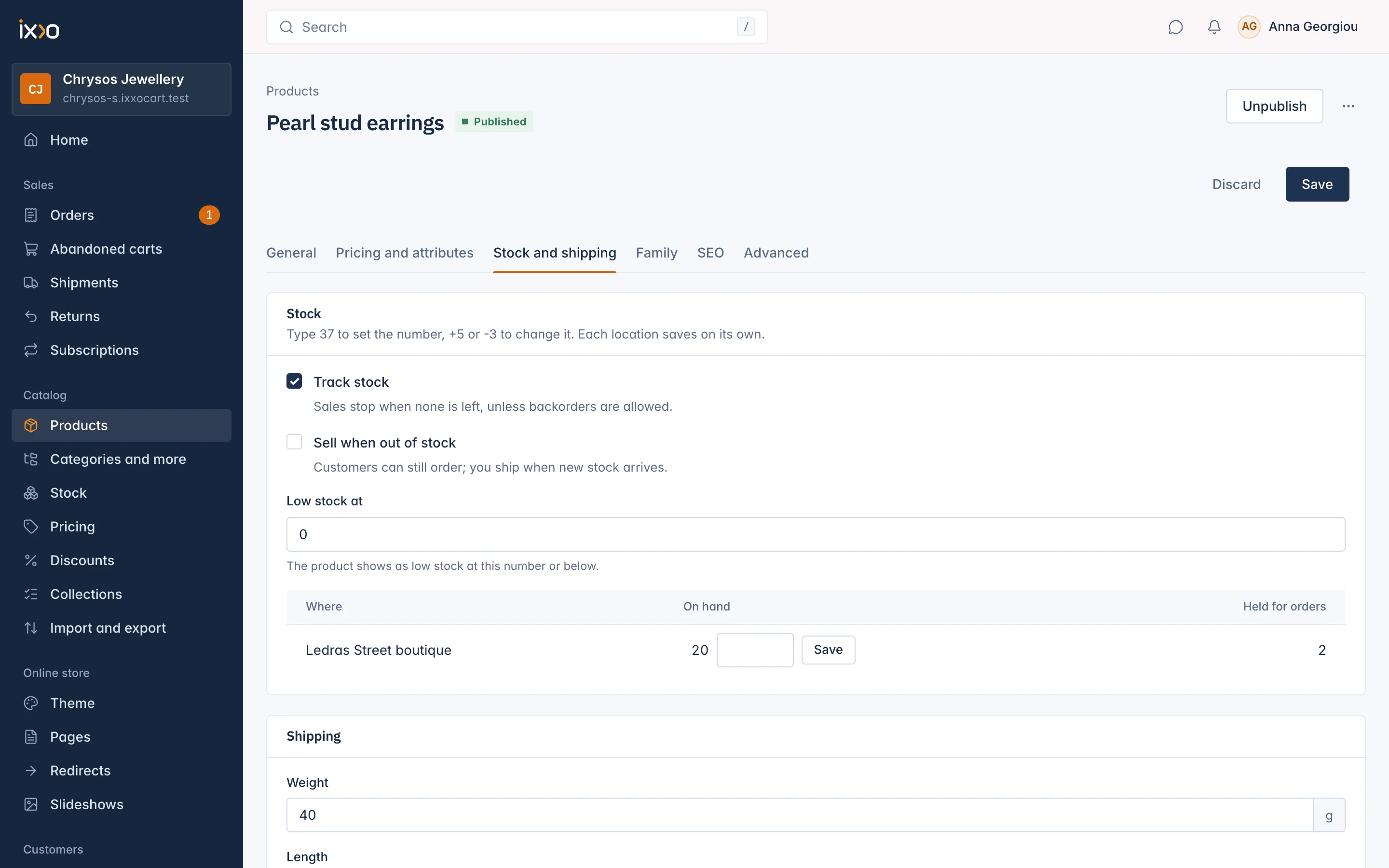
Open the product, then the Stock and shipping tab. In the Stock card:
- Track stock: "Sales stop when none is left, unless backorders are allowed." Untick it for goods you never run out of. The two settings below only show while it is ticked.
- Sell when out of stock: "Customers can still order; you ship when new stock arrives." This is selling on backorder.
- Low stock at: "The product shows as low stock at this number or below." Leave it at 0 for no low-stock warning.
Click Save at the top of the product to keep the change.
Products with combinations
A product with combinations (for example sizes with their own stock and SKU) keeps these rules per combination, so the product page does not show them. To change them:
- Track stock: tick the rows on the Stock screen and use the bulk action Track stock (see Change stock levels).
- Track stock and Sell when out of stock: use the
track_inventoryandallow_backordercolumns of a prices and stock file (see Update prices and stock from a file).
How the stock state is worked out
The Stock column on the Stock screen gives every variant one state, from its available number (on hand minus reserved):
| State | When |
|---|---|
| Not counted | Track stock is off. |
| Out of stock | Nothing is available. |
| Out, sells on backorder | Nothing is available, but Sell when out of stock is on. |
| Low | Something is available, and it is at or below Low stock at. |
| In stock | Anything else. |
Filter the Stock screen by Low or Out of stock to see what to reorder.
Warnings when stock runs low
You hear about low stock in three places:
- Home: a card says how many published products are low on stock, with a button Open Stock that opens the list filtered to low. A product counts once, however many of its variants are low.
- The bell: the notifications Low stock ("Low stock: product name (3 left)") and Out of stock arrive once each time a variant crosses the line, not every time it sells.
- E-mail: off by default. Each staff member can switch these two notifications to e-mail under Settings > Your notifications (see Settings).
The notifications go to staff who may adjust stock.
Selling on backorder
With Sell when out of stock on, the product keeps selling when it reaches zero. The product page then says "Available to pre-order. It ships when it is back in stock." Stock can go below zero: a count of -2 means you owe two customers a unit. When you receive goods, add them with + on the Stock screen so the count catches up.
A variant on backorder is also the one case where you may take away stock that is held for orders.
What customers see
On the product page, under the buy button:
- In stock: "In stock". With Show customers how many units are left switched on under Settings > Stock, the number left is shown instead, such as "4 in stock".
- Low: "Only a few left".
- Out of stock without backorders: "This product is out of stock." and it cannot be added to the cart.
- On backorder: the pre-order sentence above.
A customer who asks for more than is available is told how many are left and asked to lower the quantity.
Back in stock e-mails
Customers with an account can save products to a wishlist. When a product on a wishlist could not be bought and can be bought again, the shop sends that customer an e-mail, once per return to stock. The check runs every hour, and one e-mail lists every item that changed.
These alerts go only to customers whose e-mail address is confirmed and who keep the switch "Tell me when a product on my wishlists is back in stock." on in their account (it is on by default). Each e-mail has a link to stop the alerts. The same e-mail also tells customers about price drops.
Related
Updated 13 November 2026