
Shop the look
The Shop the look app puts dots on a styled photo, so shoppers can tap each product in it and add the whole look to the cart.
In the admin: AppsShop the look
On this page
Shop the look sells a photo: an outfit, a styled table, a room. You upload the picture and place a dot on each product in it. In your shop, shoppers tap a dot to see the product and add it to the cart, or add the whole look at once. It works well on the home page, on collection pages and next to a lookbook.
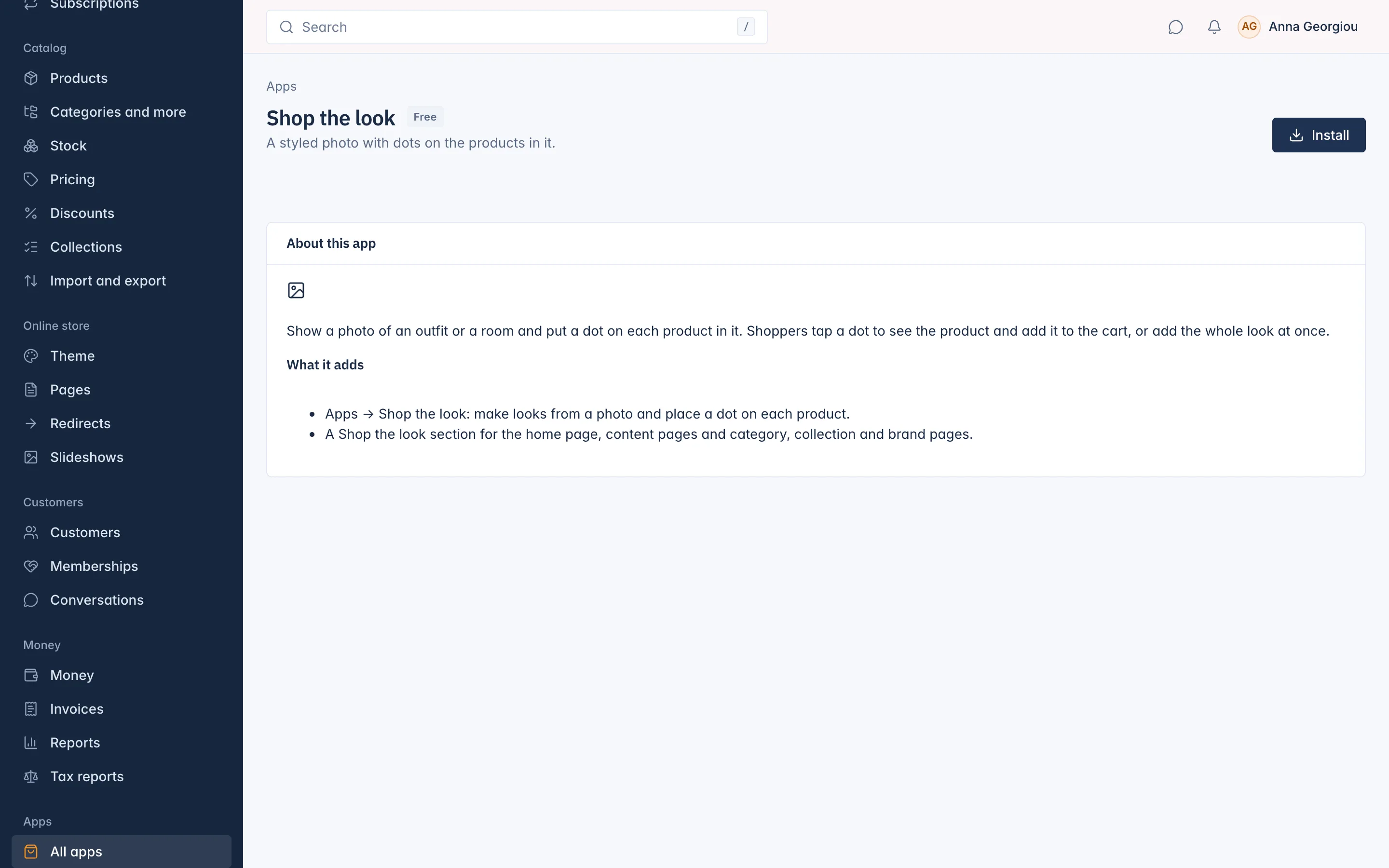
Install the app
Shop the look is a free app.
- Go to Apps > All apps and open Shop the look.
- Click Install.
The app adds Shop the look under Apps in the menu, and a Shop the look section for your theme. See Apps and AI.
Make a look
- Go to Apps > Shop the look and click New look.
- Type a Name. "Only you see it, when you pick the look in the section editor." At most 120 characters.
- Choose the Picture: "A JPEG, PNG or WebP photo. It goes into your media library."
- Leave the Status on Draft for now.
- Click Save. "Look created. Now place the dots on the picture."
Place the dots
- Click the picture where a product is. A dot appears.
- Under the dot's number, search the Product by name or SKU.
- For a product with sizes or colours, choose the Fixed choice, "The size or colour this dot always adds", or keep Any, the shopper chooses.
- Add the other dots the same way. Drag a dot to move it. Remove this dot takes it off.
- Set the Status to Published and click Save.
A look holds up to 30 dots.
To change the photo later, upload another Picture. "The dots keep their places", so use a photo with the same framing.
Show a look in your shop
Looks show through the Shop the look section. Add it in the theme editor to the home page, a content page, or a category, collection or brand page, and set:
- Heading,
- Looks: up to six published looks,
- Show the Add all to cart button: lets shoppers add every product of the look at once.
A Draft look is "Not shown in the shop yet." See Online store for the theme editor.
When a shopper adds the whole look, a product that is sold out, or that needs a size chosen on its own page, is skipped and the shopper is told why.
The list
Apps > Shop the look lists each look with its Picture, Name, number of Products and Status.
Delete a look
Open it and click Delete look. "The look and its dots are deleted. This cannot be undone." The picture stays in your media library, and a section that showed this look shows it no more.
Related
Updated 13 November 2026